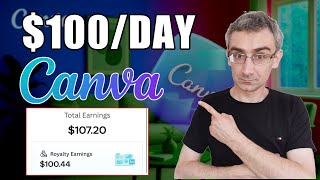

Easy Money with Canva & ChatGPT
43sHighlights a simple money-making method for beginners using free tools.
▶ Play Clip"Promises $100 per day but only shows potential earnings; requires significant time and effort to create and market."
The video demonstrates a step-by-step method to create and sell interactive PDF challenge games using Canva and ChatGPT, targeting beginners looking to make money online.
Ask ChatGPT to generate ideas for interactive PDF games, such as a 30-day challenge game, which are popular because they keep users motivated.
Challenges like weight loss, dog training, or learning new skills are popular because they provide daily tasks and maintain motivation over 30 days.
Request a full script for the challenge game, including daily tasks, mini-challenges, and a badge system; iterate if needed to cover all 30 days.
Create a new design in Canva with A4 size (2480x3508 pixels) and choose a template that fits the niche, e.g., healthy food for a weight loss challenge.
Add the challenge title, welcome text, and a 'Start the Game' button; link the button to the second page using Canva's link feature.
For each day, add a description, background image, text effects for visibility, and navigation buttons; add badge pages after every 7 days for extra motivation.
Download the design as a PDF standard file; sell the interactive PDF on Gumroad or Etsy, where similar challenges have generated thousands of dollars in sales.
Examples show sellers earning over $29,000 and $65,000 from challenge sales; the creator claims it takes about one hour to create a challenge.
By combining ChatGPT for content generation and Canva for design, beginners can create interactive PDF challenge games and sell them on platforms like Etsy for significant income.
What type of PDF game does the video recommend creating?
Interactive PDF challenge games, such as a 30-day challenge.
00:17
How do you get ideas for the game?
Ask ChatGPT to generate ideas by prompting 'give me ideas for interactive PDF game'.
00:17
What size should the Canva design be?
A4 size: 2480 x 3508 pixels.
04:27
How do you link pages in Canva?
Right-click on a button, choose 'Link', then select the target page.
08:58
What feature keeps users motivated to complete all days?
Badge pages after every 7 days; users must collect all badges, or restart from the missed day.
12:29
Why Challenges Sell
Explains psychological motivation behind daily challenges, making them high-demand digital products.
01:20Using ChatGPT for Full Script
Demonstrates how AI can generate complete content, reducing manual work for creators.
02:31Linking Pages in Canva
Crucial technical step to make the PDF interactive; shows the linking feature.
08:58Earning Examples
Provides concrete revenue numbers from Etsy sellers, showing real-world potential.
14:47[00:02] going to show you an easy way to make money with Canva and we are going to use Jet GPT to give us everything we need including stepbystep instructions. So if you are a beginner, this might be a good way for you to start making money
[00:17] online. So first thing you need to do, you need to come here on chat GPT and you need to ask it, give me ideas for interactive PDF game. You will see later why we need interactive PDF game. Okay. And then press enter. And now chat GPT
[00:34] will give you some ideas for interactive PDF games that you can actually create in Canva. And here you can see it is already making some ideas. Okay. For example, here you can see 30-day challenge game fitness and lifestyle.
[00:50] Now I like that challenges are really really good. People like challenges. Why? because it actually motivates them because it keeps them motivated. These small challenges keep them motivated towards their goal. They have a small
[01:06] challenge every day and if they accomplish the challenge, they will continue. It will actually they will stay motivated to continue. Okay? And that is why people like challenges because it helps them and challenges are
[01:20] selling very very well. And you can make challenges for weight loss, for dog training, for learning new skills and so on and so on. And if you have a small challenge every day and then a slightly bigger challenge every week, it will
[01:34] keep you motivated to go on. Okay? And after 30 days, you will see where you where you've been 30 days ago and where you are now. So you will see that you actually went a long way in just 30 days. And these challenges help you to
[01:49] stay motivated. That is why people like challenges. Okay. So, like I said, 30-day challenge game for for fitness and lifestyle. Okay. So, I can give it a
[02:01] new prompt. I can say something like this. Can you give me more details about this game? 30-day weight loss game. Click to unlock deal daily tasks mini challenges and badge system. And press enter. And now chat GPT will give me
[02:16] more details. As you can see here, constant. it will give me a concept for this game and I can study this concept so I can actually develop more details about this game but I don't really need to do that I can also ask Chad GPT to
[02:31] write me a full script on how to make this game okay so I can say something this game okay so I can say something like this please write a full script and then press enter and now chat GPT will write a full script for this challenge
[02:45] game okay here you can see it is writing a full script script and also if you don't know how to make this in Canva, don't worry. You can ask chat GPT to give you full instructions on how to make this in in Canva. Okay, here you
[03:01] can see it is already finishing this game. So for example, I can ask it something like this. Can you show me examples of badge pages and completion page? Okay. And then press enter. And now Chad GPT will do exactly that. Here
[03:16] you can see it is describing badge page. how badge page will actually need to look. Here you can see examples, three examples. Here you can see completion page, how completion page should look. Okay. And when we go back here, we will
[03:30] see that Chad GPT actually didn't wrote a full script. Here you can see only there are six six pages but I need a full script. So I can say something like this. Okay. I can say please write a full script for entire game. Sometimes
[03:47] that happens. Okay. So you need to be more specific. And now CH GPT will cover all 30 days. Here you can see this is the page one. Page two. Okay. Here you
[04:00] can see entire week one, day one, day two and so on and so on. And I can even ask chat GPT to give me more details for each of these days. Okay. Here you can see 30 days. I can say give me more details.
[04:15] Okay. And here JG GPT will give me more details. Here you can see more details and later you will see it will give me more details about each day. Okay. So
[04:27] now what we need to do we actually need to go on Canva and then here we need to choose custom size and we need to choose A4 format. Now if you don't know the
[04:39] size of H4 format you can simply go here on Google. You can search A4 size in pixels. Okay. And then here you will see the exact size in pixels of A4 format.
[04:52] So I will simply use these dimensions. Okay. And now create a new design. And Okay. And now create a new design. And now I will create a new design. So now what I need to do I actually need to use template. So I will go here on
[05:07] templates. And then here I will choose templates that suits the best for my niche. Okay, so let me just find the right category. Okay, let's say for right category. Okay, let's say for example food and let's just find okay
[05:22] healthy food. Now that makes sense because we are making weight loss challenge game. Okay, so let's just choose one of these templates. Okay, so let's say for example I wish to use this template here. Okay, so now I need to
[05:36] change everything here. So I can simply go back here on chat GPT and I can copy the title of this challenge game. So let me just scroll back here on top. Okay, so I need to go back here and I need to doubleclick here and this is the name of
[05:53] my challenge. Okay, here I will actually make this a bit smaller and I'm going to drag it like this. Okay, and move it here. 30-day weight loss challenge. Now this is my game. Okay. Name of my challenge. So now I need to go back here
[06:10] on chat GPT and I can see further instructions. Here you can see 30-day weight loss game. I change that to be weight loss challenge. Okay. Welcome text. Okay. Here you can see I need to add a welcome text. And I simply need to
[06:25] copy this. Okay. Because this is my welcome text. Okay. So, I will go back here and then here I will delete this because I don't need that. I'm going to delete this and this. Okay. And I'm going to paste that text here. Okay. I'm
[06:42] going to make this wider. Something like this. Okay. Now, you will make this better than I did. I'm just making this to show you how this works. Okay. And I'm going to delete this part here. Okay. And this is how this looks. Okay.
[06:59] And I'm going to delete this. And I'm going to delete this and this. And I'm going to add a second part of this text here. Okay. So I will delete this part here. Okay. So I will delete this part here. Okay. And now I will simply move
[07:13] that here. So this is how this looks. And I'm going to delete this and this and this. Okay. And I'm going to delete this.
[07:28] this is not all. What I need to do, I need to go here on elements and I need to go here on shapes and I need to find a button shape. So for example, let's
[07:41] just say I will use this one here. I will move it here. Okay? And I'm going will move it here. Okay? And I'm going to make it like this. Okay? And like this. And I'm going to move it here. Okay? And I'm going to change the
[07:55] color of this button to be let's say for example something like okay that is not the best. Let's say something like this. Okay. And now I need to go here on T for text. And then I will click choose this
[08:09] text. And then I will click choose this one here. And here I will type start the one here. And here I will type start the game. Okay. And I'm going to make this smaller. And I'm going to move it here and make it a bit more bit more smaller.
[08:27] Okay, obviously because I need and a bit larger. This is too small. So I will move it here. Okay, this is how this looks. But now I need to create another page. So I will simply click
[08:43] here and you can create this page from the scratch. Okay, you can add new graphics if you want or if you don't want you can leave it like this. Okay, so now I need to go back here on first page and then I need to click here, left
[08:58] click here and then right click here and then click here on link and now here I then click here on link and now here I can choose page two. So I can click here now done. Okay. So let me go here on preview. Click here on view. And now
[09:14] when I click here, here you can see it automatically takes me to the second page. Okay. So let me just go back here on editing. And now I need to edit this second page. So I will go back here on chat GPT and let me just find week one.
[09:30] Okay. This is the day one. Okay. So I will simply copy this. Okay. Go back here and I will choose one of these text styles. So, for example, let's say this styles. So, for example, let's say this one here. Okay. And I'm going to replace
[09:45] one here. Okay. And I'm going to replace this text and paste this here. Okay. And let me just make this wider. Okay. And I'm going to make this like this. Okay. This is the day one. This is the first challenge. Okay. And I'm going to make
[10:00] it in the middle. So, here in the background, I can add some images. So, background, I can add some images. So, for example, let me go here on pixels. And here I will search weight loss. Okay, drink water.
[10:14] Okay, and let me just see. Okay, just let me just see. Okay, this is the perfect image. Okay, let's just choose one of these. Okay, this one here. And I'm going to make this image to fit my template. Okay, something like this.
[10:30] Okay, and I'm going to move it like this. Okay, and then here you can see this. Okay, and then here you can see this text is not quite visible. So I will simply click here on effects and I'm going to click here on outline.
[10:44] Okay. And I'm going to choose here black and I'm going to choose it like this. So now this text is more visible. Okay. And also here I can add some badges. So simply go here on on elements and here you can find different kind of shapes
[11:00] you can find different kind of shapes and here for example I can add this. So I can move it here and this is this will be the badge for the first day if they complete if they complete this first task and I can move this here and I can
[11:15] add a new button here. Okay. So just move it like this and I'm going to make move it like this and I'm going to make it wider like this and then here I will choose another text. So for example, let me choose this one here. And I will say
[11:31] me choose this one here. And I will say go to day two. Okay, go to day two. And I need to make this a bit smaller. And I need to move it here. Okay, and I need
[11:43] to actually make this text to be white. So just click here and then click here So just click here and then click here on white. So now this text is white. And again, I need to create a new page. Go back here. Click here. Right click here.
[11:58] Link. Choose the page. Let's This is the third page that I wish to link. Click here on done. And let's just go here on preview to see how this looks. This is the first page. This is the intro page. When I click here, I will go on second
[12:13] page. When I click here, I will go on third page. And so on and so on. And you third page. And so on and so on. And you actually need to make this for all 30 days. And also I would add a badge page separately from all of these pages. So
[12:29] basically I would add more than 30 pages in my challenge in this 30-day challenge in my challenge in this 30-day challenge because I would add a special badge page after every seven days because that will keep them even more motiv motivated
[12:43] because now they need to collect all seven badges. If they don't collect all seven pages, they will need to go back to that day where they didn't actually complete challenge for that day. Okay? So they will need to start from that
[12:59] point. Okay? And that will keep them motivated. Now after you finish everything, after you finish finish all 30 days, all you have to do is just click here on share, click here on download, and then choose here PDF
[13:14] standard. Click here on download and download this to your desktop. So just give it a few seconds to actually process this and it will automatically download this. As you can see it is downloading. So let me just Okay, here
[13:28] you can see how this looks. So when I click here start game it automatically takes me to a second page that actually works when you download this to your works when you download this to your desktop. Okay go the day two it actually
[13:43] works. So this is interactive PDF challenge game. So how can you actually make money from this? Well, you can sell this challenge on Gumrot or even better you can sell it on Etsy. So let's say let's search challenge here on Etsy.
[14:00] Okay, challenge. Press enter just to see. Okay, here you can see there is lots of people who are selling all kind of challenges and they're actually of challenges and they're actually making a lots of money. 8.7,000
[14:14] sales. So, this is actually this guy here, this person here made a lots of money. So, let me just take my calculator. Okay. Okay. And let's just see uh how many how much money this person made. $3.39
[14:35] Okay. So, this person here made more than $29,000 US by selling these challenges here. Okay. And here you can see there's lots
[14:47] of other challenges. People are making good money by selling Canva challenges. good money by selling Canva challenges. Look at this. 8.2,000 but $8 per sale. So, let's just see that. 8,200
[15:01] 8,200 times $8. So this person here made more times $8. So this person here made more than $65,000 by selling these challenges. So you can make a good money. Okay, here you can
[15:13] see someone is actually selling a weight loss challenge 30-day weight loss challenge. Now they they already So that is actually my idea. Look at this. $45 almost $46 726
[15:28] reviews. So this person made a good money with Canva as you saw. All you have to do is just go back here on Canva and make this challenge game and you will make a good money. Only thing that you need to invest is time and work.
[15:44] Chad GPT will help you with all with all the other stuff. So you don't need to actually do a brainstorming by yourself. Chad GPT will do that and you can make that in Canva really really easy in just
[15:59] one hour no more just one hour and you will make a good money with Canva. That's it for today guys. If you wish to see more ways to make money online make don't forget to like this video and also on your right side you can see more
[16:14] videos that you can watch on YouTube that may help you to make money online.

⚡ Saved you 0h 16m reading this? Transcribe any YouTube video for free — no signup needed.