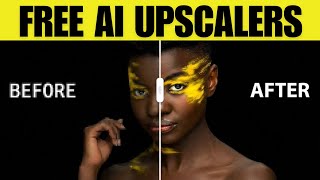
6 Free AI Upscalers That Actually Work
45sPromises a solution to a common problem (expensive upscalers) with a surprising reveal that they are truly free.
▶ Play ClipThe video reviews six genuinely free AI video upscalers that require no sign-ups or hidden fees, demonstrating how to use each tool to enhance low-resolution videos to 2K or 4K. It also shares two bonus FFmpeg-based tools for advanced video processing.
Uses web GPU and AI algorithms (Anime4K, Real-ESRGAN) to upscale videos 2x without sign-up.
Upscales videos up to 500MB to 2K using neural networks, no sign-up required.
Aggressively removes ISO noise, supports videos up to 30 seconds and 50MB, free download.
Offers 1x, 2K, or 4K upscaling; free 5-second preview download, no sign-in.
Uses deep learning super resolution, up to 4x scaling, requires email sign-up.
Daily 20-second free upscaling; trick: use different browsers or VPN to get more credits.
Traditional matte-based filters, runs in browser using CPU, drag-and-drop interface.
Allows custom FFmpeg commands for advanced video processing, uses CPU.
These six tools offer genuine free AI upscaling without watermarks or subscriptions, with bonus FFmpeg-based tools for advanced users. The video provides practical demonstrations and a clever trick to extend usage limits.
"Title accurately describes the content: six truly free upscalers with no hidden costs."
What is the maximum file size for unblur.ai video enhancer?
500 megabytes.
1:21
Which tool uses Anime4K and Real-ESRGAN algorithms?
Free.upscaler.video.
0:27
What is the trick to get more free credits on Vid Mage AI?
Use a different browser or join via VPN to receive additional 20 seconds.
4:35
How long can videos be on upscaler.ai?
Up to 30 seconds and less than 50 megabytes.
2:25
What technology do the two bonus tools use?
Traditional matte-based filters using FFmpeg technology, running in the browser on the CPU.
5:20
First truly free upscaler
Demonstrates a no-sign-up tool that uses local GPU for upscaling.
0:19Vid Mage credit trick
Reveals a clever workaround to bypass daily limits using multiple browsers.
4:35Bonus FFmpeg tools
Introduces non-AI alternatives for video processing that are completely free.
5:12[00:00] Most so-called free AI upscalers aren't
[00:03] actually free. So, I spent 20 hours
[00:05] digging through the internet to find the
[00:07] six tools that truly work for free. No
[00:09] watermarks, no hidden subscriptions. In
[00:11] this video, I'll show you exactly how to
[00:13] access them and how to use them. And at
[00:14] the end, I'll share two bonus tricks
[00:17] most people don't know. So, the first
[00:19] one is free.upscaler.video
[00:21] and it uses web GPU technologies to
[00:23] access your computer's graphic card. And
[00:25] it utilizes well-known AI upscaling
[00:27] algorithms, specifically anime 4K and
[00:30] real ESR gun for realistic photos and
[00:33] videos. So here is the tool very simple
[00:35] environment. There is no need to sign up
[00:37] or anything. Just choose a video. So I
[00:40] will use this very low resolution video
[00:42] as the low quality. And already you can
[00:45] see what will be the difference. You see
[00:47] on the left side is the previous one and
[00:50] on the right side will be increased
[00:52] resolution. You see the sharpness and
[00:55] the clearness of the video here. It will
[00:57] upscale every video two times. So when I
[01:00] click start upscaling, you'll see
[01:02] something in the performance tab of my
[01:04] computer. You see the GPU. So this is my
[01:06] laptop and it obviously started using
[01:08] GPU. Now we see that fine. And now it is
[01:12] over most likely. Let's see. Here is the
[01:14] final video. We can download it easily.
[01:17] The next one is from unblur.ai and video
[01:20] enhancer. And here you can use longer
[01:21] videos up to 500 megabytes. It uses
[01:24] neural networks to analyze the pixels,
[01:26] then looks for patterns or noise or blur
[01:28] and mathematically guesses what a sharp
[01:30] version would look like. So we can
[01:32] upload the file and it will be enhanced
[01:33] to 2K resolution. Let's use this one
[01:36] here again and you see it is generating.
[01:38] Look at the left one, the original video
[01:40] 480 360. And here we have 2K. You
[01:45] already notice the quality of the right.
[01:48] Let's look at the first one. Okay, very
[01:50] low quality. And then the right one
[01:53] enhanced upscaled. Looks pretty good.
[01:56] Pretty sharp video from the ultra low
[01:59] quality video that we created. Now
[02:01] download for free. And as you noticed, I
[02:04] didn't even sign up or sign in. I don't
[02:06] know the [clears throat] limits, but I
[02:07] generated many different videos and
[02:10] everything is still [music] working.
[02:13] Yes.
[02:15] Then we have the third tool,
[02:17] upscaler.ai, AI video upscaler and it is
[02:19] particularly aggressive by removing the
[02:21] ESO noise. So you know that grainy look
[02:23] you get in videos filmed in the dark.
[02:25] You can upload the videos up to 30
[02:27] seconds and less than 50 megabytes. So
[02:29] let's do that. This time let's upload
[02:31] this video. So it is generating the
[02:33] scaled version of this video. So here is
[02:35] our video. On the left side you see the
[02:37] low resolution version and here the
[02:40] higher resolution. You see the sharpness
[02:42] and how everything is much more quality
[02:45] on the right side. So if you play
[02:49] nice really good upscaler completely for
[02:53] free just download it and here is our
[02:55] new resolution pretty good then we have
[02:58] X design enhance video for free just
[03:00] upload a video let's use this one and
[03:02] then you have three options 1x 2K or 4K
[03:06] let's use 4K no 2K for example enhance
[03:10] so very quickly here is our enhanced 2K
[03:13] video the thing about this tool is that
[03:15] you can download 5second preview but you
[03:18] can't download the full video but this
[03:20] is very valuable for many short videos
[03:22] or AI generated videos because many of
[03:24] them are 5 seconds or 8 seconds and then
[03:26] you can do multiple times the same thing
[03:29] as you can see completely for free
[03:30] without even signing in. You see the
[03:32] other videos that I did on the left hand
[03:34] side very low SD resolution and here we
[03:37] have 2K that looks actually pretty
[03:39] pretty good. Oh yeah,
[03:43] she is smiling constantly and doing some
[03:45] weird faces, but that's okay. Then we
[03:47] have the tool subtitlevideo.com video
[03:49] enhance and this site uses a deep
[03:51] learning video super resolution
[03:53] algorithm and up to four times scaling.
[03:55] So the tool works like follows. First
[03:57] you need to enter your email address
[04:00] here. Then confirm once you receive the
[04:02] email and after that you will be able to
[04:05] generate videos. So I will enter my
[04:07] address now and I will choose the file.
[04:09] So you have three options. default face
[04:11] enhancer or faster medium resolution. I
[04:14] will use default and it will upscale
[04:16] video four times. After a couple of
[04:18] minutes, I received video in my email.
[04:20] Then just click on the link and you can
[04:22] see that video is upscaled four times.
[04:24] Additionally, we have Vid Mage AI video
[04:26] upscaler and there's a trick about this
[04:28] one. So daily you will receive 20
[04:31] seconds of video upscaling and
[04:33] enhancing. But the trick is that you can
[04:35] then go to the tool in another browser
[04:38] or join from the VPN and then you'll
[04:40] receive additional 20 seconds which I
[04:42] will show just now. So for example,
[04:45] let's upload the video. The same one
[04:46] let's use four times upscaling. Let's
[04:50] start upscaling.
[04:52] So here is the video. Now you see that I
[04:54] spent all of the credits. I don't have
[04:56] anymore. Now I wouldn't need to sign up.
[04:58] Video quality is pretty good. Yes. And
[05:01] now for the trick, of course. Now I open
[05:03] the same tool in the edge browser and as
[05:06] you can see I have 20 seconds remaining.
[05:09] So you can do that many many times a day
[05:11] and at the end as I mentioned I will
[05:12] reveal two interesting tricks. So unlike
[05:15] the previous tools those two do not use
[05:17] generative AI to hallucinate new pixels.
[05:20] It uses basically traditional matt based
[05:22] filters. So if you use a scale filter
[05:24] here it will make the video bigger and
[05:25] many different things. Completely free.
[05:28] It uses FFmpec technology and it runs in
[05:31] your browser based on your CPU. So for
[05:33] example, here we have one video and here
[05:35] you have many different things for this
[05:38] specific video that you can just add
[05:40] here. So for example, scale addit. It's
[05:43] like this drag and drop map. Here we can
[05:46] increase the video size and the
[05:47] resolution. And we have many different
[05:49] other things. Color, chroma key. Okay.
[05:54] Similarity blend
[05:56] color contrast.
[05:58] You can do whatever you want with this
[06:00] tool and it is completely free. After
[06:03] you're done with your many different
[06:05] settings, just render preview. It is
[06:07] rendering. It is now using my CPU to do
[06:09] that. And here is our new video.
[06:12] >> It's Pepe has become kind of a simple
[06:15] [laughter]
[06:17] >> nice one. After that, just click
[06:19] download. Then the second tool is based
[06:21] on the same technology. So FFmpeg
[06:24] online. Upload your file. Here it is.
[06:26] and then set different options. Here you
[06:29] configure options by setting commands
[06:30] which there are hundreds of. So for
[06:32] example, if you would like to make the
[06:34] color pop and increase the resolution of
[06:36] the video and then put them side by
[06:37] side, this is the command. It's a pretty
[06:40] complicated one. As you can see, many
[06:42] different things using the lens
[06:44] algorithm and the scaling and changing
[06:46] the saturations and everything. Fine.
[06:49] Then just click run. Now it uses my CPU
[06:52] to process all of that. As you can see,
[06:54] the CPU is going to 100% almost. So,
[06:57] video has been created. Let's download
[06:59] the file. So, you notice it created two
[07:01] different versions. So, this is the
[07:02] previous one and this is the second one
[07:04] where we made the colors different and
[07:06] perhaps more pop. All of that created
[07:08] with FFmpeg command.
[07:11] Pretty good actually. For example, if
[07:12] you go to this frame, you can see that
[07:14] colors in this video are much more
[07:16] pronounced. Now, you could play with
[07:18] that and enter hundreds of different
[07:20] commands to enhance your video. Just ask
[07:23] jp or gemini how to use ffmpec options
[07:27] and it will split out whatever you need.
[07:29] For example, you say I would like to
[07:31] saturate this video and make it bigger
[07:33] resolution or anything else and it's a
[07:34] split out command that you can just
[07:36] paste here and run it. Pretty good. So
[07:38] yeah, pretty useful tools that you can
[07:40] use on dayto-day basis. I hope you found
[07:43] this useful and if you did, please do
[07:45] like and subscribe and we'll talk some
[07:47] next time. Bye-bye.
⚡ Saved you time reading this? Transcribe any YouTube video for free — no signup needed.