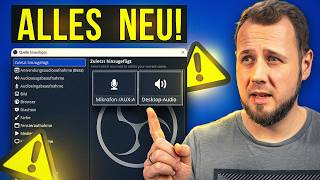

OBS 32.2 Update: Source Setup Revolution!
45sThe new source selection dialog is a major visual change that affects all OBS users, sparking curiosity and discussion.
▶ Play Clip"The title says 'completely changes' but the update is mostly minor; still, the source dialog change is significant."
OBS Studio 32.2 introduces a redesigned source selection dialog, dynamic bitrate support for Enhanced Broadcast, a new SDR-to-HDR filter, WebP image support, and several quality-of-life fixes. The update also requires NVIDIA drivers version 570 or higher and simplifies audio monitoring controls.
OBS 32.2 changes how sources are added and selected, with other minor improvements. It's a small update overall.
Before updating, test with a portable version of OBS to avoid issues. Download the ZIP from the official site and run it separately.
OBS 32.2 requires NVIDIA driver version 570 or higher. Update your driver first if below this version.
The 'Add Sources' dialog now shows existing sources with options, making it easier to identify and add sources, especially in complex setups.
Dynamic bitrate now works with Twitch's Enhanced Broadcast and Meerspur Video Streaming, preventing choppy streams during unstable internet.
A new effect filter converts SDR sources to HDR, useful for streamers/recorders in HDR to avoid dark images.
The 'monitor and output' option is removed; monitoring is now toggled on/off, with output controlled separately.
OBS now supports WebP files in image sources, previously unsupported.
OBS now shows a wizard when files referenced in filters are missing, preventing crashes.
Color sources can now be set to 1 pixel height, useful for small graphic elements.
OBS 32.2 is a quality-of-life update with a standout new source dialog and useful fixes, though most changes are minor. It's recommended to test with a portable version before updating.
What NVIDIA driver version is required for OBS 32.2?
Version 570 or higher.
01:17
What new feature does the 'Add Sources' dialog include?
It shows existing sources with options, making it easier to identify and add sources.
01:42
How does dynamic bitrate work with Enhanced Broadcast?
It dynamically reduces bitrate during unstable internet to prevent choppy streams, then upscales back.
02:55
What does the SDR to HDR filter do?
It upscales SDR sources to HDR to maintain consistent HDR output.
04:35
What happened to the 'monitor and output' option?
It was removed; monitoring is now toggled on/off, with output controlled separately.
05:41
What file format is now supported in image sources?
WebP.
07:04
What does the missing file wizard do?
It shows when files referenced in filters are missing, preventing crashes.
07:29
What is the minimum height for a color source now?
One pixel.
08:12
New Source Dialog
This is the most significant change, improving usability for complex setups.
01:42Dynamic Bitrate for Enhanced Broadcast
Solves a common streaming issue with unstable internet.
02:55SDR to HDR Filter
Provides a solution for HDR streamers with SDR sources.
04:35Missing File Wizard
Prevents crashes and helps users find missing filter files.
07:29[00:01] completely changes how you add or generally select sources. But there are also a few other interesting changes. All in all, it's a rather small update that I'd like to explain to you in this video
[00:14] I'd like to explain to you in this video . hasn't updated yet, I'm not aware of any problems so far, and I haven't experienced any
[00:26] problems myself. Nevertheless, I would like to point out that it might make sense not to simply update the existing OBS setup , but perhaps to test it beforehand with a portable
[00:39] version. If this is the first time you've heard of Portable OBS, I've time you've heard of Portable OBS, I've here is, for example, to download the ZIP file from the page where I can download the latest OBS Studio,
[00:51] where I can download the latest OBS Studio, to make a copy of the portable OBS and test whether
[01:03] always return to your working OBS if it doesn't work properly. But what should you do first before the update runs properly for you? With the update to 32.2 2 and then 0, or we
[01:17] already have the hotfing, version 3221 will update the version of the Nvidia drivers . This means that . This means that at least a 570 or higher must
[01:29] be installed here. So if you are using NVIDIA and your driver is still below version 570, please update the NVIDIA driver first before using the latest OBS update. But let's get straight to the point that is completely new in OBS 32.2 2,
[01:42] and that is, if you click on Add Sources here, a click on Add Sources here, a completely new selection dialog or dialog for adding or selecting sources. Instead of just selecting from a
[01:56] list, as before, you now have this list plus the respective options. So, for example, if I go to the audio output recording in the game, I am immediately shown the sources
[02:11] I already have. So, either I add existing sources again, or I go to add new sources and then have exactly the same process again. The whole thing is now much clearer and,
[02:24] have different image sources that you have already added or video recording devices, it makes it much easier the video recording device. For example, I've added a camera here, and
[02:39] This means that if I have already added multiple sources and I want to dialog makes it much easier to identify the sources directly. This does but it can be very helpful in an advanced setup.
[02:55] change that is not visible at all. Previously, under Settings > Advanced, there was an option to activate a dynamic bitrate under Network if you scrolled down a bit
[03:07] . This was especially helpful if the internet connection at home isn't always stable and you don't want the stream to cut out or stutter excessively. The dynamic bitrate
[03:21] ensured that the bitrate, which was here 6000, [music], was then dynamically reduced by OBS. Suddenly, for example,
[03:34] dynamically reduced by OBS. Suddenly, for example, pixelated, but it ran smoothly until the internet connection stabilized, and then it was upscaled back to the set bitrate.
[03:48] But that doesn't work. If you use the Enhanced Broadcast option from Twitch , meaning if I activate Enhanced Broadcast here, or if it's the Meerspur Video Streaming setting and that
[04:04] 's activated, then I now have the option to use a dynamic bitrate here as well . This means that if I use Enhance Broadcast and have also activated the dynamic bitrate under advanced settings ,
[04:20] if my internet connection becomes unstable, the dynamic bitrate will also be activated for Enhance Broadcast . [music] So no more choppy streams with unstable internet. That's a really great change. Another
[04:35] change concerns the filters. For example, if I go to a source in OBS and add a filter, I now have the option to now have the option to set SDR to HDR under Effect Filter.
[04:48] This allows me to [music] now, for example, if I only interesting for people who stream or record in HDR
[05:00] stream or record in HDR you can see it here, I have the filter on, I'm not in HDR and
[05:12] or I get a very dark image with SDR sources when I stream or record in HDR. The filter is there to simply upscale the whole thing to HDR , so that I can consistently get an HDR image from all sources, regardless of whether they are SDR or
[05:28] HDR. I think it would be interesting for very, very few people . But an important, new point. But what should be of interest to many is the
[05:41] already changed a bit in the last updates, and we now have muting and monitoring. And generally, as , under the advanced audio properties
[05:56] I could, for example, set it to monitoring only . That no longer exists. My only option here is to turn monitoring on, i.e., activate it, or turn it off. If you look at what changes in parallel,
[06:10] the monitoring is simply being switched on or off down here . The point is that the option I could select, monitor and output, is actually determined by the setting below. Here
[06:24] I have the monitor active and I also have the output active. I could disable output and enable monitoring, and that only means monitoring. Right now,
[06:36] for example, I have no monitoring and no output; it's completely silent. I now have output, but no monitoring. And now I would theoretically have both. So, these buttons, and in the advanced audio properties it has
[06:50] simply been simplified, and the monitoring-only option has been removed. If you use the sources in the show, there is now another option available. For example, I inserted my image files into this dialog [music] .
[07:04] . However, those who used Webp files, i.e., pun Webp , had a problem, because they could not be loaded by OBS, which is now supported. This means I can
[07:16] now also use Webpay via the Plus Files option. It is also displayed here. One thing that often caused OBS to crash was when working a lot with filters and selecting files within them . For example, here's
[07:29] a small source: a video recording device, and I 've added a filter to it. Let's take the example of applying latitude via the Plus button. When applying this load, I have now selected a file via the drive, namely a latt. And at some point, the store was no
[07:44] longer there. So the file was in a different location or was no longer there at all. This could cause OBS to crash or not load properly at all. [music] And that has now been fixed, because the
[07:56] missing file wizard now also shows when files are no longer found in filters. I also think this is important for everyone who has searched high and low for the solution and couldn't find the problem.
[08:12] And those who like to work with the color source via Plus Source, Color, New Source will now also be pleased, because the whole thing has now been changed to a minimum of one pixel [music]. That means I can set the height to
[08:25] one pixel here and then get a source that is really only one pixel very small bar here. Makes it much easier if you want to incorporate small graphic elements into your OBS using the [music] color source . Otherwise, one has to
[08:40] say that the entire changelock of the OBS 322 is actually more of a quality of life feature. So, a few cosmetic improvements, a few bug fixes, and there are quite a few of them. I've
[08:53] review which errors have been fixed. There are a few, but it's not a big deal. However, I still think the change to the dialog for adding new sources has been very, very well done. That makes it
[09:08] much better. What do you think of the new OBS 32.2 update? Have free to write something about it in the comments below, and then we'll see each other in the comments below, and then we'll see each other in the next video.


⚡ Saved you 0h 09m reading this? Transcribe any YouTube video for free — no signup needed.