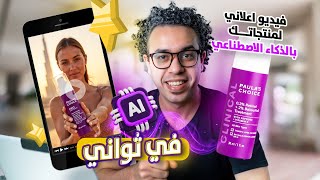

Create AI Ads Without Filming
60sImmediately shows the promise of creating ads with zero filming, which is a high-interest pain point for marketers.
▶ Play Clip"Delivers a solid walkthrough of the tool, but the title oversells 'best tool' without comparison to alternatives."
This video demonstrates how to create AI-powered video and image ads for any product using Soda Marketing AI, a single tool that eliminates the need for filming or design. The presenter walks through the entire process, from setting up a free trial account and training the AI on product images to generating professional ads and converting them into videos, including UGC-style clips.
The video introduces the concept of creating global ads without filming or design, using Soda Marketing AI for both video and image ads.
The presenter signs up for Soda Marketing AI, verifies the email, and chooses the Team package for the free trial, noting a 20% discount on the first payment and an additional 25% for annual subscription, totaling 45% off.
After opening the trial account, the first step is to create a brand by entering a business name, selecting a category (e.g., skincare), choosing a target country (UAE), and uploading a logo.
The presenter uploads product images, either from online sources like Google or taken with a phone, emphasizing the need for at least five pictures from different angles for better AI training.
In the 'Train Products' section, the user names the product, selects the brand, and specifies the product type. The AI trains on the images for about five minutes to understand the product's shape and features.
After training, the user selects the ad size (vertical for Instagram), provides keywords or a prompt (e.g., 'Product in use' with 'Natural Outdoor' setting), and clicks Generate. The AI creates a complete ad concept and produces the image in about 30 seconds.
The presenter converts the generated image into a video by clicking 'Convert to Video Ad', choosing a concept (e.g., 'Product Demonstration'), and generating a professional video clip, which can be 5 or 10 seconds long.
The video demonstrates how to create UGC (User-Generated Content) videos by finding inspiration on Pinterest, taking a screenshot of a desired clip, using ChatGPT to generate a prompt, and then using that prompt in Soda Marketing to create a similar ad for the product.
The presenter notes that this method can be applied to any product type, including clothing, accessories, and electronics, and encourages viewers to try the free trial.
Soda Marketing AI enables users to create professional, AI-generated ads and videos for any product without needing design or filming skills. The tool's ability to train on product images and generate UGC-style content makes it a powerful and cost-effective solution for social media marketing.
What is the minimum number of product images recommended for AI training?
At least five pictures from different angles.
04:14
What is the total discount if you choose the annual subscription with the first payment discount?
45% (20% first payment + 25% annual).
01:47
What is the purpose of the 'Train Product' step in Soda Marketing AI?
To train the AI on the product's shape and features using images, so it can generate ads.
04:28
How long does it take to generate an image ad after clicking 'Generate'?
About 30 seconds.
07:24
What is the recommended ad size for Instagram?
Vertical size.
06:13
What is the method described to create UGC-style videos?
Find inspiration on Pinterest, screenshot a clip, use ChatGPT to generate a prompt, then paste it into Soda Marketing.
09:35
AI Training on Product Images
This is the core feature that enables personalized ad generation without manual design.
04:28Image to Video Conversion
Shows how a static ad can be turned into a professional video clip with minimal effort.
08:08UGC Video Creation Method
Provides a practical workflow for creating user-generated content style ads using external inspiration.
09:35Pricing and Discounts
Highlights the cost-effectiveness of the annual plan with a 45% total discount.
01:47[00:02] create AI-powered ads for any product. We'll show you how to create global ads without any filming or design, using both video and image ads. We'll see how to We'll see how to
[00:19] just one AI tool: Soda Marketing AI. So, without wasting any time, let's get without wasting any time, let's get straight to the point and take the first step. We'll go to Soda
[00:47] verification email with a code. I'll copy this code from the email and paste it here, then click "Verify." After that, I'll choose the package I want to use. Try it during the trial period. During the trial period, you won't pay anything;
[01:02] it's a completely free trial. We choose the package we'll try, and our account will be upgraded to it after the trial period ends. Of course, you can cancel your subscription at any time if you find the application unsuitable for any reason. But I'm sure you'll use it. We have
[01:16] three packages here: the Pro package, the Team package, and the Agency package. The best package, which includes all the features we'll be using and testing in this video, is the Team package. That's why I'll choose the Team package, which is
[01:31] the most valuable, meaning you'll get the best value for your money. There's also a limited-time offer of a 20% discount on the first payment. This applies when your account is upgraded, or if you choose to upgrade your account. I can also make my subscription annual, in
[01:47] which case I'll get... An additional 25% discount, so with the 20% discount on your first payment, the so with the 20% discount on your first payment, the total discount will be 45%. This is definitely the best option I recommend to anyone if your budget allows. If your budget doesn't allow for
[02:00] this option, you can go with the Team package on a monthly basis. We'll click on Try Free, and here it will ask me to enter my payment details. As we agreed, we won't pay anything during this trial account period to confirm the account and to upgrade it after the trial period ends.
[02:15] But of course, you can cancel your account before the trial period ends if you don't want to continue using the application. Of course, you'll want to continue because what you'll see in this application is absolutely amazing and will completely change your business. We'll fill in the details and click Submit.
[02:29] That's how the trial account is opened. You'll find a tutorial here that you can watch, but I'll explain everything to you in this video. So, we'll close the tutorial. First step When you open your demo account, you'll go to Brands and create your brand or business name. Okay,
[02:43] in today's demo, we'll choose a brand we found on Amazon, so we'll select it and name our brand after it: Salfford. This is just for testing and to get the idea across. When you create your account, you'll enter your real business name. Then we'll go to
[02:59] Categories and choose the industry we work in. Okay, if you don't find your industry listed here, you can choose Ads and write your industry. The brand we'll be testing today is a skincare products brand,
[03:15] Next, you choose the country you're marketing in, and here we'll choose the UAE. Pay close attention to this part because we'll see something very important. After that, I'll upload the brand's logo. My business or store, then click on Create Brand. That's it,
[03:30] my brand is created! Now I can start designing amazing ads for my products in minutes – something truly incredible! Let's take this product as an example. Imagine this is your product, and we want to create
[03:45] fantastic ads for it. The first step is to upload the product images here. I got this product from Amazon. These images are a bit limited; I need more. So, I'll search Google for the product name to find more pictures. The more
[04:00] images I have, the more accurate and better the results will be. It's important to note that you don't have to find these images online. If they're available, you can. But if not, you can take any pictures of your product at home with your mobile phone. Anywhere, in any
[04:14] way you want, the important thing is to photograph the product from several angles and take at least five pictures. You'll get the same results you'll see in today's video. I downloaded the pictures from Google, then I'll go back to SodaMarketing.ae and click on Train.ae Products. Here,
[04:28] I'll start by writing my product name. In this step, I'm training SodaMarketing's AI on my product by giving it at least five pictures so it understands the nature of the product from the images and memorizes its shape in all the positions I've shown it. It can then
[04:43] visualize anything else I might want to show my product in. We'll see this immediately, and it's very simple. All I do is go to Train.ae Products, as we said, copy the product name, and paste it here in the Product Name field.
[04:58] Then, I'll choose the brand I just created. After that, I'll specify if the product Let's choose a product like clothing, etc. Choose the first option: clothing, accessories, watches—anything a person can wear. Okay, so I'll choose the
[05:13] first option, which is Kluin Accessories. Okay, if my product is like the one we're discussing today, it's not something a person can wear, so I choose the second option, which is "No, this is a different product." I'll start by taking the images I downloaded for my product and
[05:30] dragging them here like this. Then I'll click on "Train Product" and give it about five minutes to train my product, or rather, for the AI to practice with my product and understand it well so they can create amazing ads for it. So,
[05:46] my product is currently undergoing training; it's in the bundling state, as we can see. Okay, we'll give it a very short time, and we'll see that its training is complete when its status is " Completed." So, it's basically telling me, "I've
[06:00] finished the training for your product. Now I'll click ' Generate' to start creating amazing ads. I'll choose the size I want, and here I'll choose the vertical size, which is the most common size on Instagram and other platforms. Now,
[06:13] if I have a specific idea for my ad, I can write it in the prompts section here. Okay? And if I don't have a specific idea, no problem at all. You can let Soda Marketing AI, or Soda Marketing's AI, come up with
[06:29] endless ad ideas for your product and all your products, in the way we'll see now. All I have to do is come here and use the keywords provided to describe what I want. For example, I'll say 'Product in use,' meaning explain how
[06:43] this product is used, and I'll choose ' Natural Outdoor.'" Setting means give me an image or advertisement for this product in an outdoor location, and I'll click "Generate." That's it; I don't need to take a picture or go to other tools or anything. Soda Marketing then uses the
[06:58] idea or keywords I provided to create a complete concept for my ad and displays it in the Prompt, as you can see. I can read the Prompt and translate it if I don't understand Arabic; it's very easy. If I want to modify
[07:12] anything, I can do so immediately and simply say "Generate." Soda Marketing always generates fantastic ideas; they're always among the best. I click " best. I click " Generate" and wait for 30 seconds, and then
[07:24] our ad will appear, as you can see. It's an absolutely amazing ad; amazing ad; my product is exactly as shown, with a suitable model. Because of the nature of the product, this is a skincare product, and there is something else that is extremely
[07:36] wonderful, the background here has the Burj Khalifa, and it is in the Emirates, and why is this? Because I chose and specified in my brand that the country I'm targeting and operating from is the UAE, everything you add and every piece of information you give to Soda Marketing can be used and turned into
[07:53] marketing messages for your products with the utmost ease, without you even needing to think about anything. Soda Marketing will do everything for you with artificial intelligence in this amazing way, as we can see. Now, I can also do something else that's incredibly cool: I can
[08:08] convert this image into a video. Let's do that very easily. All we have to do is click on "Convert to Video Add," and that's it. It will start giving me a description of my video. It will then ask me, "Do you have an idea for your video?" Okay, if I have an idea, where do I start?
[08:23] I can choose from the keywords available here, just like we did in the image, or I can type in the prompt, or I can click on the word "Any." I created a concept to tell Soda Marketing that I didn't know how this video should look, or that I didn't have a
[08:36] specific idea in mind. So, I asked the AI to handle it. I chose Product Demonstration and clicked Next to create my prompt so Soda Marketing could come up with the best my prompt so Soda Marketing could come up with the best possible idea for this ad. Then, Soda
[08:49] Marketing generated the full prompt for my video. Now I was ready to create the video, so I clicked Generate Video and waited just a few minutes. A fantastic, professional video of my product appeared. As you can see, wow! A truly amazing video showcasing
[09:05] my product in detail. It was a five-second video, but I can make it ten seconds long and create different clips for each of my products, with endless ideas. Let's see something else really cool we
[09:20] can do for this product using Soda. Marketing AI: Let's say I want to make a UGC (User-Generated Content) video, or a clip from a UGC video for my product, like the videos we'll see now. Let's see how I can do this using Soda
[09:35] Marketing AI. We'll start with one clip, and in the next video, I'll make a full UGC video using Soda Marketing AI. Let's begin. We'll go to Pinterest and search for " UGC video ideas." This means ideas for UGC videos, which is
[09:50] user-generated content—all the videos you see influencers and ordinary people making to promote products in general. I'll start by watching this video, for example. As we can see, this video has several clips. Whichever
[10:05] clip I want, I'll use it to create a very simple: I'll take a screenshot.
[10:19] take the screenshot I took. I'll give it to GPT Chat and tell it to give me a prompt to produce this exact image with all its details, but ignore any text on the
[10:34] image. GPT Chat will immediately give me the prompt. I'll take all of this and go back to Soda Marketing. I'll choose my product. Now this product is saved on Soda Marketing within my brand as a trend. So whenever I want to create images for it, I wo
[10:49] training we did at the beginning more than once. This is a one-time thing. I choose it and then generate an endless number of ad and image ideas—anything I see online, any idea that comes to mind, or I'll have Soda Marketing generate ideas. It's endless, and I'm flooding my Instagram with
[11:05] amazing photos and videos of all my products. We'll paste the prompt as you can see. Here, it's possible, but only if we find a product description like "Product Details" (this is the product description from the image I provided). Soda Marketing could then add
[11:22] this description to my product, but I don't want that, so I'll just delete the product description. That's it. If I find an accurate description of the product in the image, for example, the image, for example, then I'll press "Generate" and wait 30 seconds, and we'll see
[11:36] the result. As you can see, Soda Marketing gave me an idea very similar to the one I got from the image or video we saw, but even better and with higher quality. If I want to turn this image into a video or clip,
[11:50] all I have to do is... I'll click on Convert to Video like we did last time, and it will start. It will on Convert to Video like we did last time, and it will start. It will ask me if I want five seconds or ten seconds. Then I can click on any selected
[12:04] concept to get an idea for the video I want to animate. So, this is the image I want to use for the video itself. This is the idea that came up. I can review the prompt as I like, and if I want to edit anything, I can. Then, when I'm ready, I click Next, then
[12:19] Enhance Prompt, and then I click Generate. As you can see, I got an absolutely amazing video for my product. It's something truly fantastic, almost like the video I wanted to make, the one I got the idea for from Pinterest. Any clip I find in any
[12:35] advertising video or any advertising image for products similar to mine, and I want to create the same idea for my product, I can implement it this way. This very simple method we've seen can be applied to any type of product: clothing, accessories, electronics—any type of product you
[12:52] can imagine. In the next video, God willing, I'll show you something even more powerful through Soda Marketing AI. Right now, you can try Soda Marketing AI for yourself and literally set your Instagram and social media on fire with
[13:06] amazing videos, photos, and ads for all your products. You do it all yourself, without a designer, without a video editor, without needing anyone, and at a very low cost. Start your free trial of Soda Marketing AI now. You'll find the link in the
[13:21] video description and in the first comment. Thank you very much. This is Yasser Selim signing off, and I'll see you in a new video. Peace, mercy, and blessings of God be upon you.




⚡ Saved you 0h 13m reading this? Transcribe any YouTube video for free — no signup needed.