
AI Summary
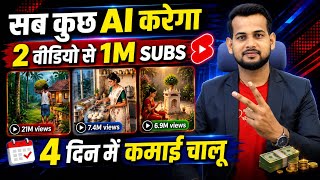
This video is a step-by-step tutorial on creating Ghibli-style AI videos using free tools like ChatGPT, Google Gemini, and YouTube Create. The creator demonstrates how to generate story ideas, create images, and compile videos, with examples of successful channels earning money from such content.
Chapters
Shows a channel with 123k subscribers gained from just 4 videos, with millions of views, proving the potential of AI cartoon videos.
Ghibli-style videos are currently trending and easily monetized on YouTube, with join buttons active on successful channels.
First step is to download ChatGPT from Play Store (Android) or App Store (iPhone).
A link in the video description provides a prompt that must be copied and pasted into ChatGPT.
Pasting the prompt into ChatGPT yields 10 story ideas; user can ask for more ideas if needed.
After selecting an idea, ChatGPT asks for desired video duration (e.g., 1 minute) and generates a full script with scene descriptions.
Copy each scene's image prompt from ChatGPT, paste into Google Gemini, and specify ratio (e.g., 9:16 for shorts) to generate images.
After Gemini generates each image, download it to the gallery. Repeat for all scenes.
Open YouTube Create app, upload the first image, copy the corresponding video prompt from ChatGPT, and paste to generate the video clip.
After generating all clips, add transitions between scenes, then export the final video with improved quality.
By following these steps, anyone can create professional-looking Ghibli-style AI videos for free and potentially monetize them on YouTube, as demonstrated by successful channels.
Mentioned in this Video
Tutorial Checklist
Study Flashcards (6)
Which app is used to generate story ideas for the video?
easy
Click to reveal answer
Which app is used to generate story ideas for the video?
ChatGPT
01:38
What is the recommended aspect ratio for YouTube Shorts?
easy
Click to reveal answer
What is the recommended aspect ratio for YouTube Shorts?
9:16
04:45
Which app generates images from scene descriptions?
easy
Click to reveal answer
Which app generates images from scene descriptions?
Google Gemini
04:32
Which free YouTube app converts images into video clips with voiceover?
easy
Click to reveal answer
Which free YouTube app converts images into video clips with voiceover?
YouTube Create
06:41
How many story ideas does ChatGPT provide after pasting the prompt?
medium
Click to reveal answer
How many story ideas does ChatGPT provide after pasting the prompt?
10
02:29
What is the first step after opening YouTube Create?
medium
Click to reveal answer
What is the first step after opening YouTube Create?
Upload the first scene's image.
07:11
💡 Key Takeaways
Channel Growth Proof
Demonstrates real-world success: 123k subscribers from just 4 videos, validating the method's effectiveness.
00:02Monetization Potential
Ghibli-style videos are easily monetized, as shown by active join buttons on successful channels.
01:10Automated Idea Generation
Using a single prompt in ChatGPT yields multiple story ideas, drastically reducing creative effort.
02:29Image Generation Workflow
Copying scene prompts from ChatGPT to Gemini creates consistent Ghibli-style images efficiently.
04:17Free Video Compilation
YouTube Create provides free, integrated voiceover and video generation from images, eliminating additional software.
06:41Full Transcript
[00:02] See the live proof here. I have only bowled four shots so far. And his channel has more than 123000 subscribers. You can see 11 million views on the previous shots. The subsequent shots got 1270 thousand views.
[00:16] The subsequent shots got 1270 thousand views. The subsequent shots got 15,000 views. Look at the shots after that, here, 7.6 million views. Look here, you can see five videos, right? It is a long video. Ok ? But this is not the pay views. Meaning he gained
[00:29] 123000 subscribers in just four shots. And let me show you one more channel. Ok? me show you an example. Look here, this channel has also created a stir. I am also one of the most popular among them. And look here, their videos are also
[00:43] getting millions of views. Look here there are 21 million, 7 million on this also 7 million and look he has uploaded 80 videos. And his channel also has 199000 subscribers. And do you know what the most interesting thing is ? This type of video is getting
[00:57] easily monetized at present. As proof, look here, the join button is open on their channel. As soon as you click on it, you will see here that there is a option to join membership. Meaning brother, his channel is 100% monetized. And this Sara
[01:10] makes such videos. Look, here I am showing you how to drive it. This Ghibli type video is trending a lot these days. You can make and upload many such videos from your mobile phone absolutely free
[01:22] and earn money from YouTube. So how is a video like this made? What But friend, before that, if you have not liked this video yet, then subscribe. Let's move on to our video. Now friends, what do you have to do first
[01:38] ? If you use Android then you have to go to the Play Store app of your phone. Ok? You have to go to Play Store and if you use iPhone then you have to go to App Store and after going there you have to download an app named
[01:50] Chat GBT. Almost 90% of you will already have it in your phone. You can see that this app is Chat GBT, you can install it in a simple way. Ok? I have already installed it. Now after installation you will need a prompt in a simple way.
[02:03] So this prompt that you are seeing on the screen, you will get this prompt So you will get the link in the description. Have to click. Copy the print from there. is very easy. Ok? If you click on the link, you will get a print. Copy
[02:15] it. Now let's assume that more than half, 80% of the work has been done by you. You just have to do a little work. What to do? Chat GBT has to be opened. Look, let me open the chat GBT. you have to paste it here in a simple way. Ok? And click on send.
[02:29] Now what will he do after that? Will give you 10 ideas. Ok? 10 will give you an idea of what kind of story you want to make. Look here, it will write it in English. But if you do not understand English then you can copy it and get it translated into Hindi
[02:41] speak to it in Hindi then it will translate it into Hindi. Ok? See the rest here. What if you like someone? Simply copy it completely. Like look, So I will copy this in a simple way. And yes, if you
[02:56] tell him to give me more ideas. This will give you more ideas in this way. Ok? So if I like Pappu Tomato Wala, what should I do? I will simply What to do first? I have to put the print. Then Propt will give you the idea. Now you have to
[03:10] send it again. is very easy. Ok? Now after that, see, our first step has been completed. Now look in the second step, it is asking how long duration you want to make the video. You will make videos of 15 seconds, 30 seconds, 60
[03:23] seconds, 90 seconds. Ok? Or 3 minutes like this. So like I want to So here I will simply type 1 minute. Ok? Okay, let me write 1 minute and Write as long as you want to make it and send it. Now after that see, as soon as I
[03:38] complete 1 minute script and given it here. Like look here, our scene one has arrived. Ok ? Look at this scene one, this is our image In the same style which is going viral right now. Now after that, see, I will come down in a simple way.
[03:52] Look here, this image print of scene two has arrived. Ok ? And I come down. Look, this is our scene three, this is the image print. All its material is fine and look below is scene four. Similarly,
[04:04] all the scenes in my story, that is, eight scenes, 10 scenes, 12 scenes, whatever the scenes are, the complete details of all of them have been given to us here by making the material. We had to do nothing. Our work has been completed till here through PRT. Ok ? Now how to proceed from here?
[04:17] Look carefully. First of all you have to go to the image print of your first scene. Look, you are seeing, do it like this. Select it and copy it. Ok? Now after copying, friends, almost 99% of you will have this
[04:32] app in your phone. Google Gemini. Ok ? If not, download it from Play Store. It I simply open this app. Google Jini. What to do now? You have to simply paste it here. Now after pasting, you have to write the
[04:45] ratio here. Ok? Let me write the ratio here. Like making shorts. So I make it 96 like this and click on send. Now brother, as soon as we send it, look here the image has started getting created in front of us
[04:57] and it will be created in Ghibli style and yes, we will be able to convert this image into video very easily. This is a photo, I look here, the image has been created in front of us. So we will click on it and here we
[05:11] download. Ok? It has now been downloaded. Then what will you do? We will come back to Chat GBT. Look at these chats coming in GBT. Now we will copy the image print of the second scene. Ok? Look, this is the second scene. Now we will copy the image that is printed.
[05:25] printed here with the words 'See here' written on it. You have to copy this in a simple way. Now after copying, friends, you have to go to Gemini again. Now you have to paste it here and click on send. What will he do now? I have
[05:38] uploaded the image print of the second scene. Now here he will create the image of the second scene and give it to us. Meaning he will take the photo and give it to you. First the photo will be made. Then we will convert this photo into video also. I will tell you how to do it. Look, ours has arrived here. We will tap on it and
[05:51] click on download again here. Now look, this photo of ours will also be downloaded very easily in the gallery. Ok? Look, it has been downloaded. what shall we do now? Let's come back here to Chatbit. Now we will copy the image print of the third scene from
[06:03] here. Look, let me copy this. After copying, you have to follow the same process in Gemini. You have to paste it here. After pasting, send it. You just have to wait here for 5 to 10 seconds. It doesn't take much time either.
[06:15] Ok? Look, the image is being formed in front of you. Now look, almost this image is also going to be generated for us. Look, it has been generated. what shall we do now? By tapping on it, you can download it from here also. So in this way you have to download
[06:29] all the total scenes in your story one by one. Ok? Now when the image of your entire scene is created, the photo is created, then let me tell you how to make a video from it. You have to go to the Play Store of your phone and
[06:41] YouTube's app itself, it is a free app. Ok ? So I have already downloaded it. Let me show you. Look, this YouTube Create, you have to open it in a simple way. after opening it, friends, look here, you will see an option of generate
[06:55] video. But yes, if you open it for the first time, then you have to easy process to do that. After that such an interface will appear. Now here we will option to upload will appear below. So you have to click on it and
[07:11] add the image of the first scene of your story. So our first scene was this one. Now look, I have added the first scene. So what will we do? Now we will come to chat GBT. Now we will copy the video prt of the first scene in chat GBT. As I
[07:26] show. Look, this is our first scene. Let us make a photo from its image print. look here, you will find it written as video print. Okay, right? Look at this. Okay, right? Look, I have copied it. Now after copying,
[07:41] I paste it here and click on generate. Now as soon as it is generated, you have to wait a little for 20-30 seconds 40 seconds, then what it will do is it will convert your photo into a video, okay see this is 0%, now the percentage has started appearing in front of you, you
[07:54] can see it has reached 9%, so you must have understood, first you have to make all the photos, after making the photos you have to convert the video in this way, I will show you the result, okay, so look here
[08:06] photo has been converted into a video and brother its sound is also coming out perfect, the sound is coming out very good, okay, in this you do not need to make a separate sound. video is available here. You have to click on it. Ok? Now look, this video has been
[08:20] added here. This was the photo. This is our video ready. Now what will we do after this? So here we will click on plus. After that, see friends, here video above. So, we'll tap on top of it.
[08:32] click on it. And now the image of the second scene has to be added from here. Look, I have added it in a simple way. Ok? I have added it. what shall we do now? Going back to chat. Now we will copy the video print of the second scene. Look, let
[08:45] us take a video of this second scene. Ok? Ok? Now you have to give the video copy of the scene whose image you will add here. Ok? Look here, this is put the video of the second scene here and click on Jarrett. Now see, this too will be
[08:59] converted into video very easily. Let's wait a little. Ok? So photo video has also been made. Ok? So what will we do? Simply see, this has also been added here. This one was the first one. Look, this one is the second one. The
[09:14] whole story. what shall we do now? After that, here we will tap on Generate Video. Now from here again we will upload the photo of the third scene. So let me upload it here in a simple way. Now
[09:27] after that friends, we will come here again in chat bit. Now we will copy the video of the third scene which we had Look, this is the copy of the video, let me copy it from here. Now after copying, friends, I will paste it here and
[09:40] click on generate. Ok? Now look, this photo of our third scene has also So in this way you have to convert each of your I have already told you how to do it. If you don't understand, then rewind the video a little and
[09:53] watch it again, you will understand. I have explained it very easily. Ok? Now After that I will tell you the further process. So look here, this has also become ours. Okay, right? Look at this. Now friends, what do you have to do? Similarly,
[10:07] look here again, you have to come at the end. Again the same process is to click on Plus. Again you have to tap on Generate Video. Have to add a photo. You have to give a video copy of the photo you add. Have to generate. So by doing this you have to
[10:19] convert all the photos into videos. How to do it? I have already told you. what do you have to do here in a simple way ? Look here, you have to come to the starting. [nasal noise] What do you do? Come to starting and see that automatic
[10:33] show you how to do it first. Look, I play it, then see, the automatic camera is ? Look at it very well. Ok? Picking tomatoes. So brother, see how well this is happening. Okay, right? what shall we do now? Look here, this second
[10:47] scene has come automatically. You have to do one thing here, that is, you have to click on the transaction option which comes in between and you just have to make the transaction from here. Look at it this way. Ok? Look, whatever transaction you want to make, do it as per your convenience. Let me
[10:59] put this one on. I do it. Now again, wherever my scene changes, I will Any one you like. Ok ? As per your wish. Now brother, apply it like this. After installing, you will get the export option here. By
[11:12] improve the quality as per your requirement and export it from here. So friend, in this way Your entire video will be ready. But friends, this is the method of making a Ghibli video. But if you want to
[11:27] learn how to make more different types of videos. Like it became Motu Patlu or it became a different AI video. So you can watch all these videos. You will see two videos on the screen. You will see two videos on the screen.
[11:39] say it again, please subscribe to the channel and like the video.