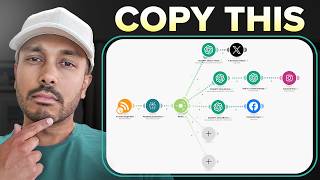

100% Automated Social Media?
44sAddresses skepticism and promises a solution to a common pain point of consistent posting.
▶ Play Clip"Delivers on the promise of 100% autopilot with a detailed walkthrough, though a subscribe request before value and some manual API setup slightly lower the score."
This video provides a step-by-step tutorial on setting up fully automated social media posting using make.com, RSS feeds, and AI tools like Perplexity AI and ChatGPT. It covers everything from fetching the latest news to generating unique posts and images, then automatically publishing them across multiple platforms including Facebook, Instagram, LinkedIn, and X (Twitter). The presenter shares a free blueprint to simplify the setup, making it accessible even for beginners.
The video promises to show how to automate posting unique content multiple times a day across all platforms without manual effort.
The setup uses make.com as a visual automation platform, likened to playing with Lego, to build complex workflows easily.
Steps: create a free make.com account, then import the provided blueprint file to get a pre-built scenario.
Use an RSS feed module (via RSS.do) to fetch latest articles or news for your niche. You can generate a feed from keywords, websites, Google News, etc.
Connect Perplexity AI via API key (costs ~$5), and use a prompt to summarize the article, dynamically inserting the URL from the RSS output.
A router module splits the summarized content into parallel branches for Facebook, Instagram, LinkedIn, and X. Each branch uses ChatGPT with tailored prompts to generate platform-specific posts.
An additional module uses DALL-E 3 to generate an image for Instagram posts, with instructions to avoid text in images.
Run a test by selecting an item from the RSS feed; the scenario fetches, summarizes, creates posts, and publishes to all connected platforms.
Set the schedule (e.g., every 6 hours) in make.com's schedule settings. The presenter also shows how to use make.com's AI assistant to add new modules like LinkedIn.
This tutorial delivers a practical, fully automated social media posting system using make.com, RSS, and AI. By following the steps and importing the free blueprint, users can save hours of manual work and maintain consistent online presence.
What visual automation platform is used to build the workflow?
Make.com (formerly Integromat).
00:44
What is the first module in the scenario used for?
To fetch the latest information (articles/news) via an RSS feed.
02:18
Which AI service is used for summarization in the primary example?
Perplexity AI.
04:43
How much money does the presenter recommend loading into Perplexity AI?
$5, which lasts a long time (only 24 cents used).
05:42
What is the purpose of the router module?
To take the summarized content and run multiple commands simultaneously, creating separate posts for each social platform.
07:44
What image generation model is used for Instagram posts?
DALL-E 3.
10:44
What is the recommended schedule interval in the example?
Every 360 minutes (6 hours).
13:18
How can you add a new social platform like LinkedIn if not in the blueprint?
Use make.com's AI beta assistant and ask it to add the module, then configure it.
13:50
What is a key instruction for the DALL-E 3 prompt regarding text?
Avoid including text in the generated images because AI image generators currently handle text poorly.
12:51
Full Automation Promise
The core value proposition: a completely hands-off system that posts content daily.
00:44Using AI for Summarization
Demonstrates practical use of Perplexity AI to transform raw articles into concise summaries for social posts.
04:43Router Distributes Work
Shows how one input can be fanned out to multiple platform-specific post generators, maximizing efficiency.
07:44Image Best Practice
Advises against including text in AI-generated images due to current limitations, a practical tip for better results.
12:51AI-Assisted Troubleshooting
Introduces make.com's built-in AI assistant to help modify or debug the scenario, reducing manual effort.
13:50[00:01] accounts without lifting a finger posting unique valuable content multiple times a day automatically across all your platforms sounds to good to be true done we all know that posting consistently drives growth but who
[00:17] really has time to post three or four times a day with this AI powered social media automation you can turn the latest news and insights for any topic or Niche into unique posts that go out on x
[00:31] Facebook LinkedIn Instagram and more now you might have run into some clickbait videos before promising 100% automation only to find out that you still need to do all of these manual things but what makes this different is it's fully
[00:44] automated I literally mean we're going to set it up you flip a switch and be using make which is a visual automation platform that makes building what would be complicated as easy as playing with Lego first I'll show you
[00:59] will pull in all the latest information for your topic or Niche then we'll use AI to take that information and transform it into unique posts including images for all your social platforms and then we'll automate all the posting to
[01:13] go out on all your channels I'm going to make this super easy for you to follow walking you through everything step by step in fact I'll be sharing my exact setup file with you so you can just grab that import it in make a few adjustments
[01:26] autopilot the only thing I ask is that subscribe to the channel for more content like this I'm super excited for thing you need to do is to create a free
[01:39] description below and you can get set up with that in a few seconds then once you've created your account click on scenarios and hit create new scenario now to make things as easy as possible the next thing you want to do is import
[01:52] the blueprint that I've made for you so just go to more import blueprint choose just go to more import blueprint choose file and grab my blueprint I've linked it down below if you haven't downloaded it already again it's free and then once
[02:06] you do that you can see everything pop up right here and don't worry I'm going up right here and don't worry I'm going to explain every single module here and how it works and exactly what you need to do so starting from the left the
[02:18] first thing we need to do is get all the information that we'll be using to create the social media post so all of the latest news insights articles or or
[02:30] whatever you want your source to be and the way we're going to grab that is using this module right here and this module uses something called RSS doapp below to grab a free trial for that once you've created your account and logged
[02:45] in click on new feed and now you have a number of ways to get this information you could get a website and create a feed from that it could be Instagram you could do Google News you could just type in your topic let's say it was AI tools
[03:01] and then you could just grab this news feed and go in here and just paste it in here and and you would just get this URL right here or you could just simply type it just here without having to use an external site you could say AI tools for
[03:17] entrepreneurs and let's say this is my topic right but obviously you would type your topic and you could see it's populated that right there and again you could create a feed from almost anything a redded thread that you follow t
[03:30] it could be YouTube Instagram really any source that you go to to get the latest information you could take that personalize that content create unique posts and send them out on social and that's what's going to establish you as
[03:44] sake of Simplicity let's just go with the one where we just typed some keywords and got RSS to do all the searching for us this is great so now just copy this and then go back to make.com click on this right here and
[03:59] then just paste in your XML file and that is it now we always want to test every module so I'm unlinking it here so we can just test this module and then what you want to do is go choose where to start because right now it's going to
[04:15] posted and we don't want to wait right to start and pick from what it can already pull and so you can see it's content and you can just click on this and just go run and you can see that it
[04:30] did pull it and this is kind of the output of what it came up with awesome so we can see right there the title of what it pulled in the output now the next thing we want to do is take that article and summarize it so that we can
[04:43] make social posts out of it so we're going to do that using perplexity AI you could also do this with chat GPT or Claud or whatever your preferred AI large language model is just click on the perplexity module that I've already
[04:58] set up for you and again you can change this to chat GPT if you prefer you could just go here and go add chat add chat GPT create a completion and instead of
[05:14] perplexity you can unlink this and you can do it with chat jpt but I'm actually going to show you chat jpt later so let's stick with perplexity that way you have an example for both and again it'll work the same with Claud or whatever
[05:27] else you like so just simply click on this module and now you will have to add your connection so if you hit add you'll see it's asking for an API key go to perplexity aai click on the configuration settings and then click on
[05:42] API then the next thing you want to do is just load like $5 honestly $5 will last you an eternity you can see I've only used 24 cents so it's super cheap
[05:54] after you do that you'll be able to generate an API key like you see see here then just copy your API key come back to perplexity you don't have to change any of this just paste in your API key hit save and now it is
[06:09] authenticated you've connected perplexity and you can change the model if you want I would leave this alone and then you can see I've already written The Prompt for you you are an AI tools expert and again change this to whatever
[06:21] your industry is if you are a keto weight loss expert or you are a master accountant whatever it is right so in this case we're doing AI tools and summarize this article and what it's doing is it's dynamically grabbing this
[06:35] URL I said it's like Lego and it really is so you can see here it says URL and this is the one that it's always going to Output so every time this one runs it's going to Output a different URL automatically instead of you having to
[06:48] give perplexity that URL every time it's smart makes automatically entering that variable for you so this variable always changes based on on the output of this module every time it runs so it's already set up for you and you can see
[07:01] that post right there and it's saying to summarize all of the outputs be sure to include the URL for the actual tools mentioned so make sure you edit this post for your exact use case but you have a template here to start from and
[07:14] then you just hit okay now you might want to test this so again because we so it runs immediately and we don't have to wait till the next article gets posted then you just pick one and you hit run once and so now it's got an
[07:28] article and we can can see what that article is seven content business ideas and now it's sending it to perplexity to complete and to make the summary of let's see if perplexity did it you see output choices plus one message content
[07:44] perfect it's written a whole bunch of insights for itself to use or chat GPT easy right so the next thing you see here is a router and what this is going
[07:56] to do is take that one output and run mult multiple commands at the same time create separate posts for Facebook Instagram Twitter and I've given you LinkedIn you could add Pinterest you could add another Twitter account or
[08:11] whatever you wanted or another social or Instagram account whatever you want so starting with Facebook if you click on chat GPT here you'll see we have to authenticate our account again just go to platform.
[08:25] open.com and you can create a free account if you haven't already ready and then what you're going to do is you're going to go to billing and you are going going to go to billing and you are going to go add some money and again you only
[08:38] need to load five or $10 here and'll last forever and then what you're going to do is you're going to go to General and get your organization ID and then you're going to go to your profile click on user API keys and generate your API
[08:56] and once you've done that just paste that information in here and hit save okay next you don't need to change this or the model if you don't want to I've already set it up for you these work fine you want to leave the roll on user
[09:10] and then you can see the prompt you're a social media expert your job is to write an engaging post for Facebook from the following article summary and then again time we're grabbing the output dynamically from perplexity so we're
[09:24] going to go and get the content it created for chat GPT to then use and so specific for Facebook here and you can see the characters and about emojis you
[09:36] can see I've kept it very similar for Instagram but there are some changes and you can see for x or Twitter that the character limit is actually 280 so I've already done this for you so all you need to do is just authenticate chat GPT
[09:50] three times here for these modules and in fact I think when you authenticate it the others you might not have to do that three times but if you do no big deal just paste all the information each time now the next step is to Simply log into
[10:04] Facebook it's super easy you don't need any API keys or anything just go up here any API keys or anything just go up here hit add hit save and just log into your account continue and boom that's it and now you can see I've already set this up
[10:19] and again it's using the same thing this time around it's saying hey grab the time around it's saying hey grab the content from chat GPT Facebook post completion you can see that right there choices message now one thing I
[10:32] recommend you do is to rename all of these modules cleanly I've already end up adding like a LinkedIn one make sure you rename it and say LinkedIn post writer or whatnot because that's what's
[10:44] the wrong thing whenever you're configuring something and now in the you how to add an image so you can see there's an additional module here to add an image and you could have added the same thing for Facebook for example you
[10:58] can see here cre appropriate image for this Instagram post again we're grabbing the post we already wrote and here are all the information that the bot needs to adhere to I've already written it for you all the specifications so you don't
[11:12] need to worry about any of this and again you just need to hit okay that's going to come out for you and then Instagram again all you need to do is hit add and log in and again it's going to be selecting the data you get so the
[11:27] to be selecting the data you get so the photo URL one again we see oh okay data image URL that's what we needed from this one here so it's very simple we're just pointing to the things from the previous output and the caption well no
[11:42] output from this one and you can see I've done it for you already and that's it so right now we've already set up Facebook and Instagram and now that you've finished configuring all of these social platforms now we're ready to test
[11:55] everything just right click here go choose where to start select an item from the RSS feed let's pick this one then just hit run once and you can see it fetched the article correctly now perplexity is going to write the summary
[12:09] so that these modules here can use it to write each of the posts and create the image for Instagram great so that went through great Twitter just got posted Chach T writing this dolly 3 is creating the image for Instagram perfect it just
[12:23] did that now it's posting to Instagram and finally Facebook now we just need to hop over to our social platforms and see what happened so perfect you can see right here it just made this post for us so if we go to make.com elevate your
[12:37] social media game with AI elevate your social media game with AI That's the image it made for us and you'll notice that it listen to our instructions of not including text because generative images in AI right now they don't do
[12:51] text well sometimes it can mess up so a good thing is to keep that out and I've already written that prompt for you so that is pretty Co cool right there now let's check out Facebook Boom 1 minute ago you can see that post right there
[13:04] and lastly let's take a look at X there you go 1 minute ago it just posted so the final step now is to decide how often you want this to run so just go to schedule setting and you can set this in minutes so obviously if you put 60 it'd
[13:18] be every hour here I have 360 so that's every 6 hours but you can choose once daily if you want like you could say every day days of the week one months and so on and so forth so let's just keep it at what I have it now every 6
[13:34] keep it at what I have it now every 6 hours and then you just hit on and that is it and then from now on it's going to grab a new asset from whatever Source you gave it summarize it and send it out on all of the platforms now I want to
[13:50] give you one final tip and that is troubleshooting with AI and getting help from AI so let's say you wanted to add LinkedIn you could just just go to this LinkedIn you could just just go to this AI beta right here and say add a
[14:03] AI beta right here and say add a LinkedIn module as well just like I have LinkedIn module as well just like I have for Facebook insta and x and I'm giving you a simple prompt here and then what it's going to do is it's can actually
[14:15] build out the logic for you you sometimes still have to tweak it it's complicated what you're asking it to do is but it gets you 80 90% of the way there and sometimes even when you run
[14:28] into an error you you can actually just ask it so you can see it's smart it just did it for us and then all we would do then is configure this just like we did this and log in so that's how easy it is to automate your entire social media
[14:42] this do me a favor and hit that like button if you haven't already and subscribe to the channel for more content just like this in fact here is another awesome automation tutorial you should check out right now
⚡ Saved you 0h 14m reading this? Transcribe any YouTube video for free — no signup needed.