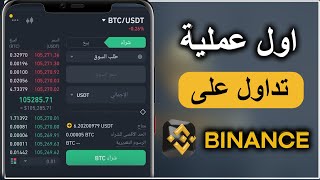

How to Buy Crypto on Binance
45sShows beginners the exact steps to buy Bitcoin on Binance, which is highly searched and practical.
▶ Play Clip"Title accurately promises a step-by-step guide for beginners on Binance, and the video delivers exactly that."
This video provides a step-by-step guide for beginners on how to buy and sell cryptocurrency on the Binance platform. It covers the basics of navigating the app, understanding different order types like market and limit orders, and executing trades.
Open the Binance app and browse currency pairs. For example, select BTC/USDT to trade Bitcoin.
Use two fingers to zoom in/out on charts. Timeframes range from seconds to daily, but minimum practical is 5 minutes.
Market order buys at current price instantly. Limit order buys only when price reaches a specified level.
Enter a price lower than market, choose amount (e.g., 50% or 100% of available balance), and place order. Fees apply.
Switch to market order to buy immediately at current price. Confirm and the currency appears in wallet.
Click sell, choose market or limit order. For limit, set target price; for market, sell at current price.
Cancel any open orders before placing new ones to avoid conflicts.
The video successfully teaches beginners how to perform basic trades on Binance, emphasizing the difference between market and limit orders and the importance of understanding fees.
What is the difference between a market order and a limit order?
A market order buys/sells at the current market price instantly. A limit order buys/sells only when the price reaches a specified level.
01:32
What is the minimum practical timeframe for trading according to the video?
5 minutes.
00:52
How do you cancel a pending order on Binance?
Click the 'Cancel' button on the open order.
04:11
What happens to the available amount when you set a limit buy order with 100% of your balance?
The order uses the full balance minus transaction fees.
02:41
Why might you need to cancel an existing order before placing a new one?
Because the existing order reserves the currency, preventing a new order from being executed.
06:14
Market vs Limit Orders
Fundamental concept for trading; clearly explained with practical examples.
01:32Setting a Limit Buy Order
Step-by-step demonstration of placing a limit order, including fee consideration.
02:41Executing a Market Buy
Shows how to buy instantly at current price, a common action for beginners.
04:23Selling with Profit
Illustrates selling process and profit calculation, reinforcing the trade cycle.
05:06[00:02] how to buy cryptocurrency and how to sell cryptocurrency. It's very simple. Open the Binance app like this, and while you're on the homepage, you'll find
[00:14] all the currency pairs. Okay, let's say we want to trade BTC, which is Bitcoin. We click on it like this. The current price is
[00:28] daily timeframe, the four-hour timeframe, meaning each candle represents four hours. Okay, so I press two fingers on the screen and separate them, and the conditions start to enlarge like this. I
[00:40] can also get the hourly timeframe, where each candle represents an hour. I have more here. If I get the second timeframe, each candle represents a second. You see how
[00:52] quickly the candles form, right? As you can see, of course, no one trades on the second timeframe. The minimum is, say, five
[01:04] minutes, like this. Okay, and I have Here's the buy button, and it's executing the BTC/USDT order. Right above, it's BTC/
[01:17] USDT, meaning you buy Bitcoin and pay with USDT, the currency we just deposited into our Binance wallet. So, if I click on "buy" like this, it will show on "buy" like this, it will show me a buy order, and then a sell order,
[01:32] which is the green one. But if I click "sell," it will be red. We're going to buy now, so let's stay on the buy order. Here, it asks me for a buy order. Here, it asks me for a limit order, a market order, a stop-loss order,
[01:47] or a stop-bid order. There are many orders, the simplest being the limit order and the market order. A market order is when I buy at the current market price. So, as soon as I click " buy," it will start buying immediately at the current price, which is shown in
[02:02] red on the left. So, what does a limit order mean? It means I'm telling it to execute my buy order immediately when Bitcoin or this currency reaches a certain price. That's a limit order. So here, I set a price in
[02:14] this place that's lower than the current market price. For example, if the market price is $105.20 or $207, I might tell it to buy at $104,000. Okay,
[02:29] at $104,000. Okay, $104,000. And what will you buy with? Here, it tells $104,000. And what will you buy with? Here, it tells me the available amount is $6.20. So, I move the indicator to decide whether to me the available amount is $6.20. So, I move the indicator to decide whether to buy with 50% of my available amount or
[02:41] 100%. Of course, when I chose 100%, it gave me 5.2 because the rest goes towards transaction fees. Now, let's actually implement this on a slightly cheaper currency because the
[02:53] fees for Bitcoin are a bit high here. Okay, let's go back to implement this on a different currency. Let's go to the homepage and find the highest-profit currency.
[03:06] homepage and find the highest-profit currency. Okay, let's buy, for example, Alpha or you buy a specific currency; I'm just teaching you. Okay, we'll choose "Buy" here, then "
[03:31] I'll buy it here for 100%. I'll buy for $6.19, so it takes a fee, but it's only about 1 cent. However, with Bitcoin, it takes a much larger amount, almost $1 in fees. For example, when the price of
[03:43] fees. For example, when the price of this currency reaches, let's say it reaches 2 cents, then the decimal point is this currency reaches, let's say it reaches 2 cents, then the decimal point is
[03:56] say "Buy." I've set a limit order. Okay, and I'm on the I'm on the buy option. What does it show me? It shows me this transaction in the open orders. Okay, as soon as the price of this currency reaches 29,000 or the number I
[04:11] entered, it will start executing my buy order immediately. Okay, if I want to cancel this order, I say " Okay, if I want to cancel this order, I say " Cancel" like this.
[04:23] Okay, and then I'll buy at the market price, the current price. So I click on "Limit Order" and choose " current price. So I click on "Limit Order" and choose " Market Order" here, and I'll buy for all $6. Of course, I can buy for 50% of the amount I'll buy at $3.10, or 25% of the amount,
[04:39] I'll buy at $3.10, or 25% of the amount, or 75% of the amount, or 100% of the amount. I'll buy with the entire amount I have, which is $6, and I tell it to buy like this. It $6, and I tell it to buy like this. It buys the currency directly, and it's now
[04:52] buys the currency directly, and it's now in my wallet. Now, if we go back to the condition, here's the main page, and here's the highest profit, and here's the alpha. I find that the currency's price has increased slightly from the price I bought at, and I want to sell. So what do I do?
[05:06] I click on the " Sell" button. Let's say, for example, that I made a profit of 3%, 5%, or 10%, and I want to sell this currency. Again, the same thing happens. Here's a "Sell" option in the market order. If I want to sell at the
[05:19] current market price now, or sell at a specific price when the price reaches it (which is a limit order), for example, I tell it that when this currency reaches 5 cents, I'll start a high order. So here, having
[05:33] cents, I'll start a high order. So here, having selected a limit order, I delete... So, I write 5 selected a limit order, I delete... So, I write 5 cents like
[05:45] have and set it to 100%. He tells me if I sell the quantity I have at the price I if I sell the quantity I have at the price I entered, I'll sell it for $8.60, so entered, I'll sell it for $8.60, so I'm considered to have made a profit of $2.40. Okay? And
[05:59] I tell him to sell like this too. The same thing happens. He brings me the order below in the open orders. As soon as the currency's He brings me the order below in the open orders. As soon as the currency's entered, he starts executing my sell order directly. Okay, let's say I want to sell at the market price, so I
[06:14] Okay, let's say I want to sell at the market price, so I came here to the currency and chose the market order and set everything like this. Why does it show me zeros ? Because I have a pending sell order, I've already reserved the currency I have, I've reserved the amount of currency I have because I'm telling it to start selling to me when its price reaches
[06:30] this price. So I have to cancel this order first before I place a new one. Okay, this order first before I place a new one. Okay, here I gave it 100% and it gave me zeros. Okay, so here I gave it 100% and it gave me zeros. Okay, so let's try canceling this order. Here's the cancellation, and now we go to the
[06:48] market order and specify the full amount. I'll see it start giving me $6.10. If I tell it to sell now at the market price, it will start selling to me immediately. Okay, I bought at it will start selling to me immediately. Okay, I bought at $6.20 and now I'm going to sell at $6.10.
[07:02] Where's the difference? The difference is the fees the platform takes. Okay, if I say sell like platform takes. Okay, if I say sell like this, it will sell to me immediately and go back to the USDT that was in my account. So the trading process is very simple and very easy. These are the basics: how to
[07:18] sell, how to buy, how to sell at the current market price, or We will work with limit orders in the remaining videos, God willing. We will explain the other advanced videos, God willing. We will explain the other advanced buy and sell orders.
⚡ Saved you 0h 07m reading this? Transcribe any YouTube video for free — no signup needed.