
How to Fund Your Binance Futures Account
45sBeginners struggle with wallet transfers, so this step-by-step funding tutorial offers an immediate, practical solution.
▶ Play Clip"Delivers a genuine step-by-step tutorial for beginners, though the rough translation adds minor friction."
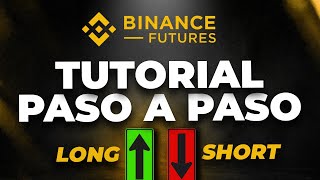
This video provides a beginner-friendly, step-by-step walkthrough of Binance Futures, covering everything from funding a futures account to executing and managing trades. The host explains the platform's interface, order types, margin modes, and risk-management tools in an accessible way.
The tutorial begins by explaining how to fund the platform and then walks through the Binance Futures account, with capital typically held in the spot account.
Go to the Transfer section, select the fiat or spot wallet, and choose USDT Futures as the destination. USDT is recommended because it offers the largest number of trading pairs.
Select the amount or choose max, then confirm the transfer to fund the futures account.
Open the Futures tab, pick the trading asset (e.g., ETH perpetual), and choose between the simple balance chart or the advanced analysis tools.
Market orders execute immediately at the current price for quick long (buy) or short (sell) trades. Limit orders trigger only when the market reaches a set price.
The order book displays sell and buy orders, the current price, and a summary panel with the day's high/low and the funding rate. Market depth shows whether buying or selling pressure is stronger.
Choose between isolated and cross margin; the presenter recommends isolated for beginners. Leverage can be adjusted, and the interface explains the implications of each choice.
After entering order details, set a take-profit price and a stop-loss price. Then place a long or short order depending on your market view.
Single-asset vs multi-asset mode determines how many positions you can hold. Track active positions, open orders, and order history, which includes date, asset, type, and status.
Trade history shows active trade size, entry price, settlement price, return, and options to close or modify take-profit/stop-loss orders.
The video delivers a complete beginner's guide to Binance Futures, from funding the account to executing orders and reviewing trade history. It emphasizes risk management through isolated margin and the use of take-profit and stop-loss orders.
What is the recommended currency pair for transferring funds to Binance Futures?
USDT (specifically the USDT Futures wallet).
00:32
What are the two main order types mentioned for trading?
Market orders and limit orders.
04:13
Which margin mode is generally recommended for beginners?
Isolated margin.
03:57
What does maintenance margin represent?
The amount needed to avoid position liquidation.
06:08
What information can you see in the order history?
Date, asset, order type (limit, market, take profit, stop loss), buy/sell direction, and status (completed, canceled, expired).
07:04
How can you enter the trade amount in the order form?
Manually as a monetary amount or as a percentage of the account balance (e.g., 25%, 50%, or all).
04:27
Fund via Spot Transfer
Explains the cleanest way to move capital from spot to futures using USDT.
00:18Reading the Order Book
Shows how to gauge buy/sell pressure and current pricing before entering a trade.
02:27Isolated Margin is Safer
Recommends isolated margin to limit risk per position, a key risk-management rule.
03:57Always Set TP/SL
Emphasizes setting take-profit and stop-loss orders alongside limit entries.
05:11[00:02] Hello everyone, welcome to this Balance Futures tutorial. We're going to give a quick explanation of how to fund platform, and then move on to explaining the platform itself, specifically
[00:18] the futures account. We'll generally have the capital in our spot account. What we're going to do is go directly to the transfer section, which is from the fiat or spot wallet.
[00:32] from the fiat or spot wallet. Here, you'll select USB Futures. Generally, the most recommended currency pair, given the number of pairs available, is to use UST/TT. So, try to have UST to transfer to the futures account.
[00:46] You'll select the amount, or the maximum, confirm, and you'll have funded your futures account. Once it's funded, let's look at the futures account. We'll go to the Futures section, specifically the
[01:03] futures account. We'll go to the Futures section, specifically the select it to go to the tab. First, on the
[01:15] left, at the top, you'll see the asset you'll be trading, which is currently selected. For example, if we want to To operate, we're going to touch the exterior of you and go to the perpetual section
[01:31] and select it. It will load, for example, here on the chart. If we have the original one that appears here, it's the one that offers us balance. The chart itself, or we can use, for example, the sending right to have the
[01:47] sending right to have the analysis tools that it directly offers us, and what we are most familiar with when carrying out technical analysis. Here you have, for
[01:59] example, to operate market orders, directly following a short or sell order. There is a long or buy order, but that's basically for those who want to operate
[02:11] minute by minute. If you want, what is more the order section itself, we'll find it here. Here you will have a whole series of different sections that you can place at your convenience. Here you have
[02:27] the order book, sell orders, buy orders, the price that would be quoted at this moment, which you also have here, all this part of a brief summary on the side that is the follow section, the high of the day, the low
[02:43] of the day, the financing rate, you have here how much is left for the next cycle of the financing rate, and in this case, by For example, you have the option to place buy and sell orders in the order book, or
[02:58] sell orders, and how many decimal places you're willing to see. The fewer willing to see. The fewer decimal places we have, the more orders, or the greater the number of orders, will be executed at that price. And then there's the
[03:13] money section. Next is the price at which that buy or sell order is placed, and the amount it represents, whether sell order is placed, and the amount it represents, whether in dollars or ether. You
[03:27] can also modify this to your liking. Below, the background information, which is updated minute by minute, shows the moment that operation is entered, whether it's a buy or sell order, depending on whether it's green or red, and the
[03:41] amount of UST (excuse me) that that operation has. Here you can also see the market depth to see if there's more selling or buying pressure. In this case, we have more buying pressure.
[03:57] And then we move on to the actual operation, where you'll have the option to select isolated or cross. Yes, and here you have all the information regarding what each choice implies. Generally, it's recommended to select
[04:13] isolated. The level of Leverage, if you wish to Leverage, if you wish to use it here, the limit order or the market order is what we will generally use most. The
[04:27] we enter at the price shown here, the closest one, whether buy or sell, and directly here we have to enter the amount of money we want to trade manually, or for
[04:43] example, if we want to place 25 percent of the account, 50 percent, all the capital. If, for example, we enter not the percentage but directly an
[04:55] amount, and the currency, obviously, in this case, as I always say, the best thing is with a CD. In the case of a limit order as such, we will have to enter and the amount as well, as in the previous case, in the section down here,
[05:11] if you have it like this, but the most recommended thing is that you can place it here or you can enter the order and then place the take profit and
[05:23] the stop loss, where basically you have to leave a mark here, yes, that is already predetermined, you place the profit price at which you want to exit and in the case of a loss at which you want to exit, and then if Their
[05:39] plan was to sell, they're going to be short, and they select this button, yes, and they're going to place a long order if they want to buy. Depending on the order type, it either starts directly when the market, because the
[05:55] buy or sell order is executed directly, or when the limit order price is reached, we'll have that operation running. Here you'll have, for example, the single asset mode or the multi-asset mode.
[06:08] This will be extremely detailed so you can read the information about it, but basically it shows you the margin rate, the maintenance margin, which is basically what we need so that the position isn't liquidated,
[06:21] and the margin balance in this case. And we have this other part where case. And we have this other part where we have the number of positions, yes, we have, we have the number of positions, yes, we have, as we can see, in execution, that
[06:35] are running in buy or sell, and that number of positions will depend, as it says here, as I was just saying, on the single asset or multi-asset mode, whether it's just Ether or we can exceed more than just Ether. The
[06:51] open orders follow those orders that we have loaded and that have not been executed, and the order history, like the trade history, for example, in the order history, if I put in this For example, if I select
[07:04] three months, the entire balance will appear here. In this section, for instance, we have order history. It will show us the date, show us the date, the asset, and the type of order placed—for
[07:18] example, a limit order, a market order, a take profit order, a market order, a take profit order, a stop loss order, whether it was a buy or sell order, stop loss order, whether it was a buy or sell order, and whether it was completed, canceled,
[07:32] or expired. The history of three transaction histories and all the running trade, will show the asset. In this case, I don't have any running trades, so it won't show anything, but in this case, the active trade
[07:47] size, the entry price, the settlement price, and all the details of the trade. For example, here's the return we 're receiving, the possibility of closing or modifying take profit or stop loss orders, and so on.
[08:03] take profit or stop loss orders, and so on. Basically, that's Basically, that's all the most important information you need about all the most important information you need about futures trading.
⚡ Saved you 0h 08m reading this? Transcribe any YouTube video for free — no signup needed.