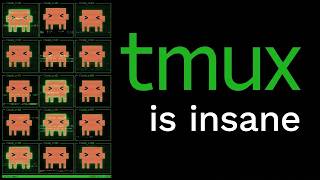

Tmux: The Secret Weapon for AI Agents
45sImmediately positions Tmux as an essential, non-negotiable tool for AI engineers, creating curiosity and FOMO.
▶ Play Clip"Delivers a solid tutorial on Tmux and VPS setup, but the title's promise of 'essential' is slightly oversold with sponsor and filler segments."
This video is a comprehensive tutorial on using Tmux, a terminal multiplexer, to run multiple AI agents persistently on a Virtual Private Server (VPS). The creator demonstrates how to install Tmux locally and on a VPS, use its core features like sessions, windows, and panes, and integrate AI coding agents like Codex CLI and Claude Code. The video emphasizes the importance of Tmux for agentic engineering, allowing agents to run for hours or days without interruption, and showcases a multi-agent setup on a VPS.
Tmux (Terminal Multiplexer) lets you run multiple terminals at once and keeps your terminal alive even when you disconnect. This is crucial for AI agents that need to run for hours, like when using slash goal in Hermes or Codex for large refactors.
Without Tmux, you cannot run agents for extended periods. Top AI developers like Peter Steinberger (OpenClaw) and Mario Wexner (Pi) use Tmux on a VPS to run multiple agents simultaneously for hours or days.
On macOS, install Tmux with 'brew install tmux'. If stuck, take a screenshot and ask Claude or ChatGPT for help, e.g., 'Help me set it up on Windows.'
Use 'tmux new -s [session-name]' to start a new session. A green bar at the bottom indicates you're inside Tmux. Run commands like 'ping google.com' to see persistence.
The main keyboard shortcut is Ctrl+B then D to detach. You can reattach with 'tmux attach -t [session-name]'. The session keeps running even after detaching.
Tmux has sessions (whole workspace), windows (like browser tabs), and panes (split screens). Sessions can persist, spawn, read, and write terminal sessions programmatically, allowing agents to see other panes.
The real power is using Tmux on a VPS. SSH into the VPS, run agents there, and your local machine stays free. This is what top AI developers do.
Use Hostinger (sponsored) to get a VPS. Select the KVM2 plan, choose a 24-month period for the biggest discount, and use coupon code 'Cold David' for an additional 10% off.
SSH is the protocol to access your VPS from your MacBook. Copy the SSH command from Hostinger panel, paste it in your terminal, and enter the root password.
Check if Tmux is installed with 'tmux -v'. If not, run 'apt update' and 'apt install tmux'. Enable mouse support with 'echo set -g mouse on'.
Use Ctrl+B then % to split horizontally, and Ctrl+B then " to split vertically. With mouse support, you can click and scroll easily.
Install Codex CLI from OpenAI developers link with a single command. Authenticate using device code, select your model (e.g., gpt-5.5 medium), and use slash fast for 1.5x speed.
Launch Codex with 'codex --yolo' in different panes. You can run multiple agents on the same project or different projects, all persistently on the VPS.
Install Claude Code with a one-liner installer. Authenticate with your Claude subscription. Use 'claude --dangerously-skip-permissions' for full autonomy.
Use slash goal to run tasks for hours, like building a full-stack web app. Detach with Ctrl+B D and continue using the terminal for other tasks.
Use apps like Terminus on iPhone to SSH into your VPS and manage agents from anywhere. This is useful if agents crash and you're not at your computer.
Even if you completely kill the SSH connection, Tmux sessions keep running. Reattach with 'tmux attach -t [session-name]' to see your agents still working.
The app built by agents on the VPS can be accessed via SSH tunnel. Run 'npm run dev -- --host 0.0.0.0' on the VPS and forward the port to your local machine.
Running Tmux on a VPS is the future. Agents keep running even if your laptop explodes. This setup can be done in 40-60 minutes and puts you ahead of 99.9% of people.
What does Tmux stand for?
Terminal Multiplexer
What is the main keyboard shortcut to detach from a Tmux session?
Ctrl+B then D
02:18
What are the three essential building blocks of Tmux?
Sessions, windows, and panes
03:23
How do you split a Tmux window horizontally?
Press Ctrl+B then %
08:37
How do you split a Tmux window vertically?
Press Ctrl+B then "
08:50
What command is used to list all active Tmux sessions?
tmux ls
03:23
What command is used to kill all Tmux sessions?
tmux kill-server
10:22
What is the purpose of enabling mouse support in Tmux?
To allow clicking and scrolling with the mouse instead of using keyboard shortcuts.
07:56
What is the command to install Tmux on Ubuntu?
apt install tmux
07:43
What is the command to launch Codex in YOLO mode?
codex --yolo
12:08
What is the command to launch Claude Code with full autonomy?
claude --dangerously-skip-permissions
16:35
What is the benefit of running agents on a VPS with Tmux?
Agents keep running even if your laptop dies, disconnects, or is closed.
19:48
What is the recommended Hostinger plan for running multiple AI agents?
KVM2
04:47
What is the coupon code mentioned for Hostinger discount?
Cold David
05:01
What is the purpose of the 'slash goal' feature in Codex?
To run long-running tasks that can last for hours or days.
12:55
Tmux is essential for AI agents
Explains why Tmux is critical for running agents persistently, a key insight for agentic engineering.
Sessions, windows, and panes
Provides a clear mental model of Tmux's structure, essential for effective use.
03:23VPS is the real power
Highlights the shift from local development to VPS-based agentic workflows, a forward-looking practice.
04:07Enable mouse support
A practical tip that significantly improves usability for beginners.
07:56Persistence after SSH kill
Demonstrates the core value of Tmux: agents survive disconnections, a game-changer for reliability.
20:04[00:00] Tmux is the one tool that every single agenting engineer needs. Now, what even is Tmux? Tmux stands for Terminal Multiplexer, aka a tool that lets you run multiple terminals at once. But that's not all.
[00:12] The thing that makes it essential for AI agents is that it keeps your terminal alive even when you disconnect. So, if your laptop dies, runs out of battery, if you want to run slash goal in Hermes or Codex, or you're doing a large refactor, all of these require your agent to run for multiple hours.
[00:26] Without Tmux, you really cannot do that. So if you're using Cloud Code, Codex, Hermes, Pi, or any other agent, and you don't have TMAX, you really are missing out. Now here's where it gets really OP. While most bytecoders develop all their apps and projects locally, on their MacBook, on their laptop,
[00:41] the genetic engineers use TMAX, running on a GPS, to run multiple different agents at once, for hours, sometimes days, at a time. And by the way, all of the famous AI developers, like Peter Steinberger, the creator of OpenClaw, or Mario Wexner, the creator of Pi, all of them do this.
[00:56] So I would highly recommend you block out the next 20 minutes, sit down and actually learn Tmux. First, let me show you how to set it up locally so you get a taste of the power of Tmux. But then I'm going to show you the real deal, which is Tmux on a VPS and then SSH into a VPS.
[01:10] Let me not get ahead of myself because I don't want to overwhelm you. So first, open up a terminal. Any terminal is fine. If you're on macOS, you can use Brew. But basically, the way to install Tmux is very simple. Just type in Brew, install Tmux. Boom, just like that.
[01:24] And by the way, if you get stuck at any point in this video, just ask ChaiGVD or Claude. For example, let's say you're not on macOS and you're getting confused. Well, I'll show you how to solve that, right? Boom! You take a screenshot of what I'm showing and you paste it into Claude or into ChaiGVD and say,
[01:38] Help me set it up on Windows. I'm not on macOS. How do I actually install this? Be very concise. So, don't make excuses. As long as you can speak English and have an internet connection, you can absolutely do this. Let me jump back into the terminal and then I'm going to do clear and then tmax-v.
[01:52] Okay, we have the TMAX version, beautiful, let's be clear. And now I'm going to give you the main command you have to know to start a new session inside of TMAX, which is tmax-u-s and then the name of the session. So that could be testing or, you know, YouTube or subscribe.
[02:06] If you're watching this and you want more of these technical videos, make sure to subscribe. And boom, here we are. You can see this green bar at the bottom. When you see it, that's how you know you're inside of TMAX. What that means is that we can run a command, for example, like ping google.com,
[02:18] which obviously will keep running and ping in Google. and then we can do the main keyboard shortcut, which is command B and D. This will allow us to detach. You can see detach. And we're back in the terminal and we can do something else. For example, like PWD and any other command.
[02:32] We can launch clause code, do whatever we want. But the magic is that session is still running inside of TMAX. So when I kill const all here and I do clear, I can do TMAX attach dash T and the name of the section which will subscribe.
[02:44] And boom, here we are back. It's still pinging Google, still the same terminal session. It wasn't killed. So this is really the magic of TMAX, and obviously it can do a lot more. For example, I'm going to show you here. There's a sneak peek, you know, splitting it into two.
[02:57] We can, you know, do a lot of fancy stuff inside of TMAX, all of which I'm going to show you in this video. But the main idea is that these sessions are persistent. You can detach from them, you can reattach from them, and you can use this to manage multiple agents at once,
[03:09] which makes it ideal for the era of agentic engineering. Now, when you want to close a TMAX session, just type in exit, and then it closes the pane. So I'm going to do Ctrl C to stop this Google Paint and do exit to exit out of TMAX. And to see all of your active sessions, just do TMAX LS.
[03:23] And you can see that no server is running right now because we exited everything. Now, to understand TMAX, you have to understand these three essential building blocks. Sessions, windows, and paints. And I think this graphic really explains it the best. We have the TMAX session, which kind of wraps everything.
[03:36] Inside of a session, you can have different windows. And in each window, you can have different paints. A session is the whole workspace. Windows are like tabs in a browser and panes are split screens inside of a single window. Now the reason this works is because Tmux can persist, spawn, read and write thermal sessions programmatically.
[03:52] This gives the agents the power to read other panes. Otherwise, if you have two separate terminals, the agent cannot access the other terminal. But if you're using Tmux, agents can see what the other agents are doing if they need to see it. So basically, you can think of it as the substrate that the whole multi-agent setup stands on.
[04:07] Okay, so I gave you a little teaser of how simple it is to install Tmux locally and run it on a MacBook, but the real power is using it with a VPS. Release agents are all running on a VPS, so you can have the most shit computer possible with like 2 gigs of RAM.
[04:20] All you need to do is SSH into the VPS, you can run codec, codec, spy, cursor, CLI, open code, anything you want on the VPS itself, and you can SSH through your MacBook, from your phone, and all the development is happening on the VPS inside of Tmux.
[04:33] This is what all the top people are doing in AI development. I'm going to show you how to do the same. So the first thing you need is a VPS. Now personally, I run all of my VPS servers on Holstinger. It's one of the most affordable options and it's super easy to set up. So I'm going to leave a link to Holstinger below the video. Just click on
[04:47] the designing page, then click on choose plan and select KVM2. This is more than enough to run multiple AI agents in parallel. So here inside of the cart, make sure to select the period. I recommend going for 24 months because every month that goes by, I have more and more VPSs. So that
[05:01] gives you the biggest discount. But also if you want an even bigger discount, go to the right and and click on have a coupon code and type in Cold David. Hostinger will scan it up to sponsor this video, so if you use the Cold David, you get additional 10% off from your VPS.
[05:13] Then on the left, we can select a server location that's close to you and click on continue. This will redirect you to the checkout page, so the last thing that remains is filling out your credit card details and completing the payment. Now, once you complete the purchase,
[05:25] you'll be redirected to your Hostinger panel where you can see everything about the VPS. If you don't see the screen on the left, you can click on VPS, select the one you just purchased right here and click on overview. Here you can see all the stats, CPU, memory, all that stuff.
[05:37] But what we are interested in is the SSH access. And again, SSH is one of these terms that can be complicated. It definitely sounds intimidating if it's your first time using it. But all that means is accessing your VPS through your MacBook.
[05:50] OK, so your computer, you just access your virtual private server. That's it. SSH is the protocol that allows us to do that. So what you need to do is copy this command, literally click on this button right here, open up your terminal, paste it in.
[06:02] It's going to ask for the root password. If you didn't save that, which you should definitely save that during setup, but if you didn't, don't worry, just click on here, you can easily change it, generate a secure one, boom. Of course, do not share this with anybody, otherwise they can just access your VPS.
[06:14] So make sure to store this securely, and click on confirm, and within a couple of seconds, Hostinger will change your root password So when you go into the terminal and you click in paste it in boom here we go We are logged in into our VPS asset aged from my MacBook right So I can control the virtual private server but everything will be happening on this server
[06:32] on Lithuania. So even if my MacBook explodes, doesn't matter. All the agentic development is happening on the server and I can connect from a new device, from my phone, there's apps like Terminus, which if you want me to make a video on that, make sure to comment below.
[06:45] But this is the beauty of having a VPS. You eliminate the risk, you put everything on the server. You don't drain battery of your computer and you can run heavy operations that would require an expensive computer, so if you don't have one, this is the way. But this is the way no matter what, because more and more agents are running for hours.
[07:01] Last year, you know, the longest agent ran for like 5-10 minutes. Now with features like slash go instead of codecs and hermes, agents can run for days and you would have to keep your laptop or computer powered on and awake for all that
[07:14] time, otherwise it interrupts. That's obviously very inefficient. So, instead we're going to use tmux on a VPS, ssh into that VPS and run all of our development on there. So, the first thing you want to do is type in tmux-v to test if you already have tmux.
[07:26] As you can see, we do, which is beautiful, it saves us some time, I think it comes pre-configured on the home folder, but if you don't, I'm going to show you how to install it. Type in apt update to make sure you have the latest version. We can do clear and type in apt install tmux and this will install tmux on your Ubuntu
[07:43] Linux VPS. Clear, do tmux-v and as you can see we have version 3.4. Now the next command you absolutely must run, non-negotiable, and that is to enable mouse support. So run this command, echo set gmouse on.
[07:56] I know it's a very complex command, that's why everything from this video I packaged it into a single bundle that you can just click. It's gonna be the second link below the video and you can get all the terminal commands, all the presets, everything I'm gonna show you in this video completely for free.
[08:09] So again, it's the second link below the video, go grab it now. Okay, so we can type clear again, and we can start our first tmux session, tmux new-s agents, we can name it agents, there we go, we can see the name right here at the bottom, and
[08:22] we can actually start doing some of the multi-flexing, you know, using it to run multiple terminals at once. So, for example, here we can do top, to just get a bunch of data about our VPS, then we can do control-B, and then percentage, this will split it horizontally, right?
[08:37] So, again, control-B is the main command inside of tmux. The tricky part is that you have to let go after you run it. Okay, so it's not ctrl-b percentage. It's ctrl-b, let go, and then press percentage. Another thing you need to know is ctrl-b quotation.
[08:50] This will split it vertically, right? So, same thing. Ctrl-b to activate the shortcut and then quotation to split it. So, here I can do like ping 1111. This is the public cloud server. And then if I want to split it vertically, I can do ctrl-b quotation and have another terminal here.
[09:06] And I can do something else, you know, ping google.com. Boom. And with the mouse support we can click around actually and you know split these terminals and you can do this on multiple levels You can do control B percentage again and look look at this look how many terminals you have running, right? Isn't it beautiful?
[09:21] This is the magic of Tmux. Also, we can do exits to exit any of them, right? So you can keep splitting indefinitely basically Boom control B percentage and yeah, each of these could be set to be an agent. Now, we haven't installed any agent so far
[09:37] So that is going to be the next step. Install Cloud Code and Codex CLI on our VPS so that we're not just running some pings But these are actual agents doing actual development work. So let me show you how to do that right now So to install Codex CLI, just type in Codex CLI and click on the OpenAI developers link
[09:54] It's literally a single command. So just copy that, boom, back to terminal We can actually exit all these so we don't have so much mess This might enable the mouse support because without that you actually cannot click you have to do control B and arrow
[10:07] It's very annoying. With mouse support it's much easier. Also another thing, we can do Ctrl D detach, right, so Ctrl D and D, and then if you want to kill everything, just Tmax kill server. So actually before I run that, I'm going to do Tmax ls, it's going to say, okay, agent
[10:22] one window, and obviously we can reattach, attach.t agent, and we're back in, beautiful, just like that. But if you want to kill everything, just it's kill server. Tmax kill server, boom, and now we do Tmax ls to list out everything.
[10:37] is running. Beautiful. So now, just paste in the command from OpenAI Docs to install Codec CLI. Let's run that, and it's especially powerful. I'm going to show you close code as well, but like, Codec CLI, with this logical feature, has been made for this. You really need a VPS to run this
[10:50] effectively, because otherwise you need to keep your laptop or PC up at all times. Not just turned on, but awake. It cannot, you know, power off, it cannot be closed, all that stuff. So, let's launch
[11:02] Codec. So, this is what it's going to look like for you when you do it for the first time, right? you tap in codecs and you have three options, ChaiGBD, device code and API key. Easiest is device code, I'm gonna click that. And then we need to copy this, right? Copy this link that the terminal gives you,
[11:17] go into your browser and then paste that in. And then you need to just log into your ChaiGBD account. All right, it's requiring 2FA. Okay, let's put that in. Boom, now I'm gonna select my personal account because I have a ChaiGBD Pro plan,
[11:29] the $200 a month, which is more than a team plan, but I don't think it doesn't matter, just make sure you have any paid plan. And then back to the terminal, we have this 9 digit code, copy that, paste it in, and we should be good, if we check here, we should be logged in, there we are.
[11:43] Ok, so hit enter. The first thing is to set a little bit to model, obviously, right, model, gbd5.5, medium, that's a good baseline, and make sure to do slash fast, so that it is 1.5 speed, and send a test message, and it's working, ok.
[11:56] So, what we can do is do control C to kill this, we can do tmax, new, session, maybe we can name it test. As you can see, the green bar at the bottom means that we are inside of Tmux.
[12:08] And I'm going to do codex dash dash yolo to launch a codex. Then I'm going to do control B percentage to split the Tmux. There we go. And we can launch another one. Codex dash dash yolo.
[12:20] And now you can feel the power, right? You can have these codexes work on the same project, different features or different projects. Now let's say I click in here, hey, and I do control D quotation marks and we split it vertically.
[12:32] So here I can do another codex, boom boom, and this is how you run multiple agents on a DPS, persistently. So I can do slash go I say build a full stack web app that is a clone of reddit but built for AI agents blah blah blah whatever you want to do right And this goal it will run for hours Maybe you can set a better end state
[12:55] The end state should have all features with unit tests and should be, you know, including integrated database deployed on Cloudflare, whatever you want to do as the end state.
[13:07] But this Flash Go feature can easily run for 24 hours. If you wanted to do this locally, you would have to have your computer up for 24 hours, which is very unrealistic, and it will be eating your battery, it will be distracting you,
[13:19] you have to keep it open, you can't accidentally close the tap. With TMAX, you can have multiple agents running at all times, and the best part is, you can detach. So, you can still use the same terminal. Command BD, and I'm detached, and I can still do like a LS, you know, figure out what's there,
[13:32] you know, UE, okay, I'm on the root level, I can see, you know, what's on the VPS, I can CD, I can make a directory, you know, in YouTube, I can CD into YouTube, you know, and you can do whatever you want. on the same DPS and then always to tmaxls.
[13:46] You can see, okay, it's named test. If you forget your name, that's helpful. You can go to tmaxls to see the name of that session and that's tmax attach dash t test. And we're back in. And these agents will be running.
[13:59] That's the beautiful part. Now let's install Cloud Code so you feel the power of having different agents running into T-Bucks at all times. So just go to Google, type in Cloud Code install, Cloud Code install, there it is. Click the first link.
[14:11] They also have a one-liner installer, So just copy that back into terminal. Again, the detach, control B, D. You need to learn this, okay? You need to learn that command, control B, D. It's essential. Paste that in. It's going to install a protocol CLI.
[14:24] And actually, while this is installing, I should have done it inside of Tmux. That's a little bit of a mistake. Anyways, what we can do, actually, is I'm going to do the same command that we just ran to attach into test. And I'm going to start this.
[14:37] Create a new dir named web app. and in there build a full stack web app with Svelte plus Vite, that is for monitoring slides,
[14:49] using some free public API. Build the full thing end to end. So this is going to be running for 5, 10, 15 minutes, I don't know, but in the meantime we can just do Ctrl B D, and we can continue using the same terminal,
[15:05] because it's running in self Tmax, so we do tmax-lx, We're going to see that it's running, and then in the meantime, we can continue with the cloud code install. So, I'm going to do cloud, and we need to authenticate the same way we just did with Codec CLI. So, with the subscription, console account, and third-party platform, I'm just going to
[15:20] go subscription. It's probably the easiest. Obviously, if you don't have cloud subscription, use the API or something. Boom. Paste that into our browser here. Authorize. We need to copy this code. Paste that here. And we should be good.
[15:32] Enter. Enter. Enter. And we're here. Let's do slash model. Just select model we want. Okay. Opus is by default. Let's send a message. Hey, there we go. So that's how easy it was to install both
[15:44] Codec CLI and CloseDoc CLI. But we're not interested in this. What we're interested in is running TMAX. So let's do again TMAX attach-t test. As you can see, this agent is running. It did a bunch of stuff in the meantime. Also, by the way, the reason you need to do the mouse command, which again,
[15:59] it's going to be in the bundle with everything else shown in the video. Go get that. It's the second link for the video. It's completely free, so get it. I'm going to email you all that stuff, including the mouse link, because you need to enable the mouse. Without that, you cannot scroll. You can't even scroll in T-Map, you have to do everything by hand, as these like try-hard DevOps experts who have mastered every single Linux shortcut do.
[16:18] I mean, shout out to them, because without them, tools like this wouldn't exist, but you know, we're not as cracked as them. I still want to use my mouse to just click around and scroll around, so definitely enable that command. But you can see this agent has been running, and we can, you know, maybe kill this one, control C, and instead do clod dash dash dangerously
[16:35] skip permissions, it can be just whatever, just normal talk. And we can say run ls and tell me all the dirfs we have. And we can have this development running on the VPS permanently,
[16:49] even when I close my laptop. And again, we can use apps like Terminus. If you don't have Terminus on your iPhone, definitely get it. It allows you to annotate into your VPSs and manage them through your phone. So, you know, if you have like a Hermit agent running or OpenCore running
[17:03] and they crash, sometimes you're not on your computer, right? So you can easily fix them from your phone if you have terminals. But the main thing is, you need a VPS. If you don't have a VPS, you cannot S&H into it. So really moving more and more of your stuff,
[17:15] your information, your agents, your development work onto a VPS is the future. So you either wait until it's obvious and then you're going to be the last mover, or you do it now and you're one of the first movers because most people still don't know how to use it, especially with hardcodes.
[17:28] And stuff like this is really the difference between hardcodes and agenting engineers. People who actually embrace software They embrace all the tools that exist and they have the best possible setup to get the most work done in any given minute You don't be using ineffective tools, right? And again, this is running on our VPS and building the app
[17:44] You can see that we have the web app. So I'm gonna say go into the web app and explain what the state is Deconcise. Yes, you can run a close call here. That's like more of a explainer advisor consultant
[17:56] You can run multiple codexes that are building different features. You can click here. Maybe this guy is a you know lazy so you can do another section here, Claude, okay maybe this one is kind of weird, you
[18:08] don't like this li out, so you can exit that and do control B percentage to split it horizontally and do a Claude here, and this one maybe is taking up too much space, so I'm going to control B quotation mark and then we can run another codex YOLO here, and this is the beauty
[18:22] of Tmux. You can run many agents at once in a clean user interface with easy switching, and if you need to detach, command B D, boom, detach. And I can start another TMAX session. I can do TMAX new dash S, and then we do a different web app, maybe this can be a 3D game, okay. And now here
[18:37] we're going to do another codecs YOLO. Let's actually do a cloud. There's a cloud, and I'm going to do create a new there named game, and build a nice 3D web game in a single HTML file.
[18:51] And then I'm going to do command B D, detach from this, I'm going to do TMAX LF. We can see all of sessions, we have 3D game, we have test, so I'm going to attach to the test one, see how this development is going, okay this guy is still running 4 minutes 30 this guy already explained it let see what happening is it really working okay we need to run it improve the docs command DD detach from it you can do clear dmatch attach dash t 3d game let see how this is going it still great for
[19:22] me, syncing some more, that's a new feature in close code, alright so obviously we haven't launched it yet, so it's dangerous to skip permission, so that's why it's asking for everything, but yeah, you get the point, because the table has been running on a VPS, my MacBook is running smoothly, you know, I can open up activity monitor, my
[19:35] memory is probably very low, I mean I'm recording with OBS, so that is going to taking up some time, but my battery is fine. If I was in a cafe and wasn't connected to charging, this would be a complete game changer. My battery wouldn't run out, everything is
[19:48] running on a VPS. If my internet gets disconnected, my agents keep running. If my laptop runs out of memory, my agents keep running. If I need to close my laptop, the agents keep running. There is a massive difference between people who don't use Tmux and who do use Tmux.
[20:04] Tmux on a VPS is non-negotiable, I'm certain of it, and everybody in tournament ethics will have to adopt this, or just not be as effective. Now let me show you the biggest thing, and that is completely killing the SSH, right?
[20:16] So I'm gonna kill this, to prove the point. I disconnected, so I'm on my MacBook, okay, on my desktop, I'm gonna launch a new terminal, I'm not even SSH'd. So, back to hosting your panel, I'm gonna copy this again, boom, run it, I forgot the
[20:28] password to be fair, so I'm going to reset it. Boom, reset, put that in. Let's look here. This is completely fresh SSH, I killed everything, killed the connection, but we can do tmux
[20:41] ls, oh, and we have sessions running. This is the beauty of tmux, persistence and the multi-agent, right, in the user interface. Really, this is essential. So now we can do again tmux attach dash c test, and we're back. Even though I completely killed the SSH, we
[20:57] We can see that the app is running here. Okay, so I can ask how can I see this app. I'm SSH'd into this VPS via my Macbook. I'm gonna give it the command.
[21:09] Here is the IP. Boom. Give me step by step. Be very concise. On the VPS run this. Okay, so actually we can easily do it here.
[21:21] Let me click here. We can use some of these terminals. What is it? Yes, allow. I'm gonna ctrl c to kill it, but I'm gonna run it here cd root webapp let's copy that cd
[21:36] root webapp what do we need to do npm run dev dash dash dash dash host zero zero zero zero there we go and then uh on we need to run a on a macbook command so I'm going to ctrl n to open
[21:51] a new terminal like this and just copy this command okay it's not copying now one caveat is when you copy something you need to hold option while you select it to bypass the tmax selecting
[22:03] okay so then you have to go to this uh ip address and the port 5173 because it's a wide app 5173 and just http before this okay http colon dash dash and this should work ssh tunnel
[22:17] So it needs the IP, so let's go back to hosting the panel, give it IP. Here is the IP. Give me the updated command. There we go.
[22:29] Let's run it here. Here's the password, let's give it that. So, and then we can go in the browser tab, and here's our fly motor, built fully on the VPS. Look at it. And we can keep developing it, right?
[22:41] So let's go back into Tmux. And all of this was built on the VPS by agents running inside of Tmux sessions. now I can access it from anywhere, right? We can push it to GitHub, we can deploy it to the cell, to Cloudflare, add a super-based backend, whatever we want to do. But the main
[22:55] thing is, if I run a massive refactor like Flash Go, refactor the frontend to be like Palantir UI, UX, keep going until we have 20 plus working features, all using OSS APIs
[23:14] for different global, let's say like geopolitical data, boom, it's going to be pursuing this goal for many hours, developing our app, and I can do whatever I want.
[23:26] I can go for a walk, I can go to the gym, I can go grab a coffee, and this development is happening. Even if my MacBook literally gets shredded to pieces, even if it explodes, it will still keep running
[23:38] because it's on the whole single VPS. It's somewhere in Lithuania, and the codec will keep cooking on that app and the app is going to be developed. This is the future. Running TMAX on a VPS, you SSH into it. I know there's a lot of different terminology, but as you can see, it wasn't that complex.
[23:53] We were able to install TMAX and Cloud Code very quickly. We were able to set up a new VPS very quickly and hosting rates are easy. Codec's CLI installation, Cloud Code's CLI installation was also very easy when you have the subscription.
[24:07] If you don't have the subscription, why? 226, just get a subscription on any AI tool. All of this can be set up within 40 minutes, maybe 60 minutes if it is your third time. So now that you've watched this video, go
[24:19] ahead and actually do it. Because watching is useless before action. So this will already put you ahead of 99.9% of people. Most live coders have nothing even close to this. They're completely scared of TMAX, they don't know what it does, they don't know how to set it
[24:31] up, they don't have a VPS, they're developing everything locally, just confused. If they close their laptop, all their development stops, their agents aren't running for multiple hours persistently on a goal. They don't even know what the slash goal feature is, right?
[24:43] Whether it's inside of Hermes, and even Costco has its slash goal, right? You can say like, build a new 3D game shooter, end to end. And all this can be running on a single VPS. The KDN2 plan for most thinkers
[24:55] is more than strong enough, and again, if you don't have your own VPS, use the full-length load video, get your VPS today, because it's essential. No matter if you're running your automations, your agents, You can deploy a full-stack web app on a hosting VPS.
[25:09] You can do anything with a virtual private server. Put your files there. It's basically a computer that you don't have to worry about. It's managed somewhere within a data center, and it's a virtual private server. That's what it is. So even if you're not a developer expert, even if you're not a developer,
[25:22] grab yourself a VPS and start using Tmux with multiple agents, building the software for hours at a time, even while you sleep. Oh, and again, all the resources, terminal commands, everything I showed in the video is bundled below.
[25:34] it's the second link in the description so if you want this go get it it's completely free
⚡ Saved you 0h 25m reading this? Transcribe any YouTube video for free — no signup needed.