
Prerequisites & Setup for AI Agent
34sThe clear, actionable installation steps for Python, JDK, and uv are controversial yet educational, appealing to developers seeking a quick start.
▶ Play Clip"The title accurately reflects the step-by-step tutorial content, delivering exactly what it promises."
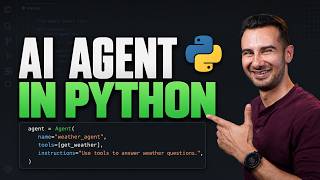
This tutorial provides a step-by-step guide to building your first AI agent in Python using the open-source framework Agentspan. It covers setting up prerequisites, defining tools and agents, running them, and making them resilient to crashes. The video is sponsored by Agentspan and aims to make AI agent development accessible to beginners.
Install Python 3.10+, JDK (version 25 or 21), and a package manager like uv.
Use `uv init` to create a project and `uv add agentspan` to add the framework.
A tool is a Python function with the @tool decorator; its name, type hints, and docstring guide the AI.
The agent runs on the Agentspan server; the Python script is just a client.
The Agentspan dashboard records every execution and allows inspection of tool calls.
Use `runtime.start()` to get an execution ID and `agent.resume()` to recover from crashes.
Tool functions must be idempotent to avoid duplicate results when retried.
What are the prerequisites for building an AI agent with Agentspan?
Python 3.10 or later, Java Development Kit (JDK), and a package manager like uv.
0:27
How do you add the Agentspan dependency to your project using uv?
Use the command `uv add agentspan`.
2:14
What is a 'tool' in the context of Agentspan?
A Python function decorated with `@tool` that the agent can call.
3:46
What aspects of a tool function give the AI agent clues on how to use it?
The function name, type hints on parameters, return value, and docstring.
4:00
What function is used to run an agent in Agentspan?
`runtime.run()`
5:23
Where does the agent actually run in Agentspan?
It runs on the Agentspan server, and your Python process is just the client.
5:14
What command starts the Agentspan server?
`uv run agentspan server start`
5:34
What is the web app that comes with the Agentspan server?
The Agentspan dashboard, where every agent execution is recorded.
6:11
How do you get an execution ID to resume a crashed agent?
`runtime.start()` returns an agent handle with an execution ID.
9:48
What does 'idempotent' mean in the context of tool calls?
A function that can be run multiple times without changing the end result.
11:30
Defining a Tool
Shows how to create a simple tool function with the @tool decorator, which is the foundation for agent capabilities.
3:46Agent Runtime Architecture
Explains that the agent runs on the server, not the client, enabling crash resilience.
5:14Resuming a Crashed Agent
Demonstrates how to use execution IDs to resume agent execution after a crash, a key feature for production reliability.
9:48Idempotency in Tool Calls
Highlights the importance of idempotent functions to avoid duplicate results when retrying tool calls.
11:30[00:00] Today, let's build your first AI agent in Python step by step. We'll start with
[00:04] the basics like how to define an agent, define a system prompt, and how to
[00:09] write tools for your agent to use. Then we'll move on to make sure your
[00:12] agent survives crashes halfway through its work. I'm David, and today we'll use a free
[00:17] open-source framework called Agentspan. They're also the sponsor of today's video. Let's get started.
[00:23] Before we jump in, there are a couple of prerequisites to install. First up is
[00:27] obviously Python, and you'll need at least
[00:29] version 3.10. If you don't have Python already, head to this page, you'll find
[00:34] a link to it inside the resource guide, which is in the description below. Once
[00:39] you're here, click on the yellow button at the top of the screen to get
[00:41] set up. Next up is the Java Development Kit, otherwise known as the JDK. You'll
[00:47] find a link to this page in the resource guide as well, and once you're
[00:50] here, click on the appropriate download either Windows or macOS. Unless you have a
[00:55] reason otherwise, install the latest long-term support JDK.
[00:59] That's 25 as of filming. But if you need to stay on 21, that's no
[01:04] problem. Agentspan supports that just fine. Finally, if you are new to Python, I recommend
[01:09] installing a package manager called uv. We'll use this throughout today's tutorial, so choose the
[01:15] proper operating system, either Mac or Windows, and then copy the command that shows up
[01:20] first in the list. On Mac, you can use the terminal to run this. On
[01:24] Windows, you can open up a new PowerShell window by opening the start menu and
[01:28] then typing PowerShell.
[01:29] Click on Windows PowerShell to open it and then paste that command directly in the
[01:34] terminal. Run it by pressing Enter, and you should see everything's installed.
[01:38] Before you go, make sure you run this command if you're on Windows. This is
[01:42] also in the resource guide to make your life a lot easier. With prereqs
[01:46] out of the way, let's get into VS Code.
[01:48] Start off by opening an empty folder to work in using this open folder link.
[01:53] Next, in order to run Python, we need to use the terminal. You can access
[01:57] it by clicking the view menu then terminal.
[01:59] Python projects need their own set of dependencies, and that's what we'll use uv for.
[02:04] If you're comfortable with them for something else, feel free to substitute that here.
[02:09] But for the rest of you, type uv, space, init, and then enter to
[02:13] create your project. Then type uv, space, add, space, agentspan to add Agentspan
[02:19] and all of its dependencies to your project.
[02:22] To make sure everything installed correctly, run this command with me. uv, space, run, space,
[02:27] agentspan, space, doctor. Now, chances are you won't see all green here, and it'll
[02:32] be for one of two reasons.
[02:33] First would be if your AI provider is not set up correctly. Now, Agentspan
[02:38] spun up my Ollama instance here locally, but some of you might want to use
[02:42] OpenAI or Anthropic to connect your agent.
[02:45] If you want to use OpenAI, you can head over to platform.openai.com and
[02:49] then click on API keys on the left and create new key. Very similar for
[02:54] Anthropic and Claude. Just head over to platform.claude.com, go over to manage API
[02:59] keys, and then you can create a new key.
[03:01] Once you've got your key, set the corresponding environment variable. So for OpenAI, set OPENAI
[03:07] API key. In PowerShell, that would look something like this.
[03:11] Now, the second issue you might run into is this certificate verification failure. This is
[03:15] especially prevalent on Mac. So if your screen looks like this, run the command below,
[03:20] you'll also find this in the resource guide.
[03:22] With that, setup is now done. Let's write the agent. Let's get rid of the
[03:26] terminal first and start by opening the main Python file.
[03:29] Let's first get rid of all the auto-generated code. Building an agent might seem
[03:33] daunting, so let's break it down into three steps.
[03:36] Step one, write the tools the agent can use. Step two, write the agent itself,
[03:42] and step three, write code to run the agent. So let's start with the tool.
[03:46] A tool is just a Python function that the agent can call. This is a
[03:50] very simple function called get_weather, and this @tool decorator exposes it to the agent.
[03:56] Something that beginners can easily miss is that the function name, the type hints on
[04:01] the parameters, as well as the return value, as well as the docstring all
[04:05] have a purpose.
[04:06] They give the AI agent clues on what this tool is used for and how
[04:11] to use it. So if you got rid of the docstring and then called
[04:14] this tool one, the AI agent might not even call this if you asked about
[04:18] the weather.
[04:19] Now, of course, in production, you hit a real weather API here, but this hard
[04:23] coded string is fine for the demo. We just need something for the agent to
[04:26] invoke.
[04:27] Before we move on, we still got the squiggly line under tool. That means we
[04:30] haven't set up our imports properly yet.
[04:32] That's a one liner you can pull from the resource guide. Now let's set up
[04:36] the agent. The agent has three required fields, a name, the AI model name, as
[04:41] well as the tool list.
[04:42] The model string here uses the format provider slash model name. You can typically find
[04:48] these model names just by searching for the provider and then model names.
[04:51] What you're looking for is text that looks like this, where it's GPT-5
[04:56] .5, 5.4-mini, and so on.
[04:59] Today, we're going to use 5.4-mini for its speed, and notice that I've
[05:02] already loaded up the get_weather function as a tool.
[05:06] The third piece has the code to run the agent here. We create an instance
[05:10] of an agent runtime that connects to the Agentspan server.
[05:14] The agent actually runs on that server and your Python process is just the client.
[05:19] The reason for this will become clear later to actually call the agent though.
[05:23] We call the runtime.run function and we pass in a simple prompt here. We're
[05:27] just asking the weather in New York City to run this.
[05:30] We have to start the Agentspan server. So let's open a terminal window and
[05:34] this time we'll type in uv run agentspan server start.
[05:39] Now the first time you run this, it takes about 30 seconds. Every startup after
[05:43] that is pretty quick.
[05:44] Now we've got this running. We can run the agent just by using uv run
[05:48] main.py. This takes about 10 seconds to spin up. So let's see what
[05:52] it's actually doing.
[05:53] These log entries tell you the agent's been kicked off. Anything with Conductor in the
[05:57] title is basically Agentspan server infrastructure.
[06:00] If we scroll down, you'll see the weatherbot completed and we got the agent
[06:04] output. We see it called the tool and output the results directly.
[06:07] Now a cool thing about Agentspan is that there's a web app sitting on
[06:11] the server. This is what it looks like.
[06:13] Now down below you see I've done two runs of the weatherbot. This is
[06:16] the Agentspan dashboard. It's where every agent execution gets recorded.
[06:21] Each of the rows in this table is called an execution. And if you click
[06:24] on any one of the execution IDs, you get a visual representation of the agent
[06:29] workflow.
[06:29] So the weatherbot is pretty simple. It started with prompting what's the weather in
[06:34] NYC. That made its way to the AI model.
[06:37] And yes, you can click on any node to get more detail. ChatGPT saw
[06:40] that it needed to call the get_weather tool, which it did.
[06:43] It went back to the model and then returned the output to inspect a tool
[06:47] call. All you have to do is click on the tool call node and then
[06:50] look at the input and the output.
[06:52] Here on the input tab, you can see the exact parameters that were passed in
[06:56] and on the output tab, you can see the result.
[06:58] Because the Agentspan server owns the agent state, it's resilient to crashes. So let's
[07:04] show that by building an agent that actually has multiple steps to interrupt.
[07:08] In this next section, we'll write an agent that writes unit test cases and we'll
[07:13] run it against this price calculator module on screen.
[07:16] There are just four simple functions here that calculate discounts, taxes, shipping and total costs.
[07:23] We'll leave the main Python file behind and create a new one called agent.py.
[07:27] This time we'll start off with the imports so we don't have to worry about
[07:30] them. And then do you remember the next step? That's right, we got to put
[07:33] the tools in.
[07:34] This tool is a little bit more complex. So let's tackle it together. The idea
[07:38] is that this writes test cases for every test.
[07:41] We get the function name being tested and then the AI model generates all the
[07:44] code. All the tool does is write the test code to a file.
[07:48] Next up, let's define the agent. It's not much different from the last file. I've
[07:52] just renamed it to testbot and given it the new tool name.
[07:55] Finally, we've got to run the agent. The code's broken up into three parts. Part
[08:00] number one, we're writing the imports for the test file.
[08:03] Part number two, we're reading the code file and then part number three, we're actually
[08:08] starting the agent.
[08:10] This prompt is a bit longer than the last one. So let's cover the key
[08:12] parts. First, we're asking the agent to write tests for each function below.
[08:17] Now below, we're writing the entire Python file source code. So that shows up here.
[08:23] And then we're telling it explicitly call this tool once per function with the function
[08:27] name and the test code.
[08:29] We want raw Python, not Markdown. Now I think you're starting to get the
[08:33] pattern here. We save our file, open the terminal once again and then use uv
[08:38] run to run the agent.
[08:39] It takes about 15 seconds. You should see agent testbot completed. There's now a
[08:44] new file in your workspace called test_price_calculator inside of it.
[08:48] You'll see test cases for each of the four functions in the original price calculator
[08:53] module. And if you go back to the Agentspan server dashboard and click into
[08:57] the new execution, you'll see a new type of run.
[09:01] All four tool calls were done in parallel and you can click into any of
[09:05] them to see the actual test code generated.
[09:07] This is a pretty resourceful way to debug your agent if something goes wrong. Now
[09:12] let's break the agent on purpose. We'll kill the Python process mid run and see
[09:17] how it survives the crash.
[09:18] Now we're looking at a new version of the agent file called resilient_agent.py.
[09:23] There are a few changes here. The first one I want to call out relates
[09:27] to this execution ID variable.
[09:29] Just like before we have an agent that can run the save_tests tool, but
[09:33] now the way we run it is different. If execution ID doesn't exist, it's the
[09:38] same flow as before.
[09:39] But if it does exist, then we are going to resume an existing run to
[09:44] get the execution ID to start. We have to call runtime.start instead
[09:48] of runtime.run.
[09:50] That returns an agent handle with an execution ID property. Once we have that ID,
[09:55] if the agent crashes, we use this agent handle. It's a reference to an execution
[10:00] that already exists on the server.
[10:02] You hand it the execution ID and it knows how to resume the agent stream.
[10:07] So let's see how this works in practice. Now I have made some changes to
[10:10] the tool call.
[10:11] The most important of which is that it sleeps for two seconds. That gives us
[10:15] a chance to interrupt the agent before it completes all four calls.
[10:19] So let's run this and our job is to stop this halfway through it writing
[10:23] tests. The easiest way I found to do that is just to watch this file
[10:27] and then stop it as soon as it writes one test.
[10:31] Okay, so that was actually pretty lucky. Took me about 10 minutes to get that
[10:33] right. Hopefully you got it faster. Here's the fun part. The client says we've got
[10:37] test cases for calculate discount.
[10:39] If we go to the server though and look at this latest execution, it actually
[10:43] says that none of those tool calls succeeded. So the agent started fine, but no
[10:47] tool calls actually finish.
[10:49] And that's most likely because we killed it in the middle of that sleep. We
[10:53] need the execution ID to retry this. We can grab this from the top of
[10:57] the screen.
[10:57] Then back in the resilient_agent file, we'll assign it to the execution ID variable. Let's
[11:02] open up the test_price_calculator and then let's run this one more time. We'll
[11:05] see what happens.
[11:06] We see immediately that it resumed an existing agent run instead of starting a new
[11:11] one and inside the test file, we see four sets of tests. There's one, two,
[11:16] three, and four.
[11:18] Now you might be wondering if it had to retry all of those tool calls.
[11:22] Why didn't we get a duplicate set of tests? That raises a very important point
[11:27] about your tool calls. They have to be idempotent.
[11:30] That describes a function that you can run multiple times without changing the end result.
[11:36] This version of save_tests does not write the test cases if it already finds
[11:40] them in the file.
[11:42] Finally, if you go back to the dashboard and look at this same run, you'll
[11:45] see all the tool calls have completed. And yes, this is the same execution ID.
[11:49] And that's a unique thing that Agentspan can do for you because your agent's state
[11:53] lives on the server. Your Python script can crash, restart, or even move to another
[11:58] machine and the agent just doesn't care. It just keeps going.
[12:02] One more tip before you leave. In this tutorial, we ran both the server and
[12:06] the agent on the same machine. But when you deploy an Agentspan agent, the
[12:10] server can run on a totally different machine.
[12:12] Check out the Agentspan docs in the description below to learn more about that.
[12:17] I'm David. Thanks for watching and happy coding.



⚡ Saved you 0h 12m reading this? Transcribe any YouTube video for free — no signup needed.