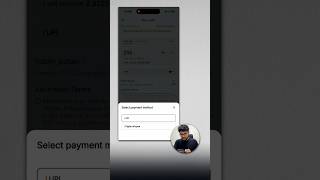

Buy USDT with Digital Rupee on Bybit
45sShows a unique, less-known payment method for crypto, sparking curiosity and educational value.
▶ Play Clip"Delivers exactly what the title promises: a clear, step-by-step guide to buying USDT with Digital e-Rupee, though it's a simple walkthrough rather than a deep dive."
This video provides a step-by-step tutorial on how to buy USDT on Bybit using India's Digital e-Rupee, bypassing traditional UPI payment methods. The creator walks through the entire P2P trading process, from selecting a merchant to completing the transaction and receiving funds.
To buy USDT on Bybit, navigate to P2P trading and select 'All Payment Methods'. Choose a merchant, e.g., one with 120 orders, and click 'Buy'.
Enter the amount (e.g., ₹250) and select Digital e-Rupee as the payment method instead of UPI. Click 'Buy' to place the order.
The merchant provides a QR code for payment. Download the QR code to your gallery, then open your Digital e-Rupee app to send funds.
In the Digital e-Rupee app, click the send icon, select the QR code option, choose 'Use from Gallery', select the downloaded QR, enter the amount (₹250), and confirm the transaction with your PIN.
Take a screenshot of the payment as proof. Return to Bybit, click the plus icon to attach the screenshot, and confirm the payment. The order completes and USDT is credited to your wallet.
The video demonstrates a straightforward method to buy USDT on Bybit using Digital e-Rupee, which can be a useful alternative when UPI is not available or preferred. The process involves selecting the payment method, sending funds via QR code, and confirming the transaction on the exchange.
What payment method is used instead of UPI in this tutorial?
Digital e-Rupee
00:31
How do you send funds to the merchant in the Digital e-Rupee app?
Click the send icon, select QR code, choose 'Use from Gallery', select the downloaded QR, enter the amount, and confirm with PIN.
01:11
What proof is required to confirm payment on Bybit?
A screenshot of the payment transaction.
01:51
What is the first step to buy USDT on Bybit P2P?
Go to P2P trading and select 'All Payment Methods'.
00:02
Digital e-Rupee as Alternative
Highlights a practical alternative to UPI for crypto purchases, which is valuable for users facing UPI restrictions.
00:31QR Code Payment Flow
Demonstrates a secure, QR-based payment method that is common in India and easy to follow.
00:57Screenshot as Proof
Emphasizes the importance of providing payment proof to complete P2P transactions smoothly.
02:05[00:02] You want to buy USDT on Bybit, but P2P trading, click on All Payment Methods here and
[00:18] see it step by step. I need to find the merchant here. Now, this guy here has taken 120 orders. I will click on it and see it. I buy it here. Still I have to simply click on Buy. So here I
[00:31] buy USDT worth only ₹250 from it. Here I had selected my UPI as the payment method. By clicking on this I have to select digital e-rupee. Click on Buy. There will be some loading and my order will be placed here. What should I do now
[00:45] ? This person has to send his funds to the digital e-rupee wallet. ₹250. After that it will send me USDT. You have to click on confirm and see, QR
[00:57] code is given here. So I have to send funds to him through this QR code. Ok? After clicking on this QR code, I have to click on the download icon here. You have to click on Allow. This QR code has been saved in my gallery.
[01:11] This QR code has been saved in my gallery. So now I have to send it funds from my digital e-rupee. This is my Bybit. Now I have to open my digital e-rupee. And here I have to click on this send icon. Simply
[01:23] click on this QR code option and then click on the bonfire. And here you have to click on Use from Gallery. Here is the QR code. I have to select this from here. By going here you are selected. And he even took his name.
[01:37] selected. And he even took his name. So 250 I will select here. Click on Done and then click on Send Digital Rupee. Click on Send Digital EP and then click on Send again here.
[01:51] I have to enter the pin here. After entering the PIN, I have to click on Submit. There will be a little loading and here my funds are gone. Now I have to take a screenshot of this to send to that guy as proof. Now I have to go back here.
[02:05] Going here, I have to document is coming. So the screenshot that I just took, I have to click on the plus here and took, I have to click on the plus here and
[02:20] payment. I have to click on I understand and then click on confirm here. And here I have basically made all the payments etc. from my side. Now I have to wait a little and hopefully it will send me my funds as soon as possible.
[02:35] completed the order for me here. So now the funds would have been added to my wallet. Look, the order has been completed successfully. These funds have reached me.




⚡ Saved you 0h 02m reading this? Transcribe any YouTube video for free — no signup needed.