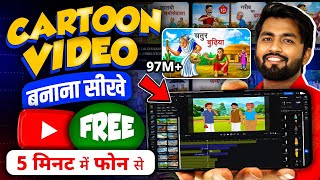

Make Cartoon Videos with ZERO Investment!
45sImmediately hooks viewers with the promise of making money on YouTube without showing face or voice, a highly searched topic.
▶ Play Clip"Delivers a real tutorial but padded with repetitive examples and a long subscribe plug; title overpromises 'AI' but the method is mostly manual."
This video is a step-by-step tutorial on creating cartoon animation videos for YouTube using free AI tools. The creator demonstrates how to generate storylines with ChatGPT, create voiceovers with AI voice generation, and animate characters using an online animation studio, all from a mobile phone. The goal is to help viewers start a YouTube channel without any upfront investment.
The video promises a method to create cartoon videos for YouTube without investing any money, targeting those who want to work anonymously.
Shows examples of channels that gained 12 lakh views in 4 months and 40 lakh views in 3 months, indicating high earning potential.
A channel with only 651 subscribers can get 1 lakh views in a month, proving that subscriber count is not a barrier to growth.
To create cartoon videos, you need a background, characters, voice, and a good story.
Use a Play Store app to download cartoon backgrounds by searching for 'cartoon background' and selecting images that fit your story.
Open the ChatGPT app, type a prompt for a story (e.g., '30 second emotional story with narration and dialogue'), and get a script.
Narration is the background voice telling the story, while dialogue is what characters say. Both are needed for a complete story.
First, create audio for narration and dialogue using AI voice generation tools, then animate the characters.
The tutorial uses a website (likely 'autodraft' or similar) that offers free animation creation and video downloads, with optional paid features.
Paste the narration text into the website's audio generation, select voice gender and language, and generate speech. Voice cloning is also available.
Keep the same voice for each character throughout the video to maintain consistency and bring life to the story.
Use the website's image generation feature to create custom backgrounds (e.g., village scene) by describing the image in a prompt.
In the Animation Studio, create a project, choose aspect ratio (9:6 for shorts, 16:9 for long videos), and start with a blank scene or template.
Upload the background image via the media tab, then add characters from the character library, selecting poses and animations.
Use the 'Path' option to make characters move across the scene, adjusting size and speed as needed.
Add props (e.g., a tool) to characters by searching in the props section and adjusting position and size.
Upload the generated audio files (narration and dialogue) to the timeline and sync them with the animation.
Cut and trim audio and video segments to match the story, and create new scenes for different parts of the narrative.
For scenes like 'farmer working in field', use ready-made templates and replace characters to save time.
Use the camera tool to create dynamic shots, such as zooming in or panning, to make the video more engaging.
Add elements like birds to enhance the scene, using the search function and path animation to make them fly.
For dialogue, replace characters, add the son character, and use auto lip-syncing to make them speak.
Use AI generation to change scenes (e.g., day to night) and download the final video in various resolutions including 4K.
Save your project frequently, then export the video in your preferred resolution (SD, HD, 4K) and download it to your gallery.
The video can be made entirely free by generating assets outside the website)Skip, but premium plans offer more features and convenience.
What are the four essential elements needed to create a cartoon video?
Background, characters, voice, and a good story.
01:49
What is the difference between narration and dialogue in a story?
Narration is the background voice telling the story, while dialogue is what characters say.
03:36
Which AI tool is recommended for generating the story script?
ChatGPT.
02:57
What aspect ratio should be used for YouTube Shorts?
9:6.
11:15
How can you make a character move across the scene in the animation studio?
Use the 'Path' option to set a movement path for the character.
14:39
What feature allows characters to speak in sync with audio?
Auto lip-syncing.
25:00
What is the recommended way to ensure character voice consistency?
Use the same voice for each character throughout the video.
09:11
What resolutions are available for exporting the final video?
SD, HD, and 4K.
27:06
High View Count Examples
Demonstrates the potential of cartoon channels with 12 lakh views in 4 months, motivating viewers.
00:15Small Channel Growth
Shows that even a 651-subscriber channel can get 1 lakh views, proving low barrier to entry.
01:08Narration vs Dialogue
Clarifies a key storytelling concept essential for creating engaging videos.
03:36Character Voice Consistency
Emphasizes the importance of consistent voices for character believability.
09:11Auto Lip-Syncing
Highlights a feature that automates character speech, saving time and improving quality.
25:00[00:01] you must watch this video. Yes friends, the method I am going to tell you today, brother, in this method you will not have to invest even ₹1 in it. Meaning, that the way? Please watch this video very carefully. Because there will be
[00:15] not want to show your face, do not want to give your voice. But he wants to work on YouTube. So brother, there can be no better category for you than this category. And what show you some examples. Friends, you might be seeing my mobile screen on the side. Please
[00:28] read this content very carefully. You can see that within just 4 months, it has got 12 lakh views and has a what content do they upload? Let me play one and show you and friends, I will teach you how to make this video absolutely free. Please
[00:42] taste was so famous that people came from far and wide to eat it. The sky was turning golden. Just you how to make the same video. Ok? Let me show you more channels here. Let me
[00:56] is also a channel friends. So if you look here, you can see that there are 40 lakh views in just 3 months, brother. If there are so many views then imagine how much it would be earning and you will make this video yourself from your mobile phone. Ok? Not only this, if I
[01:08] I am showing you a small channel with only 651 subscribers, even if you create a completely new channel and brother, even then you can get growth here on this kind of 1 lakh views in one month. You can see that this guy doesn't even have any subscribers.
[01:23] good views it is getting. So how will this kind of content be created? Let me show you everything by yes friends, I have a request to you, those who are new to the channel, please subscribe to the channel. Along with subscribing, please click on the bell icon so that whenever I upload a video like this, the
[01:37] notification goes to you first and you can watch that video. If you a like. Come on friends let's start the video. start making cartoon videos here. Before that, friends, let us understand here that
[01:49] what things will you need. Friends, if you look here, Plus, you need some character here. And how to animate that character will also be learned here. Plus, here you will also need voice and here
[02:02] you also need a good story. Friends, if you have all these things then So friends, here first let me teach you that if you from where will you download the background? Friends, you must be seeing the side mobile screen. Please
[02:14] You can download this application from Play Store. As soon as you open it, you can I want a cartoon background. I wrote the cartoon background here. you will get a lot of images here related to cartoons and all the cartoon
[02:28] you like, brother, if it seems according to your story, you can click on it and images, and you will see them here, okay, if you want to download, downloaded, you can see, in this way you can download this image, whatever
[02:42] background you want related to your story, you can get it from here also, okay, this was now friends, here we talk about video will go viral. So let us teach you how to take a story. Friends, what do you have to do
[02:57] Friends, you have to open the Chat GT app in your mobile phone. Download it and open it. story you want, you will have to type it here. Ok? For example, suppose I show you an example that I have written here that I am getting a small story of 30 seconds
[03:10] want, you can get a story written here of 50 seconds, 1 minute, 10 minutes, as long as you want. 30 second emotional story. Ok? An emotional story is needed which also has narration. Please
[03:22] understand carefully. There should be narration as well as dialogue. Ok? What is all this? I will Correct? Now friends, see what happens? What does narration mean? Narration means someone is speaking in the background and telling the entire story. Friends, that is called narration
[03:36] which speaks in the background. Ok? And dialogue means whatever the characters say in it is called dialogue. Ok? So there was narration as well as dialogue. also telling him with whom the story should be related. So, if there is a poor
[03:49] whom the story should be related. So, if there is a poor farmer, his son may later become a doctor. So you can see it is ready here. Look clearly, the narration is written here. In narration, it means the background will be spoken. What is the story? There lived
[04:01] a poor farmer named Ramu in a small village. He worked hard in the fields day and night but he had only one dream in his eyes. His son should study and become a great man. You can see it this way. Ok? What is in the dialogue? One day the son said. Meaning, son,
[04:15] what dialogue will you say? Baba, I want to become a doctor when I grow up so that I can treat poor people in the village. Ok ? Now let us make this. This is what we make. Now see how to make it, understand it carefully. Ok?
[04:27] First of all friends, what will we do? Whatever character is there here, whatever narration is there, we first make its audio. Makes a sound. After that friends, we will create animation here. given you a link in the description. As soon as friends, you click on that link, a
[04:39] friends. Watch each process very carefully. Many people say that brother, animation cannot be created for free in this autodraft. Brother, let me tell you one thing. It is animation. And free animation can also be created inside it. I will show you how to make it completely.
[04:53] You can animate here for free and also download the video. Ok? Obviously, every website has some separate paid features. But even if you do not take paid, brother, you can make and prepare the video for free also. Ok? Please
[05:06] Now suppose I go to this website. It is written Create Free Animation, friends, you can see that a page like this will appear in front of you. Ok? If you click on the three lines here, you can see that you can also get image generation here. If you
[05:19] want, you can create the image here also which you were bringing from outside. You can see that you get audio generation can generate audio from within it also. If you want, you can go to 11 Labs or Google or Studio and create audio from there and bring it here. Ok? It's
[05:33] suppose I have to make an audio, then I make the audio from here. So what should I do? I will click on Simple Audio Generation and here, suppose I want to and here, suppose I want to
[05:46] copy it completely. After copying, I came back here to this website and pasted it here. After pasting, Select Voice is written here. So I will click on this. Ok? As soon as you you will see a lot of voices here. Now you have to select the gender here. Brother Mail,
[06:00] will be said here. Ok? Here I selected mail. What language should I keep selected Hindi. Now friends, here you can listen to the audio by playing it. are different characters. Okay friends? For example, this RJ Aarushi is
[06:15] click this one. Like I selected it. After selecting, you have to call it slow. I have to call him fast. You can set it according to your needs. someone recite a dialogue while laughing or while crying. All that
[06:28] for now, here is the narration. He will speak normally here. Well then? Let's look generate speech. Just brother, you can see that your voice has started being created here below. I am
[06:41] showing it to you very clearly right now. Ok? Friends, if you want to voice, then friends, you can see that here you will also get the option of voice clone. You clicking here you will record your voice and whatever dialogue you ask him to speak will be
[06:56] ? You can see the voice is created here. I will play it and tell you its meaning. There play it and tell you its meaning. There lived a poor farmer named Ramu. You can see. It is the same story of working hard in the fields day and night. Ok? So this is a narration
[07:09] Click on download it. It will be downloaded. whatever you have downloaded, just click on it. Rename it so you do and write whatever name you want to write. For example, suppose I want to write
[07:23] Nar, then write it and press one here so that I can remember NR One. Ok? Ok? Let's see if there's anyone else in the narration ? Another narration is visible here in the narration. Look friend, whatever narration you are getting said by whichever character, get
[07:37] So okay, you can see that we have got another part with narration. So let's convert this here as well. So let's come here and simply paste it here. remain. Same character everything is selected here. We will just click here.
[07:51] part of our narration will also be ready here. You here and change its name. And in the name, as we had written NAR One here, we can keep some name here also. Let's do NA R2 so that it is
[08:05] Now friends, if you look here in the dialogue, you can see that once the son is speaking here and once his father is speaking here. So we will need two characters here. ? First, let us call the son character from some other character.
[08:17] Ok? So I copied it here. After copying, you have to come back to this website. paste it here. And suppose I want another character. So what should be done? can see that all the characters are visible here. Let's just leave it as mail. Now here
[08:30] By clicking on age, if you want young, middle age , kid then friends you and let's see how the sound is. select this. After selecting, friends, you can see here that it is written below:
[08:44] click here. Your voice will automatically be created here. I will us listen to the voice here. Baba, I want to become a doctor when I grow up. Absolutely correct. Let's download it. After downloading,
[08:58] go to download here and change its name here so that it becomes easy to find. Ok? So here we write it and let's do sun one. Ok Now friends, in the same way, whatever dialogue of father is there, we will
[09:11] character here. We will call it and download it. Friends, do all this very carefully because this is what brings life to your video. Do you understand ? Please keep the character very carefully in this. I came to know that you are calling me by the same character. The
[09:25] father is also speaking in the same voice, the son is also speaking in the same voice. keep this in mind. Ok? So friends, in this way, So now friends, let us talk about
[09:41] I taught you how to start. You can go and take the image from that application. i.e. this website, then you can do that also. For example, suppose we first watch the story. It is a poor farmer named Ramu lived in a small village. Meaning, a village scene is needed
[09:56] needed there as a farmer. Ok ? We're going to need something like that. Ok? So let's What do you need in the background? We just need a village scene. So friends, what do you have to do? You come here. Click on the three lines here. Click on image generation. And here it is written village style. Just
[10:10] name you want to keep for the project, for example, suppose I want to keep the name of this project. Ramu is a farmer. Ok? I put this over here. Ok? I will create it. prompt has come to be written. Now whatever image you want to create,
[10:23] describing myself here. Ok? There should be a village scene in which many houses are visible and it should be a morning scene. Need cartoon style image. I am see it below. If you have any reference image then friends, you
[10:37] So he will make it like this and give it to me. If not, then just write here and click on generate image. brother, your image starts getting generated here. Now friends, you me open it and show you. You can see that our image looks something like this here. Please
[10:51] Ok? If you like it then you can download it by clicking here. can download it in advance then you can use it also. Ok? After downloading, friends, you can download all the scenes that you see there here.
[11:03] what do you have to do? You have to pay back here. You have to click on OK. And here you have to here, friends, you will see Animation Studio written here. Look at each process very carefully. As soon as you click, what do you want to name this project,
[11:15] you write it here, I want to name this project Studio Ramu, whatever it is, okay, if I write it like this and click on 9:6 here, then you will want to make shorts, then friends, click on 9:6, if you want to make a long video, then
[11:29] you click on 16:9 here, okay, so let me teach you the long one, the okay, just click on create here, as soon as you click, this page will come in front of you, now friends, look here very carefully, here friends, you
[11:41] If you click on the blank scene, you will be able to if you look down, you can see some ready-made templates here.
[11:53] this template will appear automatically. If you want, you can also make changes in it. scene here. Blank scene is selected. I click on apply scene. You Now friends, what do you have to do here ? Whatever is made here, you can just
[12:07] can see here it is made in full. Ok? Your studio is running. Friends, if you look here, you will see it blank. You have to make the video within this. Ok? So what will you do first, friends? We're going to
[12:21] Friends, what do you have to do to get the background image ? Media is written, right? Just click on this media. After clicking, you can see that whatever background you Upload' here. Ok? You can see that it will be written 'Upload' here. Just click on upload.
[12:36] Whatever is visible here, whatever is visible as per your choice, just After selecting, click on Done. You can see that our friends, what do you have to do? You can see this image by selecting it here as I show it to you.
[12:49] You can enlarge or reduce the timeline as per your requirement. Ok? This is also there. Plus, here Meaning, let's say I'm currently working inside scene one. Scene Two When Ok? Now friends, it is our turn what to do? You have to bring the character.
[13:04] What was the character saying earlier? First of all, the narration is speaking. What is in the narration ? Very simple, just look at it carefully once. There lived a poor farmer named Ramu in a small village. what have we shown here in the beginning? Showed a village. We will have to show a poor farmer named Ramu.
[13:19] what do we do? We bring a poor farmer named Ramu. How to bring it? Now timeline is already selected. So what do you have to do ? You can click here anywhere. As soon as moved here. It has been removed, right? Now friends, what do you have to do? You can see below that the
[13:32] here. As soon as you click, you will see a lot of characters here. What is there in your character now? There is a poor farmer named Ramu. So if you ? You select the village one.
[13:48] Who looks like a farmer here? You just have to select it. Ok? So let one by one. Now friends, if you see here, it is perfectly fitting according to our character. see here, it is perfectly fitting according to our character.
[14:00] select it. Now here it will ask you for a pose. In which pose do you want? Do you want a side pose , a front pose or a back pose? Ok? So we have a road visible in our image. Ok? So we need back post. If you take the back post and keep walking, it
[14:13] means keep walking. Ok? So we don't need anyone to run. So this character has come before us like this. You can see it here. Ok? Now friends, can see it like this. I'll make it bigger or smaller here. It's done, friends.
[14:26] take it out from here also. In this way also, if you want, you can remove it from here by doing this. Ok? So let's put it here. After keeping it like this, friends, please take utmost care. If you play it, you will see that it is running like this. But this is
[14:39] n't want this, do we? All we want is to keep moving forward. Keep moving forward. It should be like this. you select this character. After selecting, friends, you will get an option here, Path. Friends, as soon as you click on the path, you will see that a
[14:54] Now wherever you place this layer, this character will move there. So brother, it is visible here in front, so we will show it a little bigger here and as it moves, it will keep getting smaller. We will reduce it to a smaller size and place it here. Let's keep a little bit here on
[15:08] this side so that it will reach here while walking. Ok? And make it smaller. It will work here. Correct? Let's keep this a little small too. This way, right? He will understand this very carefully. We have done it here , now let me play it for you once. You
[15:24] , now let me play it for you once. You Ok? If you friends want to increase or decrease its speed, then you write 1x. If you click here, its speed will increase further.
[15:37] increased. Ok? So, you don't have to increase the speed too much. Let's normalize this. Let's do it at 1x. If can also control the speed by expanding the timeline. Ok? So here we have our character is moving and going there. Ok? Now friends, it does
[15:50] So now let us give something in his hand also so that he can take something with him. Ok? Now how will you and scroll down, you will find an option here written as props. Ok? You just have to click here and whichever person you
[16:04] give it to the left hand, then I clicked on the left hand. You can see that you will friends you want, you can give it here. If you want, you can also search here. As I search, you can see that you will see a lot of things here below.
[16:16] I'll take this one. As if I have accepted it. Now you can also adjust it here. After clicking, friends, you can adjust it as per your requirement. So I want to give it into his hands. So I click like this and take it near his hand and place it there. You
[16:29] can see and if you want to make it smaller, friends, you can make it even smaller. You friends, if you want to do it precisely, you get more options. Let me show you here. As soon as you click on Done, then see here the option of up down will appear. You
[16:41] here the option to do left and right is coming. So I take it in his hand and So I take it in his hand and keep it properly. In this way. Ok? And here I remove the click. Let's see now. Look, he is carrying it in his hand. In
[16:53] this way. Ok? Isn't it ? This farmer is carrying it in his hands. Correct? So from here we made this. What will we do now? We Ok? So how do you get background sound ? Click on media. Click on audio.
[17:07] Click on Upload Audio. Click on photo and video. Ok? We will select it. Friends, by going to search, whatever name you have searched by, that is, saved, just click here and write that name here.
[17:20] friends, you will get everything here. It was written here, let me click. I will friends, you can see that our new forest has arrived here. Just click on it. Now you can watch our audio. There
[17:39] ? So what will we do? Let's just keep it till here. There lived a poor farmer named Ramu. Ok? We just keep it till here. So what will we do? Let's increase its size a little by clicking here.
[17:51] ? You can see this which is made here, you just have to click on this plus here. your timeline will keep increasing. You can see that the timeline will keep increasing. part as you want. Ok? So what should I do? Here,
[18:04] after this I have to change the scene. So I will come here. After coming here, and here friends, you will see that there will be a scissor made here, okay, you just have to friends, you can see that the entire part has been cut here, you can see that all this thing has been cut, let's
[18:19] and we trim all this thing below by selecting it, friends, we will delete it from here now, so what do we have to do now, we have to delete it from here, like this we have to our scene one is completed, okay, now let's go to the next scene, for the next scene,
[18:31] what will I do here, let me create a next scene, so I will click here, like I will click here, now for the next scene, friends, what will I do here? Here I want to show a farmer working in a field. So
[18:43] if you have created any image of yourself working in the fields, then select it and create a blank scene. Friends, I will take some templates from here. Farmer working in the field. click here and I check here. Find a template in which a
[18:57] me look here. Friends, here we got a template in which a farmer is select this right here and I click on Apply Scene here. next scene that will appear in front of us, you can see that this scene will appear and
[19:12] already included here. You can see this was our last scene. Okay, and this is our next scene. Ok? Now, brother, you can change every character in it, select this character. I have to change this. Which character do I want to change to
[19:27] We will delete it from here. We are changing this, right? So we will change it. You Friends, what do you have to do after clicking? You have to delete it from here. Deleted them. same character that you had selected here. Now friends, you can see here that
[19:41] selected. And here you can select whatever pose you want to give. want to animate is working in the field, so here we see animation of something like this in friends, here an animation is visible which is
[19:54] can see that our character has come here. Now you can balance its size as per your requirement. So I'll make the size a little bigger or smaller here. Now which were there. So what do we do here? After simply selecting it here,
[20:07] what do we do here? After simply selecting it here, write the name of the prop here and select the same prop here. selected it here. After selecting it, friends, now you can adjust it. You
[20:20] you will get the option of up down. Left right option is available. Plus you can also scale it up. Meaning you can make it bigger also. I grew up here. Plus rotate it like this while it is standing. It will have to be held in his hands. We will go to Adjust and
[20:33] Ok? After this is done, friends, now if you play it, you can see it. [Music] This is how our character is working here. play a little from the beginning and see the whole scene here. There
[20:47] whole scene here. There Ok? Now the voice here with the name Ramu, we will keep it extended here. We will not remove this. We will not cut this. There lived a poor farmer. He worked hard in the fields day and night.
[21:03] If you hear this sound in between, then listen very carefully. If you are getting this pause in between, you can cut it and remove it. You can see this line here, click on cut here and you can see whatever line is there, let
[21:15] me zoom in and show it to you. You can remove this line by cutting it here. By touch it here and your character will speak quickly. Ok? And whatever bring the background music as per your choice. Right now, whatever music is inside it, I will
[21:29] show it to you by zooming it a little, that is, by increasing it a little. There but [music] he had only one dream in his eyes. His son became a big man after studying.
[21:46] camera made here. All you have to do is click on this camera. As soon as you click, you can see that means guys where do you want the animation from ? So first of all I want that in the beginning the scene should look like this or like this. Ok? After that
[21:58] friends, what will you have to do? Camera B must be brought. So if you click on the path here, the B camera has arrived. Now friends, wherever you place the camera, it will Ok? If you want, you can also zoom in and out as per your requirement. You
[22:12] requirement. Ok? So I'll keep it like this. And I just want to reach the cinema. Let me just play it here. You can see. There
[22:24] bigger if you want. You can see that if you want, you can create a different animation here. If you want, you can create a different animation here. Now friends, suppose I have to bring some more birds inside this, then what will you do
[22:37] and go here and write. Like I write here birds. example, suppose I wrote birds here. Ok? So friends, you will see that Whatever suits your character. For example, let's say I want this bird.
[22:51] Ok? And here friends, if you want it to fly then this is what is going to fly for us. I will just select it, friends, you can see that something like this will appear here. Ok? So friends, what do you have to do now? If you want, you can keep it at one place and
[23:05] And now after selecting it by clicking on the path, can move it wherever you want. So I'll take it up from here like this and move on its own. There was only one dream in his eyes.
[23:19] quickly, that is why the animation is not that accurate, but it will be like this. Ok? that'll be. Now friends, after this we move to the next scene. son will say something here. So how will the son speak to his friends? So here for the next scene
[23:32] And then friends, we select the same place. So the selection that we already had. So we select this place. Friends, we will select this place and click on Apply Scene. So friends, the same scene will appear in front of us
[23:44] to replace this ? Just click on this character and can see that it will be written replace here. Just click on replace and you select the same character here. Here friends, I select the same character here.
[23:57] selected the same character here. Our same character has arrived here. Now what will we do with this character here? Now his son is also needed here. We will have to bring our son also. click on the character. And we need another poor son here. So
[24:09] we will just write poor here, we will write poor here. And let us see here that whatever seems select it here. So friends, here we saw a character. So we After selecting it, you will see its pose. In which pose should it be made to stand?
[24:23] So brother, let us keep it here in front side pose. We will keep it in side pose and here we will idolize it so that it remains standing. Ok? You can see here how our pose has come. Ok? So let us first flip it here. To
[24:35] you have to select here. And here it will be written flip, just flip it. He is looking at his father. Ok? This happened here. Friends, if us keep some of it here. Ok? And here,
[24:47] friends, we also place this father character here. We change its animation. So we will click on animate and we will also idle this here. Now it means characters are standing here. He is also standing and his son is also
[25:00] standing here. Ok? Now friends, whatever your character is, it is talking here. go to the control room. Go to control and turn on auto lip-syncing. After turning it on, talking here and plus,
[25:14] character to show in the frame of your camera, then what you have to do is go to the camera, click on the camera and whatever is the angle of your camera, bring it on the child in this way, okay, now look carefully Baba, I want to become a doctor when I grow up so
[25:30] Baba, I want to become a doctor when I grow up so that I can treat the poor people of the village, this way you can also make him speak dialogues, you can do everything. Then if you have to do it on your father then you do it on your father. For example, suppose we have to change the scene from here. Click on the path
[25:43] and then what do you do with it? Taking the B camera, select the Father one here. You Taking the B camera, select the Father one here. You can see something like this. Now you will see the entire animation happening.
[25:56] treat the poor people in the village [laughs]. That's how Ok? If you want some animation, for example, suppose AI generation is written below, you just have to click here, suppose it is anything, for example, whatever image you have created here, you can
[26:11] I am giving an example here, I click here and like this is the image, I want this entire thing to become night, I want to make it night, how will I do it, you can see this here, it is written day to night, just click here,
[26:24] created automatically, I will show you how to create it, it gets created automatically, now image has been created in the video. You can see the entire sun rising here. If you What do you have to do? Click here here. It has been downloaded.
[26:38] can also use video. Now suppose this has been downloaded, then if you go to scene one. You can see in scene one, I had simply placed my image here. you can replace it etc. So friends, in this way you
[26:51] made a video of the whole thing here. Now friends, whatever video you make inside this, what will saving it by clicking here again and again so that even if your mobile gets switched off, open it again, it will continue from there. Ok? And after you have made all the videos
[27:06] what will you have to do, friends? To save, please click here. After clicking, get the option to save. 4K will also be available. F SD will be available. Friends, in whatever mode you want, you have to click here and if you want, you
[27:18] export here, you will click on download. Your video will be downloaded to your gallery. video I made here, you can watch my final video here. In a small village [music] there lived a poor farmer named Ramu. Working hard day and night in the fields [music].
[27:32] But he had only one dream in his eyes. His son should study and become a big man [music]. [music]. Baba, I want to become a doctor when I grow up
[27:44] so that I can treat the poor people in the village [music]. Friend, can you make videos in this for free also ? Yes friends, what do I have to do to make it for free , get it generated, and bring it inside. Get the voice generated outside.
[27:57] Bring it inside. And after making it well, you can download it in FSD. But friends, if you want that we do not have to make it from outside. voice generation can also be done within this website itself. If you want to take advantage of all these features, then obviously
[28:10] friends, taking premium is also very easy. By the way, if you click here, Here the monthly plan is visible, the yearly plan is visible. If only on cartoon videos, then brother, I would recommend you to take their plan.
[28:24] lot of features, templates, you see , you get everything for free here. Ok? So if you want, you can try it for free first. If you want, you can make it yourself and upload it on YouTube and then if you wish,
[28:37] can also take premium for it to avail more benefits. So friends, I hope that you have learned a lot from this video not able to make a cartoon video then watch the video once again. You will 100% learn to make cartoon videos. So friends, I hope you have learned a lot from this video.
[28:49] So friends, I hope you have learned a lot from this video.

⚡ Saved you 0h 28m reading this? Transcribe any YouTube video for free — no signup needed.