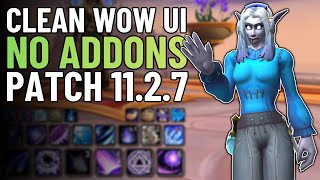
UI Makeover: No Addons Needed?
45sThe hook challenges the common belief that addons are required for a clean UI, sparking curiosity and engagement from viewers.
▶ Play ClipThe video demonstrates how to create a clean, functional World of Warcraft user interface using the standard Blizzard Edit Mode, with minimal addon assistance. The creator walks through selecting a preset, customizing action bars, and managing cooldowns and buffs for a streamlined look.
The creator prefers the Classic preset over Modern because it moves health bars to the top, freeing up screen center.
Enable grid with smallest box size, snap to elements, and advanced options for precise placement.
The addon 'Bless Move' allows moving normally locked UI elements.
Hide bar art and disable 'Always Show Buttons' to remove empty slots.
Main bar: 200 scale, 6 icons. Secondary bar: 150 scale, 8 icons.
Cooldowns and buffs can be arranged vertically and set to show only in combat.
Export codes for various specs are available on the creator's Discord server.
"The title accurately reflects the content—the video explains how to create a clean UI using the standard Blizzard interface, with minimal addon use."
How do you access the UI customization mode in WoW?
Press Escape and select Edit Mode.
0:22
Which preset does the creator prefer for their UI?
Classic preset.
0:38
What addon is used to move the UI elements that are normally locked?
Bless Move.
1:18
What scale and icon count are used for the main action bar?
200 scale and 6 icons.
1:42
What scale and icon count are used for the secondary action bar?
150 scale and 8 icons.
2:14
What two settings are applied to action bars to hide empty buttons and bar art?
Hide Bar Art and disable Always Show Buttons.
1:32
Where do you find the Cooldown Manager settings in the game options?
Options > Gameplay > Enhancements, then enable Cooldown Manager and Advanced Cooldown Settings.
3:35
Hide Bar Art and Empty Buttons
This simple setting removes visual clutter and makes the UI look clean.
1:32Scale and Icon Count Adjustment
Increasing scale and reducing icon count creates large, readable buttons for core abilities.
1:42Show Cooldowns Only in Combat
This keeps the screen uncluttered when out of combat, improving focus.
3:25Simplicity of the Setup
The creator emphasizes that the entire UI setup is simple and quick, contrary to viewer expectations.
4:00[00:00] Hello everyone and welcome back to another video.
[00:05] UI as it is right now. I have post a lot of
[00:11] of guide videos, and people have been asking me
[00:16] it an add-on? What's going on? Let me show you.
[00:22] going to click edit mode. And here we're going
[00:27] you have to pick between do you want to use
[00:33] modern preset basically has like, you know, the
[00:38] Uh some reason I don't really like this. Um so
[00:44] pass gets up here. Um I guess it's because I want
[00:50] Then after you choose classic preset, you say
[00:54] know in my case I'm going to call Dalin 3.0. Now
[01:01] all the way down so that the grid boxes are very
[01:07] I like to do is I like to have like every single
[01:13] stuff here. Uh I like to have it enabled
[01:18] Um, so then we're going to move it here. By
[01:22] which is actually making me allowed to move this.
[01:27] move this one here, but with that on Bless Move,
[01:32] is I click on my action bar. Number one, we say
[01:38] then what we're going to do is we're going to say
[01:42] want to see that when I don't have a spell. Then
[01:48] it looks horrible. But what I did was I actually
[01:57] Then you then you could technically stop here and
[02:03] and then everything else in the small bottom up
[02:09] bit bigger than like you know utilities up here.
[02:14] to eight and then basically just increased the
[02:21] save. And now you can see I have my bar here.
[02:29] and my other like cooldowns which I don't find
[02:35] essentially how I made my UI. I also of course
[02:41] this one here essential cooldowns, tracked buffs,
[02:48] course things also you can change around.
[02:53] uh take essential cooldowns and basically say
[02:58] like linear thing. Then I like to like place it
[03:05] so that I have my track buffs here, my track
[03:11] a track buff here and utility cooldowns here for
[03:16] like this. And then of course I can say um in
[03:25] don't want to see all my cooldowns when I'm not
[03:30] things here over here would show. If you want to
[03:35] gameplay enhancement. You need to enable the thing
[03:39] advanced cooldown settings. And then in here you
[03:44] what do you want to track like buffs on you and
[03:49] so on. But again that is that is basically it that
[03:55] god like I would have been doing like a 20-minute
[04:00] it it was that simple. The first bar down here,
[04:07] eight icons. And you know, yeah, that that's
[04:13] this one here, always show button because I don't
[04:18] do that on also my bars in the right uh side over
[04:23] you have an empty spot, it's actually empty. So
[04:28] my UI and I just wanted to make this video because
[04:34] make your UI. So now I have made a video showing
[04:41] and um you know taught you how we can actually
[04:47] look quite decent. I I like this. I think it's
[04:55] Thanks for watching. Have a great day and let me
[04:59] I also if you don't want to do this yourself,
[05:04] this UI here on my Discord. On my Discord server,
[05:10] there is a room for every single spec. I have made
[05:15] in there, there is a UI code for all the different
[05:20] thanks for watching. Have a great day and
⚡ Saved you time reading this? Transcribe any YouTube video for free — no signup needed.