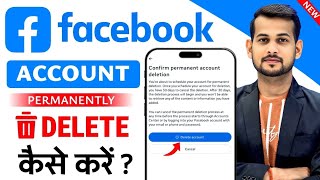

How to Permanently Delete Facebook Account
45sDirectly addresses a common user need with a promise of a complete guide, appealing to those wanting to delete their account.
▶ Play Clip"The title promises a straightforward guide, but the video is padded with repeated instructions and a plug for another video, making it less efficient than it could be."
This video provides a step-by-step guide on how to permanently delete a Facebook account using the mobile app. It walks through the entire process, from accessing settings to confirming deletion, and also covers temporary deactivation and password recovery.
The video promises to teach viewers how to permanently delete any account or ID, with options for permanent or temporary deletion.
Open the Facebook app on your phone and click on your profile icon in the corner to proceed.
After clicking on your profile, tap the three lines (hamburger menu) and then select 'Settings & Privacy'.
Within Settings & Privacy, tap on 'Settings' and then locate the 'Account Center' at the top of the next screen.
In the Account Center, tap on 'Manage Account' to see all linked accounts (e.g., Instagram, Meta).
Next to the account you want to delete, tap 'Manage' and then select 'Deactivation and Deletion'.
Two options appear: temporary deletion (account returns after a while) and permanent deletion. Choose the permanent deletion option.
Facebook asks for a reason; you can skip it and click 'Continue'. Then enter your password to confirm.
Click 'Delete Account' to initiate deletion. The account disappears immediately, but you have a 30-day grace period where logging in cancels the deletion.
If you forgot your password, the video references another video that explains how to recover or reset it for free.
To permanently delete a Facebook account, navigate through Settings & Privacy to Account Center, select permanent deletion, and confirm with your password. Avoid logging in for 30 days to ensure the deletion is finalized.
What is the first step to delete a Facebook account?
Open the Facebook app and tap on your profile icon.
00:15
Where do you find the 'Account Center'?
In Settings & Privacy, under Settings.
01:37
What are the two deletion options?
Temporary deletion (account returns after a while) and permanent deletion.
02:28
How long must you wait before logging in to ensure permanent deletion?
30 days.
04:30
What happens if you log in before 30 days?
The deletion is canceled and the account becomes active again.
04:30
Permanent vs Temporary Deletion
Clarifies the critical difference between deactivation and permanent deletion, which is a common point of confusion.
02:2830-Day Grace Period
Explains the 30-day window where logging in cancels deletion, a key detail for users wanting permanent removal.
04:30Password Recovery Solution
Offers a solution for users who forgot their password, addressing a common obstacle in the deletion process.
04:42[00:02] watch this video completely because today I will teach you how to permanently delete any account or any ID account page. If you want, you can delete it forever or if you want to delete it for some time,
[00:15] you can do that too. How to do it? Let me show you how to delete an ID. you can see my phone screen here. Now friends, what do you have to do first? First of all you have to open the Facebook app on your phone. Like look here I
[00:29] I am telling you again. To see each and every step completed. Now friends, after coming here you will find your profile in the corner. Ok? You have to click on it. Now after that an interface like this will appear. Now I will delete this ID live in front of you and
[00:42] what to do? After coming here, first of all you will see these three lines, you have to click on it. But before that, confirm once whether the not because the ID shown here is the one that is going to be deleted. If you have
[00:56] two or three IDs in your phone, then check them once first. Ok? Now As soon as you click, you will see an interface like this. Now here you will see the option of Settings and Privacy. You have to click on it.
[01:09] Ok? Go to Settings & Privacy. Then the interface will appear something like this. Now friends, look here, just below it an option of setting will open. You have to tap on it here. Now after tapping, friends, an interface like this will appear.
[01:22] that why do you want to delete your ID ? Please let yes, please tell me from where are you watching this video, from which state, so that I can also know where our audience watches the video. Ok? So,
[01:37] please do let us know by commenting. Now friends, look here, an interface like this will appear. Now what to do here? You will find the Account Center at the top. You have to Now after that the interface will appear again like this in the Account Center. So you will
[01:50] get the option of Manage Account here at the bottom. From here you can manage your account and also delete it. But understand the process properly. Now you have to click on Manage Account. As soon as you click, whatever is linked with your Facebook
[02:02] like Instagram, meta etc. will also be visible here. So this is my Instagram link, so Instagram has also come here. Ok? If your link is not there then it will delete. We have to delete
[02:14] is visible, just next to it, Manage is written. So we'll tap on Manage here. Now after tapping, an interface like this will appear. Now you will get an option here in the middle, deactivation and deletion. You can deactivate
[02:28] and delete it from here. So we will click on the middle option. Now after clicking, friends, look here, two options will appear in front of you. One will come first, if you click on it and delete it, then your Facebook ID will be deleted but
[02:41] it will be temporary, it will come back again after some time. But if you want to destroy it forever, delete it permanently, then you have to do it from above. So what will we do? We will tap on it here. Now after tapping here, you will pay and
[02:54] tap on it here. Now after tapping here, you will pay and interface like this will appear. Now Facebook will ask you the reason why you select it. If not, you can directly click on Continue here. So let me continue straight away.
[03:08] Now after that, if you want to deactivate it from here, then you can do it But friend, we have to delete it permanently. So what will we do? Some will not select. Will continue directly. Now after continuing,
[03:24] friends, an interface like this will appear. Now look here, it will ask for your Facebook password for confirmation. But friends, many of you may who do
[03:36] not know their own password. If you have forgotten your password, then there is a solution for that too. At the end of this video, I will teach you how to find your Facebook password absolutely free. You can find out if you want. You can create a new password or you can change it. Ok? I will
[03:49] tell you at the end of this video. But before that see how it is deleted. What to do now ? You have to enter the password here in a simple way. Let's put it simply, what do I do ? I will enter the password here. Now after entering, you have to click on continue.
[04:01] Now as soon as you continue, an you just have to click on last time delete account. As soon as you click on Delete Account, your ID will be deleted from Facebook at that very moment. It will also disappear from Facebook. If
[04:16] someone searches, it will not come. But friends, this will still be temporary for you. Facebook says that you will not have to login to that ID again for 30 days from the day you delete it. Ok ? Because if you try to log in before 30 days, the
[04:30] again. That's why there is only one session for permanent deletion. Delete it. After deleting, do not try to touch that ID again for 1 month.
[04:42] Ok? So this is some process. This is how it gets deleted. what to do if you don't know the password ? So you just have to simply click on it and watch this video. In this video I have
[04:56] explained the easiest way to find out any Facebook password. You can find out your Facebook password by watching this video. If you want, you can change it or you can also create a new password. So click quickly. Watch the video. If you like the video, do
[05:08] n't forget to like it and subscribe to the channel.




⚡ Saved you 0h 05m reading this? Transcribe any YouTube video for free — no signup needed.