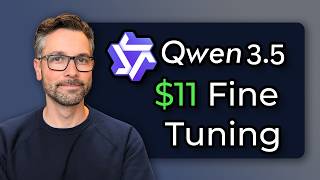

Fine-Tuning Qwen 3.5 for $11
42sReveals the surprisingly low cost of fine-tuning a state-of-the-art AI model, challenging the assumption that it requires expensive hardware.
▶ Play Clip"Title accurately reflects content: fine-tuning Qwen 3.5 on a rented GPU for ~$11 (9B model)."
The creator explains how they fine-tune Qwen 3.5 for tool calling using Vast AI, a cloud GPU marketplace. They detail the shift from a local RTX 3060 to rented GPUs due to increased VRAM requirements from BF16 training and complex multi-turn training data. The process includes setting up instances, running training scripts, and automating model download and instance shutdown to minimize costs.
Started with Mistral 3 on a 12GB RTX 3060, but outgrew VRAM when switching to Qwen 3.5 and more sophisticated training data.
Unsloth recommends full BF16 training for Qwen 3.5, not QLoRA 4-bit, due to quantization differences. This increases VRAM demand.
Moved from single-turn examples to multi-turn conversations including system prompt, tool definitions, and history, pushing VRAM usage to 75GB.
Vast AI is a marketplace for renting GPUs. The creator uses it to access high-VRAM GPUs like A100s and H100s.
A three-step tool call: look up F1 race via ESPN, find Sarah's email via Google Contacts, send email via Gmail. The model learns to chain tools.
Initially the model called tools for everything. Fixed by training only on the last message in a conversation, not on previous context.
With the correct training approach, the model reached 99% on tests, correctly deciding when to use tools, converse, or rely on knowledge.
Select base image (PyTorch), storage (48GB), GPU (e.g., 5090), and consider network speed for faster model downloads.
A script pushes files, installs Unsloth, and provides the training command. It uses the Vast AI CLI to get SSH details.
Training a 2B parameter model on a 5090 with 32GB VRAM, 2600 pairs, 2 epochs, batch size 4*2, max sequence length 8000 (noted as too short).
A script polls for a done.txt file, downloads the LoRA and GGUF model, then shuts down the instance to avoid extra charges.
Kicked off a training run on a flight using Wi-Fi; the poll script on a local server downloaded the model and shut down the instance automatically.
2B model: ~$2.14 (5 hours at $0.428/hr). 9B model: ~$12 (11 hours at $1.13/hr). Total trial-and-error cost: ~$100.
The same pipeline is used for another AI application, showing the approach is reusable.
Fine-tuning Qwen 3.5 for tool calling is cost-effective using rented GPUs, with a well-automated pipeline that minimizes manual effort and cost. The technique is transferable to other applications.
Why does Qwen 3.5 require full BF16 training instead of QLoRA 4-bit?
Due to higher than normal quantization differences in Qwen 3.5 models.
01:50
What was the VRAM usage for training the 9B Qwen 3.5 model with the described approach?
Up to 75 GB of VRAM.
03:17
What is Vast AI?
A marketplace where people can rent out their GPUs.
03:53
How many tool calls are in the example training data shown?
Three tool calls.
04:55
What problem occurred when including all previous tool calls in the training data?
The model called tools for everything, even when not needed.
07:49
How was the over-tool-calling problem fixed?
By training only on the last message in the conversation, not on previous context.
08:13
What accuracy did the model achieve on the creator's test after fixing the training approach?
Up to 99%.
10:12
What is the purpose of the polling script?
To check if training is done, download the model, and shut down the GPU instance to save costs.
19:26
How much did it cost to train the 2B parameter model?
About $2.14 (5 hours at $0.428 per hour).
23:56
How much did it cost to train the 9B parameter model?
About $12 (11 hours at $1.13 per hour).
25:01
BF16 training requirement for Qwen 3.5
Explains a key technical constraint that forces cloud GPU usage.
01:50Multi-turn tool calling example
Illustrates realistic training data with chained tool calls.
04:55Fix for over-tool-calling
A critical insight for training models to use tools appropriately.
08:1399% accuracy achieved
Demonstrates the effectiveness of the training approach.
10:12Automated polling and shutdown
A practical cost-saving automation for cloud GPU training.
19:26Cost comparison: $2 vs $3000+
Highlights the cost-effectiveness of renting GPUs vs buying.
23:56[00:00] Hey everyone, it's been a few weeks
[00:02] since I've done a video. I've been
[00:04] pretty busy lately with traveling for
[00:06] work, working on Cal, my voice
[00:08] assistant, and also developing a new
[00:11] AI-powered application, which hopefully
[00:14] I'll be able to show you in a future
[00:15] video.
[00:16] But I'm back now and hoping to get on a
[00:19] more regular schedule for releasing
[00:21] videos again.
[00:22] And in this video, I want to go over how
[00:26] I've been training Qwen 3.5 [music]
[00:29] for specifically tool calling and how
[00:31] I'm using Vast AI, a cloud [music] GPU
[00:34] provider, to do that. So, let's get into
[00:38] it.
[00:42] So, I've been fine-tuning some small
[00:44] models for a few months now. I started
[00:47] with Minstral 3 8 billion parameters,
[00:50] and I was training it using this card
[00:52] right here,
[00:54] a 12 gig RTX 3060.
[00:58] And that worked for a little while. I
[00:59] got some good results with it, and I
[01:01] showed that in a previous video how I
[01:04] was doing that with simple examples,
[01:06] just one-turn examples.
[01:09] But I quickly outgrew the 12 gigs of
[01:12] VRAM that's in this card and had to move
[01:15] to something else. And there's two
[01:17] things that drove that higher demand for
[01:19] VRAM. One was that I switched from
[01:22] Minstral 3 as the base model to Qwen
[01:24] 3.5. It's a better base model, more
[01:28] sophisticated, better at naturally
[01:30] calling tools. And the other thing is
[01:32] that my training data became more
[01:34] sophisticated. So, on the first point, I
[01:37] use Unsloth to do my fine-tuning. It's a
[01:40] very popular package to do that. And if
[01:42] you look at their guide on training Qwen
[01:44] 3.5,
[01:47] come down here,
[01:50] it says it is not recommended to use
[01:53] QLoRA 4-bit training on the Qwen 3.5
[01:57] models, either the mixture of experts
[02:00] models or the dense models,
[02:02] due to their higher than normal
[02:04] quantization differences.
[02:07] So, that means that full BF16
[02:11] bit
[02:13] needs to be used for training Qwen 3.5.
[02:17] And that makes the VRAM requirement way
[02:21] higher.
[02:22] So, there's no way that was going to fit
[02:23] on the 12 gig 3060. The second point on
[02:28] the training data getting more
[02:29] sophisticated, I went from single-turn
[02:32] examples,
[02:34] user request, tool call, user request,
[02:37] tool call,
[02:39] to full multi-turn conversations where I
[02:42] include the entire system prompt, all
[02:45] the tool definitions,
[02:47] I include previous conversation history
[02:50] in the example, and then do multiple
[02:53] tool call examples that it trains on.
[02:56] So, it might do three tool calls in a
[02:58] row in order to satisfy the request. So,
[03:01] I'm going to show you those training
[03:03] examples in a minute. But between those
[03:06] two changes, the BF16
[03:08] quantization requirement for training,
[03:11] and the more sophisticated training
[03:13] data,
[03:14] that pushed the VRAM requirements up
[03:17] from what fit on a 12 gig
[03:20] card to using up to 75 gigs of VRAM,
[03:25] which you can't even get on a consumer
[03:27] card.
[03:28] So, the answer was going to a cloud
[03:31] service. And the service I'm using is
[03:34] vast.ai.
[03:36] Now, they're not sponsoring this. I'm
[03:37] not getting anything out of this from
[03:40] them, but this is just what I'm using,
[03:42] and it actually came from a
[03:43] recommendation from a previous video. Uh
[03:47] one of the viewers mentioned it in a
[03:48] comment, and so I checked it out. So,
[03:50] thanks for that. So, Vast AI is
[03:53] basically a marketplace where people can
[03:55] put their GPUs up for rent on this
[03:57] marketplace, and other people can rent
[03:59] them and utilize them.
[04:01] Before I show you how Vast AI works and
[04:04] how my training pipeline works, let me
[04:07] show you the actual training data. So,
[04:09] here's one training example,
[04:13] and I'll show you what the actual raw
[04:16] JSON looks like.
[04:18] It looks like this.
[04:20] And I store all the training examples in
[04:23] JSON, and then they get converted in the
[04:26] training script to whatever format is
[04:28] required by the model.
[04:30] So, whether I'm training for a Minstral
[04:33] 3 model or Qwen 3.5, it's the same
[04:35] training data set. It just gets rendered
[04:38] a little differently for those models.
[04:41] So, these examples would be one line
[04:43] item in this JSONL
[04:46] file,
[04:46] but I've broken it out here to make it
[04:48] easier to look at.
[04:49] And I'm actually going to run you
[04:51] through this
[04:53] step by step to show you how this works.
[04:55] This is a three-step tool call. So, this
[04:58] is for my voice assistant, and it's
[05:01] training for the custom tools that voice
[05:04] assistant has available.
[05:06] In particular, this one's training on
[05:08] three different tools, which you'll see.
[05:11] So, the user message is email Sarah the
[05:15] next F1 race.
[05:16] And the first step
[05:18] is for the model to call a tool.
[05:21] So, we give it that example, call the
[05:23] ESPN tool with the arguments schedule
[05:26] and the sport is F1.
[05:29] The tool returns a response. It says
[05:32] next up is Australian Grand Prix, and
[05:34] after that, the Japanese Grand Prix.
[05:37] Not the actual dates for 2026 schedule,
[05:39] but close enough.
[05:42] And then step two would be to find
[05:45] Sarah's email. So, it uses the Google
[05:48] contacts tool,
[05:50] and it searches for Sarah,
[05:53] and then that tool would respond with
[05:56] her email.
[05:57] Now, this is made up. I don't know Sarah
[05:59] Jones.
[06:01] So, Sarah Jones, if you're watching,
[06:03] sorry for using your email address.
[06:06] And then the third step would be
[06:08] using the Gmail tool.
[06:10] So, using Gmail, it then uses the email
[06:13] it just found,
[06:15] and sends the email with that race
[06:18] schedule. The tool says it's done, and
[06:21] then the final response from the voice
[06:24] assistant is that I've emailed Sarah,
[06:27] and the next race is the Australian
[06:29] Grand Prix. So, that's the full example.
[06:33] And so, the model's now learned
[06:35] that F1 uses this tool when looking up a
[06:39] user, it uses Google contacts to find
[06:42] their email,
[06:44] and then it combines the information
[06:46] from step one and step two in the Gmail
[06:50] call. So, it learns all that. It learns
[06:52] the custom tools that it has available
[06:54] and how to use them. And this is again
[06:58] what that looks like in the raw JSON.
[07:01] And when this gets rendered into the
[07:03] actual training format for the model,
[07:06] it'll also add the full system prompt
[07:09] and all the tool definitions ahead of
[07:11] this example for every single example
[07:13] that it sees, which why it moves the
[07:16] token count for each example from a few
[07:19] hundred
[07:20] to on average about 7,000 tokens per per
[07:24] training example.
[07:26] Hence, the larger VRAM requirement. But
[07:30] I'm training in a much more production
[07:34] uh reflective environment. It reflects a
[07:37] production environment a lot more. Now,
[07:39] I went through some trial and errors
[07:41] with this, and one issue I came into
[07:43] when trying to include all this previous
[07:46] context, and I'll show you another
[07:47] example here in a minute,
[07:49] of all previous tool calls in a
[07:51] conversation history, and then the one I
[07:53] actually wanted to train on,
[07:55] it was actually training on everything.
[07:58] And then Qwen 3.5,
[08:00] the output of that, it was just calling
[08:03] tools for everything. It You asked it
[08:05] something, tool call. You wanted to know
[08:08] the capital of Japan, tool call. It just
[08:11] fired off tools right away.
[08:13] So, changed the approach a little bit,
[08:18] and I'll show you that here where it's
[08:20] only training on the last message.
[08:25] So,
[08:26] looking here at another example, we
[08:29] include
[08:31] all this context,
[08:35] and then we have the training signal.
[08:39] So, above the training signal is a bunch
[08:41] of previous tool calls. So, here's the
[08:43] F1
[08:45] tool call we just looked at.
[08:47] That's one uh user request.
[08:52] Then we have another user request here
[08:54] to get the the uh
[08:56] to get the jet schedule, send that to
[08:59] David.
[09:01] Okay. That's another
[09:04] user request.
[09:06] And then one more to get the temperature
[09:09] in Melbourne.
[09:11] And so, there's three previous user
[09:13] messages in the context that it sees.
[09:16] So, this would be like a realistic chat
[09:19] history,
[09:21] but the model's not training on that.
[09:23] It's not getting graded on that. It just
[09:25] sees that as part of the training data
[09:27] to go, "Okay, I see all this previous
[09:29] messaging, but now I need to just focus
[09:32] on the most recent user request." And
[09:36] this one is asking about an iOS update,
[09:39] and it uses a web search tool to find
[09:42] the answer and responds to that.
[09:46] And that's what the model will get
[09:47] trained on is just specifically this
[09:50] tool call.
[09:52] And this approach was a big unlock for
[09:54] me and the Qwen 3.5 model. Once I went
[09:58] to this approach where I had the right
[10:00] split between previous context and the
[10:04] actual training data,
[10:06] that made the model just so effective.
[10:12] Up to like 99% on the test that I wrote
[10:15] for it. Where it's calling the right
[10:16] tool, it's having conversation where it
[10:19] should have conversation, it's using its
[10:22] own knowledge where it should use its
[10:23] knowledge, and it's using tools where it
[10:25] should use tools. Now, let me show you
[10:27] how I actually do this. With Vast AI,
[10:30] I'm going to actually set up an
[10:32] instance. I'm going to use my setup
[10:34] script,
[10:35] and I'm going to start a training
[10:38] example.
[10:39] So, in Vast AI, once you're logged in,
[10:41] you have some credit in your bank,
[10:45] you would search for available GPUs.
[10:50] Now, I use the this base image.
[10:54] You can select one that's right for you,
[10:57] but this PyTorch
[10:59] I found had the basics of what I need to
[11:03] get going, and then I add my own
[11:05] packages like Unsloth, that's required.
[11:07] I'll show you that in a minute.
[11:10] So, you select the base image,
[11:12] you select how much storage space you
[11:13] need.
[11:15] It's going to be 48 gigs.
[11:17] Then you select a GPU. So, I have this
[11:20] filtered just for 5090s right now, but
[11:23] you could select
[11:26] you just want A100s or H100s if you need
[11:30] 80 gigs of VRAM, which I did for the 9
[11:33] billion parameter model.
[11:35] But, I'll just kick one off with a 2
[11:37] billion parameter model. I'll show you
[11:39] how that works. It's the same pipeline.
[11:42] So, I'll select 5090
[11:45] and see
[11:47] all the different available ones here
[11:49] and the prices.
[11:50] Now, one thing I look at is the network
[11:53] speed because when I'm downloading the
[11:56] base model to train, and then when I'm
[11:59] downloading the completed model to my
[12:00] computer, I don't want it to take
[12:02] forever.
[12:04] So, I look at the network speed,
[12:07] and it's not a huge price difference,
[12:10] like 10 cents an hour difference to go
[12:12] from
[12:14] a 500 meg upload speed to a 6,000.
[12:18] So, let's go with this one in Texas. I'm
[12:20] going to rent that.
[12:23] And then if I click over to instances,
[12:27] I'll see
[12:29] this is creating the image,
[12:32] and then it's going to start up and
[12:33] we'll be able to SSH into it.
[12:36] Okay, it's ready. I could open it here
[12:38] to open up a Jupyter notebook. I don't
[12:40] use that. I just connect with SSH,
[12:44] and I would just need this part right
[12:46] here to do that.
[12:49] You have to set up SSH key ahead of time
[12:52] under keys.
[12:55] So, you would use your computer's
[12:57] created public SSH key, put it in here,
[13:01] and then it'll recognize that you are
[13:04] who you say you are and allow you to
[13:06] connect.
[13:07] So, let's connect to that.
[13:11] Say yes.
[13:14] And now I'm connected to that machine.
[13:18] So, there's nothing in this folder right
[13:20] now, but this workspace folder is where
[13:22] we're going to put all of our files.
[13:24] So, it's running tmux,
[13:27] and I also run tmux, so I have like a
[13:29] nested tmux situation going on here.
[13:33] Now, you could now set up your
[13:35] environment, so we would need to install
[13:37] Unsloth,
[13:39] and make sure we have Transformers 5
[13:41] installed. We saw that in the
[13:43] requirements that we need Transformers
[13:45] 5. That's the default for Unsloth now,
[13:48] so you don't have to worry about that
[13:50] when you do install Unsloth.
[13:52] When I first started doing this, I had
[13:54] to make sure I had Transformers V5 with
[13:57] a different version of Unsloth, and it
[13:59] was a bit of an ordeal, but now it just
[14:00] works.
[14:02] So, you could set up Unsloth, and then
[14:07] you could SCP
[14:09] to push all the files up that you need
[14:12] to to train with, and do that every
[14:15] time, or you could set up
[14:18] a setup script, which I've done.
[14:21] So, I have a script, which is Vast AI
[14:25] setup,
[14:27] so I can go Vast AI setup,
[14:32] and all I need to give it
[14:35] is this instance here,
[14:38] instance number,
[14:42] and it's going to connect to the SSH
[14:45] server,
[14:47] and it's going to push all the files
[14:48] that we need up to the server.
[14:52] The system prompt, the training data,
[14:55] all my different training scripts.
[14:57] It's going to now
[14:59] install Unsloth
[15:02] into the virtual environment.
[15:04] This takes a minute or two.
[15:07] Okay, now it's validating that
[15:09] everything is there,
[15:11] and we have Unsloth, the March 17th
[15:14] version.
[15:16] And now it says we can connect
[15:18] here, and it gives us even the uh the
[15:22] training command we would run
[15:24] potentially.
[15:25] So, the way that script works by just
[15:27] giving it the session ID
[15:30] is it runs the command line. You can
[15:32] install this Vast AI command line tool,
[15:37] and you can go SSH URL,
[15:41] URL
[15:43] of that instance, and it'll give you the
[15:47] the URL and the port for that.
[15:50] So, it uses that tool inside the script
[15:53] to find the SSH URL and the port, and
[15:55] then uses that to SCP all the files up,
[15:59] and then it also uses that to run the
[16:02] install commands on the server.
[16:06] So, now if I connect to that server,
[16:10] I can SSH.
[16:13] I just need this bit here,
[16:19] and I can see all the files are now in
[16:21] this folder.
[16:25] So, let's kick off a training run.
[16:29] So, it's a Python script,
[16:32] and it's the
[16:34] train Quen
[16:38] V2,
[16:41] and I'm going to train the 2 billion
[16:43] parameter version of the model.
[16:47] And I'm going to use the training data
[16:50] round seven.
[16:53] I've been through a few rounds of this,
[16:55] and I'm going to output it to this
[16:57] output folder.
[17:01] So, this should kick off.
[17:04] It'll load Unsloth.
[17:08] It'll download the model.
[17:12] There it goes. It's downloading the 2
[17:14] billion parameter model, 4 and 1/2 gigs.
[17:18] This is the 16-bit version of it.
[17:27] And now it's starting to train.
[17:29] So, we're training on a 5090
[17:32] with 32 gigs of max memory.
[17:36] We're doing
[17:38] 2,600 pairs
[17:40] twice, so two epochs.
[17:44] And the batch is 4 * 2, eight effective.
[17:47] So, that's how it batches up the
[17:48] examples and gives it to the GPU.
[17:52] This is how you can manage VRAM by
[17:54] splitting up the batch sizes.
[17:58] And we have a max sequence length of
[18:02] 8,000
[18:03] K. That's actually probably too short.
[18:07] I think some of my training examples are
[18:09] up to 10,000, and in which case they get
[18:12] truncated. So, I need to look at that
[18:14] for this script. I don't think that's
[18:16] set up right for the 2 billion parameter
[18:18] model.
[18:19] So, after fine-tuning is done, about 1%
[18:23] of the 2 billion parameters are going to
[18:26] be our new
[18:28] fine-tuned parameters that get attached
[18:31] with the LoRA.
[18:33] So, it takes
[18:34] a bit to get going. Right now, it says
[18:37] it's going to take 13 and 1/2 hours.
[18:39] It's not going to take that long.
[18:42] See, it's down to 8 and 1/2 already.
[18:44] It'll settle in around three, four, five
[18:48] um out of the 650 here, and then you'll
[18:51] see a true
[18:53] uh time estimate. That'll be closer to
[18:55] the the realistic time estimate.
[18:59] Now, I'll often kick these off at night
[19:02] and let it run overnight.
[19:04] I don't want to sit here and watch it
[19:06] for 7 hours, 6 hours.
[19:09] So, I kick it off overnight,
[19:11] but when it's completed, how do I know?
[19:15] And if I wake up in the morning and it's
[19:17] been done for 6 hours,
[19:20] I'm just spending money on that GPU
[19:22] rental for another 6 hours that I don't
[19:24] have to.
[19:26] So, we have another script that's going
[19:29] to be used to poll the server
[19:32] to check if it's done.
[19:35] And if it's done,
[19:36] it's going to download the model,
[19:39] and it's going to shut down the GPU
[19:42] instance so that we're not spending any
[19:44] more money on it. Just the small like 3
[19:46] cents just to have it running in the
[19:49] background. It's probably less than that
[19:50] for this 5090.
[19:54] So, let me show you how that works. It's
[19:56] another script
[19:58] in here.
[20:01] It's my poll vast AI train script. I
[20:06] need to clean all these up.
[20:08] But, that's the one it is.
[20:11] And the way this one works
[20:14] is you give it the instance ID as well.
[20:19] And the output directory where you want
[20:21] to save it. And how many minutes it's
[20:25] going to take to train.
[20:28] So, it won't start polling until 80% of
[20:32] those minutes have passed and then it'll
[20:36] start polling to see if the model has
[20:39] been trained or not.
[20:41] So, if we back out of this and start
[20:43] this script.
[20:49] Give it that instance again. This one
[20:51] here.
[20:56] And say we want to go to models.
[21:01] And we'll output it to
[21:05] Quen 3.5
[21:07] 2B
[21:09] Lora 2026
[21:12] 03
[21:14] 29.
[21:18] And I won't put a time here. I'll just
[21:19] show you how it polls. It'll check every
[21:21] 300 seconds
[21:23] to see if it's still training.
[21:25] And what it's checking for
[21:29] is if there's a file created
[21:32] on
[21:34] the server. It's basically just a
[21:36] done.txt file that gets created at the
[21:40] end of this training script.
[21:42] So, this is polling for the existence of
[21:45] that text file. Once it finds it,
[21:49] it will download
[21:51] the Lora folder
[21:54] and the exported GGUF model file that
[21:59] happens uh to get created on the VPS
[22:03] after the training is completed as well.
[22:06] So, what I would do
[22:08] is run that, but I'd give it a time.
[22:13] And this said it was going to be done in
[22:16] 5 hours.
[22:18] So,
[22:19] I could give it 300
[22:23] minutes.
[22:24] Did I say seconds before? This is
[22:26] minutes.
[22:27] Give it 300 minutes.
[22:30] And so, it's going to sleep for 240
[22:32] minutes and then start polling after
[22:34] that. And it's going to output
[22:37] to
[22:38] a file name that is created on the
[22:42] server for the actual model. And it's
[22:44] going to put the Lora in the folder that
[22:46] I specified up here.
[22:49] And after it downloads it, it will shut
[22:52] down the instance.
[22:54] And
[22:56] then it's done.
[22:58] I actually kicked off one of these
[22:59] training runs from an airplane the other
[23:01] week when I was on my way to Mexico
[23:05] on a WestJet flight. They had Wi-Fi. And
[23:09] I was on my laptop. Set up an instance
[23:11] on Vast AI. Got the training data that I
[23:14] had just updated. Kicked off the
[23:16] training run on the airplane. And closed
[23:20] off my laptop. The poll script was
[23:23] running on my local server here.
[23:26] And then when
[23:28] I landed and got to the hotel, the
[23:30] training was done. And the model was
[23:32] downloaded.
[23:34] So, let's look at what this is costing.
[23:36] So,
[23:38] I said it was going to take about 5
[23:39] hours to train that 2 billion parameter
[23:41] model. This is costing
[23:45] .428 dollars
[23:48] every hour.
[23:51] So, about 43 cents an hour
[23:54] times 5 hours
[23:56] $2.14
[23:59] to train that model.
[24:02] That's pretty good.
[24:04] Compared to the cost of a 5090, which if
[24:08] you can find one, go between about 3,000
[24:12] 5,000 dollars Canadian.
[24:15] I think I'll choose the $2 to train the
[24:18] model.
[24:20] Now, for the 9 billion parameter model,
[24:23] what were those?
[24:26] Let's look at what the bigger GPUs are
[24:29] going for. Let's go A100
[24:32] or H100.
[24:35] Let's look at A100s. So, 80 gigs is what
[24:39] we needed for the 9 billion parameter
[24:41] model and that training data and that
[24:43] approach,
[24:44] it took 75 gigs of VRAM.
[24:48] So, we need the 80 gig version of the
[24:50] A100. There's also a 40 gig version of
[24:52] it, but that's not quite enough.
[24:55] And that's a dollar and 13 cents per
[24:58] hour. And that, I think, took about 11
[25:01] hours. So,
[25:04] about 12 bucks
[25:06] to train that model. And it took me a
[25:08] few times to get it right. I've spent
[25:10] probably about 100 dollars worth of
[25:14] training credits trying to get all the
[25:16] training data correct, the approach
[25:18] correct, the rendering of the tool
[25:21] calling correct for the Quen 3.5 model.
[25:24] Uh this was
[25:26] I was using this to to try training a
[25:28] Ministral 3 14 billion parameter model
[25:32] as well.
[25:33] So, with all the the trial and error
[25:36] I've been doing,
[25:38] yeah, I've spent about 100 bucks.
[25:40] And so,
[25:41] compared to
[25:43] buying a 5090, and even with a 5090, I
[25:47] couldn't have done what I'm doing with
[25:48] the Quen 3.5 model. So, very
[25:51] cost-effective. And once you have your
[25:53] training pipeline set up,
[25:56] um it becomes very cost cost-effective
[25:59] because you just kick off a new training
[26:01] run
[26:02] with new training data or the slightly
[26:05] different approach and you can get it
[26:07] streamlined with these training scripts.
[26:10] And I've been using this same approach.
[26:12] So, for what I showed you was the
[26:15] training data for my voice assistant.
[26:18] I've also been using this exact same
[26:19] approach for another AI-powered
[26:22] application that I'm developing. The one
[26:25] I mentioned earlier in the video that
[26:27] hopefully I'll be able to show you in a
[26:28] future video. But, I'm using this exact
[26:31] pipeline uh to to train that model as
[26:35] well for that application. So, this
[26:37] technique is transferable.
[26:40] All right. Hopefully, that was helpful.
[26:42] And if you want me to go into more
[26:43] detail on anything, let me know. And if
[26:45] you want some of these scripts, [music]
[26:47] um I can look at sharing those on GitHub
[26:49] if that would be helpful for people, the
[26:51] setup scripts.
[26:52] >> [music]
[26:52] >> And in the next video, we're going to be
[26:54] looking at this 2 billion parameter
[26:57] model running on the ZimaBoard. So, in
[27:00] the last video I did on the ZimaBoard, I
[27:03] ran out of VRAM on the little 2 gig GT
[27:06] 1030 card and didn't have a big enough
[27:09] power supply to run the 5 gig GPU that I
[27:13] wanted to run, the P2200 Quadro. I now
[27:17] have the bigger power supply.
[27:21] So, the folks at at ZimaSpace
[27:24] >> [music]
[27:24] >> that make the ZimaBoard, they sent me
[27:27] this 120 watt power supply. So, I'm
[27:30] going to try this with that Quadro to
[27:33] run the fine-tuned [clears throat]
[27:35] 2 [music] billion parameter model. And
[27:37] also, there's one other thing they sent
[27:39] me that I'm going to try out.
[27:41] Um but, I'll save that for the video.
[27:43] So, thanks for watching this one. And
[27:45] hopefully, we'll see you in the next
[27:47] one. Cheers.
[27:56] >> [music]
⚡ Saved you 0h 27m reading this? Transcribe any YouTube video for free — no signup needed.