
GA4 Migration Made Easy: No Data? Normal!
40sRelieves common fear that GA4 setup is broken by explaining no data initially is normal.
▶ Play Clip"The generic title doesn't oversell; the video delivers a concise, actionable guide to GA4 migration."
This guide walks through the simple process of migrating from Universal Analytics to Google Analytics 4 (GA4). It covers setting up a GA4 property, configuring data streams, and connecting site tags to start collecting data quickly.
Go to the Admin section of your Universal Analytics account and click on GA4 Setup Assistant to create or link a GA4 property.
In the new GA4 property, navigate to Data Streams to enable data collection. Initially, it shows no data received, which is normal.
Copy the UA tracking number from Universal Analytics (found under Property Settings or Tracking Info). In GA4, go to Manage Connected Site Tags, paste the UA number, add a nickname, and click Connect.
After connecting the tag, data starts flowing within about an hour. The status changes to 'Data collection is active' and shows current users.
Migrating to GA4 is straightforward: create a property, connect your site tag using the UA number, and data begins collecting in under an hour. No complex technical steps are required.
What is the first step to migrate to GA4?
Go to Admin and click GA4 Setup Assistant to create or link a GA4 property.
How do you connect a site tag to GA4?
Use the UA number from Universal Analytics and paste it in GA4's Manage Connected Site Tags.
00:20
How long does it typically take for GA4 data to appear?
About one hour after connecting the site tag.
00:40
Where do you find the UA number in Universal Analytics?
In Property Settings or Tracking Info under the Universal Analytics account.
00:20
Migration Ease
Shows that the process is simple and can be completed in minutes.
Site Tag Connection
Key step: using the existing UA number to link the property.
00:20Quick Data Activation
Data starts flowing within an hour, demonstrating fast setup.
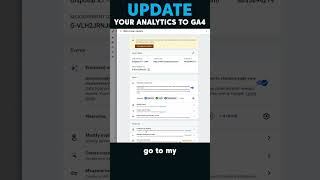
00:40the migration over here to the ga4 tag is actually really easy we can go to admin and we can click ga4 setup assistant if you haven't created a Google analytics 4 property yet you'll want to click here let's go over to the ga4 property now we want to go ahead and get data collection set up for that we're going to click on data streams you'll see here that it created a data stream but that it's not
receiving any data yet that's totally normal but if we click on that you'll see that it's not showing any connected site tags so for that I'm going back to the universal analytics account and what I need is this UA number I can get that from property settings or tracking info grab the number you go to my new account click manage connected site tags paste that there give it a nickname and click connect I can close this
now and now that there's a connected tag that's showing here over the next little bit probably within an hour or so I'm going to start getting data right now it says no data yet received but just give it a little bit of time and now after just a few minutes you can see that it says my website's data collection is active and it shows current users using the website we're collecting data and now it'll show up
in Google analytics for




⚡ Saved you time reading this? Transcribe any YouTube video for free — no signup needed.