AI Summary
This video reveals a hidden feature in YouTube Studio that allows creators to compare video performance on a granular level, helping them understand what drives views and engagement.
Chapters
90% of YouTubers don't know about a feature that lets them compare videos side-by-side using a multi-metric table.
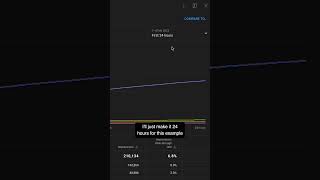
Go to YouTube Studio > Content > click the graph on any video > Advanced Mode > Traffic Source > select time frame > click Compare to and pick another video > scroll down and select Multi-Metric Table.
The multi-metric table allows comparison of click-through rate, watch time, engagement, subscribers, and impressions between two videos.
Using the multi-metric table in YouTube Studio helps creators identify which video elements drive performance, enabling data-driven content optimization.
Clickbait Check
90% Legit"Title accurately promises a hidden feature that helps understand video performance; delivers exactly that."
Tutorial Checklist
Study Flashcards (3)
What is the hidden feature in YouTube Studio that helps compare video performance?
easy
Click to reveal answer
What is the hidden feature in YouTube Studio that helps compare video performance?
The multi-metric table.
How do you access the multi-metric table in YouTube Studio?
medium
Click to reveal answer
How do you access the multi-metric table in YouTube Studio?
Go to YouTube Studio > Content > click graph on a video > Advanced Mode > Traffic Source > select time frame > Compare to another video > scroll down and select Multi-Metric Table.
00:10
What metrics can you compare using the multi-metric table?
medium
Click to reveal answer
What metrics can you compare using the multi-metric table?
Click-through rate, watch time, engagement, subscribers, and impressions.
00:30
💡 Key Takeaways
Hidden Feature Revealed
Reveals a little-known tool that can significantly improve content strategy.
Step-by-Step Access
Provides clear instructions to access the feature, making it actionable.
00:10Granular Comparison
Enables data-driven decisions by comparing key metrics side-by-side.
00:30Full Transcript
90 of YouTubers don't know about this feature in YouTube studio and it stops them from being able to understand how their videos are actually performing so let me show you how to find it and what it is go to YouTube Studio then content and click on this graph on any video you like now go to advanced mode then traffic Source now select any time frame you like here I'll just make it 24 hours for this example
and then click compare to and pick another video then scroll down press this drop down and select multi-metric table what you can now do is compare videos on a granular level to see how they performed in terms of Click through rate watch time engagement subscribers and impressions