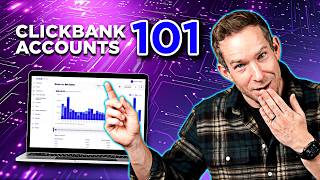

Why ClickBank has two account types
43sClear explanation of a confusing concept with a promise to simplify, hooking viewers who are new to ClickBank.
▶ Play Clip"The title accurately describes the content: a clear explanation and demo of ClickBank accounts."
This video explains the two types of ClickBank accounts: the master/primary account and nickname accounts. It provides a detailed walkthrough of how to set up and use each account type for managing multiple businesses or promotions.
Chris Olery introduces the series on ClickBank tips and explains that the video will cover how ClickBank accounts work and why there are multiple types.
ClickBank has two account types: the master/primary account (created with email) and nickname accounts (sub-accounts for specific businesses or promotions).
After signing up, users land on the dashboard of their master account, which centralizes all business operations and provides an overview of all nickname accounts.
Users create nickname accounts via the 'Accounts' menu. These are used for daily operations of individual offers or promotional activities.
When creating a nickname, users select the activity type (seller, affiliate, or combination) and choose a recognizable name for tracking purposes.
The master account dashboard displays sales and traffic data from all nicknames. It includes tabs for tickets, transactions, reporting, users, affiliate marketplace, affiliate link tools, education, and integrations.
Users can create hoplinks (affiliate tracking links), encode them for privacy, or decode them if they are the owner to verify attribution.
The education tab links to Spark by ClickBank, an affiliate training program. Integrations allow managing API keys and setting up postbacks for server-to-server tracking.
Inside a nickname account, users find similar features to the master account but focused on that specific nickname, including reporting, account settings, and vendor settings.
Payment settings (how and when to get paid) are configured at the nickname level, not the master account, since sales are associated with the nickname.
Vendor settings include 'My Site' for brand info, tracking script adjustments, commission groups for managing affiliate commissions, and features like order bumps.
Sellers use 'My Products' to add new products, 'My Images' to upload images, and 'My Order Form' to customize the order form for better conversions.
Under account settings, 'My Contracts' allows setting up JV contracts for cross-promotion or split commissions with affiliates or other sellers.
The affiliate nickname appears in tracking links. In the marketplace, users select their nickname to generate a personalized hoplink for promoting offers.
Chris summarizes: sign up for a master account, create nickname accounts for daily operations, and use the knowledge base for more information. He encourages comments for future topics.
Understanding the two-tier account structure—master account for portfolio overview and nickname accounts for daily operations—is essential for effectively managing multiple businesses or promotions on ClickBank.
What are the two types of ClickBank accounts?
Master/primary account and nickname accounts.
00:43
How do you create a nickname account?
Go to the 'Accounts' menu, click 'Manage Nicknames', then 'Create a Nickname', select activity type, and choose a name.
01:36
What is the purpose of the master account?
It serves as a portfolio hub to monitor performance, tickets, and analytics across all nickname accounts.
01:51
Where do you configure payment settings?
At the nickname account level under 'Account Settings'.
08:01
What is a hoplink?
An affiliate tracking link used to drive traffic to a seller's offer and get credit for sales.
05:34
What does encoding a hoplink do?
It turns the link into a code at the bottom of the order form, hiding the affiliate ID for privacy.
05:47
What is Spark by ClickBank?
An official affiliate education training program that increases the likelihood of making a first sale by 15 times.
06:12
What are commission groups used for?
To set different commission levels for affiliates based on performance (e.g., 70% vs 80%).
08:56
What is a JV contract?
A back-end contract for cross-promotion or split commissions between affiliates or sellers.
10:12
How does the nickname appear in promotional links?
The affiliate nickname is inserted into the tracking link to identify the affiliate in analytics.
11:07
Two Account Types
Clarifies the fundamental structure of ClickBank accounts, which is essential for new users.
00:43Master Account as Portfolio Hub
Explains the strategic value of the master account for managing multiple businesses.
01:51Hoplink Creation and Encoding
Provides practical steps for creating and securing affiliate links.
05:34Spark Training Program
Highlights a resource that significantly increases affiliate success rates.
06:12Commission Groups
Demonstrates how sellers can incentivize top-performing affiliates.
08:56[00:02] new series where we're going to give you simple tips, tactics, and tricks to help you make the most out of your ClickBank experience and account. My name is Chris Olery, senior director of marketing here at ClickBank, and it is my very great
[00:15] pleasure to be your guide. Today's topic, ClickBank accounts. One of the people who sign up for ClickBank, whether they're sellers or affiliates, is how do ClickBank accounts work and why are there multiple types? On the
[00:30] but once you understand it, it makes a ton of sense, it'll make your life a whole lot easier, and it'll actually let you manage multiple businesses or multiple offers or promotions from one place. There are two types of accounts
[00:43] on ClickBank. When you sign up for a ClickBank account on clickbank.com, you put in your email address, right? That gets you what we call a ClickBank master or primary account. There's also a second level of accounts on ClickBank
[00:56] really critical and important to your just a minute we'll talk more about what those do and what that means. First, the primary account. After you've signed up for ClickBank using your email, you're
[01:10] brought to the dashboard page of your ClickBank master or primary account. What's next? This is one of the most common questions we get. So far, you have successfully signed up for a ClickBank account, ClickBank master
[01:22] where it centralizes all the different business operations you're going to do different things called nickname accounts. But what do you do now? Well, this is where nickname accounts come into play. You're going to go over to
[01:36] on accounts, and you're going to be brought to a manage nicknames page. This is where you're going to click on create a nickname, and you're going to set up going to see there a little bit of helper text that describes what your
[01:51] ClickBank nickname account is and does. I like to think of it this way. Your ClickBank primary or master account, which is under your email, ClickBank nickname accounts in one place, so you can monitor the
[02:04] performance, uh tickets, and analytics across all the different accounts. The you're going to use for each of your different offers if you're a seller, or even promotional activities if you are
[02:17] an affiliate. It's basically inside each individual nickname account that you'll conduct the daily operations of your business, and up at the master account level that you'll look at your portfolio as a whole. Now, for a quick tour. When
[02:32] going to get a drop-down based on the activity you want to use that nickname for, whether it's as a seller or as an affiliate or even just a combination. if you're not quite sure. You might sell some products, you might drive some
[02:46] traffic. You're going to want to come up with a creative, recognizable nickname account name. These are sometimes visible, but really these are just for you and the purposes of your tracking. So, I'm going to create a quick nickname
[02:59] really quick so you can see what it's like under the hood. We'll do CBF tester. Nickname is available. I'm going to sign up. When I sign up for that nickname, it
[03:12] gets added to my manage nicknames page, and I can then go inside that nickname account and do what I need to do. Before I do that, I want to stay at this quick and just walk through a couple more use cases or things that you'll do
[03:25] dashboard on your master account. As you start to drive traffic and earn sales accounts, all that data is going to populate up and basically be displayed
[03:38] inside your master account, so you can come here to your dashboard and begin to see sales and traffic by each account. You'll also notice a tickets tab. If you some customer service support, uh this is where you're going to do that. Um
[03:52] transactions, basically if you need to find, search for an individual sale or management. Reporting, this is hypercritical to sellers and affiliates alike. This is basically where across all your different nickname accounts,
[04:08] you are going to be able to see your traffic and sales performance. You can choose from a drop-down each individual nickname account, and you can choose from a variety of different reports uh inside this this dashboard that give you
[04:22] unique insights into the health and optimization of your business. There's also uh support and shipping reporting, again for sellers. Um all of your nicknames, if you want to add users, this is really important for
[04:35] people who have an entire business or small small to large team, basically an to build on ClickBank, and you want to basically add employees or what we call clerks to your existing account, you come to this users page, and create new
[04:51] user allows you to basically build out a clerk account for the user or employee you want to add. From there, you can set individual permissions to what they can want somebody to manage a certain part of your business, or you want to let
[05:06] them see end to end the entire side of your nickname. Uh the affiliate marketplace tab should be self-explanatory, but if you're truly marketplace, it's one of the very best places on ClickBank to browse, find, and
[05:20] promote. You can access that through the primary account like I just showed you, you in a second here. Uh the affiliate link tools tab, again super important. This is a space where you can do a few different things. You
[05:34] can quickly build what we call hoplinks, which are effectively affiliate tracking links, right? That you'll use to drive traffic to a seller's offer and get attribution so that you get credit for the sale. You can create them here, you
[05:47] can encode them here, which basically turns them into a code at the bottom of the order form, so your affiliate ID is hidden, and it's important for affiliate privacy. Uh or you can decode them here if you're the owner. So, if you have an
[05:59] encrypted ID, and you're the owner, you can decode that to see the seller and affiliate nickname. This is basically just important to make sure attribution uh tracking is working appropriately. Last but not least, couple other things,
[06:12] the education tab. Again, if you're new, great place to go. This will take you to Spark or Spark by ClickBank. This is our official affiliate education training program. People who do sign up for Spark are actually 15 times more likely today
[06:26] to make their first sale than say affiliates who just try to go it on their own um and start and don't sign up. So, that's absolutely worth your time. You'll learn a lot about ClickBank um and about affiliate promotional
[06:38] tactics inside there, including info like this on a much more detailed level. Last but not least, integrations. A little more advanced, but this is where you can manage your API keys, and you can actually set up postbacks, which are
[06:51] server-to-server uh tracking integrations as you become more advanced as an affiliate and start to leverage more ClickBank data to send to traffic platforms. Okay, I know that's a lot, but that should hopefully serve as a
[07:05] pretty good intro to what you can do on your primary account. And a good way again to think of it is it's more like a portfolio or enterprise hub for all your nicknames. So, let's get into one of the nicknames. You go inside one of your
[07:17] nickname accounts, today at least, you're going to be taken to a different interface. A lot of the same features exist at the nickname level for that individual nickname versus your total portfolio inside the nickname account.
[07:31] For example, you'll see a reporting tab where you can get insights on your performance among many other things, but there's some unique stuff inside this important things you're going to do here, especially in the beginning, is
[07:46] set up how you want to get paid and how often and with which payment method, right? So, you'll see at the master or primary account level, there is a profile spot with payment settings, but since sales
[08:01] going to want to do this at the nickname level. So, the nickname account is basically where you're going to do all of your daily operations stuff, including setting that pay information. So, that's under account settings,
[08:15] you'll manage the pay right there. You'll see some basic um account information and features enabled up at the top. And then really, under vendor settings, you're going to find a host of different things, um whether actually
[08:28] you're a vendor or an affiliate, you'll find some unique stuff here. Um if you're a vendor, my site is basically going to be the place you input all your brand information and the marketplace info for your offer. You can edit and
[08:42] adjust tracking script info here, edit some elements on the order form. You can actually from here manage affiliates inside a tool we call commission groups. This allows you if you're a seller to set affiliates at different commission
[08:56] levels um based on their performance, so you might have some 70% affiliates, some 80% affiliates. Uh you can manage all that right here. Also inside here, uh my features is basically where you're going to find a list of a bunch of the
[09:09] features available to you inside your ClickBank account like order bumps um if you're a seller, which are little small offers you can add to your order form. Integrated sales reporting or ISR INS, this is all more notification-based
[09:21] stuff. A little more advanced, but all of it is controlled here. And then my products. If you are a new ClickBank seller, you'll spend a lot of time in the beginning in my products, basically adding a new product to get started and
[09:35] onboarding whatever it is you want to offer or sell on ClickBank. Same with um my images, where you'll basically upload all the images, and then my order form will take you to our order form customizer, which is basically a WYSIWYG
[09:48] or what you see is what you get area where you can customize your order form to your offer and your brand to increase your chance of conversions. Before we move on from nickname accounts, I know this has been a bit of a crash course.
[10:00] Um couple other important areas you'll also see under account settings uh a little area here called my contracts. This is where you can set up and manage JV contracts. If you're unsure what those are, I'd encourage you to read
[10:12] more about them in our knowledge base, but they basically allow you uh with either affiliates or other sellers to set up back-end contracts where you can cross-promote or split commissions or a bunch of things like that. And this is
[10:26] where you basically go to to set all of those, and you can do it at the nickname level, or if you've got a bunch of individual product IDs inside your those up at the product level. Again, our knowledge base, which you'll see
[10:39] linked up here, has a host of great information, articles on basically all to look deeper if any of it's of interest. For now, I just kind of wanted to give a brief overview of the fact that you need two different types of
[10:52] each account type does. Basically, your business hub and your individual nickname account. The other thing your nickname account is important for. We've and things like that under the hood, but we haven't talked about how that shows
[11:07] up or translates into your promotional links. So, I'm going to click on the marketplace here from inside my CB F tester nickname account that I created. I'm going to go find an offer, um and I'm going to show you kind of how this
[11:20] shows up in the offer. Oh, yeah. So, I want to promote this memory foam pillow cuz I love a good night's sleep. I got a bad neck. I'm getting older every day. not know it. I've also cultivated a massive, massive blog audience. They
[11:36] love to sleep. They are probably hungry for my pillow advice. So, this is the offer I want to promote. Uh I'm inside the marketplace here, and if you haven't been in here, quick side note, there's a bunch of good information inside the
[11:49] marketplace about each individual offer, including average dollars per conversion, conversion rate, earnings per click, uh gravity, which is kind of a proprietary rank that shows how well an offer is doing now,
[12:02] and some really important buttons. Um get affiliate link, probably being the most important. So, I want to make a tracking link here. I just created CB F tester, right? That's my affiliate nickname that you saw I just made. You
[12:17] with that. I can do some stuff inside that account. I also just take the nickname itself, CB F tester. I put it right here. The seller nickname's want to promote, and boom, I'm able to now create a personalized tracking link
[12:33] for this offer using my nickname. So, your nickname basically is an account that you'll do stuff in, but it also shows up inside your tracking links. So, affiliate nickname, CB F tester. Here's the seller nickname. I want to go to
[12:46] their default landing page. I want a basic hoplink. Uh if I wanted to here inside the marketplace, I could add a bunch of uh tracking parameters, affiliate tracking parameters or ATP. Think of these like UTM uh parameters if
[12:59] you're familiar with those. They basically give you more information on each link that then gets passed back to the ClickBank analytics stuff we looked through your campaigns. I'm going to skip all that now, but you will see what
[13:13] the bottom here, the output of all that info, is I get my very own encrypted hoplink. I can now use that hoplink to go promote uh the seller's offer, which is pretty rad. So, anytime you're inside the marketplace,
[13:27] uh there's a bunch of other cool stuff like affiliate resource pages, um and you can actually preview the sales page of each individual offer. But anytime you go to make a link, uh that's where that affiliate nickname will come into
[13:39] play. You're going to use that inside the link to promote the offer. Same thing on the seller side, um when you make your nickname account as a seller, shows up for the affiliate to see inside. And And those are important cuz
[13:53] not only do you kind of put those in the URL, those are going to persist all the way back into your account at the analytics level. So, when you are looking at in your master account, for example, uh as the seller, you're
[14:06] looking at the performance of a bunch of different affiliates, it's the nicknames thing if you're an affiliate, but you've got, say, 10 different nickname accounts you're using to promote, those are all going to show up uh by the nickname. So,
[14:19] the nickname is an important unit inside your reporting and other places. It's also a type of account It's also a type of account on ClickBank. Okay, I know this was in parts probably a little more than 101, a little more advanced or
[14:33] detailed than we first anticipated, but if you're just getting started and you video that's going to help you work your way through ClickBank into making your first sale, here's what it is. There's two types of accounts on ClickBank. When
[14:46] you sign up with your email, you get your primary or master account. That's basically your business portfolio account. From there, go to the accounts menu, create a nickname account. That individual nickname account is what
[14:58] you're going to use on the daily to either promote other people's offers as an affiliate, or if you are a seller, add products, manage your product catalog, set commissions, and basically build out your offer. Last but not
[15:11] least, there is more information available for all of this at That's where we host our entire knowledge base or knowledge bank. Inside there, you're going to find articles on all of these topics that we touched on,
[15:25] all of the features and functionality available to you inside both types of been a valuable guide and resource to the two different types of accounts on ClickBank and how to get started on the platform. For more ClickBank 101 topics,
[15:39] let us know in the comments what you want to learn, what you want to see, it's overviews like this or deep dives into individual features. We are here at your disposal to give you the best chance to grow, succeed, and scale on
[15:52] chance to grow, succeed, and scale on ClickBank.
⚡ Saved you 0h 15m reading this? Transcribe any YouTube video for free — no signup needed.