
Product Manager's Life Hack with Trello
45sReveals a unique productivity system from a professional background, appealing to those seeking efficiency.
▶ Play Clip"The title accurately reflects the content: a product manager's Trello-based task management system for life and business."
This video demonstrates how to use Trello for personal and professional task management, drawing on the speaker's product management background. The system uses a board with columns for 'Today', project-specific buckets, 'Done', and 'Ideas', with labels, due dates, and checklists to track progress.
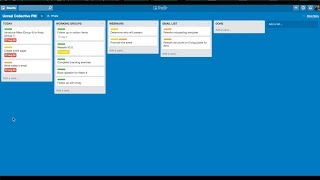
The Trello board is named 'Unreal Collective PM' and includes columns: Today, Working Groups, Webinars, Email Lists, and Done.
Each card gets a color-coded label (e.g., green for Working Groups) and a due date. Due dates change color: red for overdue, yellow for upcoming, clear for future.
Each morning or evening, move cards from project columns to Today. Focus only on the Today column. Once a task is complete, move it to Done.
Cards can include descriptions, file attachments, and checklists (e.g., promoting an event on multiple platforms). Progress is shown as a percentage.
Archive completed cards to keep the board clean. Archived cards remain searchable. Overdue tasks that linger can be evaluated for necessity and removed.
An additional 'Ideas' column captures future possibilities, priming the mind and allowing ideas to evolve over time.
The Trello mobile app is functional and beautiful. The system can be adapted for personal tasks, physical activity, or any other life area.
By treating Trello like a product management tool, you can organize tasks into project-specific buckets, focus on a daily 'Today' list, and use due dates and labels to stay on track. This method helps declutter your mind and ensures you only work on what's truly important.
What are the five columns recommended in the Trello board?
Today, project-specific buckets (e.g., Working Groups, Webinars, Email Lists), Done, and Ideas.
How do due date colors indicate urgency in Trello?
Red for overdue or due today, yellow for upcoming, clear for future.
00:45
What is the daily workflow for managing tasks?
Each morning or evening, move cards from bucket columns to Today. Focus only on Today. Move completed cards to Done.
01:30
How can you track subtask progress within a Trello card?
Add a checklist with subtasks; Trello shows the percentage complete (e.g., 3/5 = 60%).
02:15
What is the purpose of the Ideas column?
To capture future possibilities, prime your mind, and allow ideas to evolve over time.
03:30
How can you declutter tasks that are not getting done?
If a card lingers past its due date, evaluate its necessity and delete it if not important.
03:00
Product Management Framework for Life
Shows how professional PM techniques can be applied to personal task management.
Visual Due Date Alerts
Color-coded due dates provide immediate visual feedback on urgency.
00:45Focus on Today Column
Limiting daily focus to 3-5 tasks reduces overwhelm and increases completion.
01:30Declutter by Not Doing
Overdue tasks that aren't completed can be safely removed, proving they weren't essential.
03:00Ideas Column for Evolution
Capturing ideas primes the mind and allows them to develop over time.
03:30[00:00] wanted to show you how I use my background in product management to dictate the way I ask manage my own life both my personal tasks and my tasks related to my business unreal collective and it's all done really in Trello so I've created a board here in Trello as an example of how I utilize it for unreal collective and the rest of my professional work to manage my day day in and day out and so what
[00:29] you'll see here I have the name of the board up here on the top left unreal collective PM for product management I have a list on the far left that's called today I have three lists in the middle here that have their own names working groups which are a part of unreal collective webinars and my email lists and then I also have a column called done on the far right so I would recommend for you use
[00:57] a today and a done column but also these three columns here in the middle those can be any number of columns that are related to your work in your business or your project I divided them up into three buckets because I see these as three distinct aspects three distinct projects or buckets all relating to my my work with unreal collective so you may have you may have your own buckets you may have something for an individual
[01:26] event or a community organization you're a part of this is kind of however you want to divide it up but I do it on a sort of project by project basis they each get their own column from here I divide up all the things that I need to get done for that bucket that aspect of my work into their own cards do small little bite-size items that can be picked off one by one by one so
[01:55] for example follow up on action items as a part of my working groups at the end of our calls every week the members of unreal collective identify action items to complete for the following week and before that week is up I follow up with the members and see how they're doing so this card there's a lot I can do in Trello to make this more robust and so one thing I do is I will add a
[02:24] label for each of these cards and so let's say that for working groups I want to use the green color and I'll call this again working groups to coordinate it so I had a label to this card I will also add a due date let's say this is due on Monday our calls are on Tuesday so I'll have that due on Monday and I can add members if I had members but usually that's about the extent
[02:52] to what I do on these cards so now I have a label I have a due date I'm going to add that same label to every card in this list and when I create a new card I will add that label as well like if I had a to-do card that said follow up with Andi I could add that label right away now it's important to add due dates to these cards so you're creating sort of
[03:21] a contract with yourself on when you're gonna get this ticket done this is so you can know personally am i ahead of schedule am i behind schedule so let's say that this is due oops say this is due today actually I can go back here this card is due today this card is due tomorrow etc and you can see that the color of that due date changes based on how close it is to being due if
[03:50] it's the day it's due or past due it becomes a red color if it's coming up it becomes yellow otherwise it stays just clear like this so real quickly I'll make a label for webinars I'll make a label for email lists ok so I'll give this webinar a label and it could be for something like promote the event if I'm promoting a webinar it could be promote it via my email list so I'll actually give it
[04:18] to labels to say this applies to two different categories so why add a label if they're all in one list anyway well that's because let's say that there's also this event page is going to be due today and right today's email is due today I know that I have three tasks that are due today and so every day when I look at my my items that are coming up to do I'll move them from their bucket
[04:47] over to the Today column so every morning or every evening the night before I'll move my tickets around to say these things are due they're coming up in today and really day in and day out what I focus on is just this far left column and saying these are the three to five things I need to get done today based upon the deadlines that I've already made and once they're completed I move them from today over
[05:16] to done and that just gives me kind of a visual look of which things are done it's nice to check things off as the day goes on and you just kind of get that feeling so let's say I finished all of today's items now coming up tomorrow I've got this card maybe promoting the event it's going to be due tomorrow as well so this is the evening of the day I'm going to move this over here
[05:44] the great thing about any of these cards though you can add a description of these things say you know create an event bright share on Facebook in the description and remember what that is you can attach files let's see what this document is you can attach a file and it just goes right there and becomes a part of it you can open that up you can update your progress and say share it on Facebook 8:30 just
[06:13] as a marker you can add descriptions to all these things you can even make a checklist to say okay promoting the event means that I want to promote it on Facebook Instagram Twitter LinkedIn email list and then as time goes by I can come in and kind of check that off right now it shows that I have zero of five of the promotional pieces done I can go and say okay showed on Facebook I share on
[06:42] Instagram and I shared on Twitter this shows your 60% don't this task I can't move it out of today yet because I'm still actively doing it but it is 60% done once it's a hundred percent done I can move it over to done and at any point in time I can search for that and say promote and it brings up these tickets right away and I can find that because eventually this column will get really long
[07:11] and unwieldy and you'll want to just go through here and archive this list or archive all cards in this list rather and those cards are still searchable you can find anything that you attach to it or not there's a lot of benefits this method I'll leave most of them to the PDF but one major thing is you'll start to find that some of these tickets may end up hanging around maybe rewrite rewrite onboarding template even if
[07:39] I put a due date on it of tomorrow and I have it in here it could get to be several days past tomorrow and if this wasn't truly important and I didn't take care of it you can see okay this card's hanging around this task is hanging around is it really necessary do I need to do it and so that's sometimes a way just to declutter your mind and say I'm actually not gonna do that that's
[08:08] not necessary I've proven it's not necessary by not doing it another list that I like to add over on the far right from done is just ideas and so sometimes I'll have a card like run and all day summit with members of unreal collective that's just an idea I don't know if I'll action that but it gives me a place to write it down and remember it and see it and so it Prime's my mind every
[08:37] day to say oh yeah I forgot about this idea and maybe that idea evolves as time goes on because I really truly operate off of this Trello board all the time I'll show you some screenshots in the PDF of the mobile app for Trello as well it's beautiful it's highly functional and it works great so that's the basic overview of how I utilize Trello to task and manage my own life you know when I was a
[09:05] product manager these groups for these buckets were things like sales marketing design engineering and I would move them over and today but now you can really use that framework for any aspect of your life you can say you can have a list for personal tasks you can have a list for physical activity really any bucket you want but then as you're looking at today you see very quickly what kind of task that is when it's due
[09:34] you can focus on this column over here move it over to done when you're done and just take cards off the list as I work through my day and I realize more tasks that need to get done you can very very quickly just add a card maybe over here and say create design graphic and then whether you do that quickly on the go on mobile or not you can come back here when you have a little
[10:03] bit more time to sit down add the label add a due date when I get this done by next Monday and move from there so I hope that was helpful more information available in the PDF
⚡ Saved you 0h 10m reading this? Transcribe any YouTube video for free — no signup needed.