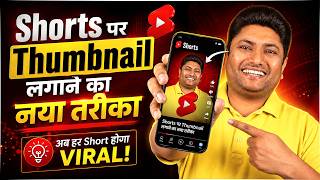

Why Your Shorts Need Custom Thumbnails
35sDirectly addresses a common pain point for creators and promises a solution, making it highly relatable and clickable.
▶ Play Clip"Delivers exactly what the title promises with a clear, step-by-step method, though some filler and self-promotion reduce the score."
This video demonstrates a method for adding custom thumbnails to YouTube Shorts by combining the video and thumbnail as a two-second clip during the upload process. The creator explains that this approach avoids the need to insert the thumbnail within the video itself, potentially improving search visibility. The tutorial walks through the steps in the YouTube mobile app, from selecting both files to finalizing the upload.
Adding a custom thumbnail can help get views from search results. The traditional method requires creating a thumbnail and inserting it into the video during editing, which is cumbersome.
The video presents a better way: create the thumbnail separately and combine it with the video as a two-second clip during upload, eliminating the need to embed it in the video.
Open the YouTube app, log in, and tap the plus sign to create a new Short. Then select 'Add' to choose the video and thumbnail files.
Select both the video and the thumbnail image. After tapping Next, skip the music selection step.
After processing, the thumbnail appears as a separate clip. Shorten this clip to 0.9 seconds to make it a quick flash at the start.
Use the pencil tool to edit, then drag the thumbnail clip to the end of the timeline. This ensures the thumbnail is displayed as the video's cover.
Enter the title, add emojis if desired, and paste the description and hashtags (e.g., from ChatGPT) into the appropriate fields.
Confirm the thumbnail is set, choose audience settings, and upload the Short. The video will be published with the custom thumbnail.
The method effectively allows creators to add custom thumbnails to YouTube Shorts by combining the video and thumbnail into a single clip during upload. This approach is simple and can enhance search visibility, making it a valuable technique for Shorts creators.
What is the main benefit of adding a custom thumbnail to YouTube Shorts?
It can help get views from search results.
00:02
What is the traditional method of adding a thumbnail to a Short?
Creating a thumbnail and inserting it into the video during editing.
00:02
What is the alternative method presented in the video?
Create the thumbnail separately and combine it with the video as a two-second clip during upload.
00:18
How long should the thumbnail clip be shortened to?
0.9 seconds.
01:42
Where should the thumbnail clip be positioned on the timeline?
At the end of the timeline.
02:09
Custom thumbnails boost search views
Highlights the practical benefit of using custom thumbnails for discoverability.
00:02Alternative method avoids embedding
Introduces a simpler workflow that saves editing time.
00:18Thumbnail clip shortened to 0.9s
Specific timing detail that makes the thumbnail appear as a quick flash.
01:42Thumbnail placed at end of timeline
Key positioning step that ensures the thumbnail is used as the cover.
02:09[00:02] they think that they should also add a customized thumbnail in it because if you add a customizable thumbnail, then brother, you can get views from search also. For this they have to first create a thumbnail. Then it has to be inserted somewhere inside the video during editing.
[00:18] And if brother forgets to do this then he will not be able to upload the thumbnail. In today's video, I will tell you the proper method of how you can add customizable thumbnails to your short videos. By creating it separately, you will
[00:35] not even need to insert that thumbnail inside the video. And this is the best way. If you like the video, please like it. Please subscribe to the channel also because I keep making such videos for you on this channel. Look, first of all let me tell you that
[00:48] when you want to use this method, you have to open the YouTube app. You have to open the red colored app. open the YouTube app. You have to open the red colored app. After logging in, click on the plus sign.
[01:03] click on the plus sign. The option of G Short will appear here. Ok? Now click on add here. Now look, here we have a video and this is the thumbnail. Thumbnail on second number. We will select both of them. First we will do the video. In the second
[01:15] we will do the thumbnail and click on Next. As soon as we click on Next, we will skip the music here. Our music got skipped. I pause it only after getting pushed. Now look
[01:28] brother, here below is our complete short video. If you see below, this is the video and here it is done. Here is the thumbnail. We have to click on the thumbnail. After processing we will see a thumbnail like this. After this, we will make this two second item
[01:42] even shorter. We will do this in 0.9 seconds, we will do it like this, right, we will do it like this and will do it, now we will do it, then we will do it, again we will do it, again we will do it, then we will do it next,
[01:56] option like this will come here, now we will click on the pencil and as soon as we click on the pencil, it will go into processing.
[02:09] hold it and take it anywhere. So here we will leave it at the end and we will see the thumbnail here and we will click on the top right. Now look, the thumbnail is installed. That means we selected both the video thumbnails and
[02:22] came here and placed the thumbnail. Now comes the title of our Ss. We pasted it here. If you want to put any emoji in it then let's put the emoji. Yes. Ok? If you want to add something else, you add more. Here, I will apply it. Like I do
[02:38] video editing. You will get something from him too. Ca n't find it. Then I will look into editing. If I get it, then I haven't got it. Ok. Then let's put this one on. what shall we do now? Yes, we have selected everything like audience etc.
[02:51] Like uploading a video. We will do it exactly like this. If you want to Our lovely chat GPT. We have already written the description and hashtag here. So let us take this here. We copied this. And we will come here and
[03:07] paste it. Please paste it here brother. This is the paste. This person with this page will remove it. Yes. Removed. Ok? what shall we do now? We can upload the video as we want. There is no issue. We go to AI use and say no just once.
[03:21] And look here our thumbnail is installed. Now we will upload the shot here. Now we will upload the shot here. Now this short is uploaded with thumbnail. Now look here with thumbnail, this short has been uploaded and will also be made public here. So
[03:34] this is the best way to add customizable thumbnails. You make the shot separately. Create the thumbnail separately and by selecting both you can add the thumbnail in this way. So whenever you make any shot, make sure to put a thumbnail on it because
[03:47] make sure to put a thumbnail on it because if it comes up in the search, then through the thumbnail it can get See you in the next video with a new topic. Till then, Jai Hind.

⚡ Saved you 0h 03m reading this? Transcribe any YouTube video for free — no signup needed.