
How to Add Digital eRupee to Bybit
43sStep-by-step tutorial for a niche payment method, highly searchable and practical for crypto users in India.
▶ Play Clip"Title is accurate and descriptive — the video delivers exactly what it promises without fluff."
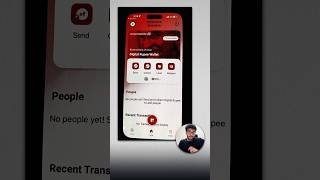
This video provides a step-by-step tutorial on how to add a digital eRupee (CBDC) wallet as a payment method on the Bybit exchange and then use it to buy USDT via P2P trading. The presenter demonstrates the process from saving the wallet's QR code to completing the first purchase.
Open your digital eRupee wallet, click the share icon, and save the QR code/barcode to your device.
In Bybit, go to P2P trading, tap your profile, select 'P2P Payment Method', then 'Add Payment Method'. Search for 'eRupee' and select it.
Enter your VPA in the format: 10-digit mobile number @DR + bank name (e.g., @DRKotak). Also upload the QR code saved earlier.
Confirm the addition, complete any security verification (e.g., a code sent to your phone), and the eRupee method will appear in your payment methods.
Go back to P2P trading in Bybit to buy USDT using the newly added eRupee payment method.
What is the format of the VPA (Virtual Payment Address) for digital eRupee?
Your 10-digit mobile number followed by @DR and your bank name (e.g., 9876543210@DRKotak).
01:24
Where in Bybit do you add the digital eRupee payment method?
In the P2P trading section of Bybit, under 'P2P Payment Method' > 'Add Payment Method'.
00:42
What do you need to save from your eRupee wallet to add it to Bybit?
A QR code or barcode from your digital eRupee wallet.
00:14
Saving the QR Code
This is the critical first step that many users might miss — the QR code is the key to linking the wallet.
00:14VPA Format for eRupee
The specific VPA format (mobile@DR+bank) is essential for correctly adding the payment method.
01:24[00:02] Now I will have to link this digital e-rupee wallet of mine can make payment here, I can make payment here with digital e-rupee and buy USDT,
[00:14] for which I have to click on this small icon in the corner, this is the main thing, you have to click on share and save this barcode
[00:29] here in your gallery wherever you want. Ok? After that you have to reopen your Bybit. I'll open my by bit here. Bybit, here you have to click on P to P trading.
[00:42] Here your profile will appear below, you will see it below, you have to click on the profile. Here you have to click on the P to P payment method. After that you have to click on Add Payment Method.
[00:56] Because you are going to add your new payment method of digital e-rupee. So by clicking on Add Payment Method, you have to select the payment method here and type e-Rupee here. Look, digital e Rupee is here. You have to select the digital epi
[01:11] and your wallet VPA will be asked here. QR code will be asked. QR code is the main one in this. What can you put in place of this VPA What can you put in place of this VPA ? Your mobile number followed by @
[01:24] and then DR and the name of your bank. I have an account with Kotak Mahindra here, so I will enter Kotak. If yours is in ICICI then please add ICICI. Let's assume your phone number is of 10 digits, whatever it is, 010 times, after that
[01:40] 10 digits, whatever it is, 010 times, after that @DR and ICICI, okay, in this way you have to in QR code, you already know, by clicking here, by Digital UP, we have to select the same here and my QR code has
[01:56] gone here. Now I also add my VPA. I also entered my VPA. I also put in the QR code that I took out of my digital EP. Simply click on confirm here. There will be some loading.
[02:09] for security. So I will bring that code and put it here. If you have also set it then you will also be asked for the code. Please type it here. There is a bit of loading here after entering the code. Look, my Digital UP payment has been added above. Simply
[02:22] I have to go back here and click on this P to P below. Now I can easily do USDT buying etc here from pi to papi.
[02:34] Now I can easily do USDT buying etc here from pi to papi.




⚡ Saved you 0h 02m reading this? Transcribe any YouTube video for free — no signup needed.