
How I Built a 61K TikTok Clipping Account
53sViewers are drawn to the promise of making money online, and the creator's impressive stats (61K followers, $2K in 7 days) instantly hook their curiosity.
▶ Play Clip"Delivers a solid, actionable tutorial that matches the title's promise, though it includes some self-promotion and repetitive encouragement."
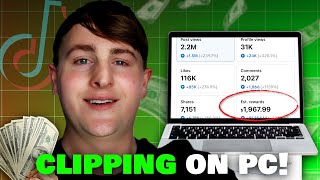
This video provides a step-by-step tutorial on how to create and monetize TikTok clipping accounts using a PC. The creator shares his personal experience of building an account to 61,000 followers and earning nearly $2,000 in a week by repurposing content from popular creators like Caleb Hammer.
The creator built a TikTok clipping account to 61,000 followers in about 1.5 years, with recent videos getting 2 million and 1 million views, and earning almost $2,000 in the last 7 days.
Select a popular creator with a large content library. For smaller creators, ask permission, but for larger ones, it's often unnecessary. Show the value of increased reach.
Use the comment section to find specific moments, or use the transcript feature (Ctrl+F) to search for keywords. This saves time and helps identify potentially viral segments.
Opus Pro can automatically generate clips from a YouTube URL. It costs $14/month for the yearly bundle and is highly recommended for saving time.
If you prefer manual control, use the snipping tool on PC to record specific parts of a video, then upload the file into Opus Pro for editing.
In Opus Pro, use the split tool to cut out dead space, add a title card for context, and ensure the hook is at the beginning. You can also add B-roll and music.
Use the split tool to isolate and mute any cuss words in the clip to avoid issues.
Export the clip in HD and upload it manually to TikTok. Write a simple description, tag the original creator, and use automated hashtags.
Add a trending sound with the original sound at 100% and the added sound at 4-5%. TikTok's web version allows scheduling posts and using more than five hashtags.
Controversial content drives comments, which boosts the video's reach. The creator's clip about a couple hit 1.2 million views and 77,000 likes.
Building a successful TikTok clipping account requires time, consistency, and strategic content selection. By leveraging tools like Opus Pro and focusing on controversial or engaging moments, you can generate significant income and even attract in-house opportunities.
What is the first step in creating a TikTok clipping account?
Choose a popular creator with a large content library to clip from.
01:06
How can you find specific timestamps in a YouTube video quickly?
Use the transcript feature and Ctrl+F to search for keywords.
02:24
What is the cost of Opus Pro's yearly bundle?
$14 per month.
02:51
What tool is recommended for manual screen recording on PC?
The snipping tool.
03:21
Why is the hook the most important part of a clip?
It captures the viewer's attention and determines whether they watch the video.
04:51
How do you mute a cuss word in Opus Pro?
Split the clip at the cuss word and lower the volume to mute it.
06:25
What is the recommended volume level for added sound in TikTok?
4-5%.
08:05
What type of content tends to go viral on TikTok?
Controversial content that drives comments.
08:43
61K Followers in 1.5 Years
Demonstrates the potential of clipping accounts to grow a substantial audience.
00:14Transcript Search Life Hack
A practical, time-saving technique for finding viral moments in videos.
02:24Controversy Drives Virality
Explains the psychological mechanism behind why some clips blow up.
08:43[00:01] this video, I'm going to show you my step-by-step process of how you can do it through your PC. I've made another video just like this, but with using that, make sure you go watch it up here. But essentially, I made a Tik Tok
[00:14] clipping account about a year and a half ago, and I have built it to 61,000 followers. And as you could see, I post clips from Caleb Hammer's financial audits. And right here, this video just the other day got 2 million views, and
[00:26] this other one got 1 million views. So, let's just say the last two days have creator fund. And I don't want this to come across as, oh, this is going to realistically, it won't because again,
[00:40] eligible in the Tik Tok creator fund. And it took me 3 months to do that. But step-by-step process of how you can do it. And just to show my results so you guys know what I'm talking about. In the last 7 days alone, I have generated over
[00:54] right here, all the other analytics with almost generating almost $2,000 in the I'm going to show you my step-by-step process of how exactly you can do this.
[01:06] So, the first thing you want to do is go to YouTube and go pick a popular creator clip from. And that's the most important part because you want to pick a creator that has a lot of content out there. And so, for me, I chose Caleb Hammer and I
[01:19] him. So, keep that in mind. So, go through all of your subscriptions and just see if there's any creator right here that you could clip for. And again, of other clippers already clipping for this content creator, then you don't
[01:31] necessarily need permission. But if this is a smaller creator, then definitely permission because at the end of the day, it is their content, but just show them the value you can give with getting their content more reach. So, in this
[01:44] Caleb's videos and let's click this video right here. And so, this is a already posted clips from them, but I'm going to show you again step-by-step you can do to find timestamps very quickly that could go viral. The first
[01:58] thing is go through the comment section. Again, Caleb's already a popular things that could help find specific parts of a video that are really good. Sometimes people will comment a specific timestamp. Right now, I cannot find one,
[02:11] but I'm going to find a comment that I want to find in the video. So, right here, they someone's talking about Pokémon. So, let's find Pokemon in this video specifically. So, what we can do, go to the description, then go down and
[02:24] click show transcript. And now the entire transcript will pull up. Ctrl + entire transcript will pull up. Ctrl + F. And let's type in Pokeman. And now where Pokemon is said. And this is such a life hack. It saves so much time and
[02:37] going to go through the different parts of the video. And as you can see, it's part. So, you can use this method. Another method you could do is copy and paste the URL of the YouTube video and you can paste it into Opus Pro and it
[02:51] Just for an example, for another page that I'm building, I did the same thing and it generated a lot of clips that I can post. For this method, it does cost for the yearly bundle, it's $14 a month and I highly recommend it. That saved me
[03:07] so much time and I use Opus for a ton of different methods that I use for Tik Tok you can choose from when you want to find specific timestamps from a video. you could write down the timestamps yourself. So you can see like, okay, I
[03:21] can manually screen record it. And you can do that on your phone, but in this case on the PC, we will be using the snipping tool. And then you can drop it into Opus Pro when you manually screen record something. And you can add it in
[03:34] here just to add captions and a title card if you don't need any cuts or anything like that. But you can also do cutting in here. So in this case, what your file into here. And then it will take a few seconds to do that. And then
[03:46] there's a ton of different options you can do. So if you are uploading a one make sure you have AI clipping selected. what you want. A lot of time I do auto or clip basic genre. You can pick what
[03:59] kind of genre. For this case, it's a podcast. And then you can choose what if you want it under 30 seconds, over a minute. For my case, since I'm in the clips over a minute. So, I would want to select that if you're in the Tik Tok
[04:12] captions right here. For this one, I use for the finance page. For this other custom style that I have, I am building another page that is almost at 10K here for that. Now, for this case, since I'm uploading a manual clip that I
[04:26] screen recorded, I'm going to put don't clip. And I can be more specific if I essentially, you want to do that and now you've done that entire process. We now have the clip right here. And what
[04:39] we want to do is click edit clip. So now we have our entire video in here. And what we can do is since this beginning right here has dead space for when I manually recorded. So what we can do is we can drag it right there. Or what you
[04:51] can do is you can click this split tool right here and you can cut out certain out. So I'm going to have the start of the video right there. Again be you can hook is the most important part of these videos. So the next part we are going to
[05:05] click text body part. And this part right here is adding your intro title card to give context about what the video is about. So right here we can put video is about. So right here we can put husband spends 1k on Pokemon. And so
[05:18] video. And I've had a lot of luck with this. So definitely try that out. And the font, the coloring, and all that good stuff. And for this right here, if you want any dead space cut up, split. Split. And then we can delete that. And
[05:32] toward the end of the video, we're going to do the same thing. And we're going to here, we could say the clip is essentially all done. Now, if you want and everything to make sure it's spelled right, I personally don't worry about
[05:46] that too much, but you can update everything to your own liking that you to click a word in the transcript right here. You can add anything right here. certain word from the transcript. Another thing you could do to also help
[06:00] your video be more original is click B-roll over here on the side and you can autogenerate AI B-roll, autogenerate stock B-roll, or you can even give a your content. A lot of great options. And there's also music transitions that
[06:13] you can add. A ton of good stuff to where you can make your video as edited the first 30 seconds here just to make sure this clip's all good and we're there is a cuss word. So, I'm going to mute that. So, I'm going to show you
[06:25] guys how to do that. So, I'm going to split like about right where it said. volume and then make it muted all the way. I think there's a lot of potential in this clip right here just based on how the videos have performed with this
[06:37] couple. Again, thousands of views, even millions of views right here. So, now we up here. Click export. And then you want to download an HD. You can also upload straight to the social media account from Opus if you want to connect your
[06:52] account. I personally do not do that. I manually upload in Tik Tok application this into Tik Tok. So, now you want to go into the Tik Tok application and you we're gonna upload the video in here. So, now we have the video uploaded and
[07:06] the first thing that we want to do is the description and we could just put something. You don't have to take it too serious. We could just say, "Wow, this is insane." And the most important part is I tag Caleb in all of the posts cuz
[07:19] get his page more traction. So sometimes it doesn't pop up, sometimes it does. So really like about this is all these hashtags that I use are automated. Again, you'll have to insert them at first, but then it'll just stay and it's
[07:33] very helpful. Right here, we can change the cover. next part is you want to click edit video, go to favorites or recommended, different songs, and you can add them to your favorites. And that's what I have
[07:48] look at all these different soundtracks that I use, take a look at them. I'm not because of copyright. But in this case, this shocking sound will go with the select that. I have it selected. Go to volume. Original sound put up. Added
[08:05] sound. I put about four or 5%. Click save edit. And what I like about the Tik that you can have more than five hashtags, which I really like. Now on the phone application, it only lets you a max of five hashtags. Plus, you can
[08:18] schedule your post out. So, if I wanted to schedule this out, say for tomorrow at noon, I could do it at noon, which is very helpful. But for this case, I'm going to put now, and we're going to get this posted. And let's see how well this
[08:31] video does. So, I just posted it. As you can see, it is processing now. It'll take a few minutes for that, but other than that, this is amazing with how this clipping account is doing. It is garnering thousands and even millions of
[08:43] other day, 2.1 million. The couple that I just posted a clip for hit 1.2 million views with 77,000 likes. Absolutely insane. And the reason why these videos controversial. That is how you get a video to blow up is by getting more
[08:58] comments on a video. So, just keep that in mind when you post clips. And so, I of you that are looking to start clipping, whether it's from your phone or PC. And as you can see right here, the last 7 days I have made almost
[09:11] $2,000, which is absolutely insane. And anyone can do this. It really just takes time and consistency. I've been posting on this clipping account since February of 2024, so it will not come easy. But if you can get an account to 10K
[09:24] are at least a minute long, then you have the potential to make thousands of dollars and even with making a connection with the content creator, maybe they can hire you inhouse. So many different opportunities that you have
[09:36] with clipping. So, if you found value in this video, I would really appreciate if button. And if you want to see more content like this, please let me know have a free Discord community in the
[09:48] help each other out with clipping, making money online, anything like that. if any of you need help with clipping, just send me a message on Instagram or out in any way I can. Thanks for watching and I'll see you in the next
[10:03] one. [Music]
⚡ Saved you 0h 10m reading this? Transcribe any YouTube video for free — no signup needed.