AI Summary
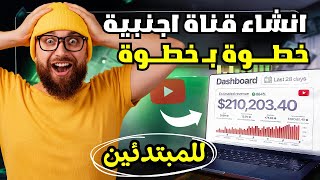
This video provides a step-by-step guide to creating a foreign YouTube channel from scratch, covering niche selection, channel setup, content creation, and video editing using free tools like ChatGPT, Canva, Pixels, Google iStudio, and CapCut.
Chapters
The video is presented as a free paid course, teaching how to create a foreign YouTube channel from scratch to professional level.
ChatGPT is used to generate 10 low-competition niches with high CPM for foreign content, such as 'true stories about unknown people'.
ChatGPT suggests a channel name (e.g., 'True Survival Stories') and writes an SEO-optimized description with keywords for ranking.
The channel is created on YouTube using the chosen name, with basic settings configured.
Using Canva, a free banner and logo are designed and uploaded to make the channel look professional.
Settings are adjusted: country set to United States, keywords added, content marked not for kids, and phone number verified for longer videos and custom thumbnails.
ChatGPT writes a video title and full script (3-5 minutes) with keywords for each scene to search for stock footage.
Free stock footage sites like Pixels and Pixby are used to download video clips matching each scene's keywords.
Google iStudio's text-to-speech generates voiceovers for each scene, using the script from ChatGPT.
Scenes and audio tracks are assembled in CapCut, transitions added, and auto-captions generated.
The completed video is played: a true survival story about Michael Thompson lost in the Amazon.
By following this guide, you can create a professional foreign YouTube channel using free tools, from niche selection to publishing a fully edited video.
Clickbait Check
85% Legit"Title promises a full course and delivers a detailed step-by-step guide, though some steps are sped up."
Mentioned in this Video
Tutorial Checklist
Study Flashcards (8)
What is the first step to create a foreign YouTube channel according to the video?
easy
Click to reveal answer
What is the first step to create a foreign YouTube channel according to the video?
Use ChatGPT to generate 10 low-competition niches with high CPM.
00:29
Which free website is used to design the channel banner and logo?
easy
Click to reveal answer
Which free website is used to design the channel banner and logo?
Canva.com
04:54
Why must you add a phone number to your YouTube channel?
medium
Click to reveal answer
Why must you add a phone number to your YouTube channel?
To enable uploading videos longer than 15 minutes, live streaming, and custom thumbnails.
10:20
What country should you set in YouTube Studio to target a foreign audience?
easy
Click to reveal answer
What country should you set in YouTube Studio to target a foreign audience?
United States (or the target country's audience).
08:14
Which two free stock footage sites are recommended in the video?
easy
Click to reveal answer
Which two free stock footage sites are recommended in the video?
Pixels and Pixby.
13:56
What tool is used to generate voiceovers for the video?
medium
Click to reveal answer
What tool is used to generate voiceovers for the video?
Google iStudio (Gemini Speech Generation).
15:51
What editing software is used to assemble the video?
easy
Click to reveal answer
What editing software is used to assemble the video?
CapCut.
17:12
What is the recommended export resolution and frame rate?
medium
Click to reveal answer
What is the recommended export resolution and frame rate?
1080p at 30fps.
19:11
💡 Key Takeaways
Free Paid Course
The video promises a comprehensive free course that normally would be paid, setting high expectations.
00:02Niche Selection via ChatGPT
Demonstrates a practical use of AI to identify low-competition, high-CPM niches for foreign content.
00:29Targeting Foreign Audience
Emphasizes setting the channel country to the target audience's country (e.g., United States) for better reach.
08:14Phone Verification Importance
Explains that phone verification unlocks key features like longer videos, live streaming, and custom thumbnails.
10:20Example Video Output
Shows the final result: a professional true survival story video, proving the method works.
19:45Full Transcript
[00:02] paid course, but it will be free for you. Through this course, you'll be able to create a foreign channel from scratch to professional level. This video will be long, so you need to encourage and support me so I can
[00:14] share things that no one else shares for free. You have to watch this entire video, and that will be the biggest watch this entire video, and that will be the biggest reason for me to create content like this until the end of the explanation. First, you'll go to Google Chrome as you see. Then we'll go to
[00:29] ChatGBT, then I'll open the website as you see. Of course, it's not necessary to register on the site or anything; we'll work without registration. Okay, now we want to make foreign videos, so we need a foreign channel so that our content is specific or customized. Okay, so I'll type
[00:45] ChatGBT. I told it to write me Act 10 niches with little competition in foreign content because foreign content already gives you High CPM means this will be a huge incentive for
[00:57] you to create any Arabic content. Okay, and then I'll press "enable" for it. As you can see, the chat GBC started As you can see, the chat GBC started listing the top 10 low-competition niches with high viewership, so focus on this very carefully. These niches themselves must have
[01:13] low competition so you can compete with any keywords. Okay, of course, he wrote things that involve your personal visibility, so we don't want that. I 'll write to him that I want them without visibility. As you
[01:26] can see, he actually wrote it. Let's say he mentioned virtual travel to unknown countries. Of course, that's excellent. Okay, some people like to search for a specific country instead of actually going there, so your video will appear for them. The viewer will be forced to watch until the very last second, even if you
[01:42] made the video an hour long. Okay, we'll choose something and continue our entire plan based on it. Okay, let's say I'll make this niche: true stories about unknown people, motivational stories, or survival stories. Okay? That's great! So, we'll write GPT and tell him to choose niche number
[01:59] GPT and tell him to choose niche number five. Then, you'll copy what he wrote and put it in quotation marks. Then, as you can see, the GPC chat answer is fantastic. Okay, here he told you this niche is good and profitable,
[02:13] plus it has a lot of views and, more importantly, it has low competition. Okay, and as you can see, these are its advantages. Okay, and it's scalable. That's great! What we want is for him to suggest a name for the channel, preferably a keyword with high search volume.
[02:34] I'll go with you step by step. Consider this a live broadcast, a chat between you, because in live broadcast, a chat between you, because in the end, we'll create a video that will literally be a hit. These are the keywords for our niche, which we told him about, which is "true stories."
[02:47] which we told him about, which is "true stories." Okay, you want to take some of this and use it for your channel name? No problem if we post it. Let's look at the suggestions below. Let's look at the suggestions below. Let's say this one is good: True Survival Stories. We'll copy
[03:00] it, which is number six. Then I'll say GBT. I chose the name number six, and then two arrows to separate them (Control-V). Then scroll down and tell him, "Write us an
[03:13] scroll down and tell him, "Write us an organized description so that the channel indexes organized description so that the channel indexes quickly in YouTube and Google search engines." He's
[03:25] already started listing everything we need. As you can see, here's a professional description for the channel. This is excellent for us. The description should be organized and have many keywords because this will help us rank highly in search results for the content
[03:42] we upload. You understand? Okay, let's create the channel together. I'll open a new tab and go to this icon, which is Google Apps. I'll click on it, then choose YouTube. Then I'll go to the
[03:54] channel logo. Okay, I'll click on it. Then I'll tell him... Create a channel, or create a channel. We'll go back to the GPT chat because we were using address number six, as we agreed. We'll copy it and go back to YouTube and add it in place of the name. This is a control in the ID; it's
[04:11] created automatically. You can add any ID, it doesn't have to be this one. We'll leave it as is and say " We'll leave it as is and say " Create Channel." Now the channel is on the platform. Let's now do the settings that will make it appear professional to people and truly
[04:25] appear professional to people and truly reflect that we're not amateurs, we're people who know what we're doing. Okay, we'll go here to the " Customize Channel" option. We need to upload a cover for the channel, and then the picture, which is the channel logo. Here we need to
[04:39] create a description. I'll go back to the GPT chat and take the description we made together a few seconds ago. Scroll down, and you'll find the description. We'll tell him to copy the code, then we'll go back to YouTube and add the description here. That's great! So far, you
[04:54] link and add the link you want. Now let's work together on the channel cover and the channel logo. This will also be done through a free and professional website, which is Canva.com. Okay, I'll sign up. Of course, there are many ways to
[05:10] create an account on Canva. We'll tell him to continue to Google, and I'll register and come back to you after we've registered on Canva. This account is completely free, as you can see, it's not paid. Of course, there are some features on Canva, but we'll work entirely on the free plan. Now I
[05:26] need to make a cover for the channel, so I'll type the search bar here, YouTube, and scroll down. You'll find " YouTube Banner," so I'll select it. Now let's choose any banner from the available banners. For example, I'll choose this simple, basic, and free design because there are other designs with the
[05:44] gold dot (.), which are paid. I'll choose the completely free one. If you don't like it, you'll find it adds other things, but it's not necessarily this one. It's very suitable. I'll say " Customize this template." Of course, we have the channel name. Okay, I'll go back to the GPT file,
[05:59] or it's not necessary. I can go back to the channel name here. I'll copy it. We'll go back to Canva and add it here. In place of this name, we'll use Control. We'll move it down a bit. Okay, we can also make it a little smaller so it fits all devices, and you'll understand why exactly now. We can remove this; I don't want it at all. Then
[06:16] I'll say "Share," then "Download," then I'll click " Download" again. Right now, it should download to our device. As you can see, it's downloaded. We'll go back to Customize and upload. We'll scroll all the way down. Customize and upload. We'll scroll all the way down. We'll find it has two covers on it,
[06:30] as you can see. This is the mobile phone size you're looking at. Next is the desktop size, then the TV size. We'll see everything now. We'll say "Done." Okay, now I need to make the channel logo too. I'll go back to Canvas. It will appear in the search bar. You'll remove the word "
[06:44] Banner" and choose "YouTube Logo." You'll choose any logo, of course, and it has to be suitable for your channel. This one is the most suitable for me, and it's also free. I'll choose it. Then I'll say "Customize." I'll put the name here. Control looks very good. We can make it bigger a
[07:00] little. I think this is good. It's very, very suitable. Okay, I think this is suitable. We'll raise it a little higher. That's it. It's very, very good. Then I'll go to Share Download and leave it on the PNG file, and then Download. Let's download it together.
[07:12] I'll go back to YouTube, and then I'll go to the Picture section. Here, we'll add the logo via upload. We'll scroll all the way down, and you'll find it, as you can see. Just double-click on it, and it's excellent and very clear. We'll say, "Done." So, we've done the most important thing
[07:26] for the channel: the channel cover, the channel logo, and the channel description. Okay, now we'll say, "Publish," to complete everything about the channel before we start creating content. The most important thing for us is to create a really great channel so that when we upload our videos, they start to be seen, and
[07:42] people start to remember its appearance. To see the final look of the channel, we'll say, "View Channel." As you can see, the channel has changed 180 degrees; it looks nice now. And it's a foreign channel, built from scratch. Here, you'll find your description, and everything is there and excellent. Okay, we'll move on
[07:59] to... Our logo, click on it, then we'll go to YouTube Studio. From the left, go to Settings. It asks you for the default currency; you can leave it as any currency, it doesn't have to be dollars. The Channel section tells you where
[08:14] you're from, and this will make a difference. You need to pay close attention to what you're doing. I'll tell you what's best to do to target foreign audiences. From this section, or country, you must choose their country so that YouTube says this channel is aimed
[08:30] at an American, British, or French audience, and so on. Okay, so I'll choose Selection here. Scroll down and choose United States. Here, we're supposed to write the keywords for our content. If you don't have a keyword, what do you do? I'll go back to the GPT section and
[08:46] keyword, what do you do? I'll go back to the GPT section and write the keywords for this specific niche so that I appear in foreign search engines. Then I'll click on it. You've already written down suggested keywords for our content, and of course, you've divided them into
[09:02] keywords for advanced search and keywords for medium search. Okay, so what do I do? I'm a tech-intensive one. I go to the search bar and tell it to write 500 characters of a
[09:14] tell it to write 500 characters of a mix of long and short keywords and put them inside a copyable and pasteable YouTube code.
[09:27] I press Enter, and as you can see, it starts pasting the code. This will be better for you and excellent because it does two things: it contains strong keywords for long searches, which are the
[09:39] long and short keywords together, and this is excellent. I'll tell it to copy the code, and I'll go back to the studio and add them here. Paste this so you can save quickly. We're done. No, we still need to tell it "advanced." Our content is for
[09:51] adults, so it will tell you it's for children. We'll say no. Now we'll scroll down to see if there's anything to add, or if we don't find anything. Unfortunately, anything else we add here is over. Okay, now here's the fisher, and you need to pay close attention to this. First, this is already activated. It's an in-app
[10:06] for you, which is what you upload, for example, with a number of minutes less than a quarter of an hour, I don't know what this is, and the number of downloads and this stuff. Okay, then here it tells you to add your phone number. Okay, here's your here it tells you to add your phone number. Okay, here's your phone number.
[10:20] What will this help you with? If you make videos longer than 15 minutes. Number 2, you'll do live streaming. Number 3, and most importantly, you'll create
[10:32] custom thumbnails. Of course, you have to add your phone number; it's mandatory. Then there's Advanced Fisher, which has some better features. You can upload
[10:44] more videos per day, up to 15 videos a day, which is quite a lot. These are the features; read them at your leisure and see what's best. But here, it tells you to upload something from the options: Video Verification (the
[10:59] easiest, where you just record a short video and it activates it), or you can upload your ID card, passport, or something similar. Or you can request Channel History, which takes about two months. So, it's up to you; see what works best for you and do it. Okay, I'll come to...
[11:15] YouTube default, of course. This is the one for the title of each video; we'll leave it as is. We don't need to change it at all. I'll just go to the description and then go back and select GPT. It will take the hashtags. These GPT. It will take the hashtags. These will always be with you so your videos
[11:28] appear one after the other. I'll scroll up a few seconds and find it asking you what the most important hashtags are to put in each video. I'll copy the code, then go back and add these hashtags here. Here it asks if you want your content to be public. This is not listed. I don't know what's
[11:43] better. It's better to leave it private. We'll leave this tag as it is. There's nothing in the permissions section. We'll go to advanced settings. Leave the license as standard. Then, for categories, see that our content is stories, so we'll choose something entertaining.
[11:58] Entertainment is something you need to pay attention to. Also, you have to pay close attention to the language. Our content is in English, so I don't want anyone from the Middle East watching me. I don't want anyone from Iraq, Saudi Arabia, or any other region with Arabic content to see me. I only want English content.
[12:14] Okay? So, here, under Video Language, I'll choose English. Okay, the caption Video Language, I'll choose English. Okay, the caption will be set to English, just like the title and description. You'll also choose English, just like the title or video language above.
[12:28] Here, it tells you to leave comments on and moderation on basic. There's no problem with that. Okay, that's pretty much all the settings. We'll save it. The hardest part of the video is over, and this is the most important thing for any successful channel: you have to configure these settings
[12:42] to make your channel appear in search results. I'll close the tabs above and leave only one running. This is the GPC chat and the channel because we'll upload content to it so you can be sure all our work is really good. Okay, I'll go back to the GPC chat and tell it to write the title for the first
[12:58] video. As you can see, the GPC chat wrote the title for the first video and explained why it's so powerful. It started explaining it in Arabic so you can see and understand exactly what you're doing. Okay, below it asks if you'd like it to also write the full video script.
[13:12] You say yes, we'll do it like that. I'll tell it to gain control in the "Yalla" section. Of course, it says it's three to five minutes long, no problem. Of course, if you want to increase it or make it half an hour or an hour, you have to understand what you want to do first. Okay, it wrote it in a picture of nine scenes. I
[13:29] told it to write the keyword in English to search for videos for each scene in the script and press "on." You'll understand why I said that sentence specifically. By the way, I'm doing So, on my channel, I've written the intro, suspense, and getting lost, and I've written keywords for the search. Okay, very good.
[13:41] If you look above, it says, " This is a list of keywords." The keyboard is set to English. Okay, you can search with these on sites like Pixels, Pixby, Inspla, KDASH, or any of these sites. Of course, these sites, as you can see, include StoreBlock (
[13:56] course, these sites, as you can see, include StoreBlock ( which is very well-known, but it's paid), Envato, and ArtGrid. None of these will suit you. We'll only work with these two: Pixels and Pixby. Okay, we'll copy the Pixels site and go to the search bar here and add it (Ctrl+V, press
[14:11] Enter). You'll choose the word "video" here. In the search bar, I'll write the first keyword. I'll go back to GBC. You'll scroll down to the first scene, which is number one: the intro, suspense, and getting lost. Choose any keyword from these, let's say "Last in the Jungle." We'll copy it and
[14:25] go back to Pixels and add the keyword here (Past). Press Enter, and we can take this clip. I'll tell it to download, and it will start downloading, as you can see above. Let's download the first one. I'll open the file and write "number one" or "skin 1," one scene.
[14:40] You'll take more than one scene from here. Click on it to get other things, also related to the jungle. So, you can download this from here and let it download until it finishes. As you can see,
[14:56] I've downloaded three clips for the first scene. So, to save you time, I'll pause the video and do the rest of the scenes. I'll also explain how I'll do them. I'll go to the GPT chat and take the
[15:08] keyword (any keyword, you understand?) and search for what suits our story. I'll finish all the scenes, and then we'll go back together. I'll go to the
[15:22] all or most of the scenes so you understand the idea, but I'll go to the new folder for the scenes I made for our story, the one we created together using GPT chat. Okay, now we want to go to the voiceover, or the narrator who will say these things, so these
[15:37] scenes have sound and movement at the same time. Okay, so I'll go back to GPT chat, and this is what should be said as the voiceover for the first scene. Okay, the beginning of the story, this is the second scene, and so on until you reach the
[15:51] second scene, and so on until you reach the ninth scene, which is the conclusion or the message. Okay, and also an invitation to interact. We'll do all of this now, and we'll use Google iStudio. Okay, you'll go to the word "Generate Media," then you'll go to "Gemini Speech Generation," and we'll choose "Single
[16:07] Speaker Audio," and we'll add the text here. I'll go back to GPT chat and take the dialogue for the first scene. I told you, consider this video a paid course just for you. It's free for you because
[16:19] I sent it to you like my own family. I'll go to Google iStudio and add the text here, okay? Then I'll choose the voiceover. I'll click here and see which voiceover is good. I can choose this one. Then
[16:31] I'll click on the word "Run." The sound for the first scene was successfully generated. We'll download it together using these three dots, one click. Then we'll do the download. This is the first sound we have.
[16:43] We'll open the file and go to the download. We'll get one scene. I'll go back to the GPC chat because it will take the scene. For the second scene, I'll copy this scene. I'll go back to Google iStudio again and add it here. I'll leave the voiceover as it is and press "Run." Or the second sound,
[16:59] voiceover as it is and press "Run." Or the second sound, successfully too. We'll download it and change its name. For the second scene, I'll make the remaining seven scenes and come back to you again. And I'm back again. I made all the sounds for all the scenes. If
[17:12] I go to New In this folder, you'll find the audio tracks, as you can see, from the first scene up to the ninth. Okay, now we've practically finished the video, so we need to edit it practically finished the video, so we need to edit it using editing software. We'll use
[17:27] CapCut. I'll create a project and start adding the scenes and voiceovers in this box. I'll use a control to select everything. Then I'll drag all these files onto the CapCut folder and drop them here. Now I'll start dragging each scene and its corresponding audio track, as you can see now. The first scene is under
[17:43] its audio track. You'll do the same for all the scenes, one scene and its audio track. I'll do them and come back to you. As you can see, I've put all nine scenes together in the same way, with the audio track above its corresponding scene. Okay, then I'll create a transition
[17:59] between each scene. I'll go to Transitions and select the transition track. Excellent! I'll place it between the two scenes. Now listen. Did you see what the transition did? It's fantastic! So, to avoid repeating things too much, I'll go to the "Apply to 2" option first so it's repeated in every scene, as you can see, it's repeated in every
[18:14] scene, excellent! Then I'll go to the captions and then to the " Detect." Then I'll go to the "Generate" option and wait until it finishes generating the translation for
[18:28] our video. Now go ahead and support me by subscribing to the channel, sharing the video with your friends, giving it lots of likes, and writing lots of comments. Write as many comments as you want—10, 20, I want the comments to reach 1000 so
[18:44] this video gets more exposure. Support me so I can share paid strategies with you, and they'll be free for you because you're my friends and family. As you can see, the translation was successfully added to
[18:56] our video, but it doesn't look its best, so I'm going to... On the templates, and you can choose any free template from here, any one, it doesn't have to be this one, I'll choose this one, it's an excellent template, as you can see, the font itself is excellent. Okay, we're done, I go to the word Export, the resolution,
[19:11] I control it as I want, I want 4K, I want 1080, whatever, we'll make it 1080, the frame rate, I'll leave it at 24 frames, it's very normal, or I can make it 30 frames, of course, it's available up to 60 frames, as you 30 frames, of course, it's available up to 60 frames, as you want, 30 for example, and then I'll click on the word
[19:25] Export, we'll wait until it finishes, and let's watch this video together
[19:45] 28-year-old Michael Thompson set out on a solo hike in the Amazon Rainforest. It was supposed to be a two walk, but one wrong turn changed everything. He lost cell signal quickly. The trees looked
[19:58] cell signal quickly. The trees looked the same. Trails vanished. By the second the same. Trails vanished. By the second day, Michael realized he was truly lost. day, Michael realized he was truly lost. No food, no map, no water bottle, just a
[20:10] small pocket knife and his backpack. The heat during the day was unbearable. The heat during the day was unbearable. The cold at night is even worse. Insects bite constantly. Wild sounds surrounded him. Every hour felt like a lifetime.
[20:25] Michael drank from muddy puddles. He chewed leaves to stay hydrated. On day, he climbed a tree to escape wild bores. He started hallucinating from hunger. What kept him going? He later said, "I couldn't die here. I had to see my
[20:42] family again." On the sth day, a search helicopter flew overhead. He waved his torn shirt and screened. A rescue team spotted him, dehydrated, exhausted, but
[20:55] spotted him, dehydrated, exhausted, but alive. Michael lost over 10 kogs. He had dozens of insect bites, but he walked out of the jungle with his life and a story that would inspire millions. Survival isn't about strength. It's
[21:11] about mental toughness, hope, and the human spirit's refusal to give up. How human spirit's refusal to give up. How far would you go to survive? What would you have done in Michael's place? Bell subscribe for more
[21:24] incredible true survival stories every week. Like, share, and comment to week. Like, share, and comment to support the channel. M.