

Earn $2000/Month with AI Dark Channels
50sThe promise of easy money using free AI tools taps into the universal desire for financial freedom and quick success.
▶ Play Clip"Delivers a solid step-by-step guide, but heavy on promotion and filler; the R$10,000 promise is speculative."
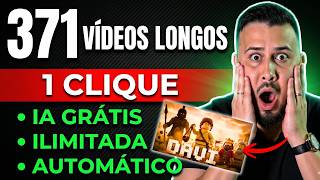
This video provides a step-by-step guide to creating a simple 'dark channel' on YouTube that can generate income quickly using free AI tools. The presenter demonstrates how to model a channel based on a famous figure's ideas, use AI to generate scripts and titles, and assemble the video with free editing tools like CapCut and Canva.
The video introduces the concept of a simple dark channel that can earn R$10,000 per month using free AI, emphasizing ease and low time commitment.
The presenter claims authority by stating they have helped many people change their lives through dark channels, and offers free material via WhatsApp.
Shows examples of channels based on famous figures like Carl Jung and Neville Goddard, highlighting their potential for virality and quick growth.
Explains that the method does not copy the original material but uses concepts and ideas from famous people to create original content, avoiding copyright problems.
Demonstrates using ChatGPT to analyze a successful channel and generate a script, emphasizing the use of validated prompts to avoid copying.
Shows how to extract a viral script from a trending video and use it as a basis for generating new content with AI.
Uses AI to generate multiple original titles and a 2000-word script, which is the maximum allowed by ChatGPT, suitable for a 10-15 minute video.
Introduces a text-to-SRT converter tool to generate subtitles from the script, which are then used to create audio in CapCut.
Demonstrates importing the subtitle file into CapCut, converting it to speech, and selecting a voice (e.g., Duke Knight) to generate the narration.
Shows how to combine a background image (of the famous person), royalty-free videos from Pexels, and the generated audio to create the final video.
Explains how to create a composite clip, adjust color settings (e.g., black and white), and add a sound wave overlay with a green screen removal.
Shows how to generate automatic subtitles in CapCut, customize their appearance (color, size, position), and ensure they are clearly visible.
Exports the video and uses Canva to create a thumbnail, including background selection, image placement, and text styling.
Proposes a challenge to upload at least three videos per week and promotes a Black Friday event for the Dark Academy training.
The video provides a complete, free method to create a dark channel on YouTube using AI and simple editing tools, with the potential to earn R$10,000 per month. The key is to model successful channels without copying, using validated prompts and free resources.
What is a 'dark channel' on YouTube?
A channel that uses the image and ideas of a famous person to create content, often without showing the creator's face, and can be monetized quickly.
00:02
What is the maximum word count for a script generated by ChatGPT?
2000 words, which is roughly 10-15 minutes of video.
15:48
How do you avoid copyright issues when creating a dark channel?
By not copying the original material, but only using concepts and ideas from the famous person to create original content.
06:28
What is the purpose of the text-to-SRT converter?
It converts the script text into a subtitle file (SRT) that can be used to generate audio in CapCut.
16:57
Which free tools are used in this tutorial?
ChatGPT, CapCut, Canva, Pexels, and remove.bg.
08:42
What is the recommended frequency for uploading videos to a new dark channel?
At least three videos per week.
35:09
How do you remove the green background from the sound wave overlay in CapCut?
Use the Chroma key feature: click on 'video', select 'remove background', choose 'Chroma', and use the dropper to select the green color.
26:30
Earning Potential
Sets the expectation of earning R$10,000 per month, which is the main hook of the video.
00:02Copyright Avoidance
Clarifies that using concepts from famous people is legal, addressing a common concern.
06:28AI Modeling
Demonstrates a practical use of AI to analyze and model a successful channel.
08:13Text-to-SRT Converter
Introduces a specific tool that simplifies the process of creating subtitles and audio.
16:57Consistency Challenge
Emphasizes the importance of regular uploads for channel growth.
35:09[00:02] easily make R$10,000 per month in a very straightforward way, using artificial intelligence to its advantage, completely free of charge. How to create a simple dark channel that monetizes quickly on YouTube and earn money
[00:17] from it without leaving home, close to your family, in a very simple way, without demanding much of your time, using the power of free artificial intelligence. This is what I want to teach you in
[00:31] this video today. And I'm going to give you complete content here, a detailed step-by-step guide on how you can leave here today with your first video ready for your Dark channel in a very simple way. And if you stay until the
[00:45] end of this video, I'm going to give you an extra tip that will allow you to monetize your Dark channel very quickly and achieve consistent earnings through auto-scaling with this type of Dark channel. I can tell
[00:59] you that this type of dark channel is one of the simplest and easiest to create on YouTube. That's why I put that term here in the thumbnail you just read. If you want to put an end, once and for all, to the
[01:11] system you're trapped in, whether through a formal job or self-employment, I invite you to stay with me in this video, because I'm about to give you a liberating lesson, a lesson that
[01:25] can literally get you out of the situation you're in and put you in a much more comfortable situation of peace and security for you and your family. If that's what you're looking for, then leave a like on this video,
[01:38] notifications so you don't miss any new content, because I'm committed to helping you achieve results as quickly as possible. So now, without further ado, let's go to my
[01:51] step-by-step guide in the best way possible so you can put it into practice Well, I couldn't start this video without first telling you some very, very, very important things, okay? The first thing is that this video here
[02:07] life. This step-by-step guide that I'm about to give you can get you out of your current situation and put you in a much more comfortable and secure one, okay? And I say this with authority because I've already helped
[02:20] many people change their lives through YouTube with dark channels, and you could be the next person if you stay here with me, okay? And to help you the material from this lesson available to you completely free of charge on my WhatsApp.
[02:35] And the link for you to contact me on WhatsApp and get this material will be pinned below in the first comment, okay? Remember that we're only going to use four commands to get this video ready, for free and 100%
[02:50] easy. When I say 100% easy, I mean that this is one of the simplest channels you can create that exists. And you'll be able to get all of this ready very quickly, and you'll have the opportunity
[03:02] to monetize this channel very fast, okay? So, if you're committed to applying this, comment below with our channel's catchphrase, which is " Let's monetize!", okay? Well, and I don't want to go on too long , but I'd like to
[03:14] extend a very special invitation. On the 5th, our Black Friday will take place, where we will make available to you several training courses, including now, which will be included in this Black Friday offer. And
[03:28] I'm going to offer you something very, very important in this Black Friday deal , which is a specialization in Cap Cutting, okay? Recorded by my partner John Fortuna, that alone would practically be worth the entire
[03:42] Friday, okay? So, if you want to participate, click here below as well; there will be a link here for you to join this group. Sign up as fast as you this opportunity, because there will also be bonuses for the first ones to sign up. And,
[03:56] just a quick message for you, our existing student: we're going to have an even more special offer just for you. So, join the group and don't miss this opportunity. Alright, let's start our video here, shall we? Recently I
[04:08] showed you some channels here, and taught you how to make what lazy channels," which are very simple and easy to make, okay? One of them was this one , right? A channel with very good potential, oh. In fact, this channel was created
[04:23] just a month ago and already has videos with over 100,000 views, and it continues to be simple to do. If you haven't yet watched this step-by-step tutorial on how to create this channel, I'll leave a link to it in the card for you. You click there to
[04:36] watch, okay? Okay, another thing I need to tell you is this: you need to watch the step-by- step instructions I'm providing here and not put it off, because YouTube recently deleted one of
[04:48] understand why, okay? And it was one of the best step-by-step tutorials I'd ever done on this channel, okay? So if you want access to content that will transform your life, stay here and don't leave, okay? Because otherwise
[05:02] Well, another step-by-step guide that I also provided was from this channel here . It's practically the same thing, but it's done in a foreign way, okay? this video, I'll talk a little more about this, about how you can
[05:18] scale your content and earn more by creating it internationally. Beauty? But today I've set aside some other channels here so we can do some modeling, okay? Look, one of them is this one here, Neville Goldard, okay? And the other one is this one
[05:35] here, by Carl Jung, okay? And there's another one here by Car Jung as well. Just so , so you're up to speed on what I'm talking about here, what I've been teaching in previous videos, this style of Dark channel has a
[05:49] huge potential for virality because it uses the image of a very famous public figure. In this case, this woman, whom I very good reputation, is Florence, okay
[06:01] ? In this case here, it's K Jung, in this one it's also Kjung, and in this one, this guy is also Kjung, and in this one, this guy is called Nville Goldard, right? And this one here is the famous Napoleon Hill, okay? And this guy here is a foreigner
[06:14] named Wall Wats. To dispel any doubts you might already have, wondering, Rafa, will there be copyright issues? These you can rest assured. And we're not collecting any of her material here.
[06:28] You're not sharing any of their books, nothing like that. You're only picking up on one concept that she's advocating, right? H, a topic she addresses in order to create content here. Now, why do I say that
[06:40] this is simple? And why does this have such enormous potential for rapid monetization and putting a lot of money in your pocket? Because these people are pocket? Because these people are extremely well-known, okay? It's
[06:53] channels grow so fast, because people come, the fans of these people come here to consume this content , because it's content based on the ideas of these famous people, okay? So this makes the channel grow quickly,
[07:06] consistent views, putting a lot of money in your pocket. In case you didn't know, YouTube pays us based on the number of views. So, the more views you get, the more money
[07:19] you'll earn. Beauty? So, that's basically it. And why do I say that this is extremely simple and easy to do? Check out this video right here. It's a video that simply has the character's face there, a
[07:32] still image in the background or some videos playing in the background as well, and basically playing in the background as well, and basically this sound wave here. It's very, very simple to do, okay? And I'm going to teach you how to do all of this right now in
[07:45] a very simple and practical way. So don't leave because best opportunities of your life. So, I'll copy it here. No, you copy, you'll have problems with YouTube's monetization policy, okay?
[08:00] from copying, okay? That's why I've already you don't have any problems. Oh, he's going to model the channel without copying, okay? model the channel without copying, okay? So I'm going to base this on this
[08:13] channel here, by Carl Jung, okay? And we're going to do this style of channel here today, look. Notice how simple it is. There's an image in the background, right? His image is the same in all the videos. This is very simple and
[08:27] easy to do. Beauty? So, what are we going to do here now, okay? take the first prompt that I'm providing for you, which is the successful modeling prompt. It will put him in the GPT chat. Rafa, do I
[08:42] need to pay for the GPT chat? No, you can use the free GPT chat, okay? So, I going to do? I'm going to come over to this channel, okay? I'm just going to close the others here so we don't get confused, okay? So I'm going to close
[08:57] them here, okay? So I'm going to grab this and press Ctrl+A on the information from this channel. Okay, so I'm going to press Ctrl+C to copy and paste prompt. There it is, all the channel information, okay? So, what do I also like to do
[09:11] ? I like to, uh, make the screen smaller here, you know? Do a reverse zoom and then take a screenshot of this channel information. Then I take this to the this channel information. Then I take this to the GPT chat and press enter so it
[09:25] he going to do here now? He's going to analyze this channel and see what he's doing that's making him so successful, and he's going to train himself to model this channel in the best way possible, okay? Remember again, it's
[09:38] important that you do this because if you simply copy the video, you'll have problems with YouTube's monetization policy, or video, won't promote it, and you won't be able to grow your channel, okay? That's why
[09:51] prompts I'm providing here, which are validated prompts, so you don't have any problems with your modeling, that, I'll grab prompt number two here, okay? Prompt number two:
[10:05] he's going to analyze the most viral script on this channel. So, while he 's doing the channel analysis here , I'll paste the script analysis prompt here. So I'll have the script ready so
[10:18] most viral script, what am I going to do? I'm going to click here on trending and grab this video that, just four days ago, has already
[10:30] crazy, right? This is a new YouTube channel, which is why it's still getting a lot of views, and you could potentially make at least R$10,000 with it . It's not a channel that has the potential
[10:44] to make you a millionaire, but I believe that R$ 10,000 is already enough for you to change your life or start changing your life, right? The most important thing is that you to your family, and working a maximum of 15 minutes a day, or only on the days
[10:59] you have to make videos. Beauty? So it's very easy. I'm going to open Oh, there's even an advertisement playing here, can you see it? I'll click here on "more" and transcript". Here, you see? I'm going to click here to show transcript. He's going to
[11:14] side. I'm going to click on the three dots to hide the date and time. And I'm going to take this whole script here. Do you agree with me that it's a very good script? In just 4 days, only 4 days, it had 11,000 views. I'm going to copy this
[11:28] and paste it here, okay? And I'm going to press enter. You might be wondering, Rafa, but 11,000 views isn't a very low number, is it, for me to see results on YouTube? No,
[11:42] especially if you apply the strategy I'm going to teach you shortly at the end of this video. So, don't go anywhere, okay? Okay, let's go then . He did the analysis here, right? He's actually doing analysis. Meanwhile,
[11:55] prompt here. What is the next prompt? This prompts him to create original titles so we can get this video ready, okay? So, each title he creates here is a new video that you can create for your channel. Now
[12:08] comes the most interesting part, which you probably didn't know, right? Up to the third prompt here, you will only need to do this once . Your video will be number four here. So we're almost at the end of this
[12:22] video. Notice how simple and quick it is to make this type of video here, get this ready. So I'm going to take this prompt number three, paste it here, and as soon as it finishes, I'll press enter to create these
[12:36] here, I want to tell you something very important. Dude, if you've made it this far in the video, I want to congratulate you, because many people leave at the beginning or even before the halfway point. So, if you've made it this far
[12:48] nearing the end of this video and you're about to see the magic, so to we're going to bring your video to life in a very simple and quick way, and you 'll leave here with your first video ready today, okay? So, I'd like
[13:03] you to leave a comment below. Comment below with your name and where you are watching from. I know that we have people from various states in Brazil and even people from outside the country, around the world, who follow us. I
[13:16] you've made it this far into this video, okay? So leave a comment here, okay? And we also have a goal for likes and comments on this video. And that's why interesting step-by-step tutorials here , because you've been hitting the
[13:30] like and comment goals. This is making me very excited to continue you all. What's the goal for likes and comments here? All good, okay? 500 likes and 200 comments, and I'll bring you a new step-by-step tutorial.
[13:45] Awesome! Beauty? So, put it there. Show. So, here, I'm going to press enter. He's going to start working on those titles for me right away, okay? Very simple and very fast. Look how peaceful. Look at the title. How interesting!
[13:58] When you return to yourself, the world starts to make sense again. Number two, life only calms down when you stop fighting against it. Number three, you're not tired of life, you're tired of losing yourself. Pretty crazy, right?
[14:12] While you search outside, you will remain empty inside. Extremely uninteresting titles. Oh there, oh, Carjung style, okay? Remember that you don't need to do it from Cars. I've seen and shown you numerous examples
[14:24] of famous people. They don't have to be extremely famous people that everyone you probably didn't know many of those people there, but they are large group of people . So all you have to do is take a
[14:39] person, an idea they defend, and produce content based on that. For example, oh, Carl Jung, he talks more, I believe, about personal development, right? That nevilh talks more about money, about prosperity.
[14:52] like, find out who the expert is on it, and then do your research. It's very simple, okay? All you have to do is change the expert over there , the guy who has the reputation. Show. It will get your video ready. See how simple and easy it is to do this
[15:07] . You're going to take prompt number four here, and this prompt is already validated for you to create a very viral script, okay? He's even here, ready to add CTAs for subscriptions and likes,
[15:20] climaxes, and strategic hooks. This is very important, okay? In fact, it's so important that it will complement the training that artificial intelligence we're developing. So, you're going to combine the two, and then I ask you: "What is this
[15:34] combination? Do you think this is going to go wrong ?" It can't possibly go wrong, it's going to be , okay? So, I'll copy it here. And here he's already programmed to write a script with 2,000 words, okay? That's roughly
[15:48] 10 to 15 minutes of video, okay? If you want a longer video, you can make that too. Just do it in parts here, okay? Because 2000 words is the maximum that GPT chat allows, okay? So, we're going to copy it and hand it over
[16:01] to him here. And here's another detail: it's already programmed to pick use a different theme that he generated, just change it here, okay? So, whenever you're making a new video, pay attention, just put this prompt
[16:14] number four here. I'll hand it over to you right away. Then you have a video ready. Look, he's already making your video for you! Look at times in life, everything seems out
[16:27] of place? It's as if the world is in disarray, people are distant, and nothing makes sense anymore. But if you look closely, you'll realize that it's not the world that's out of order, it's you. When the mind is confused, reality becomes
[16:41] a reflection of this disorder. Look how crazy. How could this possibly not work ? It's an extremely polished and viral script, man. This has been validated. important part, perhaps the most important part of this video. Pay
[16:57] close attention. I'm going to make this file available to you right now; it's called a text-to- SRT converter. So, what is this text-to-SRT converter used for? You're going to put your text here, the text
[17:10] video. Clicking this button will convert the text into a subtitle. Rafa, Because through the subtitles, we'll be able to generate your audio for free within the Capcut tool. Rafa, what is Capcut? Capcut is a
[17:25] video editor, the most well-known in the country, and you can download it for free from Google. Beauty? It's right there, it's quite intuitive. Show. And I'll make that file available to you here on my WhatsApp. The only thing I'm going to tell
[17:38] you to do is comment below, it can be any comment, take a send it to me on WhatsApp. In addition to the materials I'll provide here for you, I'll also provide this converter for you to
[17:51] need to download it first before you can use it, okay? It's very simple, just after you've downloaded it, you'll double-click on it, and it will open in your browser so you can use it, okay? Don't share this with
[18:05] valuable, look, it's even here, the logo of our Dark Academy school is right here. It's 's exclusive to our channel's followers, okay? So, that's all
[18:17] access this material here. Oh, and I'll take this opportunity to give you a drive with several prompts on it, all set. To help you even more, okay? okay? So, let's go. We're going to grab the content of our
[18:31] video now, look. He's already got it ready here. That's great, isn't it? Highly validated. We're going to take this, copy it, and put it into the converter. Then just press the green button to convert and the blue button to download. Give it
[18:44] you can easily find it on your computer. I saved it. I'm going to open the simple and quick it is to get your video ready from here. Then it opened up here. He's going to make an appearance in the media. You're going to click on the text here, okay? Go to the last little option
[18:59] here, click on local subtitles, and import the subtitle file you just created. Clicked on the plus sign, and that's it, your caption was generated. When generating the convert it to speech, see, to text and speech, here in the upper right corner. Then
[19:13] you're going to click on some voice here, right? I'm going to click here, on Duke Knight. Then I start generating your voice, that is, he's going to transform the subtitles into voice. Pretty crazy, isn't it? And now, bringing this video to life is even faster.
[19:27] Understand very quickly and very easily. Look how he makes this video here. Pay attention to this . I'm going to press play here. I'll let you skip this ad here skip this ad here . Look how simple and easy it is. It's
[19:40] an image in the background, it has some effects, a caption, and it's right here, okay? Here it was developed using artificial intelligence. I can develop it as well. Google and type in, like, "carung," right? I
[19:52] don't know if that's how you spell it, but look at that! Click here for images, okay? Here tools, size, set the size to large so it can grab an image of Carjung here, at a good size. See that? He's there. You get to choose
[20:06] which one you want. Look at this one in drawing form. That's awesome. Look at this crazy one, man. I think I'll try using this one. Here, look. There's one here in drawing form too, look. Look at that! This one is great, it's
[20:19] see if we can use it. I'll save it. Then I'll go here, look, to Google, you type in, look, remove, uh, type in, remove image background. The most well-known one is this website here. I'll put
[20:33] the image here, it will remove the background. Look at that , very simple and quick, isn't it? I'm going to download it. I already have the image of it here without a do? What's going on back there? Is it an image or videos? There are some channels
[20:48] that use videos here in the background. I prefer video, okay? So, uh, what are you going to do? You're going to enter this website here, Pels. This website is a site where you can download free, royalty-free videos and images.
[21:01] You can rest assured, okay? When you go to download it, it will suggest that you make to, you can download it without donating, okay? It's very peaceful. Call Pexels. There are several websites like this on the
[21:13] free video and image banks" and many will appear. It even includes Pixab, in addition to Pxels and many others. You're going to open it, click here on videos, and then you're going to put landscapes or cities here, you know? I'm going to put here, look
[21:28] cities here, you know? I'm going to put here, look , cities in Europe, landscapes, something like that , you know? Hey, landscape, I'm going to put it here, look, landscape. It's better to put it like this: urban landscape,
[21:43] urban landscape. And then he'll appear several times. Look over there. Look how beautiful this is. I can click here to download it now. I can use this in my video. Just look. Look how crazy. Look at this. Imagine
[21:59] using this in a video. That's a shame it wo n't stay. That's awesome, my friends. So I downloaded it here. What am I going to do now? I'll come here. I like to increase it a little bit here, see. Okay? So, the first thing I need to do is
[22:12] we're not going to use it, okay? Let's delete this from here. So what are we going to do now? We need to unify this audio here, okay? Since our itinerary is quite short, I'm going to do this manually. You'll start collecting them here. It's
[22:27] very simple and easy to do. There's a way to automate this, okay? Using a little tool called Audast, like the one shown below. I've already shown how to do this in videos here on the channel , okay? I don't teach this in every
[22:39] little longer, and the possible, okay? But if you want to learn, you can search here in the other video, in other videos on this channel, or in our training courses, if you're one of
[22:52] too. Beauty? I did this, what am I going to do now? Oh look, we're almost there, I was about to leave it behind, right? I did this , what am I going to do now? I'm going to copy and paste everything. I've selected it, I'm going to right-click and create a
[23:06] you ever noticed how sometimes in life everything seems to go wrong? That's great, isn't it? I'll be back here for the media. And now here in the media section, I'm going to import my image and the videos that I downloaded so I can actually make my video
[23:21] . Now you're going to be amazed at how simple this is to make and how quick it is to get ready. Look, I'm going to download this image first, okay? Look over there. Oops. He accidentally downloaded the video along with it, right? I'm going to download this
[23:36] the video along with it, right? I'm going to download this image. Look at this. I put it here, okay? I can reverse the order, or I can do it from this side right here. want to make it smaller, I can make it smaller a little, okay? I think I might even do
[23:50] that, look. I'm not going to make it that small either, because otherwise it would look bad, right? And then I stretch this image all the way to the end of my audio, see? Stretch it all the way to the end here. Beauty? And now I'm going to put my videos on top
[24:04] now I'm going to put my videos on top . Look, this video here and this one here, Rafa, the video can't be stretched, how do you do it? Either you get more videos from there or you simply do this, see? Select both, press
[24:18] Ctrl+C, Ctrl+V, and continue filling in the blanks until the end. Look at this. There's a problem with using the same video; there are options there that allow it to use a single image. We're already adding video. So that's basically it . Just press Ctrl+V. Keep pressing
[24:34] . Just press Ctrl+V. Keep pressing Ctrl+V here, pasting, until you reach the end here, completing the end of our image. Look, you finally made it to the end, didn't you? What am I going to do here now? I'll come over
[24:49] here and adjust this, see? and adjust this, see? Beautiful. Look over there. Awesome, right? What am I going to do here now? I'm simply going to select everything now. I'm going to
[25:01] right-click and create a composite clip of this. Beauty? going to do? I'm going to click on it and then I'll come here now to edit this, look. I'll come here for an adjustment, okay? And here's the adjustment, I'm going to leave this in
[25:16] black and white, okay? To make it look better, to match, okay? Oh, just one detail, drag this up here, okay? Because the image needs to be in front of the video for it to appear, look. It's OK? So, I just changed the order here. Show.
[25:31] So, I clicked here, I clicked here on settings. I'm going to go down here for a bit. I can adjust the temperature and hue, you know? Uh, saturation. Even here, with the make it black and white, look. I'm going to lower the saturation completely, right?
[25:46] Exhibition. I can tinker with various things here. All I'm going to adjust here now is the saturation to make the background black and white. So now we're going to capture even cooler, okay? So I'm going to click here to import. My
[26:00] sound wave is already here, okay? Rest assured, if you take a screenshot of the below and message me on WhatsApp, I'll also send you this sound wave, you going to do here now? It's going to capture that sound wave and put it here. Okay
[26:15] ? So, you're going to do the following: you're simply going to click here, on overlay, and remove this green background here. It's very simple to do this, look. Just listen up. So you're going to click here on video and here you'll have
[26:30] the option to remove the background. You're going to click here, on the Chroma option, okay? You're going to take this dropper here and simply put it here, see? See? Look over there. Put it here, it's done. So, what are you going to do?
[26:46] You're going to make it smaller here now and put it wherever you want. Let's take a look here at where he's putting it. Oh, this one doesn't even have one. There is even better than him. Some of them do , okay? So we're going to find
[27:00] I'll put it down here, so I can put the caption up here, right? I remove the background, I'm going to press Ctrl+C, Ctrl+V and duplicate this here, so it goes all the way to the end. See? Look how easy it is to do
[27:15] this. It's so easy to make a channel like this, man. Look at this. And then you can get all of this ready. What can you do you're going to do is change this audio here, which is the video content. You can
[27:30] leave this skeleton here pre-made for you, okay? You only change important ones to change. And the audio, man, everything else is ready here for you, look. Look how cool this is, okay? So, look how it's turning out. No caption needed. I
[27:44] 'll add the caption here later so you can see it, okay? Have you ever noticed how, at certain times in life, everything seems out of place? It's as if the world is in disarray, people are distant, and nothing makes sense anymore. That's
[27:59] really cool, right? And then the video will play , then it will switch to another one. Oh, the time it changes here to the other one, oh. It's in this one now, look. No doubt about it, when you get organized on the inside, the outside world starts to
[28:13] shine, right? To add subtitles, you need to pay the caption. If you don't all you have to do is the following. If you're leaving it without captions, you're just going to put it here in the center . Beauty? That's basically all
[28:27] you're going to do. To add the caption, what do you do? You go here to the text section, automatic subtitles, select the language you want, and click here to generate. I'm going to wait for it to load here, I'm going to cut this video because I want to
[28:42] subtitles and place them in the space where they need to be. and in a color that generated the caption here. So what are we going to do? We're going to locate her, center her here, see? Just listen up. You're going to put it here. It can
[28:56] decrease or it can increase, OK? So what are you going to do? You'll click here little and you'll have the option to edit it. To make it clearly visible there, you're going to click on the yellow link here, okay? And you can put a yellow one.
[29:11] you want. You can increase the scale here if you want, too. You can do it, if you want, too. You can do it, put it in bold there, okay? You can tweak this and customize it however you prefer. There are several options here for
[29:24] want to make it bold, for example, I click here, okay? Hey, look how it's you ever noticed how, at certain times in life, everything seems out of place?
[29:36] people were distant. I think I'm going to adjust the scale a little more here, because it ended up being a bit too high up, right? I can do the following too, look. I can put it on more than one line here, look.
[29:50] See? And enlarge it here, to make it bigger, okay? I think it's even better to do it this way . See? And then I can edit the text as well. If I don't want this text, I can change it. Beauty? Look over there. Have you ever noticed how, at certain
[30:02] times in life, everything seems out of place? It's like the world is a mess, and people are so cool, right? So you thought the step-by-step process was over, didn't you? Not yet . I'll teach you how to make
[30:15] too, okay? I hope this video isn't too short. And if you haven't left now I deserve your like and your expecting that. And it even has a tip on how to scale this.
[30:28] you'll click here to export, okay? It will export your video. Place the video here, select the folder, name it, and click export. Beauty? I name it, and click export. Beauty? I 'll even put it here to export.
[30:42] you going to do now? You will access the Canva platform. It's the simplest and most complete tool for you to create a thumbnail. Let's take a making here. Just listen up. It's a pretty simple thumbnail, isn't it? So, what are
[30:55] we going to do here? You're going to come here and write "black" and "background" here, look. No, in the little elements option here on Canva, there will be several backgrounds for you to choose from and use, okay? I'm going to use this one because I thought it was really
[31:08] the type of video we're making. I'm going to stretch it out as much as I can here, okay? So I'm just going to grab that image we downloaded, right? And I'm going to bring this image here, without the background, okay? Look , I'll put it here. Oops,
[31:22] I ended up getting one with a background, didn't I? Let me grab this bottomless pit. Beauty. I'm going to bring her here and release her here, see? Show. So what am I going to do? I'm going to increase it a little, okay? Leave it here at the right size, see? Show. So, what am
[31:39] I going to do? I can still click here to edit, look. And here in the edit section I can add some effects to it, okay? I can just come here and turn up the brightness, you know. Increase the brightness a little here. I can adjust
[31:53] the saturation here, which I think is something that adds more color. I think it 's cool to do. Beauty? And then I can come here in the shadows too, look. It has a bright shadow, okay? And it has the outline, you see? And there's the projected one
[32:09] outline, you see? And there's the projected one too, okay? I think the one that looks too, okay? I think the one that looks best here is this shadow here, the one that's I'll use the shiny one, because I'm liking the shiny one more. Oh, the
[32:22] video has already been exported. Here I can specify its size, its intensity. Beauty? Look, I'm going to set a reasonable intensity here , okay? And now that I see it, look, putting it like that, his hand looks
[32:34] kind of weird, right? So I can even raise it more here, see, to take his hand away from there, if I want, okay? I can leave it like this, see? See? So, what am put some text here. So, I'm going to click here, see, insert text. Okay, let
[32:50] me put it here, right? I'm taking him out of the order here, right? And here I'm going to I going to put in this text? First, I have to select the font I want here, right? I really like this font here, or even this one here.
[33:03] I think this one would look good too, but I'll just go with Anton's . Okay, so I'll just give you one example. Don't give up on yourself. Beauty? What am I going to do here? No, I'll type it here. No.
[33:21] yourself. Beauty. So, no, you're not going to be alone here, right? Beauty. I'm just going to duplicate this right here. Ctrl C, Ctrl V, Ctrl
[33:33] here. Ctrl C, Ctrl V, Ctrl C, Ctrl V. And then I'll put it here, look. C, Ctrl V. And then I'll put it here, look. No, give up here. Give up. From you.
[33:49] And then I'm just going to increase the size of each one here, okay? I think the one that's See? It's the biggest one, it's even in red, right? Here I'm following the same line of thought, but you can follow
[34:03] whichever line you want, okay? Hello. I can even put a little more like this, see. even put a little more like this, see. It looks pretty similar, doesn't it? So, there you go. Don't give up on yourself.
[34:23] here. Beauty. I can even make it bigger here if I want. I think it would look make it bigger here if I want. I think it would look even bigger, right?
[34:38] little bit here, I think there's a bit of space missing there. Great, awesome. Okay, then. Don't give up on yourself. Is
[34:54] our TAMB ready? Just click here to download. You already have TAMBAM, right? The title that's here. Just grab it here, and the video itself that we just finished over there too. Dude, this is a great opportunity
[35:09] YouTube in a simple, fast, and practical way, okay? There's no way this can go start and persist. I want to propose a challenge to you here: at least three videos per week on this new channel you're going to start. Are you up for this challenge?
[35:23] So, if you're up for the challenge, comment below with "challenge" so I know you stayed until the end of this video and accepted it . Alright, man? Now I want to participate in our Black Friday event, which will take place on November 5th, okay? Yes, it
[35:38] will be a pleasure to have you there so you can learn about this opportunity to join our Dark Academy, which is fully equipped at a very special price, and I 'm sure that everything inside will be necessary and sufficient for
[35:51] you to achieve very good results quickly and consistently with dark channels on YouTube, accelerating your results even further, okay? So, click the link below to join the VIP group. And now we're playing some
[36:04] other videos here for you. Click here to watch it, okay? I'm going to leave cool content that we made on our Dark Academy channel. Take the opportunity will help you a lot. Great, we're in this
[36:17] will help you a lot. Great, we're in this together.



⚡ Saved you 0h 36m reading this? Transcribe any YouTube video for free — no signup needed.