
AI Summary
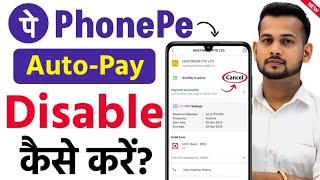
This video provides a step-by-step tutorial on how to disable automatic payments (AutoPay) in the PhonePe app. The creator demonstrates the process clearly, from accessing the settings to confirming the cancellation, ensuring viewers can stop unwanted deductions permanently.
Chapters
Open the PhonePe app and navigate to your profile, then select 'Manage Payment' and 'View All' to see all AutoPay options.
Scroll down to find the 'More' option and tap on 'Auto' to view active and achieved AutoPay plans.
To cancel, tap on the active plan, then choose 'Delete Auto' and confirm. Enter your UPI PIN to finalize the cancellation.
The video also mentions a separate tutorial for disabling AutoPay in Google Pay, which is linked at the end.
Mentioned in this Video
Tutorial Checklist
Study Flashcards (4)
What are the steps to access AutoPay settings in PhonePe?
easy
Click to reveal answer
What are the steps to access AutoPay settings in PhonePe?
Open the PhonePe app, go to your profile, select 'Manage Payment', then 'View All', scroll to 'More', and tap on 'Auto'.
00:15
How can you temporarily pause or permanently delete an AutoPay plan in PhonePe?
medium
Click to reveal answer
How can you temporarily pause or permanently delete an AutoPay plan in PhonePe?
In the Auto section, you can pause the plan for 1-2 months or delete it permanently by scrolling down and selecting 'Delete Auto'.
02:14
What is required to confirm the deletion of an AutoPay plan?
medium
Click to reveal answer
What is required to confirm the deletion of an AutoPay plan?
You need to enter your UPI PIN to confirm the cancellation, which is the same PIN used for payments.
02:51
What additional information is provided at the end of the video?
easy
Click to reveal answer
What additional information is provided at the end of the video?
The video also mentions a separate method for turning off AutoPay in Google Pay, which is covered in another video.
03:31
💡 Key Takeaways
Step-by-Step Navigation
Provides a clear, sequential guide to access AutoPay settings, ensuring users can follow along easily.
00:15Pause vs. Delete Options
Explains the difference between temporarily pausing and permanently deleting an AutoPay plan, giving users control.
02:14UPI PIN Confirmation
Clarifies that entering the UPI PIN is for confirmation only, not for payment, reducing user anxiety.
02:51Cross-App Guidance
Mentions a similar tutorial for Google Pay, providing comprehensive help for users with multiple apps.
03:31Full Transcript
[00:02] you can stop it forever in just 2 minutes. Your money will never be deducted again. And yes, I yes, I
[00:15] if your automatic payment is being deducted then it is fine and if your money is being deducted from Google Pay then I will tell you its session in the end. So first of all you have to open your PhonePe app. Ok? We can turn it off from the PhonePe app itself.
[00:27] Money will never be deducted from our account. Ok? Now look, I have opened PhonePe here. Now after opening it, friends, you will find your profile here in the corner in a simple way. Ok? Clicking on it. It doesn't matter if there is a photo or not.
[00:39] ? Have to come down a little. Ok ? And below you will get an option to manage payment. Ok? You have to click on it. Now look here, me tell you. Look here, you will get this option here also. If you
[00:54] come down a little, then look here, you will find an option, see, you will you are not finding it here, then look there, if you are not finding it there, then look here, okay, now here you have to click on View All, okay, in Manage Payment itself,
[01:06] as soon as you click on View All, you will see an interface like this, now friends, what have to do, you have to scroll down a little, okay, look at this, where you will find the More option, just below it, you will find it on Auto, see this one, you will find it
[01:19] in everyone's phone on Auto, okay, click on it, now friends, which will be there, two will be visible here, one will be Ongoing and one will be visible, Achieved, that means whatever you have achieved, which you have closed, will come in this and the one which is active on your Auto, from
[01:33] which money is also going to be deducted, will be visible here, so now see, I have two Auto Plans active here, that means the Auto Plan, this is its plan active, so my money will be deducted automatically from these two plans, one is in Easy Cam and One is in Netflix, okay, it is
[01:46] means it will be deducted again after that, in this way it has want you to turn it off so that my money is not deducted automatically from my account. So look here I want to close it. So I will simply click on it.
[02:00] Now after clicking, friends, some details will be visible here as to till when the auto pay is active. So look, the offer which is on my auto is valid till 17th March 2056. Brother, you can understand that it has been going on for about 20-30 years.
[02:14] Ok? So brother, I want you to stop this so that my money is not deducted again. Ok? Now look here, suppose you have started it intentionally and you want to stop it, then from here you can stop it by clicking on pause for some time, for
[02:26] 1 month or 2 months, your money will not be deducted till you want to stop it, but if you want to stop it, it should end forever, then the best thing for that would be to come down and look here you will find delete
[02:38] auto. Ok? You have to click on it. Ok? Now after that you have to click on the confirm option here. As soon as you click on it, it will ask for your UPI PIN. Now brother, wait, don't get confused. The same PIN with which you make payment to someone
[02:51] or send or transfer money will be asked for. Money will not be deducted. It is just asking for confirmation to cancel. Don't worry. There is nothing to worry about. asking for confirmation. So you have to
[03:04] enter your UPI PIN here and click on Done here. Now as soon as you do it, appear here in front of you as auto now been deleted. Look, I have already received a message
[03:17] show it to you. Look, the plan I had has just been removed. Now my money is never going to be deducted again. So friend, in this way you can also easily stop autopay on your PhonePe. But friends, suppose money is being deducted from your Google Pay app also, then
[03:31] for that you should watch this video. On this I have explained the method to turn off auto pay of Google Pay app. So click quickly. Watch the video. Learn how to turn off auto pay on Google Pay. Rest of the friends, please like the video and if you are new to the channel then do
[03:44] please like the video and if you are new to the channel then do subscribe.