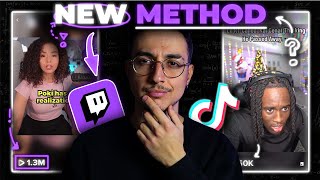

Make $330K/mo Without Showing Your Face
45sThe huge, specific earnings figure and the promise of faceless income grabs immediate attention and curiosity.
▶ Play ClipThis video explains how to create TikTok content using clips from streamers or YouTubers and monetize it through the Creator Rewards Program. The presenter outlines the entire process, from finding and downloading clips to editing and adding captions, and introduces a secret tool called Uniconverter to simplify the workflow.
A page made at least $330,000 in May alone without showing face, using others' content.
Show how to create TikToks from streamer/YouTuber clips and make money via Creator Rewards Program.
A page using clips from Kai Cenat stream had over 30 million views in May.
Manual method: watch streams/videos and pick best parts. Use Twitch clips tab, sort by most viewed in last 7 days or 24 hours.
Copy Twitch clip link, use a Twitch clip downloader. For VODs, use a Chrome extension to select time range.
Uniconverter screen recorder can record clips directly; quality may drop slightly.
Use Uniconverter converter to change format to MP4. Smart Trimmer extracts exact clips from VODs.
Use CapCut (free). Import clip, duplicate, crop face cam as separate layer, place face cam at bottom and screen on top. Keep video ~1 minute for monetization.
Use auto captions, customize fonts. Add background music from Nintendo (copyright-free). Lower volume.
Example clip shown: Black Ops 6 discussion. Uniconverter simplifies the entire process.
By following these steps—finding viral clips, converting them, editing with unique captions and music—you can create engaging TikTok content and monetize it through the Creator Rewards Program. The Uniconverter tool streamlines multiple tasks into one platform.
How much did the example page earn in May?
At least $330,000.
What is the first step to find clips on Twitch?
Go to the streamer's clips tab and sort by most viewed in the last 7 days (or 24 hours for popular streamers).
0:50
What tool is recommended for screen recording clips?
Uniconverter screen recorder.
1:57
What is the drawback of using screen recording to get clips?
The video quality will drop slightly compared to downloading.
2:19
What format should clips be converted to?
MP4.
2:39
What free video editing software is recommended?
CapCut.
3:06
How should the face cam and screen be arranged in the edit?
Face cam on the bottom layer, screen on top.
3:29
What length should the final video be for monetization?
Approximately 1 minute.
3:42
What type of music is suggested as copyright-free?
Nintendo music.
4:30
What is the name of the all-in-one tool mentioned?
Uniconverter.
2:11
High earning potential
Demonstrates the financial incentive for repurposing content without showing face.
Clip selection strategy
Emphasizes choosing clips that drive engagement (funny or sus) over just high views.
0:50Uniconverter as a multi-tool
Introduces a single tool for screen recording, conversion, and trimming, simplifying the workflow.
1:57Editing for uniqueness
Explains how to make repurposed content stand out by rearranging layers and customizing captions.
3:03Copyright-free music tip
Provides a practical tip to use Nintendo music to avoid copyright issues.
4:28[00:00] this page made at least $330,000 in May
[00:03] alone without ever showing their face
[00:05] and by using content other people made
[00:08] in this video I'll show you how to
[00:09] create Tik toks using clips from
[00:11] streamers or YouTubers and make money
[00:13] through the Creator Rewards program I'll
[00:16] show you the whole process from finding
[00:17] the clips editing them and going viral
[00:20] and I'll show you a secret tool that
[00:22] will make the whole process 10 times
[00:24] simpler and easier so let's go so this
[00:26] page obviously makes clips from kaut
[00:29] stream and in May alone it has over 30
[00:32] million views and they are either
[00:33] watching the streams and as they watch
[00:35] they pick clips from it or they use some
[00:38] other methods which we're going to
[00:39] discuss later in this video to find well
[00:42] performing and viral clips and they're
[00:44] pretty easy to edit which I will also
[00:46] walk you through step by step in just a
[00:48] little bit so pick your Niche and let's
[00:50] move to the next step step number one
[00:52] finding Clips the first way is the
[00:55] manual way like I said watching the
[00:56] stream or watching the video and picking
[00:59] the best parts so let me show you how
[01:00] you can quickly download those clips and
[01:02] get started with editing I will show you
[01:04] three ways if you want to find viral
[01:07] well performing clips from twitch you
[01:09] should go to the streamer you want to
[01:10] repurpose content from go to the clips
[01:13] Tab and find the most viewed clips from
[01:15] the last 7even days or if it's a popular
[01:17] streamer you can select in the last 24
[01:19] hours and don't only pick the ones that
[01:22] have the most views you should always
[01:24] pick the ones that will make the viewers
[01:26] engage the most like is there something
[01:28] funny or kind of sus about the clip it
[01:30] can easily make people comment on it and
[01:32] you introduce layers into your video
[01:34] this is what makes video go viral so
[01:36] once you have a clip from twitch just
[01:38] copy the link go to a twitch clip
[01:40] downloader paste the link and download
[01:42] the clip the other way is if you're
[01:43] watching a whole VOD and there is a clip
[01:46] at the third hour of the VOD you should
[01:48] use this extension which is available on
[01:50] Google Chrome and you will see it on the
[01:51] top left of the screen just click on the
[01:54] icon select the exact time from
[01:55] beginning to end and you're good to go
[01:57] and the last method is a very simple one
[02:00] which is screen recording and
[02:01] specifically I'm going to introduce you
[02:03] to the secret tool we're going to use
[02:05] which will do multiple of our tasks that
[02:07] are coming up and we're going to use one
[02:09] tool for everything and it is
[02:11] uniconverter and specifically we will
[02:13] use uniconverter screen recorder very
[02:16] simple to use we just screen record the
[02:17] clip it's by far the simplest way to get
[02:19] a clip but the only drawback is that our
[02:22] quality of the video will probably drop
[02:24] slightly compared to when you download
[02:26] the clip step number two converting the
[02:28] clip if the video is downloaded in a
[02:30] format like m4v might be easier for us
[02:33] to convert it in order to make the
[02:34] process simpler so we'll use
[02:36] uniconverter converter and we can just
[02:39] convert the VOD or clip to MP4 and I'm
[02:41] telling you to use this tool
[02:43] specifically because the websites you'll
[02:45] find online will be way slower
[02:47] especially if the video you will
[02:49] download is longer and if you download
[02:51] the C VOD you can use uniconverter Smart
[02:54] trimmer in order to extract exact clips
[02:57] from that VOD within a couple minutes if
[02:59] you you want to download uni converter
[03:01] the link will be in the description step
[03:03] number three putting everything together
[03:04] now that we have our Clips we're going
[03:06] to use a video editing software like cap
[03:08] cat for completely free and we're going
[03:10] to edit the clip add subtitles and all
[03:12] that jazz and what we'll try to do is
[03:14] make our video more personalized more
[03:17] unique this is one of the factors that
[03:19] will make us stand out from the rest of
[03:20] the competition with the selection of
[03:22] the viral clip we used earlier so we are
[03:25] going to import our clip we'll duplicate
[03:27] it crop the face cam which will be a
[03:29] separate layer basically from the screen
[03:32] we're going to put it on top and we're
[03:34] going to put the face cam on the bottom
[03:36] of the video and the screen will be on
[03:38] top and then we'll make all the
[03:39] necessary Cuts we have to make we'll try
[03:42] to keep it 1 minute long for the
[03:43] monetization of course and we'll also do
[03:45] some changes to the video add some
[03:47] effects maybe some transitions if they
[03:49] fit just customize it a bit make it
[03:51] different because that will help us with
[03:53] the monetization since we are
[03:54] repurposing content then after all the
[03:56] cuts are complete we're going to use the
[03:58] autoc captions create the captions for
[04:00] the video this is one way we can make it
[04:02] stand out we will customize the captions
[04:05] and make them as unique as possible but
[04:07] not too much because you will make it
[04:09] look weird if you try too hard and this
[04:12] way you will stand out from the
[04:13] competition which will bring more
[04:14] engagement more followers and of course
[04:16] more views so now we customize our
[04:18] subtitles our captions there are plenty
[04:21] of websites for fonts which will make
[04:23] the subtitles look different of course
[04:25] we should also add a title to the video
[04:27] and now we can add some music in the
[04:28] background the best music tracks you can
[04:30] use is from Nintendo because they're
[04:33] copyright free just search on YouTube
[04:34] Nintendo Music stream music and select a
[04:37] truck that shoots your video lower the
[04:39] volume and you're good to go and you
[04:41] just made a viral video so we're getting
[04:43] Black Ops 6 which one of these Black Ops
[04:45] game did you enjoy the most I literally
[04:47] beat this game on a Wii am I a loser for
[04:49] that I might not be a loser for that I
[04:50] beat this game on a
[04:52] Wii Black Ops 2 P3 Black Ops 2 is the
[04:55] best Black Ops to ever walk Earth do you
[04:58] understand me so as you can see this fin
[04:59] result could not be possible if we
[05:01] didn't use our secret tool which is uni
[05:03] converter and there are a ton of other
[05:05] tools that uni converter has that can
[05:07] help you create a viral video and it
[05:08] will make it much easier and simpler
[05:10] because it's everything in one place
[05:12] you'll have to run around and find the
[05:13] best tool for each task you have
[05:15] everything in uni converter again the
[05:17] link will be in the description you can
[05:18] check it out that's pretty much it now
[05:20] that you've watched this video make sure
[05:22] to watch this video next because YouTube
[05:24] believes that you're going to love it
[05:26] see you over there
⚡ Saved you 0h 05m reading this? Transcribe any YouTube video for free — no signup needed.