
AI Removes All Your 'Ums' Instantly
54sHighlights the frustrating problem of filler words and shows a one-click AI solution, a huge time-saver for creators.
▶ Play Clip"Delivers on the promise of faster editing with concrete features, though the '10x' claim is subjective and the sponsor segment adds some fluff."
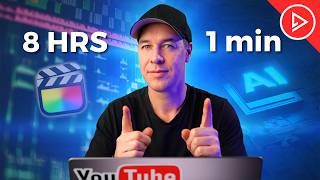
This video demonstrates how to edit videos 10 times faster using Descript, an AI-powered editing software. The creator showcases key features like transcription-based editing, filler word removal, eye contact correction, stock footage integration, AI image generation, studio sound enhancement, and voice overdubbing for correcting mistakes.
The video introduces Descript as AI-powered editing software designed for fast, efficient video creation, aiming to streamline the editing process.
Upload a talking headshot to Descript, which automatically creates a transcript. Editing the text deletes corresponding video segments, saving time and avoiding re-watching footage.
Underlord is an AI sidekick that automates mundane tasks like removing filler words (um, like) and gaps between sentences with a single click.
Descript can digitally adjust the eyes in a video to make it appear as though the speaker is looking directly at the camera, even when reading from a script.
Descript includes a media archive with stock footage, music, and sound effects, allowing users to enhance videos without leaving the software.
The Generate Image feature creates custom images (e.g., a chicken salad on a clean worktop) from text prompts, useful for emphasizing points when shooting isn't feasible.
Features like background blur and green screen replacement allow users to change locations or add images behind talking headshots with a click.
Studio Sound improves audio quality, removing background noise and enhancing clarity, useful when recording with suboptimal microphones or in noisy environments.
Overdub creates an AI version of the user's voice to correct mistakes in voiceovers, such as changing 'Paris' to 'New York' in a travel video.
Descript can translate voiceovers into multiple languages, and also offers automatic short-form video creation and caption generation.
AI Automation of Mundane Tasks
Highlights how AI can save hours of manual editing work, a core value proposition.
01:03Eye Contact Correction
A unique feature that solves a common problem for script readers, showcasing AI's creative potential.
01:46AI Image Generation for Specific Needs
Demonstrates practical use of AI for creating custom visuals when shooting isn't feasible.
03:32Studio Sound for Audio Quality
Emphasizes the importance of audio quality and how AI can rescue poor recordings.
05:55Voice Overdub for Error Correction
Shows a powerful AI feature for fixing voiceover mistakes without re-recording.
07:57[00:00] Now, I know through experience that editing videos can feel like a complicated nightmare at times. So in this video, I'm going to show you how you can edit 10 times faster using AI. Now, the tool that I'm going to be using today is called Descript.
[00:12] This is AI-powered editing software designed for fast, efficient video creation. So if you want to streamline your editing process, this is definitely worth checking out. Let me show you my favorite Descript features, starting with the ones that I use most.
[00:26] Then I'll show you some really crazy and unique ones. But let's start with transcription editing. Okay, so let's say you've got a talking headshot a bit like the one that you're watching right now. You've talked to the camera for 20 minutes, but it's full of mistakes.
[00:39] You've messed up your words and you need to cut that video down to five minutes. Well, check this out. If I upload the talking headshot to Descript, it will automatically create a transcript of the video. So I now have it as a text document.
[00:51] Now, when I edit the text, let's say I want to take out this sentence here. It deletes it from the video. This saves a ton of time and means that you don't need to keep re-watching the video to get exactly what you want.
[01:03] But here's where it gets really interesting. Introducing Underlord. Underlord is basically your AI sidekick or your very own personal assistant when it comes to video editing. For example, let's say you've got a talking headshot with lots of filler words.
[01:17] Um, likes. Or maybe you've got gaps between sentences and you don't want these in your video. Well, come over here to remove filler words. and Underlord will automatically detect and delete them from your video. I've spent so many hours doing this in the past manually,
[01:31] and you can now do it all at the click of a button. And that's what I love about Descript. It takes care of all of the time-consuming, mundane work and allows you to focus on being more creative and productive. Also, you'll be pleased to hear that Descript is compatible with both Mac and PC.
[01:46] Okay, quick question. Does anything look different about this shot? I'll give you a second. Have a proper look. Does anything look unusual? Well, I'm not currently looking at the camera. I'm actually looking this way and reading this off a script.
[02:00] But thanks to Descript, my eyes have been digitally adjusted to make it look as though I'm looking straight at you, which is equal parts unsettling and absolutely genius. Now, I wouldn't use this all the time, but if you're someone who struggles on camera,
[02:14] maybe you're trying to deliver something technical and you need to read from a script, this could be an absolute lifesaver Okay so we edited our talking headshot We corrected our eyes Now let spice up this talking headshot with some b or supplementary footage Let imagine for a second
[02:29] that we needed a shot of a beautiful waterfall. Well, we can do this by diving into Descript's media archive where they have a library of stock footage that we can use to help make our edits look much more engaging. Here we go, look, a beautiful waterfall, perfect. Or let's say we
[02:45] needed some music to help bring our edits to life. Well, they also have a library of music and sound effects. Let's say we wanted some cinematic music. We just type in cinematic music up here into the search bar, and Descript will give you a list of suggested tracks.
[03:04] Or maybe we want some rushed sound effects for creative transitions. Well, it's got these too. And that's what's great about Dstrip is that everything you need is all within the software,
[03:18] so you can jump in between multiple tools. But let's say you couldn't find the stock footage or the stock image that you were looking for in that archive. Well, they also have a feature called Generate Image. So let's imagine for a second that you're talking about the importance
[03:32] of a healthy diet and you needed an image of a chicken salad on a clean, minimal worktop. Well, What you can do is come over here and select generate image and simply type in a chicken salad on a clean minimal worktop.
[03:46] Wait just a few seconds and voila. We now have exactly what we were looking for. You can now lay this image over your talking headshot to help emphasize the point that you were trying to make. Now, obviously, if you've got the time, the skills and the budget to shoot it yourself, then just do that.
[04:00] But equally, there are always the occasions where you just don't have the resources to do this. I mean, sure, you could spend half a day finding the right location, making a chicken salad, setting up the lights, and take that image yourself. But if the image only appears on screen for a couple of seconds, the juice probably isn't worth the squeeze.
[04:16] And that is where Underlord and Generate Image comes in. Now, I truly believe that there will always be a time and a place for real human photography, and I'd hate to see that disappear. But equally, not everybody has the time, the skills, or the budget to do these things themselves.
[04:29] Or they need a very specific image that they just can't find. This isn't just 10 times faster, this will take you hours, if not days worth of time. Now other notable features are blur background and green screen.
[04:42] No green screen no problem If you want to put yourself in a different location or use an image behind a talking headshot now you can with the click of a button These features really simplify the editing process What used to be a very technical and time part of editing can now all be
[04:56] done within a few seconds. So as you can see, D-Script isn't just for beginners but also professionals and what really makes it stand out is that they've packed so much into one platform. Video editing, audio tools, music, sound effects, stock footage, images, it's all under one roof.
[05:11] I first heard about Descript through Matt D'Avella, who couldn't stop talking about how much faster it made his editing process. He even said, I genuinely believe that this is the future of video editing. So naturally, I was curious, and once I checked it out, it blew my mind.
[05:26] Now, there's a free version that gives you a taste of what's possible. Then there's the paid version that unlocks the entire toolkit. Now, I did reach out to Descript to sponsor this video, and they've given me a link to share where you can sign up and try this for free.
[05:39] So if you like what you see, the link will be in the description below. Now, there are some really great time-saving video features within this software that I'll get to in just a second. But first, I want to show you some really useful ways that you can edit sound and audio within the software to really help level up your videos.
[05:55] And the first is studio sound. So if your video sounds a little ropey, maybe you didn't use a professional microphone, then don't worry because again Underlord is going to take care of that for you by giving you studio
[06:07] quality sound at the click of a button. So let's take a listen to this talking headshot with some questionable audio. Okay so right now I'm using the internal microphone on my smartphone. I'm stood in front of a load of traffic. How does this audio sound?
[06:24] I'm now going to add studio sound and we now have this. Okay so right now I'm using the internal microphone on my smartphone. Plus, I'm still in front of a load of traffic. How does this audio sound? Marks out of 10. Now again, if you can capture clean, crisp audio in camera, then do
[06:41] that. Don't rely on this. But there are always the occasions where maybe it was windy, maybe the microphone was too far away, or there was some traffic noise in the background and the audio just sounds terrible. That is where Studio Sound comes in. We have Edit for Clarity, which will
[06:55] remove the filler words gaps or obvious cuts, remove retakes, shorten word gaps. I'm skimming over things here, but I'm sure you get the gist. There are a ton of really useful tools for making your videos not only look better but also sound better And audio is 50 of the video so making your videos sound good is really important Now remember at the beginning
[07:17] of this video where I said I was going to show you some really crazy and unique ways of using this software? Well imagine this. Let's say you're working on a travel video where you flow to New York, you've captured some incredible shots of the city, you've scripted the voiceover, recorded it
[07:31] and you were now in the editing process but realized, oh f***, I've messed up the voiceover. I was supposed to say I jumped on a 12-hour flight to New York and was looking forward to exploring the city.
[07:43] But what I actually said was I jumped on a 12-hour flight to Paris and was looking forward to exploring the city. I must have been tired and jet-lagged. Now what am I supposed to do? Well, don't worry because you can now create an AI version of your voice
[07:57] and correct that mistake using Descript. So, using the automatic transcript of your video, simply go to the word that you want to change, highlight it, choose overdub, and then write what you were meant to say and it will regenerate in your voice.
[08:10] Here is the original. So, without hesitation, I packed my bags and headed to the airport. I jumped on a 12-hour flight to Paris and was looking forward to exploring the city. And here is the edited version.
[08:22] So, without hesitation, I packed my bags and headed to the airport. I jumped on a 12-hour flight to New York and was looking forward to exploring the city. Now, this isn't something that would use for an entire video. This is only for emergencies.
[08:34] But if you want to quickly amend a mistake, this is a really useful feature. Also, let's say you were shooting a video but wanted to create another version of that video for your French viewers. Well, you can now automatically translate your voice to pretty much any language you
[08:50] like. So as you can see, there are a ton of really useful time-saving features when it comes to video editing.
[09:06] I didn't even touch on how it will take a long-form video and automatically turn it into multiple short-form videos for Instagram or YouTube Shorts. I didn't even cover how it would automatically add captions to your videos, again, in pretty much any language you like.
[09:19] The AI capabilities of this software are really impressive. So if you want to save yourself literally hundreds of hours worth of editing, be sure to check it out. I will put a link in the description below. That's it from me. Thanks for watching and I will see you in the next video.
⚡ Saved you 0h 09m reading this? Transcribe any YouTube video for free — no signup needed.