![How to Properly Create an American YouTube Channel in 2025 [Full Guide] thumbnail](https://img.youtube.com/vi/Wq5giEvb9go/mqdefault.jpg)

Why You Must Use Vodafone for YouTube
60sSpecific, actionable advice about SIM cards that could save viewers from failed registrations, sparking curiosity and debate.
▶ Play Clip"Delivers a solid, practical guide with actionable steps, though it includes promotional content for the creator's training."
This video is a comprehensive guide on how to create an American YouTube channel in 2025, covering everything from setting up a Google account to configuring channel settings for monetization. The creator emphasizes the importance of security, proper channel setup, and avoiding common pitfalls.
Start by creating a Google account. Go to Google, click 'Create account', choose 'For personal', enter your name, birthday (must be 18+), and gender. Then create a Gmail address and password. It's crucial to remember this address as it's needed to log into YouTube.
When creating a password, it's advised to enter an existing email address for recovery. This helps if you forget your password. Also, consider buying a Vodafone SIM card for verification, as Google may not accept other carriers like lifecell or Kyivstar.
After creating the account, enable two-step verification in Google account settings. This adds an extra layer of security. Then, set up Google Authenticator by scanning a QR code to generate codes, making the account highly secure.
Go to YouTube, click 'Create channel', and choose a name. You can change it later. It's recommended to create a brand channel (by clicking 'Create another channel') to separate it from your personal email, allowing easier transfer or management.
Important rule: use one email for one active channel. Do not upload multiple active channels to the same email, as this can lead to all channels being banned. Always create a new email for each new active channel.
In YouTube Studio settings, set your currency (e.g., US Dollar) and country (e.g., United States) to enable monetization features. The country does not affect promotion but affects earning capabilities. Avoid entering wrong country to prevent losing features.
Confirm your phone number to unlock features like custom thumbnails, live streaming, and uploading videos longer than 15 minutes. If SMS fails, use the call option to receive the code.
The third function allows inserting links in video descriptions, appealing strikes, testing thumbnails, and applying for monetization. To enable this, you need to verify your identity via video verification or wait two weeks.
Set default upload settings to 'Private' to avoid accidentally publishing unfinished videos. Also, you can pre-fill common tags, hashtags, and descriptions to save time.
In permissions, you can invite editors or managers to help manage the channel. Give them 'Editor' access so they can upload and optimize videos. This is useful for scaling a channel network.
In the personalization tab, you can change your channel name, add a description, and set a channel trailer for new visitors. Also, organize your channel layout by adding sections like 'Popular videos' and a playlist.
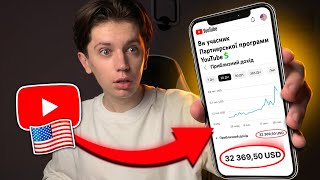
By organizing playlists and sections, you encourage viewers to watch more videos, increasing views. The creator mentions that with proper strategies, students have earned $5,000-$10,000 in the first month using AI-generated videos without showing face or voice.
The video provides a step-by-step guide to setting up a secure and monetizable American YouTube channel, emphasizing security, proper settings, and avoiding common mistakes. It also hints at a training program for those interested in earning through AI-generated content.
What is the recommended SIM card carrier for Google account verification?
Vodafone
01:19
Why is it important to create a brand channel?
It allows you to transfer the channel to another email or person, and separates it from your personal email.
03:17
What is the rule regarding emails and active channels?
Use one email for one active channel; do not upload multiple active channels to the same email to avoid bans.
03:44
What country should you select in channel settings to enable monetization features?
United States
04:51
What does confirming your phone number unlock?
It unlocks custom thumbnails, live streaming, and uploading videos longer than 15 minutes.
05:18
What is the purpose of setting default upload to 'Private'?
To avoid accidentally publishing unfinished videos.
07:01
What access level should you give to workers managing your channel?
Editor access
07:41
Two-Factor Authentication
Emphasizes the importance of securing your account with 2FA and Google Authenticator, which is crucial for protecting your channel.
01:32One Email per Channel Rule
A critical rule to avoid channel bans, which is often overlooked by beginners.
03:44Country Selection for Monetization
Choosing the right country (US) is essential for enabling monetization features, a key step for earning.
04:51Earning Potential
Mentions that students earn $5,000-$10,000 in the first month using AI-generated videos, highlighting the potential of this method.
09:55[00:01] channel right in front of your eyes and this is a very important process because if you don't click on any check mark then the channel won't work so watch this video to the very end so you don't miss anything and Let's start by creating a Google account for this We
[00:13] go to Google click create account choose for personal last name not necessarily I will write just Andriy click next here you can enter your birthday The main thing is that you are 18 years old choose gender click
[00:26] next Now here we click create a Gmail address click yes and enter a username you can come up with anything the main thing is not to lose this address because then in order for you to log in to YouTube again you will need to enter this address so
[00:38] come up with an address that you will definitely remember or write it down somewhere click next and come up with a password here I advise you to enter your email address Which one do you already have this in case you forget the password of your previous address
[00:51] you can restore it through your current address. So if you already have can enter it here and in case of need, you can restore your clicking skip and here when you enter your phone number, if
[01:06] it or you want to register for a new SIM card, you can first buy a SIM card from Monobank, but it's very important. When you do this, buy only Vodafone, in no case lifecell or KV Star, because when you buy such
[01:19] new SIM cards, Google for some reason doesn't let them through, and in many cases you buy something right away, just buy Vodafone. Now here we enter your phone number and click next. Check if you wrote it correctly. Click next. Here you
[01:32] long ones. I choose quick so that it doesn't drag on. I click here accept everything. I click confirm accept again. And now it's very important for us to do one thing. This is two-factor authentication for this. We
[01:46] go into our Google account settings, go to the security tab and we have the two-step verification tab, click add phone number and you will receive a code on your phone that you will need to enter here. I received a
[01:59] code, enter it here, click confirm and that's it. Now I have two-step verification enabled, but that's not all, because now you need to add this thing. As an authenticator, click here and now you will need to download to your
[02:12] will show you now, it is called Google Authenticator. If I attach a screenshot to you, open it and now you need to click here and scan this QR code. Now I open my authenticator, open it, point the camera,
[02:25] scan it here, and now a code appears here that I can code appears here that I can enter here, enter it, click confirm and that's it. Now your account is as protected as it is practically possible because
[02:37] this code cannot be generated by chance and no one has access to it except you, and to enter your account, you will now need to enter the code from this program is all we return to our YouTube account for this we enter in the search YouTube We
[02:50] go to the channel click create channel and now here we come up with some name then you can change it as you like it's not scary so if you don't know how to later you can just enter anything here for now and then we'll come up with a
[03:03] nickname Here you can also write anything I'll write for example Andriy YouTube click create channel and now a very important point few people actually know about it but now we need to go here and click create another channel
[03:17] click create channel and why did I do it first this channel it is tied to your email and it and let's say it is fixed with it And here this is a brand channel which you can transfer to your email and you can
[03:30] transfer it to someone else this is done in case if you want to they can take pictures of you instead then this channel is much easier to someone and channel you are filming and you don't touch this channel at all you don't
[03:44] channel you are filming the main videos but in addition to this remember the basic rule you create one mail for one channel in no case do not create one mail and upload 10 channels to it in which you are actively conducting such a thing is not
[03:58] allowed now I mean that on one mail there is only one active channel it is not allowed that you conduct 10 channels there at once on one mail is banned then you can ban all the other channels on this mail and you simply will not
[04:10] regret those 5 minutes of time and When you make a new active channel make a new mail for it and here we click do not ask again go to our main channel and now go to its settings for this click
[04:23] YouTube studia click continue We go into the settings and go in order of currency I always leave the US dollar but you can put the Ukrainian just take into account that the exchange rate here is not always correct then choose the country here on the
[04:36] any country and it does not affect the promotion of the channel in any way but it affects other wrong country selected Then you will not have the functions of sponsorship purchases and other opportunity to earn extra money just do not bother and tell you how it is put the
[04:51] United States and you will be happy in the keywords we do not prescribe any tags the topic of the channel it is not necessary keywords are needed only so search by name so if you have already come up with a name for the channel then just
[05:04] settings extension here we put my channel not for children here below we do not touch anything at all that's all as it is and it should be now we go here here click confirm phone number This is done so that you can put
[05:18] previews on your videos, conduct live broadcasts and upload videos longer than 15 minutes, click confirm phone number, your code 4 4 five, what
[05:30] happened now, my phone number was not confirmed via SMS, I chose message, they called me, they told me my code and I confirmed the phone number, so if something like this happened to you, use it all, now we have a
[05:44] second function enabled and we can put previews and fully upload the video. But we have a third function that we also really need, what is this function? It gives us the opportunity to insert links into the description of our video, the opportunity to
[05:56] appeal, if someone has thrown you an 18+ strike or any complaint, you can file appeals, the very important function of testing and comparing covers and the opportunity to apply for monetization is the main thing why we do it. And you
[06:08] first is to go through video verification right now, the second is to show your passport or any documents to YouTube so that they can confirm you or just wait two weeks on average, that's how many weeks you need for the
[06:21] don't plan to shoot anything in the next couple of weeks, you can glad if you didn't wait for this and just go through the verification of uploading the video, which we American YouTube, then most likely you have some kind of theme and you have some
[06:35] identical keywords, hashtags, maybe even words in the video title. And for example, and you write Reddit Stories at the end of each video, so that you don't have to do it yourself every time, you can just write it here, and it
[06:48] and then you can add something here, you can do the same thing. hashtags here, you can also add your playlist here, if you have a lot of videos in one playlist, for example, you just write Watch more videos and
[07:01] insert a link to your playlist here. I advise you to choose private so uploading a video that you click next next next and accidentally upload an unfinished video to n't happen. Click private and in case it will always be private for you and when
[07:14] you just open it. Open access tags can also be registered here you have some one topic most likely half of your tags are the same because you don't have to register them here and when you upload the video they will be added themselves here you
[07:28] don't need to touch anything else we leave it all as it is in the permissions here you order to invite someone to the channel for example to workers what workers can do several accesses for workers it is advisable to issue the editor tab so that they can
[07:41] upload videos themselves optimize them and generally follow the channel If will manage these same workers give them access to the channels And generally I have it organized according to my American channels I have a manager
[07:54] built a network of channels from it that brings us thousands Or even tens of thousands of of course a niche of stories that I already talk a lot about in my telegram channel video and from it I, together with my students, make tens of thousands of dollars on the most
[08:09] work with workers then you can use these two functions it's more for people who have some kind of personal brand and if you have any and such comments will no longer appear Also here you can
[08:23] negative comments so that they are also not visible and everything else we basically leave now go to the personalization tab what is this tab here you you can change your channel name here you can also write a description here but in
[08:38] principle it is not needed as such it practically does not affect anything further here If add them here and they will be visible on the main channel If you wish you can add of course your logo if you also have it it will be displayed as
[08:50] such a tiny icon in the video itself Here in the corner further here you need to advise you to do is add a channel trailer necessarily choose the newest video or the best Which in your opinion will be liked by the majority of viewers then
[09:03] for subscribed users here you can also choose the video that you have on your for the beginning just delete everything all everything delete then click on the new section here select popular videos then select one
[09:17] your playlist where you will have all the videos and put it below the popular videos and in principle this would be and enough but if you still add a tab in live broadcast now that's all in principle this will be enough here
[09:30] watch your best videos who just enter the channel in the tab one playlist if they click on this video that you have here in the playlist then they will videos and after watching one video they can watch the second third fourth
[09:42] much more views And if you want even more chips on how correctly gain views and ultimately earn from it as dozens of my students do we have a lot of cases of people who have never even
[09:55] YouTube who have never even created a channel and most likely you are doing it for the first time and people come out in the first month in 40 5 10 000 d$v at the same time We do all this on videos without a face without voiceover just on American YouTube
[10:08] the neural network makes, you can read more about the students' feedback on the training in the description under get involved with American YouTube in principle, you are interested in it and you would like to earn camera, then fill out the form for my author's training on American
[10:22] YouTube using the link in the description under this video, after which my team will contact you, we will tell you everything in detail and we will wait for you at the training
⚡ Saved you 0h 10m reading this? Transcribe any YouTube video for free — no signup needed.