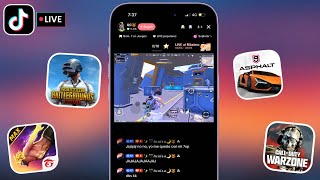

Stream Mobile Games on TikTok in Seconds
33sQuick, actionable tutorial hook for mobile gamers looking to grow on TikTok.
▶ Play Clip"The title accurately promises a guide on streaming mobile games and monetizing with subscriptions, which the video delivers."
This video provides a step-by-step guide on how to stream mobile games directly from the TikTok app and monetize through subscriptions and gifts. The creator demonstrates the process using PUBG Mobile as an example, covering setup, configuration, and monetization options.
Tap the middle button on TikTok, then select 'Live' from the options that appear.
Tap 'Go Live', change the stream name (e.g., 'PUBG Mobile'), and select the game you're playing so TikTok shows your stream to relevant viewers.
TikTok offers a number of mobile games to choose from; console games like PlayStation or Xbox cannot be streamed directly.
You can set a goal for roses (e.g., 30 roses) and configure subscriptions to monetize your streams.
To enable subscriptions, you must have streamed live for at least 30 minutes in the last 30 days.
Select 'Mobile Games' to access game-specific streaming features. TikTok detects the game's orientation (vertical or horizontal) automatically.
Configure gifts, comment settings, filter comments, mute duration, block keywords, and featured comments before going live.
Click 'Go Live' then 'Continue Live Game Recording' to begin streaming your mobile game screen to viewers.
Streaming mobile games on TikTok is straightforward: select the game, configure monetization options like subscriptions and gifts, and go live. The platform automatically optimizes the stream for mobile gameplay.
What button do you tap on TikTok to start a live stream?
Tap the middle button, then select 'Live'.
00:33
What type of games can you stream directly from TikTok?
Only mobile games; console games like PlayStation or Xbox cannot be streamed directly.
01:15
What is the requirement to enable subscriptions on TikTok live streams?
You must have streamed live for at least 30 minutes in the last 30 days.
02:22
How do you start the actual screen recording for a mobile game stream?
Click 'Go Live' then 'Continue Live Game Recording'.
04:02
Live Stream Access
Shows the exact steps to initiate a live stream on TikTok.
00:33Game Selection Limitation
Clarifies that only mobile games are supported, not console games.
01:15Subscription Eligibility
Provides a specific requirement for monetization via subscriptions.
02:22[00:02] video games on TikTok. If you want to stream, if you're a fan of explain how to stream video games directly from the TikTok app. So pay close attention. Before we start, I'm going to
[00:17] notifications because I'm constantly uploading content related to technology, marketing, and mobile apps. Okay, let's begin. What you have to do is go to TikTok. Here, you're going to tap the button in the middle.
[00:33] Here, you're going to tap the button in the middle. Here, in the middle, you're going to tap the following options will appear. What you're going to do is tap here where it says " going to do is tap here where it says " Live," and as you can see,
[00:46] this option appears on the screen that says " Go Live." Okay, here's what you have to do: you're going to tap here. You can change the name of the stream. You can put, for example, "PUBG Mobile," which is the game
[01:00] I usually like to play. You can put " You Mobile Quick Match," for example. Here, you select the game you're going to play so that TikTok starts showing your stream to the type of people who are
[01:15] a number of Awesome games for you to Awesome games for you to download on your mobile. Generally, many of them are mobile games. Here, you won't be able to stream
[01:28] some PlayStation games or Xbox games. So, let's see how it's done. Here, you select PUBG Mobile. Okay, here you can add a goal to your event. You can change the number of
[01:42] roses you want to receive. Okay, we click confirm, and that's it. Here we enter the number of roses we want to receive. Here we select "
[01:56] customize." Let's say we'll put 30 roses, for example. There's " confirm." We click confirm, and as you can see, it's the goal of the live stream. We'll click
[02:08] confirm, and here in " subscriptions," you can also configure subscriptions so that the subscription option appears. These are the options to monetize your streams.
[02:22] It's configured after you 've streamed for at least 30 minutes in the last 30 days. After you've streamed live for more than 30 minutes in the last
[02:36] 30 days, you'll be able to... Add this option to monetize your live streams, but I'm not going to talk about that here because the goal of this stream well. So, look at the difference. Here you'll see Live
[02:51] Studio and Mobile Games. You have to tap here where it says Mobile Games. Each of these buttons will appear, or TikTok will show you a different suggestion: How to broadcast a live stream. Here you
[03:04] can share it. Here you can poll your followers or the people watching the live stream. Here you can activate the subscription feature. Here you can set the game to horizontal or vertical format. But the
[03:20] good thing about TikTok is that it already detects the game's format, that is, whether it's a mobile game played vertically or vertically or
[03:32] horizontally. Here you can configure the rewards. You can also tap Promote here in here in settings you can configure gifts, like the
[03:47] gift gallery, comment settings, filter comments, activate the mute duration, block keywords, and activate Okay, so here's the featured comment: you're simply going to click where it says "Go
[04:02] Live," and this option will appear. But when you click here where it says "Continue Live Game Recording," you simply Live Game Recording," you simply exit, and then you start
[04:15] streaming your mobile game, the one you're going to broadcast. The live stream will automatically begin, sharing your screen. That means your viewers will see your phone screen; they'll see 100% of the mobile game you're
[04:29] playing. So that's all for this video. I hope it leave your comments and questions, and I'll see you next time.
⚡ Saved you 0h 04m reading this? Transcribe any YouTube video for free — no signup needed.