
Earning $16/hr on Kick? Joke or Truth?
33sThe promise of easy money and the humorous twist create immediate curiosity and engagement.
▶ Play Clip"The title accurately promises a setup guide for streaming on Kick with alerts, and the video delivers exactly that."
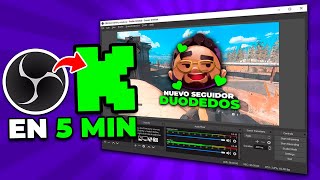
This tutorial provides a step-by-step guide on how to start streaming on Kick using OBS, including setting up alerts with Botrix. The video covers configuring OBS for Kick, obtaining stream keys, and customizing alerts for follower notifications.
The video mentions a Kick creator program with potential earnings of $16/hour, but notes it's not yet released and earnings depend on viewership.
OBS is recommended over Streamlabs. Steps include duplicating a profile, naming it 'Kick Streams', and configuring settings.
In Kick's Creator Control Panel, go to Settings > Streaming Key to copy the server URL and stream key.
In OBS Settings > Stream, select 'Custom' service, paste the server URL and stream key, then apply.
If new to OBS, create a new profile, choose 1920x1080 at 60fps, select 'Custom' service, and let OBS analyze PC and internet.
Go to Botrix website, log in with Kick, grant moderation permissions, and link the account by sending a command in chat.
In Botrix Alerts section, preview alerts, change GIFs, text, font, and colors. Save settings after changes.
Copy the alert link from Botrix, add it as a browser source in OBS, and configure audio monitoring to hear alerts in headphones.
By following these steps, you can start streaming on Kick with custom alerts in under five minutes. The video also promotes additional resources for overlays and designs.
What software is recommended for streaming on Kick?
OBS (Open Broadcaster Software) is recommended over Streamlabs.
00:44
How do you get the stream key from Kick?
Go to Creator Control Panel > Settings > Streaming Key, then copy the server URL and stream key.
01:11
What service option should be selected in OBS for Kick?
Select 'Custom' as the service.
01:27
What is the recommended canvas resolution and frame rate for OBS?
1920x1080 at 60 frames per second.
01:58
Which website is used to set up alerts for Kick?
Botrix.
02:30
How do you link Botrix with your Kick account?
Log in with Kick on Botrix, grant moderation permissions, add 'Botrix' as a moderator in Kick, then copy a text from Botrix and paste it into the chat.
02:44
How can you customize the alert GIF in Botrix?
Go to Alerts, scroll down to Image, click the green button, select a GIF from your computer, and save settings.
04:11
How do you add the alert to OBS?
Copy the alert link from Botrix, add a browser source in OBS, paste the link, and configure audio monitoring.
04:58
Creator Program Mention
Highlights the potential earnings from Kick's upcoming creator program, though it's not yet released.
00:02OBS vs Streamlabs
Recommends OBS over Streamlabs for streaming on Kick.
00:44Botrix for Alerts
Introduces Botrix as a free tool for setting up alerts on Kick.
02:30Alert Customization
Shows how to customize alert GIFs, text, and fonts in Botrix.
03:42[00:02] stream on Kick in under 5 minutes and even how to set up alerts so you can start streaming right even how to set up alerts so you can start streaming right away and earn your well- deserved $16 an hour. But for
[00:14] those who don't know me, I'm alias, and obviously, I'm joking about you actually earning $16 an hour. It's confirmed there will be a creator program, but it doesn't have a release date yet, and most likely, you won't get paid
[00:28] $16 an hour if you stream and only 10 people watch. But if that does happen, I'll make only 10 people watch. But if that does happen, I'll make possible so you can get your mom, dad, brother,
[00:44] sister, and even your dog to stream. We 'll be using OBS for this tutorial. And if you're using Streamlabs right now, do yourself a favor and download it. Obviously, if you were already streaming on Twitch,
[00:59] Facebook, YouTube, or wherever—which I think is pretty OBS, we're going to select our profile with the... When we stream, we
[01:11] click on "Duplicate Profile" and rename it " Kick Streams." I imagine that by this point in the video you've already created a Kick account, and if not, go make one, bro. It's $16 an hour. Once created, we click on our profile, Creator Control Panel,
[01:27] Settings, Streaming Key. Click here to copy the server. We go back to step 10, click on Settings, then Mission, then Service, and choose the one that says "Custom." Where it says " Server," we paste what we copied from Kick. We go back here,
[01:43] and now we copy the stream key. We go back to step 10, paste this here, apply, and accept. If, in your particular case, it's the first time you're going to stream on OBS, create a new profile, click on "
[01:58] Show Automatic" and accept. We're going to choose the first option, then Canvas 1920 by 1080 at 60 frames per second. Next, in Service, we choose "Custom" and repeat what I just explained. Click
[02:16] next. Obviously, it will analyze your PC, measure your internet, and all that stuff. When it finishes, click on " Apply Settings." And that's it! Basically, with this, you're ready to start streaming on Kick. I mean,
[02:30] literally, if you click "Start Streaming" in the obvious settings, you'd already be we still have those 5 minutes I mentioned, so let's set up your alerts. For that, we'll go to this page called Botrix. I'll
[02:44] leave the link in the description. Log in with whatever account you want; I'll use Twitch for more fun. Close this window and click "Log in with Kick." Enter your username
[02:57] Kick." Enter your username here and click "Accept." Now it will ask you to grant the bot moderation. Go back to your Kick control panel, click " Community," then "Moderators," then "Add New." Type "Botrix" and select it; it's
[03:11] the only user with a green checkmark. Don't mess this up! Go back to the Botrix page and click "Continue." When this new window appears, copy this text from here, click the link that glows green, and
[03:27] paste what you copied into the chat that opens. Press enter, and you're done! You'll see that your account is linked correctly. On the Botrix page, click "Finish," and here... You can verify that your channel is connected, and now let's move on to the
[03:42] alerts. At the top left, click on "Alerts," and here you'll see all the available alerts. I'll just configure one for you, but don't First, I'm going to click on " Preview," and a second window will open. I
[03:58] 'll arrange it as you see it on the screen so you can see the alert changes. If you click on the green button that says "Followers," you can see a preview of the alert in the window that opened. And if we
[04:11] scroll down a bit, here's where we can change the alert style. If you don't like that astronaut video, go to "Gif," find something you like, and save that GIF to your computer. Now, here where it says "Image," click the
[04:26] green button, select the GIF, and when it loads, scroll down and click on " Save Settings." Test the alert again, and you'll see that the video has changed. If you scroll down again, you can change the font style, color, etc., and the
[04:41] text that appears when someone follows you. I set it to Spanish. When you're finished, don't forget to click "Save," or the alert won't change. Once all that's done... Let's click here where it says copy. We'll open OBS,
[04:58] says copy. We'll open OBS, click on "More," paste the link, click on " Control Audio via OBS," and accept. Now, in the audio mixer, click on the gear icon, then "Advanced Audio Properties," and in the channel that says "
[05:12] Kick Alerts," click here and select " Monitoring Only," "Mute Output," and " Close." Send a test alert again, and now you'll be able to see the alert in OBS. You'll also be able to hear the alert in your headphones. And there you have it! That's
[05:27] how you can stream in Kick with alerts in less than 5 minutes. I hope it was less than 5 minutes. If you'd like me to make another video about Kick, but talking about overlays, designs, panels, animations, and all those
[05:41] things I know you love, this video needs to reach 1000 likes. But if you don't want to wait for me to upload a video, remember that with Agua in 3D you can find thousands of designs, alerts, panels, and more at
[05:56] incredible prices. And if that weren't enough, if you use the code Duo or the link in the description, you'll receive a 50% discount on all your purchases. Including the emotes you create in the Mode creator. And if you're interested in learning
[06:10] how I grew my YouTube channel by doing live streams, in this video I'll show you how. Click here, see you in this video!
⚡ Saved you 0h 06m reading this? Transcribe any YouTube video for free — no signup needed.