
Stop Using the Wrong Deposit Button!
42sShows a common beginner mistake that wastes time, making viewers feel smart for learning the correct method.
▶ Play Clip"Delivers exactly what the title promises: a thorough beginner tutorial for Charles Schwab. Minor deduction for a sponsored Moomoo segment that interrupts the flow."
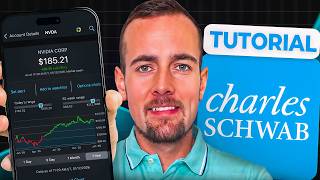
This tutorial provides a comprehensive walkthrough of the Charles Schwab mobile app for beginners. It covers account setup, linking a bank account, making deposits, researching investments, buying fractional and whole shares, and withdrawing funds. Schwab's focus on core features and its extensive research tools are highlighted, along with a brief mention of a Moomoo promotion.
Charles Schwab has over 50 years of experience and manages $10 trillion in assets. They prioritize core investing features over hype, unlike newer platforms.
Schwab offers a wide variety of accounts (individual, retirement, joint, custodial, trust, 529). Opening takes about 10 minutes online, requiring SSN and employer info. Identity verification and IRS reporting are reasons for data collection.
To link a bank, go to More > Transfer Funds > External Accounts > Add Account. Use routing and account numbers. Instant verification is preferred; micro-deposits take 2-4 days as backup.
Use the 'Transfer' button (not 'Deposit' which is for mobile checks). Select external bank as 'from' and Schwab account as 'to'. Can set frequency (one-time, weekly, monthly). Funds usually available immediately to trade stocks over $1, but full settlement for withdrawals takes 4 business days.
Create custom watchlists via the three-line menu. Add symbols. The heat map view shows visual performance (color intensity = magnitude of change). Swipe left to delete symbols.
Pre-built portfolios (e.g., Autonomous Driving) with performance vs S&P 500. Includes sector breakdown and individual holdings. Minimum $250 to buy the entire basket.
Available for 52 symbols with a $5 minimum per slice. Can buy multiple slices at once. Dividends can be automatically reinvested. Example: buying $5 of Apple stock.
Go to Trade tab, search symbol, choose order type (market or limit). Market order buys immediately at best price; limit gives price control but may not fill. Set quantity, enable dividend reinvestment, review, place order.
From position page, click View Profile, then Sell. Choose order type (market recommended for quick execution). Confirm and place order. Trade settles in one business day.
Use Transfer button, select Schwab as 'from' and bank as 'to'. Cash available after stock sale settlement (T+1). Recent deposits may have holding periods.
Charles Schwab offers a reliable, feature-rich platform for beginners, emphasizing research and solid core functionality over flashy trends. The tutorial covers essential steps from account setup to trading and withdrawals, making it a practical guide for new investors.
How much must Schwab report trading activity to?
The IRS
02:02
What is the minimum deposit for a Schwab stock slice?
$5
16:28
How long does a GTC (Good Till Cancelled) order last at Schwab?
180 calendar days
28:55
What is the difference between a market order and a limit order?
A market order executes immediately at the best available price. A limit order executes only at a specified price or better, but may not fill.
26:25
After selling a stock, how many business days until the cash can be withdrawn?
One business day (T+1 settlement).
33:14
What is the minimum investment to buy a Schwab Investing Theme basket?
$250
15:58
How many symbols are available for Schwab Stock Slices?
52
16:41
What is the maximum amount for a single Schwab stock slice order?
$50,000
18:46
Schwab’s Philosophy
Explains why Schwab avoids flashy features and focuses on core investing needs, setting expectations for users.
00:30Identity Verification
Clarifies why SSN and employer info are required, addressing common privacy concerns.
02:02Fund Availability Rules
Important distinction: deposited funds available immediately for most stocks but restricted for options, penny stocks, etc.
07:36Watchlist Heat Map
Visual tool to quickly assess portfolio/ watchlist performance with color intensity indicating move magnitude.
08:59Investing Themes
Pre-built portfolios offer easy diversification and research ideas, with performance comparison to S&P 500.
12:57Market vs Limit Order
Clear explanation of when to use each order type, crucial for beginners to understand trade execution.
27:48[00:01] well-known and trusted names in the financial services industry. In this video, I'll be giving you a complete walkthrough on how to use this brokerage platform, including linking your bank account, using their research tools,
[00:15] Schwab has been helping people with managing and investing their money for over 50 years now, and they have more than $10 trillion in total assets under management. So, if you're planning on using them to invest, you can rest
[00:30] assured that you're in good hands here. Now, one thing you'll notice about Charles Schwab is that this is not a new age investing platform with all of the latest features like prediction markets, and that's actually by design. Instead,
[00:43] they focus on the core features that investors are looking for, and then they leave the hype to others in the space. Now, guys, a lot of time and research went into making this the most comprehensive Schwab tutorial out there.
[00:56] So, if you appreciate that, please make sure to drop a like on this video and subscribe. [music] Real quick, before we dive in, I just have to mention that I'm not a financial adviser, and this isn't personalized financial advice. But with
[01:09] that said, let's jump into my Schwab account now. All righty, guys. So, as you can see, I already have a Charles Schwab account established here. But real quick, I just want to cover some of the basics about opening an account with
[01:21] them. For starters, Schwab has one of the widest varieties of different account types that you can open, ranging from 529 plans to retirement accounts and more. I personally have an individual brokerage account, and that's
[01:34] probably what most people are looking to open. This allows you to invest in stocks, ETFs, bonds, options, and more within a standard taxable brokerage account. But if you did want to open up a retirement account, joint account,
[01:49] custodial account, trust account, and more, these are all available options within Charles Schwab. Now, when you open any financial account, you're going to need to supply information like your social security number, employer, and
[02:02] more. And this might raise some red flags, but Schwab is actually required to collect this information. Basically, they need to verify your identity and they have a requirement to report your trading activity to the IRS. You can
[02:16] open a Schwab account fully online through their app or on their website and it usually takes about 10 minutes in most cases. Now, [snorts] one thing I want to mention here quickly is whether or not there are any signup bonuses with
[02:29] Charles Schwab. They might run different promotions from time to time, but I am not affiliated or partnered with them, so I don't have a referral link or anything like that. But with that said, if you are looking for a free bonus, you
[02:43] [music] This is one of my favorite platforms for active stock trading and they're currently running a promotion where you can get up to $1,000 in Nvidia stock when you open and fund a new account. The free bonus depends on how
[02:58] much you deposit, but make sure you visit the link down below or visit ryanoscribner.com/moomu to learn more about this offer. I also have a full 1-hour tutorial of the Mumu investing platform I'll put in the
[03:11] corner as well as linked down below. From here, this is going to bring us to linking a bank account to Charles Schwab. This is going to allow you to transfer money in and out of your Schwab account. So, it is a necessary step
[03:27] before investing. Now, I already have a bank account linked, but here are the steps that you would follow to link a bank account yourself. The first thing the more button here in the bottom right. And then under this move money
[03:40] section, you're going to select transfer funds. This is the screen you're going to use when moving money to and from your Charles Schwab account. But if you're looking to link a bank account for the first time or see what you have
[03:53] linked already, you're going to click on this external accounts tab all the way here at the top right. Now, as you can see, my bank is already listed here, but you're going to go ahead and click on this green add account button. On this
[04:05] screen here, it basically asks you which Schwab account do you want to link your external bank account. So, if you have multiple accounts like a retirement account, taxable brokerage account, etc., You can select this drop-down and
[04:17] choose from your different Schwab accounts. But since I only have this individual brokerage account, we're going to select that and then click on the green continue button. On this next screen here, it basically explains how
[04:29] Schwab is able to link your external account and this will be using the account and routing numbers. [music] It also mentions that it can usually verify your bank account instantly, but as a backup, they also have an
[04:41] alternative method of verifying two small deposits. Now, that alternative method usually takes 2 to 4 days. So, the instant verification method is definitely preferred. But for now, we're just going to click on the green
[04:54] here, it's going to ask you if you are an account holder on the external bank yes, and that's going to bring up multiple different fields now that you have to fill out. You're going to select whether this is a checking or savings
[05:09] account first, and then you're going to input your account number and your routing number. In addition, you're also going to have to confirm this twice here just to make sure you have everything correct. And when that's done, you're
[05:21] continue button at the bottom. And once you click here on continue, it's going you can link this bank [music] account instantly. But since I already have my financial account linked, I won't be able to show you that exact step. But
[05:36] anyways, that's the basics here on how to link your bank account. So once you account, the next step that most people will want to follow is depositing money to invest. So from the main screen here, you're actually going to click here on
[05:50] the transfer button, not this deposit button. This might sound incorrect, but this deposit button here is actually used for mobile check deposit, not for depositing money from the bank. So you can keep that in the back of your mind.
[06:04] transfer button, you're going to see that from and to option that we saw earlier. And this is where you're going to select your linked external bank account. So, under the from dropdown, I'm going to select my external bank
[06:18] account. And you should be able to see whatever financial account you linked in the previous step. And then under the two dropdown, you're going to select your Charles Schwab account. And again, if you have multiple different account
[06:30] types, you will see all of those listed here. At this point, you can enter the dollar amount that you're looking to deposit. So, in this case, we're going to go with $50 for demonstration purposes. Below that, you're going to
[06:43] see the frequency here listed as one time, as this would suggest. That means this is going to be a single deposit that happens once. But if you click on options you can choose for the frequency. So, if you wanted to set up a
[06:57] recurring weekly, monthly, quarterly, or other timeframe deposit, you can do that right here within this section of the app. But in this case, we're just going to leave it as a one-time deposit. And then below that, we can see the transfer
[07:11] date listed here and some information about fund availability. Now, since today is a business day and the market is open, we can see the transfer date matches today's date. [music] But if you initiated a transfer over the
[07:24] weekend, for example, you would see this transfer date listed here as the next upcoming business day. Below that, it mentions some important information about availability of funds. So, let's go ahead and talk about that real quick.
[07:36] If you're transferring funds on a normal trading day or business day, the funds are usually available immediately to invest. However, you won't be able to purchase certain securities, including options contracts, futures, and stocks
[07:51] trading under a dollar per share. But if you're looking to buy stocks listed on the major exchanges that are trading over $1 per share, you shouldn't have any issues. And below that, it mentions that one business day after the
[08:04] transfer, your deposited funds will post to your account. Then on the fourth business day indicated here at the bottom, you'll be able to withdraw that money and place trades with no restrictions. That's when you'd be able
[08:18] to buy stocks trading under a dollar per share as well as futures and options contracts. So depending on what you're looking to trade here, you might need to keep these different timelines in the back of your mind. But anyways, we're
[08:31] the $50 deposit. So we're just going to click here on this green continue button. And then on this screen here, we have to just confirm some information. And if everything looks good, we'll click on the submit transfer button. And
[08:45] then we have confirmation here that this transfer has been initiated. So now that we've deposited some money, we are going to go through how to actually buy a stock using the Schwab app. But first, I want to cover some other basic features
[08:59] here of Charles Schwab. And real quick, guys, if you've gotten any value out of this video so far, make sure you hit that subscribe button for me. So, after refreshing here on the main home screen, we can now see our balance reflected is
[09:12] $50 and that 5 cents I had left over. So, we can see the deposit has now shown up here in the app. But the next thing I want to show you here is the watch list section here next to the accounts tab at
[09:24] the bottom. on this screen here. This is where you're going to be able to see a list of the different securities that you own in your Schwab account and the different performances. Now, because we don't have any positions yet, nothing is
[09:37] showing up here, but you can create your own custom watch list. To do this, threeline menu here in the top right and then the plus icon here at the bottom to create a new watch list. From here,
[09:51] you're just going to have to give this watch list a name and then click on the green saved watch list button. [music] And now you have created a custom watch list. So, right now it's empty, but we're going to go ahead and click here
[10:03] on this green add symbol button. And then you can either type in a symbol, the name of a company or ETF, or you're going to see a bunch of the recent below the search bar. So, just to demonstrate, we're going to go ahead and
[10:18] add Nvidia here to our watch list. So, if we type in the name of the company, we can see that listed here at the top. And now, just like that, we have added Nvidia. Once you've added a stock here to your watch list, you'll be able to
[10:31] keep track of the price, the daily price change, and you can click directly on this, and it brings you over to the actual trading page [music] for that particular asset. In addition, you can also create multiple different watch
[10:44] lists, which is what I've done here. If we click here on the drop-down, we can see I have a demo list and then the one I just created. So, that can be helpful here if you're looking to keep track of multiple different lists of stocks, and
[10:57] have all sitting together. So, looking at this demo watch list here, this shows you the four stocks that I have added, their daily performance, and the current share price. And you can also see the color represents whether or not they are
[11:10] up or down on this given trading day. But one of my personal favorite features here with the watch lists is this heat map feature over on the right. When you click on this, it's going to show you a visual representation of the stocks or
[11:24] equities on your watch list. the symbol, current share price, the daily price change, and the shade of the color here is going to represent whether it's up a lot or down a lot on the given trading day. So, for example, Toyota Motors is
[11:39] down a little bit more than GM and that's why it's a deeper shade of red. So, this can be a great way here to just have a bird's eyee overview of your watch list or maybe you have your portfolio linked and you can see what's
[11:52] going on with the stocks that you own. And just like with the other screen, you can also click on any one of these tiles and it's going to bring you over to the information about the stock or potentially place a trade. And then if
[12:05] you want to make changes to your watch list, you're going to click back to navigate back to your watch list. You're going to select the basic tab from before and then you would just swipe to the left on anything that you want to
[12:17] remove and then click on the delete button. And just like that, it's going to remove that stock or ETF from your watch list. So, that's everything that you need to know here about the watch list feature on Schwab. We're now going
[12:29] to click on the next tab over, which is labeled trade. And this is where you would actually be able to place a trade to buy or sell a stock. At the very top here, we can see that you can choose between stocks and ETFs, options, and
[12:43] mutual funds. And quick side note here guys, one of the big advantages to using Charles Schwab is the access to mutual funds because you're not going to find that available in most new age investing platforms. The next feature I want to
[12:57] show you here is called the Schwab investing themes. If we click on that option here under explore more ways to invest, it's going to bring us to this section of the app. These are essentially pre-built portfolios that
[13:10] you can invest in that are related to a specific category of stocks or ETFs. can choose from here. And you can scroll through here to get a full list here of
[13:22] themes. But just to demonstrate this guys, we're going to go ahead and select one here towards the top which is going to be autonomous driving. As the name collection of investments related to self-driving vehicles. At the very top
[13:38] here, you can see the percentage change over the last trading day on the left. And on the right, you can see what has been the one-year performance of this. And then below that, you can also see a scoring system related to the volatility
[13:52] and the overall valuation of the different components of this market theme. So, not surprisingly, this group of stocks here has higher volatility, meaning it's going to see more up and down price moves compared to just the
[14:05] broad market. If you scroll down further, you can see how the investment theme has performed compared to the benchmark here, which is the S&P 500 index. So, over the last one year, this has actually beat the S&P 500 by a
[14:20] little over 5%. Um, but if you look at different time frames, the same might not be the case. So, for example, over the last month, this autonomous driving the last month, this autonomous driving theme is actually down about 4.2%.
[14:33] Meanwhile, the S&P 500 is relatively flat. So, that right there is an example of this volatility in action. If we keep scrolling down here, below that is going to be an about section, which is going to tell you more information about the
[14:47] theme. And then, finally, at the very bottom, you can get a list of all of the different stocks that are part of this portfolio. Now down here it's going to be broken down by sector. For example, consumer discretionary. And that big
[15:00] percentage number there to the right of that, the 58.8% indicates how much weight this sector carries across the whole portfolio. And see some different sectors like information technology, communication
[15:15] services, and industrials listed here at the very bottom. Now, within each one of these sectors, you can see what individual companies are included. And the small percentage listed to the right of each of these stocks indicates how
[15:28] much of the portfolio goes into each of these individual stocks. So just for example, looking at Toyota Motor Corporation, as of right now, 10.6% of this fund or portfolio goes into that particular stock. So this investment
[15:44] themed section can be helpful if you're looking to get ideas about different stocks that you might want to put on your radar and do more research on. But you can also click on this green trade button and then trade this entire basket
[15:58] of stocks all at once. As you can see here, it does come with a $250 minimum to buy into this entire portfolio. But this can be a great way to avoid some of picking and choosing individual investments. But for now, we're just
[16:15] going to click on cancel and say do not place this order. We're going to click on the back button twice and go back to this trade menu. And the next thing I want to talk about is the Schwab stock slices feature. If we click on that,
[16:28] this is actually going to be how you're going to invest in fractional shares using Charles Schwab. And the minimum is going to be $5 per individual stock slice. So, we're going to click here on close, but you could also read through
[16:41] this if you want more information. And we're going to see it lists 52 [music] different symbols here. So, every one of these symbols here is available for Schwab stock slices, meaning you can buy into these with a $5 minimum. Now, I
[16:55] will say that trading apps like Robin Hood and a few others do let you invest in $1 increments with fractional shares, and they often have a wider variety of stocks and ETFs [music] supported. But, nonetheless, this is still a great
[17:09] feature here to lower the barriers to entry for investors on Schwab. As far as how this actually works, there are two different approaches. You can either pick one of these stocks here on the list and buy a stock slice with as
[17:23] little as $5, or if you're looking to invest in multiple different stocks at once, you can buy multiple slices at a time. So, if you had 10 particular stocks you wanted to buy $5 worth of, you could pick all 10 of those and then
[17:38] you could pick all 10 of those and then invest $50 at once. Fractional shares important for stocks that trade at a high share price because without using them, you would need to put up enough money to buy one whole share in order to
[17:52] gain exposure. Taking a look at Apple stock for example, the current share price is $274.24. So through the normal trading section of the app, you would need to buy one whole share at minimum and that would cost you
[18:05] about $275. But let's go ahead and invest $5 into Apple stock now to demonstrate how this works. So you're going to select Apple here from the list and we're going to say add Apple to order. Now if you
[18:19] wanted to do multiple at once, you would just add multiple different symbols. But in this case, we're just looking to buy shares of Apple. So now we're going to click on this up arrow and then click here on the green continue button. At
[18:32] this point, you're going to choose the account you want to execute the trade in said before, I only have the one And then you enter the amount you're looking to purchase between a $5 minimum
[18:46] and a $50,000 maximum. So, in this case, we're just looking to do the $5 minimum. I'm going to click here on the done button. And then the only other thing you have to decide is whether or not you want to automatically reinvest
[18:59] dividends. If you're looking to maximize your investment return potential, I that's what I'm going to do here. And you're going to scroll down and select the review your selection button. And
[19:14] now, it's going to bring us to the review order screen. So, in this case, we're looking to buy $5 worth of the stock. If we scroll down here, we can check this box to acknowledge the message. And here it's going to show us
[19:26] the current um quotation price for Apple stock with the bid and the ask price. And we can see this is going to buy us 0182 shares or a $5 amount. And it mentions under messages that dividends will be reinvested. So we did [music]
[19:41] successfully enable that feature. All we have to do from here is click on the place orders button. And just like that, it confirms that the orders were received or in this case just the one single order. So, that's how you buy a
[19:54] stock slice or fractional share using Charles Schwab. If we now click back on the accounts tab and then select our individual brokerage account, we can now see our $5 investment into Apple stock listed here. And this is where we can
[20:09] keep track of it. And just to show you this here as well, if we now jump over to our watch lists and just select from this our individual account, it's now going to show Apple stock there because it's now part of our portfolio. So
[20:22] that's how you buy fractional shares using Charles Schwab. And we are going to cover purchasing and selling whole shares as well. But the next thing I want to cover here is how to use their investment research tools and features
[20:34] [music] within the trading app. On the bottom navigation menu to the right of the trade option that we just looked at. The next option here is going to be the market section, which is where you're going to conduct this type of research.
[20:47] you're going to see a price chart for the major indices like the Dow Jones Industrial Average, the Nasdaq, S&P 500, and more. And you can also adjust the time frame here to take a look at different [music] spans of time to get
[21:02] an overall gauge on how the market is performing. If we scroll down below that, we're going to see the breaking news section of the app. And this is going to include the biggest stories [music] that are happening in the market
[21:14] that if you actually click on one of these news articles, it's going to open up right within the Charles Schwab app, meaning that you don't have to open up a separate web browser or anything like that. Now, below that is going to be the
[21:28] reports section, and this is going to have professional literature available related to the market. This will include updates from Morning Star Research and others. So, for example, if we click here on the Argus Markets Digest here at
[21:42] the top, this is going to bring us a full report for the given trading day. And I'll just zoom in to show you here, but that is in fact today's trading date, Tuesday, February 10th, 2026. And you can scroll through this and get a
[21:55] full digest here on what's going on in the market and some stocks that you might want to keep an eye on. Reports like this are extremely valuable and the within the Charles Schwab app without paying for any subscriptions is a huge
[22:10] benefit. But for now, we're going to close this and continue looking. We're going to scroll down and the next section here is called company movers. By default, this is going to show you the most actively traded stocks in the
[22:22] market right now. But you can also adjust this here. So where it says most activives, you can make this the biggest percentage price increase, percentage price decrease, and more. So if we're looking at percentage price increase and
[22:35] click here on done, those are going to be the biggest jumps here for different names across all different sectors. You can also break this down by sector and look at specific segments of the business economy. And you could also
[22:49] take a look at just the New York Stock Exchange and the NASDAQ in particular if you want to break this down at an exchange level. Now below that, if you keep on scrolling here, you're going to find the Schwab market update. This is
[23:01] going to be here every single day. You can either click here on the read more button or you can hit the play button and actually listen to this. So this can be a really helpful way to keep tabs on what's going on in the overall market.
[23:15] And then the next tool below that is going to be another heat map here of the various sectors of the economy. So for example, this is the last trading day. We can see consumer discretionary is up and communication services are down. But
[23:28] you could also adjust this over the last 30 days for example and look at the last year to see what have been the top performing sectors. Below that we're of the app. And this is going to be the list of stocks that are being talked
[23:42] about the most in the news right now. And if you click on each one of these here, it's going to show you the major news articles surrounding each one of these individual names. Below that, you're going to find a market volatility
[23:55] section of the app here, which can be helpful for keeping tabs on the overall market and whether or not we're seeing a lot of volatility or up and down price moves. And then at the very bottom here, we can see futures quotations. So, if
[24:09] example, you can do that right here within the Charles Schwab app, and you can take a look at the performance over different periods of time. So, over the different periods of time. So, over the last 30 days, gold is up almost 11%.
[24:22] That's the gist here of the research tools within the app. And now, we're going to switch gears and talk about how to actually purchase a whole share of a stock. So, we're going to select the trade icon here at the bottom. And this
[24:35] time we're going to be placing the trade through this main trade section of the [snorts] the very first step in the search bar here is going to be entering the name of the company that you're looking to invest in or the ETF. Or you
[24:49] it. For this example, we're going to go with Ford stock because of the low share price. It'll make it easier for us to invest. So we're going to click into the search bar here and type in the name of the company, Ford. And then at the very
[25:04] top here we can see the symbol is F. So we're going to select Ford from the list. And this brings us the trade page now for Ford stock. Now below the dropdown where you can choose different Schwab accounts, we can see listed there
[25:17] our available cash for investments as well as the current share price for Ford stock which is about $13.71. And you can see it's jumping around and changing here every couple of seconds. And then below that, we can also see the
[25:32] bid and ask price for Ford stock, which is going to be what buyers and sellers are willing to offer and receive for this stock at any given moment in time. So these numbers will update every few seconds, and it's based on real orders
[25:45] that are taking place at the exchange. Now, below that, we do have to make a selection here when it comes to the action. So if we select this menu here, we can either buy, sell, or sell short. Buy and sell are pretty straightforward
[25:59] here, but shortselling is basically borrowing shares that you are then selling and it's a way to bet against a stock. We're not going to get into that in this video because this is an advanced strategy that can result in
[26:12] significant losses, but that's what that is just so you are familiar. So, what we're going to do is select buy here for our action. And the next thing I want to talk to you about are the different order types. So, by default here we can
[26:25] see limit order is listed, but we're actually going to select this dropdown and change it over to the market order and talk about this order type first. With this order type, it basically means buy or sell immediately at the best
[26:39] available price right now. It's the simplest order type and the best for prioritizing order execution or your order actually going through, but you don't have control over the price. So with a market order, your order would
[26:53] end up executing somewhere between the bid and the ask price, which is bid and the ask price, which is currently 1371 to 1372. Now, if we change this over to a limit order, for example, this is going to give you
[27:05] control over the price that your order executes at. With this order type, you can specify the exact price or better that you are looking to buy or sell a particular asset for. [music] So, for example, Ford stock is currently trading
[27:19] at $13.72 with a half cent and the limit price is set to $1372. But if you were only willing to pay $13 or less for Ford willing to pay $13 or less for Ford stock, you could set this order to $13
[27:33] and then the order would only go through if Ford stock hit $13 or a lower price. Limit orders are going to give you the most control over your order execution, but there is no guarantee that the order will actually go through because there's
[27:48] no guarantee that this limit price will actually be met or that Ford stock will in fact hit $13. So, in our case, we're just going to use a market order to make sure that we are prioritizing the order actually going through. But if you are
[28:03] trading a smaller sized company that's not as actively traded as a stock like Ford, you might want to consider a limit order as there's often a greater difference between the bid and the ask price, which is referred to as the
[28:16] type menu again here, guys, there are some additional order types that are more advanced, but that's going to be above and beyond the scope of this beginner's video. Now, below order type, we're going to notice the timing of the
[28:29] order, and that doesn't come into the equation here with market orders. But if we change this back over to a limit order, you can then make changes to the order timing. If we click on this, this is going to give you a few different
[28:42] options for how long the order is good for, such as day only for the current trading day, or GTC, which is going to be good till cancelled. So, let's say you're looking at a stock that's trading at $15 per share, but you're interested
[28:55] in buying it at $12 per share. You could set a $12 limit buy order with GTC timing and leave it open beyond the current trading day. And with Schwab, these GTC orders are good for 180
[29:10] calendar days. So, you could always keep this in the back of your mind. But for day only, and we're going to change it back to market order. And the last thing we have to do now is set our quantity for how many shares we are looking to
[29:23] purchase. So in this case, we're just looking to buy one share. And then just decision here about dividend reinvestment. So I am going to toggle that on. And then if we then click on the review order button here, we can go
[29:38] to the order summary screen. It's going to buy us one share. And the current to buy us one share. And the current price estimate is $13.72. So if everything looks good here, we can click on the place order button. And
[29:51] just like that, we bought one share of Ford stock. And we can see that reinvest dividends is a yes. So we did successfully enable that feature. So just like that, guys, we purchased a whole share of a stock as opposed to a
[30:05] stock slice. And if we click here now on the accounts tab, we will now see it listed below our Apple stock. And we can keep track of the individual investment performance as well as how the overall portfolio is performing too. You can
[30:19] also click here on the gain/loss tab and that's going to show you your unrealized gain or loss across the entire portfolio as well as individual investments below that. So this can be another helpful way to keep track of how your investments
[30:33] are performing. So now for demo purposes guys, we're going to turn around and sell the share of Ford stock that we just purchased. Now, in most circumstances, you wouldn't want to buy and sell stocks this quickly, but I just
[30:46] wanted to demonstrate both sides of the transaction here. From the position screen here, we can just select one of the stocks here that we currently own. So, we're going to select Ford stock. And then we can click here on view
[30:59] profile. And that's going to bring us back to this trading page that we are familiar with from before. And then at the bottom here, we have the option to either buy or sell. So, we're going to select the sell button. now. And it's
[31:11] going to bring up the same trading window from before. So, we have it set to a quantity of zero, but we're going to click on the plus icon. And by default, it's set to a limit order, but we're just going to change this over to
[31:23] a market order to make things easy and prioritize that order execution. Uh, the timing is day only, and that's the only option. It should fill immediately. And going to click here on the green review order button to bring us the order
[31:39] summary. We can see here that we are selling the one share with a market order and it's going to be estimated $13.72. So if everything looks good, we can click here on the place order button.
[31:51] And just like that, we have sold our one share of Ford stock. So, if we now navigate back here to the accounts tab and click on the back button in the corner, Ford has now disappeared from our list here of equities and we instead
[32:05] just have our fractional share of Apple and our cash and cash investments are listed there at $45, which is the pretty much the same balance that we had prior to this. Now, the last thing I want to show you guys is how to transfer money
[32:20] back from your Schwab account over to your bank account. and we're going to be utilizing the same transfer feature as before. To access that, we're going to bottom left. And then we're going to click here on the transfer button once
[32:33] again. And this is where we can then choose the from and to accounts just like before. Under the from account, this time we're actually going to choose the Charles Schwab account. And for the two account now, we're going to choose
[32:46] our external bank account. And this is going to bring us now to the transfer menu for withdrawing cash to your bank account. Once you do this, you're going to see a new icon here for your cash available. And as I'm sure you've
[33:00] noticed, it shows a 0 balance right now. And let me explain why that is. This is because of something called fund settlement, which is basically how much time it takes for the stock sale to take place and the funds to transfer to your
[33:14] brokerage account. And it doesn't happen immediately. It usually takes one business day for a trade to settle. So, if you sell a stock on a Monday, you'll normally be able to withdraw the cash to your bank account on that Tuesday. So,
[33:27] be sure to keep that time delay in mind here when you are looking to cash out to you're looking to withdraw funds that you recently deposited, you have to wait for that deposit to complete as well
[33:40] before you can withdraw that cash. But what you would do from here is just basically enter the dollar amount that you were looking to withdraw and then click here on the continue button and simply confirm that transfer. There you
[33:53] have it, guys. That's a full tutorial on how to use the Charles Schwab app. I hope it helped you with getting started. And if you have any questions, make sure you leave me a comment down below. Keep in mind that Schwab also has a robust
[34:06] desktop trading platform that we didn't have time to cover in this video, but yourself. And if you want to see a future video on the desktop version of Charles Schwab, let me know down in the comments, too. While you're at it, don't
[34:21] forget to check out my Mumu link down in the description below if you're looking to score a free bonus for opening up a brokerage account. If you made it to the end of the video, make sure you drop a like and subscribe if you haven't
[34:33] already. Thanks for tuning in and I'll see you next time.



⚡ Saved you 0h 34m reading this? Transcribe any YouTube video for free — no signup needed.