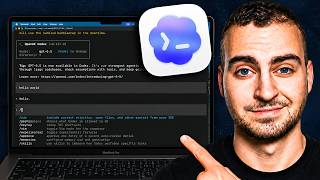
Stop Walking Around Like an Idiot with Your Laptop
34sRelatable pain point of programmers waiting for agents, with a promise of a solution.
▶ Play Clip
[00:00] I'm willing to bet that you've probably seen
[00:03] Someone walking around with their laptop screen
[00:06] and you know that if they're a programmer,
[00:10] I know that this has been me many times.
[00:12] Even the other day at the airport,
[00:13] I was walking around with my laptop screen open,
[00:17] because I needed my Claude code or codex
[00:21] Now, this is a problem that doesn't need to exist
[00:24] because you can actually run agents in the cloud
[00:28] And that's
[00:30] I'm going to show you how we can set up Codex
[00:34] So we never need to have our laptop screen half open
[00:40] So effectively, what I'm going to show you in
[00:44] agent decoding tasks in the cloud, self-hosted
[00:50] This means that you can be on the go, and then you
[00:54] You can reconnect to it from your laptop,
[00:57] that if that screen closes,
[01:01] Which means if you're sleeping
[01:05] where you just can't open your laptop,
[01:09] and you can actually run them on a schedule,
[01:12] Now for this video, we're going to use Codex.
[01:13] The reason for this is the Codex.
[01:15] In my opinion, is currently the best agent out there.
[01:18] Specifically, we're going to be using Codex CLI.
[01:20] This is something that can run
[01:23] and that we can execute from our phone,
[01:26] Now, Codex is currently leading
[01:29] It can actually run faster than cloud code
[01:32] is significantly cheaper to use,
[01:36] In terms of the usage that you get, it's
[01:40] you know, in 20 different sessions, 24 seven.
[01:43] So I promise we'll get into the set up.
[01:44] But I just want to emphasize why this is worth doing.
[01:47] Now, if you're going to run a coding agent
[01:50] you know, like cloud code or codex CLI
[01:54] You do need your computer to be open, and that's
[01:59] or your compute to actually run a terminal command
[02:04] then this is fine in many situations
[02:07] on the computer, you're working on something,
[02:11] and every prompt you give is taking,
[02:14] However, if you want to do a task
[02:17] or you want to run a task every day
[02:21] for a super long period of time,
[02:24] have your computer open,
[02:27] Obviously, this doesn't work,
[02:31] if you lose internet, if you do this battery,
[02:34] if for some reason it turns off or restarts
[02:37] you're going to lose all of that progress,
[02:41] So the solution here is to have a VPN or virtual
[02:45] private server
[02:48] It doesn't mean you're not going to run stuff
[02:51] when you want to do something,
[02:53] or you know that it's not going to be available
[02:57] Whatever you delegated to the VP.
[02:59] So the basic idea is, in this video,
[03:03] how to install codecs, CLI on it and authenticate
[03:07] and then how you can control it from your phone
[03:11] You can delegate those long running tasks
[03:15] handled securely,
[03:18] This way, any time you need something
[03:21] you want to run something on a schedule,
[03:22] do it all the VPNs and then the active work
[03:25] You separate things out.
[03:27] Now there's three main reasons why this works.
[03:29] First, a virtual private server doesn't go to sleep.
[03:31] It's available 24 over seven in a secure environment
[03:36] Just doesn't go out.
[03:37] You keep all of the data
[03:40] and you can keep everything in a secure environment.
[03:42] And importantly, you also have data center speeds.
[03:44] So if you're going to be in a low
[03:48] when I'm traveling,
[03:51] and get significantly faster speeds
[03:54] getting a data set, training a model,
[03:57] So anyways, that is kind of the quick brief here
[04:01] Now let me show you exactly how to do it.
[04:04] Now, the first thing we're going to need
[04:07] But you can get any that you want.
[04:09] But for this video, I'm going to be using Hostinger
[04:13] servers on the market.
[04:14] They're the most reliable
[04:17] Meaning I can give you guys an additional discount.
[04:19] So I would recommend going with the KVM two plan
[04:23] Here you can see all of the options they have.
[04:25] I'll leave a link to this in the description.
[04:27] I'm going to go with KVM two.
[04:29] And then from here what I'm going to do
[04:32] Now because I have a partnership with Hostinger.
[04:34] If you go here and apply to code tech with Tim,
[04:38] using a 12 month or 24 month subscription plan here,
[04:42] So regardless, pick your plan, pick the duration
[04:46] You can choose the region
[04:48] in my case, Indonesia,
[04:51] And then you can choose OpenAI Codex,
[04:55] and install some of the dependencies for you,
[04:58] Hostinger also has a lot of other one
[05:02] But of course for this video we need Codex,
[05:06] Continue.
[05:07] Now if you're following along with me here, it may
[05:11] If it does that you can just generate a random one
[05:14] Obviously save it
[05:17] I will delete this server afterwards.
[05:18] So I'm going to go ahead and press on.
[05:20] Next I'm going to add the malware scanner
[05:24] to have on the VPNs and then press finish.
[05:26] And it's going to take a minute
[05:29] Once it's done, I'll be right back.
[05:30] I'll show you how we can connect to it,
[05:33] Okay.
[05:34] So MVP's is now deployed,
[05:36] and what I can do is go to the dashboard here
[05:40] And you can see that I have Codex deployed.
[05:42] Now at this point I'm going to assume
[05:45] Whether you're using hosting or not,
[05:47] What we're going to need to do,
[05:51] so we can SSH into it and start configuring
[05:55] And before we start setting up scheduled tasks,
[05:59] So what I'm going to do is just copy this right here,
[06:03] And also
[06:06] If you forgot it you can change it right here.
[06:08] And what I'm going to do is open up a terminal.
[06:10] So you can see
[06:12] Here.
[06:12] Let me just clear this
[06:15] So you guys can see it.
[06:16] And we're going to paste the command ssh root at.
[06:19] And then the IP address of our server.
[06:21] Again if you're using a different provider
[06:25] You get the username which is typically root.
[06:27] And then you know the password for signing it.
[06:29] So let's go ahead and press on enter.
[06:31] We're going to go yes.
[06:32] And just say okay we can connect to this host.
[06:34] And then we're going to paste in our password.
[06:37] When you paste the password
[06:39] It will be invisible.
[06:40] So just paste it and then press enter okay.
[06:42] So you can see that
[06:45] You'll see that if you see root add
[06:48] In this case it's SRB that just would host or name.
[06:51] So now what we need to do is just verify
[06:54] If it's not I'll show you how to install it.
[06:55] In case you didn't use the one click
[06:58] to sign in with our accounts
[07:03] or we can use an API key if we want,
[07:06] Then after that, I'm going to show you a few quick
[07:11] Then we're going to connect it
[07:13] And I'll show you overall how this works.
[07:15] Automations all of that kind of fun stuff okay.
[07:17] So first things first
[07:21] Now again, if you use the one click
[07:24] it should automatically be installed for you.
[07:26] But if it's not, what you're going to want to do
[07:28] I'll leave this link in the description.
[07:30] It's just the docs from Codex,
[07:34] So there's a curl.
[07:35] You can just copy this, paste this
[07:39] And that will install the Codex CLI for you.
[07:42] Once it's installed you may need to just reconnect
[07:47] because sometimes the path variable
[07:50] I'm not going to talk about that too much in depth,
[07:52] but if you install it in the codex
[07:55] So just close it and re ssh back in
[07:58] So from here
[08:01] From here
[08:04] Or if you have your own API key you can use this.
[08:06] But it's probably going to be better
[08:10] So I'm gonna go sign in with device code.
[08:11] And what it's going to say is go to this link okay.
[08:14] So we're going to copy this
[08:17] And then we're going to paste this code
[08:20] So let's copy this.
[08:21] Go back okay.
[08:22] We're use my email here
[08:26] And that should allow us to be signed in case
[08:31] So from here it says that we're signed in now
[08:35] Enter from here. We're just going to go.
[08:37] Yes. Continue. That's fine.
[08:38] And you'll see that we've now opened up Codex
[08:42] so we can say, you know, hello world
[08:46] Now I'm not going to give you a full tutorial
[08:48] There's a lot of different slash commands
[08:51] I'd recommend triggering the fast mode here.
[08:53] Even though it's going to use more usage.
[08:55] It's going to run a lot faster,
[08:58] there's a lot of other stuff that you can run
[09:02] Okay, so Codex is now working.
[09:03] We have it running on our computer if we want to exit
[09:09] That should quit out of Codex.
[09:11] And we can type clear just to clear
[09:13] So we can have kind of a fresh screen.
[09:15] Now what I want to do next is I want to show
[09:19] because it's going to be very useful
[09:22] so that it can create repositories
[09:27] So if you don't already, I would suggest
[09:32] You can do that just by going to GitHub.com.
[09:33] You don't need to pay for anything.
[09:35] And then what we're going to do is the following.
[09:37] So first we're going to go to our little avatar here.
[09:40] And we're going to go to settings.
[09:41] Now from settings we're going to scroll
[09:45] And we're going to create an API key that we can use
[09:48] in our virtual private server
[09:52] You can actually even give Codex
[09:54] if you want, but I like to connect it to mine
[09:58] So what I'm going to do is go to personal access
[10:01] and go to fine
[10:04] I'm going to go create new token.
[10:06] And what I'm going to do here is just name this.
[10:08] What are we doing here? You know, Codex.
[10:11] Okay.
[10:12] For the exploration, I'm just going to go.
[10:13] No exploration, so we don't need to change it.
[10:15] I'm going to go all repositories
[10:19] And I'm going to start setting the permissions
[10:22] Now, if I want this to have the ability
[10:24] to create and delete repositories,
[10:27] And if I want it to be able to edit
[10:30] So make a commit or view it.
[10:32] I need to add contents.
[10:34] Also, I want it to be able to make pull requests.
[10:35] I need to add pull request.
[10:37] So there's a lot of things here.
[10:37] But for most of you, you're
[10:41] For all of these,
[10:44] Be careful.
[10:45] But what this is going to do
[10:45] is allow it to create a read delete
[10:50] This will allow it to create content,
[10:54] and then for pull requests this will allow it to pull
[10:58] Now this is one you might want to be careful with
[11:01] it can delete repos.
[11:02] So if you just want to test it to start,
[11:06] But if you want it to be able
[11:07] to make new repos for you and stuff,
[11:11] Okay, so from here we're going to generate token,
[11:15] after we install a tool called
[11:19] This is essentially a GitHub tool that Codex
[11:25] Let me show you how it works.
[11:26] Okay, so from our terminal we're going
[11:31] Okay. So exactly like I have on screen.
[11:33] And go ahead and press on enter.
[11:35] It's going to install g h which is GitHub effectively
[11:39] If we want to test if this is working we can run g h.
[11:42] Now after that we're going to type g h.
[11:44] And then I believe the command is not log in.
[11:46] It might be like okay, so start
[11:49] off and then log in okay.
[11:52] And then what we're going to do
[11:54] So to do this we're going to press GitHub.com https.
[11:58] And then we're going to use our git credentials okay.
[12:00] And we're going to paste in authentication token.
[12:02] So then what we're going to do is go back here.
[12:04] We're going to generate this token.
[12:06] Make sure you don't share it with anyone.
[12:07] And we're just going to paste it inside of here okay.
[12:09] So we're going to paste our authentication token
[12:13] Now you'll see it's logged in.
[12:14] You can see I'm logged in as tech with Tim.
[12:16] So now that I'm logged in my Codex should have
[12:21] And if we just want to test
[12:25] And we can just tell it,
[12:28] h command
[12:32] Can you just tell me a few repos
[12:34] Just to verify that the GitHub command is working?
[12:38] And by the way,
[12:38] if you're wondering what I'm using to dictate here,
[12:42] It's free to use.
[12:43] I have a long term partnership with them,
[12:45] In the description
[12:48] and is the best voice dictation
[12:51] It actually has some really cool insights now
[12:54] The streaks. Very cool, very good.
[12:56] And you can see that I can speak at 260 words
[13:00] as opposed to my normal typing speed,
[13:03] So anyways, I'm going to go ahead and press
[13:04] on, enter here, and it's just going to go
[13:08] And let's make sure that it works okay.
[13:10] So you can see that it's giving me
[13:14] to private and public, which means this is working
[13:19] And we can move on to the next step. Okay.
[13:21] So the next thing we're going to do is trigger
[13:25] just be able to control the virtual private server
[13:30] And I'm going to walk you through how to do that.
[13:32] Now the first thing we need to do here is install
[13:37] What this is going to allow us to do
[13:41] even when we're not connected
[13:44] The reason why we're going to need this tool,
[13:48] is because if we connect
[13:51] so we say, hey Codex, go do this thing, run CLI,
[13:57] whatever was happening is going to be kind of quit
[14:01] Right.
[14:01] So what tmux will allow us to do is run
[14:05] So even if we disconnect and we're not currently
[14:09] whatever we're doing
[14:12] which is super important
[14:14] So we're just going to install tmux like this
[14:18] I'm going to quickly show you 2 or 3 commands
[14:21] And then I'm going to show you how we can set this up
[14:25] So once you have tmux installed
[14:28] Okay.
[14:29] Now when you just run tmux,
[14:34] What it's going to do
[14:37] Now, if we want to view all of the shells that are
[14:42] We can see nothing is running right now
[14:45] But then I exit out of it,
[14:48] Now what we can do instead though is we can run tmux
[14:54] So in this case I'm going to call it codecs.
[14:56] Then when we do this is going to bring us again
[15:00] Here we can run anything that we want
[15:04] And let's just say hello world.
[15:06] And now what I'm going to show you
[15:08] virtual private server session
[15:12] I can get back into the shell
[15:16] So let me show you what I mean.
[15:19] Let's reopen the terminal and re ssh back in.
[15:22] Okay. Let me just get the password.
[15:24] Okay.
[15:27] You can see the codecs is still running.
[15:30] And then what I can do is type tmux attach.
[15:32] If I just type tmux attach by default it's
[15:35] to the most recent shell which is going to be codecs.
[15:39] Now if I want to attach to a particular shell
[15:40] because you can have multiple running
[15:44] And then codecs.
[15:45] And what this is going to do
[15:48] Now again, if you're not super familiar
[15:51] you may not know why this is important, but
[15:55] so that it can be stored
[15:58] Okay, so for now, we're going to leave this shell
[16:00] running on my computer
[16:03] So I'm going to show you how we can
[16:06] So we can trigger
[16:09] So from our phone here,
[16:10] what we're going to do is go to the App Store
[16:14] Now you can use anything that you want.
[16:15] But the app that I'm going to recommend
[16:21] It's free.
[16:21] You don't need to pay for anything,
[16:25] You can do this on Android.
[16:27] If not, you're just looking for any SSH client.
[16:30] Okay, so what we're going to do is just open up
[16:33] And effectively what we're going to do
[16:38] from our phone.
[16:39] So what I can do here is press on the plus button,
[16:43] and I can start putting in this information.
[16:45] Now for the label I'm just going to call this codecs
[16:48] okay CLI
[16:49] for the IP or hostname, I'm going to use the same one
[16:53] So that's 187.77.121.81.
[16:59] If you're wondering how do you find this hostname?
[17:01] You can see it up here on my computer.
[17:02] I'll hopefully have this on the screen as well.
[17:04] It's the same thing
[17:07] And if you go back to hostinger,
[17:10] or from wherever you deployed
[17:13] If we keep going, what we'll be able to do
[17:17] This is going to be root.
[17:19] And then the password is going to be
[17:20] the same password that you used previously
[17:23] Okay. So I've got all of those details in.
[17:25] There's not really anything else
[17:28] We can just go ahead and press on enter
[17:32] And it should start connecting
[17:34] So if I press on it now it's going to say
[17:38] yes I do want to trust this.
[17:40] And then it's going to bring me right
[17:43] Now from here,
[17:45] you can see in this app
[17:48] Like, do I want it to be light.
[17:49] Do I want it to be dark?
[17:50] I think it's going to be easier for you guys
[17:54] yellow color theme.
[17:55] And we can make the text size larger as well.
[17:59] One second.
[18:00] Let me move this here. Okay.
[18:03] You can set, you know, how you want it to look.
[18:05] And then from here you can type anything
[18:09] So what we want to do now is
[18:12] session that we were running here
[18:15] And if we don't have an existing session,
[18:18] So that again, if we disconnect and reconnect,
[18:22] So what we can do is type tmux.
[18:23] And then same thing. Last,
[18:25] if we want to view what we have running we can see
[18:29] So I can do tmux okay.
[18:30] And then I'm going to go attach like that
[18:33] dash t and then codecs like so.
[18:37] And you'll see that I'm now inside of here.
[18:38] It's kind of glitching out on my computer
[18:43] But you can see that if I type hello or something,
[18:48] Now, I know it looks a little bit weird,
[18:49] and that's just because we're attached
[18:52] But you can see now that I can trigger a task,
[18:55] I can get it to do something from my mobile device.
[18:58] And then again, importantly,
[19:02] and I go back to my phone, you can see
[19:04] it's still running and it's still going to be able
[19:08] And then again, if we quit out of this.
[19:09] So let's get out of our session and let's go back in.
[19:11] You can see that it will bring us back here.
[19:13] And then if I want to just completely close
[19:18] And then if I reconnect here.
[19:20] So give this a second to reconnect.
[19:21] Same thing we can do tmux
[19:24] and then attach.
[19:25] And then we'll be back in the codec session where
[19:30] And I'm going to change the color theme here.
[19:31] So it's a little bit easier to read
[19:35] So this one looks good.
[19:36] And then we can start triggering various tasks.
[19:39] So just give you an example of something we can do
[19:41] I'm just going to paste in a URL.
[19:43] This is one of the GitHub repos I have access to.
[19:46] And I'm just going to say
[19:53] And I know I'm kind of spelling some of this wrong,
[19:55] And let's go ahead and press on, enter and let's
[20:00] So you can see that
[20:02] It's giving me all of the responses and saying which
[20:07] And now we're good to go.
[20:08] And the same thing.
[20:08] We could close it, reopen it, go on our laptop,
[20:11] Now where this is going to become super
[20:16] So I want to show you that
[20:19] But keep in mind
[20:21] you could do it from your phone as well.
[20:22] It's just easier for
[20:24] Okay, so I'm back on the computer.
[20:26] You can see I've reattached to the team like session
[20:28] where we are running from our phone,
[20:31] Now, like I mentioned,
[20:33] Automations are just things
[20:36] Now, unlike Cloud Code, Codex doesn't have any built
[20:40] in kind of scheduling feature, although I'm sure
[20:43] But if we want to set that up to run on our VPS, it's
[20:48] called a cron job, which is a huge advantage
[20:52] Now, effectively,
[20:55] to do this for us and say, hey, every day
[21:00] Maybe
[21:00] I want you to review all of the code in my code base
[21:05] Maybe I want you to review all of the PR
[21:08] Maybe I want you to write a change log of anything
[21:12] Maybe I want you to update all of the Readme files.
[21:14] Whatever. Okay.
[21:15] So what I'm going to do is just define
[21:18] I want to set up a simple automation
[21:23] I need you to create a cron job.
[21:25] This is the key term that you want to keep in mind
[21:27] Cron job
[21:30] That runs correctly on the repo
[21:33] that I just sent you above and reviews all of the PR
[21:39] to the repository that includes the status of this PR
[21:45] This is a silly automation.
[21:46] Like it doesn't really make sense to run this,
[21:49] you could do.
[21:50] I'm saying, hey, set up an automation to use Codex
[21:55] Now the way that this is going to work
[22:00] And if you run this, it's
[22:04] but it will just execute whatever you ask it to do.
[22:07] So I can say Codex Exec and then like do this thing
[22:12] so we can set up a cron job that will do that for us.
[22:15] And I'm just going to go, yes.
[22:16] And don't ask for these commands
[22:19] So effectively what it's going to do is say hey
[22:23] what's called a cron job,
[22:27] Codex Exec, which is going to trigger
[22:32] is going to go and run this task and then complete
[22:36] So you can see that it's currently creating this cron
[22:40] It asks me just to approve the command, which I did.
[22:42] And you can see now that the entry is installed
[22:46] So we're just going to tell it okay, run this.
[22:48] And again the advantage of the VP is
[22:51] So it's not going to mess up your own computer.
[22:53] If it actually makes a mistake
[22:55] It's not a huge deal.
[22:56] So just running all of these cron the
[23:01] And then we will have that automation
[23:05] So just doing a dry run now
[23:08] I'm not going to bore
[23:10] I just wanted to show you that setting up
[23:14] utilize this service
[23:17] even when you're not manually triggering
[23:20] And again, the reason
[23:21] why you want something like this is that if you want
[23:25] you just delegated to the VPCs
[23:29] Again. You could set up all these automations.
[23:31] You can have a trigger, you can set up, you know,
[23:35] Codex CLI, which is currently kind of the leading
[23:41] So that's it guys.
[23:43] If you enjoyed make sure leave a like subscribe
⚡ Saved you time reading this? Transcribe any YouTube video for free — no signup needed.