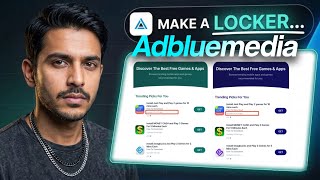

How to Create a Content Locker on AdBloom Media
56sDirectly answers a common question with a step-by-step tutorial, making it highly searchable and useful for the target audience.
▶ Play Clip"Delivers the tutorial but pads it with a long course pitch, making it average."
This video provides a step-by-step guide on creating a content locker using AdBloom Media (referred to as Adlo Media). The presenter demonstrates two methods: using a basic template with a direct link and using the Prime Visual Editor to generate embed code for websites. The tutorial covers configuration, customization, and integration with platforms like Google Sites and Odoo, along with a promotional segment for CPA marketing courses.
You can create a content locker on AdBloom Media in two ways: using a basic template (Build option) or using the Prime Visual Editor. The basic method is easier and requires minimal knowledge of tags.
Go to Content Locker > Build, select 'Build Up Modification', choose a base template with mobile installation, and name your locker. Customize instructions if needed.
Set the number of offers (max 5) and offers required (e.g., 4). Payout required is in cents: 500 = $5, 100 = $1, 1000 = $10. This determines which offers are shown based on user's country.
After offers, set a redirect URL for users who complete offers, or leave blank to close locker. Tap 'Save and Preview' to see the locker.
After saving settings, tap 'Save Settings', then 'Get Link' to obtain the content locker URL. Paste it anywhere to use; offers appear based on user's country.
Select Prime and tap 'Build Now' to access the visual editor. Choose a template (e.g., 'Popular offer of locker'), customize offers, design, and generate code.
In the visual editor, you can change background, edit elements like header color, border radius, and title. Adjust offers and payout similarly.
After saving, tap 'Build a link and code for website', select your locker, and generate code. Copy the code for integration.
Use an AI tool like DeepSeek to convert the script into a function with HTML code. Prompt: 'Simple turn this script into function using HTML code also don't add any extra text or comments inside the code keep it blank and key function automatically in 3 seconds.'
Create a landing page on Google Sites, use the Embed code option, paste the script, and publish. The locker will appear on the page.
On Odoo, create a blank page, use the embed code feature, paste the script, and save. The locker will load on the page.
Both methods work; direct link is easier, code method requires more work. The presenter promotes CPA marketing courses (₹10,000 and ₹2,499) with mentorship and free traffic strategies.
The video effectively demonstrates how to create and deploy a content locker on AdBloom Media using both direct link and embed code methods, with practical integration examples. However, the final segment is a lengthy promotional pitch for paid courses, which may detract from the tutorial's value.
What are the two ways to create a content locker on AdBloom Media?
Using a basic template (Build option) and using the Prime Visual Editor.
00:27
What does 'payout required' of 500 represent in dollars?
500 cents equals $5.
01:42
How many offers can you set as maximum in the basic template?
Five.
01:27
What is the purpose of the redirect URL in the content locker settings?
To redirect users to a specific link after they complete an offer.
02:12
Why might only three offers show when you set five?
Because only three offers are available for the user's country (e.g., India).
02:55
What prompt is suggested to convert the script into a function using an AI tool?
'Simple turn this script into function using HTML code also don't add any extra text or comments inside the code keep it blank and key function automatically in 3 seconds.'
08:43
Which website builders are mentioned for integrating the content locker code?
Google Sites, Odoo, and Blogger (Blogspot).
10:06
Two Methods Explained
Provides a clear overview of the two approaches, setting expectations for the tutorial.
00:27Payout Calculation
Explains the cents-to-dollar conversion, a key detail for configuring offers correctly.
01:42AI Script Conversion
Introduces a practical technique using AI to convert raw script into a functional embed code.
08:43Course Promotion
Highlights the presenter's business model, but also serves as a reminder of the video's promotional intent.
14:54[00:02] how to create a content locker inside Ad Bloom Media. Because it is tough to create a small content locker on it. And many people commented on how to create a content locker on Almedia. So in today's video I am going to explain in simple words and show you
[00:15] explain in simple words and show you So first of all, take a look. First of all, you should know that
[00:27] you can create a content locker on Adlo Media in two ways. You And if you have even a little knowledge of tags, where to put the code and where not to put it. Then you can create a content locker in a better way.
[00:43] go to the Content Locker section here and go to the Build option. Here you will go and you will get an option called Build Up Modification. You simply have to go to Select a Base Template and choose the template with mobile installation. This will be the easiest way to
[01:00] create a content locker. You will not have to work hard on this. You will You will get the option of Create New here. After that you have to give a name here. Like I give it here Rahul DW@.
[01:14] You have to give the name of your locker which will be visible to you in the blank. After that let it remain simple. Similarly, you do not have to do any tampering here. If you want, you can customize the instructions. If you want
[01:27] something else to be downloaded instead of installed here, you can rename it here. After that let this also remain blank. Don't tamper with anything. Here comes the number of offers. You can enter a maximum of five here. End Offers Required is how many offers you want the
[01:42] user to complete. So let's make it four here. After that the option of payout required came here. Now pay attention to one thing here, you will put 500 here. Investing 500 means $5. Meaning, if I enter 100 now, an offer of $1 will be shown here.
[01:58] Ok? Similarly, if I deposit 1000 then it means that a payout of $10 will be shown to the user. If those offers are available in his country. So for now, I'll just put 500 here. After that you don't have to do any mischief here either.
[02:12] you don't have to do any mischief here either. Then on offer complete, if you are providing something to someone through the locker, like a link to a video or a link to anything, then you can enter the link of that thing here in the redirect URL so that if the user
[02:26] completes the offer from your locker, he gets redirected to that place or if you are not providing anything then you can leave it blank by tapping on close locker. After this, you just have to tap on Save and Preview here.
[02:42] mistake. Instead of this you can also add some numbers. Then we tap on Save and Preview. So our locker preview will now be enabled.
[02:55] Here the same instructions which I told in starting have been added here. And here three offers are being shown. But we did five shows, why are there only three ? Because only three offers are available for India. Ok? If there is a person
[03:07] who has five offers available in his country, then he will get five shows. And if you want, I can change it here and show you. Like Like download an app from the list below.
[03:22] After doing this, you have to tap on Save Still and Preview. how do you use it? First of all you have to tap on Save Settings.
[03:34] You will see the button here. Here you will tap. save the template. After clicking OK, you will see the option of Get Link here. If you tap on this, you will see the option of Get Link here. If you tap on this, you will
[03:48] Now what is this URL? This is your link to Content Locker. Let me show you how to use it once. It is ready to use. If you paste it somewhere like I do, paste it here.
[04:04] So this is our content locker will now open. This one will take a little loading and then it will open. I have
[04:18] I turn off the ad blocker. Then we will try. Now look, the offers here are being shown again. Now wherever the user taps here, his click slides in any offer will appear on your dashboard.
[04:32] One way is to create a content locker. Ok? After that, whatever you check here, one is RPG related. On this also you will generate the link in the same way by entering
[04:47] whatever instructions you want to enter here. But one last option comes Visual Editor by Prime. If you want to make a spray because there are time. Here you have to select Prime and tap on Build Now.
[05:03] After that it will load something like this. You can see that we have made many lockers here. What do you need to do to make it simple? Here you will have to tap on Create Now. You will have to tap on Create New. After that enter any locker
[05:15] Rahul 7982 then I will press done. Then here I will get the option to choose a template. The templates are also very good.
[05:27] I will show you once. There is a slight network issue. Now you can see that many templates have come here. My favorite among these is this one. My favorite among these is this one. Popular offer of locker. So let me
[05:40] show you this. You simply have to tap on it. This will open your locker. Now what do you have to do to customize it ? Here first of all you will go to the offers. No no, you have to go to general. There is no need to tamper with anything here.
[05:52] After this you have to go to the offer. After going to Offers, Number of Offers: How many offers do you want to show? Like I want to do five. I will put five. Again, in Offer Required, we want to get three offers made. I will put three. Same
[06:07] rule will apply here also. 100 cents is $1, so I'll put 500 here. After that, after completing the offer, if you want to redirect the user somewhere, you can do it by entering the link from here. If you do n't want to do it, you can tap on Close Locker.
[06:20] After that comes the feature of Design Your Content Locker. First of all you will get the page. You can change the background from here. You can add a page or image. I want to put this in as I show. So this will be placed in the background here. But I don't want to put this in
[06:35] because it doesn't feel right. I will leave this blank. Instead, I'll show you how to edit the element inside the content locker. First I will go to Content Locker. First I will go to Content Locker.
[06:49] three. You may not be able to see this clearly. But when I enter three here, you will see that the edges here have become round. Now I set it to zero and see, it has become a complete rectangle shape. I have done three so it has become a little rounded. Similarly, if
[07:04] I do 10 then see it will get rounded. Ok? You can do one here. This is followed by the header. If you tap on the header, you can edit this element. Like currently its color is blue. I will change this.
[07:17] We have done this green. Or instead of this color, I can also put a background image here.
[07:32] Wherever you look at it, it looks a little okay right now. Now after this you can make some adjustments here. And you can change the title. Like let me change it here and show you.
[07:49] Complete offers below. Here you will come to body offers. You can change the second line. I will leave this one as it is. You can easily customize it yourself.
[08:03] I will tell you directly how to use it now. You have added everything on. After that you have to tap on save blank. If you tap on Save, you will get a notification of Content Locker Save. A popup will appear.
[08:16] By tapping OK on this, you will get the option on last second here. Build a link and code for Build a link and code for website. You simply have to tap on it. whatever locker you had created will be
[08:28] automatically selected here. All you have to do is tap on Generate Code here. After doing this you will get a code here. Now I am going to tell you what this code has to do. So simply first of all you have to copy this code. Correct?
[08:43] I copied a code here. Now I will go on my deep seek. Go to any eye tool. What do you have to write? Here you have to enter a format. Simple turn this script into function
[08:57] using HTML mm code also don't add any extra text or comments inside the code
[09:10] or comments inside the code keep it blank and mm key function automatically in 3 seconds.
[09:25] You can even try copying and pasting. Try to write what I have written. Here you can increase or decrease the time as per your requirement. I've done three. You can do five or you can also ask to add it immediately.
[09:39] After doing so much, where did this thing that you copied from the media come from? This much that you copied, you simply have to paste it. If you paste this code, this one will
[09:51] generate it. Now I am telling you where to put it. For this you will need a landing page. If you want, you can create an account on bloggspot.com and get a landing page from there.
[10:06] Here I go to Google Sites. We also get the feature of M Export on Google sites. Ok? Here you have to tap on Get Started. You have to
[10:26] choose any one blank set. After that the option of AMD will appear here. You have to tap on that aid code. You have to tap here the script that we have taken from Deep Six. And then tap on Next.
[10:46] After fetching the code, you have to tap on Insert. After that, first you have to give a name to your landing page. Like I am Rahul
[11:02] your landing page. Like I am Rahul locker 1 2 3 okay? After doing this I published it. The locker has already been opened here. You will see. opened here. You will see. Ok? From here I take the link of
[11:16] Ok? From here I take the link of my site. This one was our site. And let me open it and show you.
[11:37] Look, the content locker has opened here. Now the user will tap and will be redirected to the offer. You can further customize this locker. If you are using Google Sites then you can add it like this. Or if you are using Odoo. Ok
[11:52] ? You know you can create a website on Odoo. Free doesn't cost any money. You have to come to Settings and click on this new tab. After that tap on the blank page. You can give any name here.
[12:07] Like I give Rahul, again Rahul locker. You have to tap on Create. Your page will open here. After that, the edit option will appear on the right side. My net is a bit slow. I will wait. Look, the option has come here.
[12:22] After the option comes, you will get the feature of AIM code here also. You have to pick it up from here and drag and drop it. Tap on the code. Tap on Edit. You have to paste the same thing here which Deep Learning gave us the code. This one we picked up.
[12:37] gave us the code. This one we picked up. Pasted it here. Saved. We save it. This is being saved.
[12:54] seeing this one Rahul Locker
[13:16] copied and pasted the script of the other locker here. I will give this locker's to Rahul's. I will give this locker's to Rahul's. Again I go and give this one to him in this way of locker. I will copy it. I will go to
[13:32] edit again. Let me refresh the page first. I will go to the
[14:10] tap on blank pages. Now here you have to give any name to your locker. I will give it to Rahul and this one will open after locking it. will see the edit option on the right side. If you tap, this section will open. The option containing the embed code has to be
[14:25] dragged and dropped here. Here again you have to tap on Edit. Then tap on Edit and what do you want to enter here? The entire code that we took from Deep Six has to be pasted here. I'll paste this. We have to save the donation.
[14:38] After saving, let us check whether our locker is working or not. Here you will see that the locker has been loaded again. So in this way you can create a locker on ad media. One with a direct link and one with a code. Ok? It is a very easy
[14:54] process. You can go and try it. It is a very simple process. I hope you have understood how Ad Blue Media's content bloggers create it. is perfect. Or even if you use the code,
[15:06] this thing is perfect. There is no tracking issue. Well, you will have to work a little hard to make a locker on this. If you are creating a Prime locker, then the one with direct link will be easy. And if you are making it from Prime then you
[15:19] can use Blogger Spot site to do M code or you can use it from Google site. Like I have done here. You can do this or you can also do it from O.com. You will get this feature there also. There are three options.
[15:32] Do any one of the three and the work will be done. So before ending the video, let me tell you that if you want to learn CPA marketing actually, want to learn it in a serious way, want to learn it with a proper plan using which we ourselves are earning. As I can show, the
[15:45] payment has been taken out from here 3 hours ago. It's been 4 hours. The payout is $769 from here. Let me show you that this is actually real. You will see here that the payment is still pending. It will be submitted shortly. If you actually want to earn in this way then
[15:58] you will need a proper road map strategy which we provide in Digital School. So if you have a good budget and want to see your first lead within few days in CP Marketing then you
[16:12] can enroll in the course of Rs 10,000. In this you will get 3 months access. Its cost will be 120 USD. It may fluctuate depending on the exchange rate. But if you are in India then you will get this flat for $10,000 of course. In this you will get recorded step
[16:25] by step videos of CPA marketing and on this we conduct live classes every week in which all the doubts etc. are cleared or if anyone is facing any issues related to the method, the setup is done, we get all these things done.
[16:40] Ok? After that, you will get the recording of all the old classes that have taken place till now in you will get the recording of all the old classes that have taken place till now in this 10k course. Along with this, you will get a method to scale to $100 per day, which you can skill very fast if you
[16:52] learn it properly, a high earning method and access to premium group in which all the assets etc. which have been used in the methods will be available and mostly available and mostly you will get mentorship in this, okay,
[17:05] mentorship is available only in this course and it is available in the 19K course, okay, so if your budget is good and you want to see leads within these few days, then you can enroll in the 10K course. You
[17:20] tap here, you will be directly redirected to my WhatsApp. If you have any queries related to any course or want to ask something, you can ask me there. Ok? But if your budget is low and you want to see results within a month
[17:34] , then you can go with this course of Rs 2499. In this you will be told advanced organic strategies. Free traffic sources will be mentioned which can be used on this method. In this you are going to get 45 days
[17:46] access and access to the community. Ok? You will see that in this 10K course, there will be no need to make any investment after purchasing it because the methods that we use in this are all
[18:00] through organic and free traffic. So it is not that after getting the course done we will charge you something extra within the course itself. Nothing like that is going to happen. Everything in the course is based on the free traffic that we are using. Everything is proven. Ok
[18:14] ? So you can enroll by tapping on the button here and you can also check the students here, if you scroll down a little then you will come to know that this method has been working for a very long time. Ok? So let's end the video. You will get its link
[18:28] here in the bio of the channel. So here you will get the link of Digital School on the bio of the channel. You can check it out if you want. So see you on the next can check it out if you want. So see you on the next video. Thanks for watching.



⚡ Saved you 0h 18m reading this? Transcribe any YouTube video for free — no signup needed.