
I Broke YouTube's Algorithm
45sClaims of massive success and revealing secrets hook viewers with curiosity and promise of easy money.
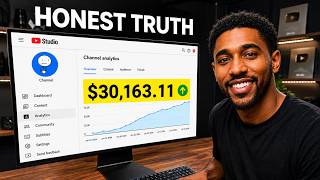
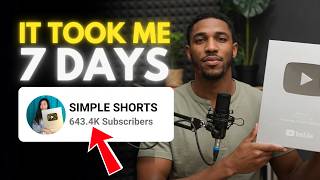
▶ Play ClipThis video reveals a step-by-step system for growing a YouTube Shorts channel from scratch, achieving over 800 million views and $75,000 in five months. The creator emphasizes that this is not a get-rich scheme and focuses on building channel trust, finding trending content, and using retention psychology.
The creator states it took 5 months to achieve the results, and the video is not for those seeking quick success.
Instead of avoiding shadowban, focus on building trust: use an old Google account or warm up a new one for 5–7 days with natural activity (watching, liking, commenting).
Verify phone number in settings > channel > feature eligibility. Use a face or recognizable figure for logo; design a simple banner with borders in Canva.
Goal: 1,000 subscribers and 10 million views for monetization. The creator got monetized in under 30 days by focusing on trending videos.
Search for heartwarming/heroic stories on YouTube Shorts, find viral videos, and recreate them (not steal). Recreate to avoid copyright strikes.
Stealing videos gets the channel killed; recreating complies with policies. Example: a story about a boy who wants a basketball hoop—the creator's version got more views than the original.
Get the transcript of the model video, add a personal spin, or use ChatGPT to rewrite. Always review AI-generated content for mistakes.
Free and unlimited. Use playground > text to speech, select a single speaker, paste script, choose voice, run, and download.
Extract characters from the story, convert to 3D style using ChatGPT, then separate characters. Generate scene images using Whisk (free) or Nano Banana Pro.
Create free Grock account, turn off auto video generation in settings, use imagine > video mode, set 9:16 aspect ratio, paste prompt and upload image—10 free generations/day.
Import voiceover and visuals, adjust pacing (add/cut pauses), arrange clips to match voiceover, add original image + emoji at end, sound effects, transitions, captions, and background music.
The whole process takes about 60 minutes. On good days, the creator makes over $2,000 from 60 minutes of work.
YouTube pays based on RPM (revenue per 1,000 views). English-speaking countries (US, UK, Australia) have higher RPMs, so use English voiceovers and captions. Never use VPN—it doesn't help and triggers suspicion.
Use YouTube app: tap +, select video, choose music from YouTube library (safe), write title with keywords, add #shorts hashtag, set thumbnail from best moment, mark audience correctly (not made for kids unless true), upload.
Post at least one video daily, max three per day to avoid spam detection. If a channel doesn't grow in the first month (stuck at zero/1K/30K/100K views), start a new channel—the algorithm labels early performance.
YouTube only cares about retention. Three psychological parts: hook (first 3 seconds—use audio+visual+text hook), body (fast pacing, cuts, zooms), reward (payoff at end, cut immediately after, optional CTA).
You can achieve significant growth on YouTube Shorts by using a system of finding trending stories, recreating them with AI tools, and applying retention psychology. The key is consistency and focusing on audience retention, not just views.
What 3 psychological parts are in every video according to the retention psychology framework?
Hook, body, and reward.
16:58
What is RPM in YouTube monetization?
Revenue per mille (per 1,000 views).
12:24
Why should you never use a VPN to upload YouTube content?
It signals suspicious activity to the algorithm, and RPM is based on viewer location, not upload location.
12:59
How many videos per day is recommended for a YouTube Shorts channel to avoid spam detection?
Maximum 3 videos per day.
15:05
What is the recommended aspect ratio for YouTube Shorts videos?
9:16 (vertical format).
09:29
How long should the hook (first part) of a short video be to grab attention?
The first 3 seconds.
17:00
What should you do if your channel doesn't grow within the first month?
Start a new channel with a different account.
15:11
Which countries typically have higher RPMs?
English-speaking countries like the United States, the United Kingdom, and Australia.
12:40
What tool is recommended for generating voiceovers (free and unlimited)?
Google AI Studio.
06:17
What is the main reason to add pauses and cut out pauses in the voiceover during editing?
To maintain the viewer's attention for as long as possible.
10:25
Building channel trust from scratch
Instead of fearing shadowban, provides actionable steps to prove the channel is human and trustworthy.
00:36Recreating vs stealing viral videos
Explains a safe, repeatable method to leverage trending content without copyright risk.
03:5660-minute workflow yields $2,000 on good days
Quantifies the efficiency of the system, showing high earning potential from a short daily effort.
11:51Retention psychology: Hook, Body, Reward
Provides a clear, actionable framework for structuring videos to maximize watch time.
16:00[00:00] I broke the YouTube algorithm, getting
[00:02] over 800 million views with over 600,000
[00:05] subscribers. In 5 months, I've made
[00:07] close to $75,000.
[00:09] In this video, I'm going to reveal all
[00:12] the secrets, including a simple niche
[00:14] that anyone can start today, even if you
[00:17] know nothing about YouTube automation.
[00:19] All right, before we get into the actual
[00:21] video, I want to mention that this is
[00:22] not a get-rich scheme. It took me 5
[00:24] months to achieve this result. So, if
[00:26] you're for quick success, then I'm
[00:28] sorry. This video is not for you. Let's
[00:30] get started. All right, we're going to
[00:32] start with creating the channel. This is
[00:33] simple, and I know anyone can do it. But
[00:36] there are a few things you need to do to
[00:37] avoid your channel from getting zero
[00:39] views. The thing is, YouTube does not
[00:41] officially confirm shadowbanning the way
[00:44] other platforms do. What usually happens
[00:46] is that new channels get limited initial
[00:48] reach. So, instead of avoiding
[00:50] shadowban, what you really want is
[00:53] building channel trust from day one.
[00:55] Here's how to properly set up your
[00:57] YouTube channel to avoid triggering low
[00:58] trust signals. Use an old Google account
[01:01] that has normal activity history. Why?
[01:03] Older accounts have search history,
[01:05] watch history, comment history, natural
[01:08] behavior patterns that builds trust. But
[01:10] if you don't have an old account, then
[01:11] here's what I'll recommend. Create a
[01:13] brand new account, but warm it up for 5
[01:15] 7 days to build those histories. I mean,
[01:17] watch videos daily, like videos, comment
[01:19] naturally, subscribe to the channel you
[01:21] love, and avoid uploading immediately.
[01:23] Act like a real human. Next, go to
[01:26] settings,
[01:28] channel,
[01:30] and feature eligibility.
[01:33] Make sure you verify your phone number.
[01:35] Don't just leave it. Unverified channels
[01:37] look low trust. Now, the keywords, I'm
[01:40] going to be honest with you, I didn't
[01:41] add any keywords here. Per my
[01:43] experience, I don't think this really
[01:44] matters for a short channel, but you can
[01:46] go ahead and add some keywords later on,
[01:48] but right now, I need you to follow what
[01:50] I'm showing. For the logo and channel
[01:52] banner, you need to keep it simple.
[01:54] Yeah, don't make things complicated. So,
[01:56] for the logo, I recommend you use a face
[01:58] or a recognizable figure. The human
[02:00] brain is obsessed with faces. We even
[02:02] imagine faces in random objects. So, if
[02:05] your channel has a face or a character,
[02:07] your audience will notice you faster and
[02:09] click more often. I'm going to use this.
[02:11] And since the image is in a square
[02:13] shape, there's no need to resize it.
[02:14] I'll just upload it here.
[02:18] For the banner, just open Canva. In the
[02:20] search bar, simply enter YouTube banner.
[02:23] Now, you're going to choose the one you
[02:24] like here, but you need to make sure it
[02:26] has borders like this one. The reason is
[02:29] we want the banner to show on all
[02:31] devices. I'm going to go with this one
[02:33] here. Now, just change the text and the
[02:34] color to your preference. Remember to
[02:36] keep everything in this space. All
[02:38] right. You're going to download it by
[02:40] clicking share. Click on download.
[02:44] And here, click download again. Now you
[02:47] can upload it here and hit publish.
[02:50] If you've completed this first step,
[02:52] congratulations. You're already ahead of
[02:54] the 99% of people you say they'll start
[02:56] but never do. All right, we're going to
[02:58] move on to the next step, but I kindly
[03:00] ask you to use 5 seconds of your time to
[03:03] like the video and subscribe to the
[03:04] channel. Now that your channel is ready,
[03:06] our next focus is to get monetized. You
[03:08] all know the rules, so we need a
[03:10] strategy to get 1,000 subscribers and at
[03:12] least 10 million views before we can get
[03:14] monetized. That sounds like a lot, but
[03:17] relax. I got this exact channel
[03:19] monetized in less than 30 days, and I've
[03:21] achieved this result in 5 months. Just
[03:24] chill. You know what? Instead of wasting
[03:26] time warming up your account, what I
[03:27] want you to do is to use that time to
[03:30] find trending videos. Let me show you
[03:32] the actual example I used to create one
[03:34] of my recent videos that's currently at
[03:36] 37 million views. You're going to open
[03:38] YouTube on your new account, but if
[03:40] you're doing this on an old account, I
[03:41] recommend you do this incognito. This
[03:43] way, your feed is not personalized and
[03:45] YouTube shows you what is actually
[03:47] trending. Next, search for heartwarming
[03:49] or heroic stories or any story you like.
[03:51] Click on shorts. Now, instead of finding
[03:54] the best topic, we'll do this instead.
[03:56] We're going to find videos that are
[03:58] going viral and recreate them. So, keep
[04:00] scrolling and once you get the trending
[04:02] video, open up the description to see
[04:04] the total views and when it was posted.
[04:06] Once you get the video you like, then
[04:08] it's time to recreate it. Let me show
[04:10] you this worked for me. This is a video
[04:12] I found some weeks ago, and it's a
[04:15] simple story about a boy who dreams of
[04:16] playing basketball. He really wants to
[04:18] practice, but his parents can't afford
[04:20] to buy him a basketball hoop. One day, a
[04:22] kind neighbor shares his story on
[04:24] Facebook and asks people for help.
[04:26] Because of that kindness, the boy
[04:28] finally gets the basketball hoop he
[04:30] always dreamed of. As you can see, even
[04:32] though this video is a month older, mine
[04:34] has gotten more views. So, I repeated
[04:36] this idea once per day, and I had
[04:38] infinite ideas that are proven to work.
[04:41] This strategy is so good because instead
[04:43] of starting from scratch to get ideas
[04:45] that are set up to fail, we reverse
[04:47] engineer the virality of our video by
[04:49] leveraging what's already working for
[04:51] our audience. But here's where you need
[04:53] to be careful. Notice why I asked you to
[04:55] recreate instead of steal. If you steal
[04:57] videos, YouTube kills your channel.
[04:59] You're not only going to make no money,
[05:01] but you'll also get hit by copyright
[05:03] strikes. And when it happens like that,
[05:05] YouTube might remove your channel. This
[05:06] is why I never try stealing videos, but
[05:08] recreate them to comply with the YouTube
[05:11] policies and guidelines. But if this
[05:13] step is complicated for you, then I
[05:15] actually have a simple method I use with
[05:16] AI to consistently find good video
[05:19] topics. But I can't really share
[05:21] everything here in this video because if
[05:22] the exact strategy becomes public, a lot
[05:25] of people will start copying it and the
[05:27] niche could become saturated very
[05:28] quickly. So I decided to leave that part
[05:30] for people who are serious about doing
[05:32] this. I've included that method along
[05:34] with the entire workflow on Gumroad
[05:36] where I break down everything step by
[05:38] step. Just so you know, it's not free,
[05:39] but inside you'll get the full system.
[05:41] Plus, I've also added a private WhatsApp
[05:43] group where you can share your channel
[05:44] and I'll personally review it and help
[05:46] you improve. The link will be in the
[05:47] video description. And even if you don't
[05:49] have any budget to spend, don't worry
[05:51] because I use the strategy I'm showing
[05:53] right now. So, where do I find script to
[05:55] create my videos? It's simple. I get the
[05:57] transcript of the video I'm modeling,
[05:59] then add my own spin. I usually write
[06:01] the script myself and you can also do
[06:03] that. Yeah, that's better. But if you
[06:05] can't go with that method, then you can
[06:07] ask chatgpt to rewrite it for you. Just
[06:10] make sure you read through. Yeah, AI
[06:12] makes mistakes sometimes. Once the
[06:14] script is ready, you can go ahead and
[06:15] generate the voice over. I use Google AI
[06:18] Studio for the voice. It's also 100%
[06:20] free and unlimited. On the homepage, hit
[06:23] on playground. Go to text to speech and
[06:26] here pick the first option.
[06:29] Select a single speaker from this tab
[06:31] and then paste your script. Click here
[06:33] to pick the voice you like.
[06:36] Now you can hit the run button and
[06:38] you'll get something like this.
[06:40] >> She was in danger and only one kid saw
[06:43] it in time.
[06:45] >> All right, just hit the three dots and
[06:47] select download to save it.
[06:49] So where do you find footage for your
[06:51] videos? First, I find the actual
[06:53] characters in the story. Then change the
[06:55] style to 3D. Let's use this story as an
[06:58] example. First, I'll get the actual
[07:00] characters. Sometimes they'll be in a
[07:02] single image like this one. If it's not,
[07:04] then you'll have to find them one by
[07:06] one. Once I get the image, I'll then
[07:08] give it to ChatgPT and ask it to convert
[07:11] it to a 3D style. You can see it gave me
[07:14] this image here, but separating it won't
[07:16] be easy. So, I asked it to separate the
[07:18] characters and give me three separate
[07:20] characters.
[07:23] I then opened it with the normal photo
[07:25] software in my Windows, then separated
[07:27] them one by one. If you can't use the
[07:30] photo editor on your PC, you can also
[07:32] use Canva.
[07:36] Next, I asked it to give me visual
[07:38] scenes for all the lines. And it gave me
[07:41] these prompts, but you realize it gave
[07:42] me eight scenes here. Meanwhile, the
[07:44] scenes were supposed to be 10 because
[07:46] the script has 10 lines. So, I asked it
[07:49] to regenerate it and it finally gave me
[07:51] 10 scenes. This is why I always say you
[07:54] should go through everything you
[07:55] generate using AI. Now, we can generate
[07:57] the visuals and then convert it into
[07:59] videos. I'm going to be sincere with
[08:01] you. I use Nano Banana Pro for this
[08:03] step, but you can start with Whisk. It's
[08:05] 100% free and I think it's unlimited,
[08:08] too. You can see that they're moving Wis
[08:10] to Flow on this date. So, this step may
[08:12] change a bit in future. All right. Start
[08:15] by uploading all your characters here.
[08:20] To add the next character, just hit on
[08:22] this plus button.
[08:27] Once done, just paste the prompt for the
[08:30] first scene. Select the characters that
[08:31] appear in the prompt. For instance, the
[08:33] old man and the boy appeared in the
[08:35] first prompt. So, I'll select those two
[08:37] characters.
[08:40] Now set the aspect ratio to 9 by6 and
[08:44] generate.
[08:47] Just repeat these same steps to generate
[08:49] all the scene images. All right, now
[08:51] let's turn your images into videos.
[08:53] First, open Grock and create a free
[08:55] account. You get around 10 free
[08:57] generations per day, which is more than
[08:59] enough for this process. Now, instead of
[09:01] going straight to generate the video, do
[09:03] this instead. Click on your profile icon
[09:05] and go to settings. On the left side,
[09:08] click behavior. Scroll down and turn
[09:11] auto video generation off. This is
[09:13] important because it gives you full
[09:14] control and prevents you from wasting
[09:16] your free generations. Now go back and
[09:18] click on imagine from the left menu.
[09:21] Click the image icon, then switch it to
[09:23] video mode.
[09:26] Make sure the aspect ratio is set to 9
[09:29] by 16 vertica format for shorts. Next,
[09:32] paste your prompt into the box and
[09:34] upload the image you created using that
[09:36] prompt.
[09:40] Once everything is ready, click
[09:42] generate. That's it. Repeat the same
[09:44] steps to create the rest of your videos.
[09:46] Now, moving to editing. Once you have
[09:48] all the clips, you'll need to edit them.
[09:50] To do this, you're going to open your
[09:51] video editor, which is in this case Cap
[09:54] Cut, but you can also use Premiere Pro,
[09:56] Da Vinci, or any other app you prefer.
[09:58] The main reason behind the editing isn't
[10:00] just joining the clips to form a single
[10:03] video, but to add value so YouTube won't
[10:05] market as inauthentic content and avoid
[10:07] our channel from being demonetized.
[10:10] Start by importing the voice over and
[10:12] the visuals which are the videos you
[10:14] generated on Grock. Next, add the voice
[10:16] over to the audio track. Now, instead of
[10:19] going straight away to arrange the clips
[10:21] on the top of the voiceover, you need to
[10:23] do this instead. You need to listen to
[10:25] the voice over and change the pacing by
[10:27] adding pauses and cutting out pauses. I
[10:30] do this to maintain the viewer's
[10:31] attention for as long as possible.
[10:39] Once you're cool with the voice over,
[10:40] you can go ahead and arrange the clips
[10:42] according to the voice over.
[10:51] After arranging the clips to meet the
[10:53] length of the voice over, I then add the
[10:55] original image of the story at the end
[10:57] and the mending heart emoji.
[11:10] Now I can add sound effects to where it
[11:12] is needed and add smooth transitions.
[11:14] Always make sure to add captions.
[11:16] Finally, add the background music.
[11:18] Adjust the volume and you're done. You
[11:20] just made your first video.
[11:21] >> She was in danger and only one kid saw
[11:24] it in time. [music] 9-year-old Owen had
[11:26] just gotten off the bus on a snowy
[11:28] afternoon. Two houses down, [music] he
[11:30] saw his neighbor sitting at the bottom
[11:32] of the steps. Something wasn't right.
[11:34] The man [music] barely responded, so
[11:36] Owen ran home and told his parents. They
[11:39] rushed [music] back, brought him inside,
[11:40] and called 911. Doctors later said a few
[11:44] more [music] minutes could have changed
[11:45] everything. When asked why he helped,
[11:47] Owen said, "I just thought it was a good
[11:49] idea.
[11:51] This process takes me just about 60
[11:53] minutes, and it's the only work I do for
[11:55] one day. Honestly, YouTube shorts are
[11:57] one of the easiest ways to make money
[11:59] right now. On good days, I can make more
[12:01] than $2,000 just by doing 60 minutes of
[12:04] work, which is basically nothing. I've
[12:06] put the entire workflow on Gumroad, and
[12:07] you'll find the link in the video
[12:09] description. We're already done with the
[12:11] most difficult parts, so don't stop
[12:13] there. Posting is definitely the easiest
[12:15] part of the process, but you'd be
[12:17] surprised how many people still mess it
[12:19] up. First and foremost, the type of
[12:21] content you post determines how much
[12:22] your channel can earn. That's because
[12:24] YouTube pays based on your RPM, which
[12:27] stands for revenue per mele. In simple
[12:29] terms, RPM is how much YouTube pays you
[12:32] every time your video reaches 1,000
[12:34] views. So, what affects your RPM? Your
[12:36] audience. Views from some countries pay
[12:38] more than others. For example,
[12:40] English-speaking countries like the
[12:41] United States, the United Kingdom, and
[12:43] Australia usually have much higher RPMs
[12:46] compared to many other parts of the
[12:48] world. That's why using English
[12:49] voiceovers and captions can help. The
[12:51] more viewers you attract from
[12:53] English-speaking countries, the higher
[12:55] your chances of increasing your RPM. But
[12:57] you need to pay attention. Never use a
[12:59] VPN to upload your content. I repeat,
[13:02] never. Why? First, it can signal to the
[13:06] algorithm that your activity looks
[13:07] suspicious or automated. Second, it
[13:10] doesn't even help. A VPN only changes
[13:13] where your video is uploaded from, not
[13:15] where it's actually watched. An RPM is
[13:18] based on where your viewers are, not
[13:20] your upload location. So, if you want a
[13:22] higher RPM, focus on creating content
[13:24] that attracts English-speaking
[13:26] audiences. Now that you understand that,
[13:28] open the YouTube app on your phone and
[13:30] tap the plus icon. Select the video you
[13:33] created and tap next. Then choose a song
[13:36] if you'd like. Don't worry about
[13:38] copyright. Music from the YouTube audio
[13:40] library is safe to use. Everything in
[13:42] the YouTube library is cleared for
[13:44] creators. When entering your title, make
[13:46] sure it contains highly searched
[13:48] keywords. And of course, you'll also
[13:50] find how to pick the best titles in the
[13:51] workflow on Gumroad. For hashtags, the
[13:54] only hashtag I use here is just #
[13:57] shorts, but you can include one or two
[13:59] extra if you want. Sometimes I also put
[14:01] #heartwarming or #h heroic stories, but
[14:04] honestly hashtags don't really affect
[14:06] the video that much. So what you need to
[14:08] do next is to scroll through the
[14:10] timestamps to find the best moment you
[14:12] think people will click and set it as a
[14:14] thumbnail. This can help your video keep
[14:16] getting traffic even after the algorithm
[14:18] slows down. Next, make sure you check
[14:20] the correct audience setting. It's
[14:22] important that your content is not
[14:24] marked for YouTube kids unless it's
[14:26] actually made for children. This helps
[14:28] the algorithm send your video to the
[14:30] right audience. After that, you can
[14:32] ignore the rest of the settings and
[14:33] simply tap upload short. Once it's
[14:35] posted, don't keep re-watching your own
[14:37] video. Just leave it alone and let the
[14:39] algorithm do its job. Congratulations,
[14:42] you've posted your first video. Now,
[14:44] repeat the same process and aim to post
[14:46] at least one video every day. This
[14:48] signals to YouTube that you're
[14:50] consistent [music] and serious about
[14:52] creating content. YouTube always favors
[14:54] long-term consistency over random viral
[14:57] moments. You can post more if you want,
[14:59] especially on Fridays and weekends since
[15:01] these are the days most people watch
[15:03] shorts. Just don't post more than three
[15:05] videos per day. Uploading too many at
[15:07] once can look unnatural and may trigger
[15:09] spam detection. Finally, the most
[15:11] important lesson I learned myself is
[15:12] that if your channel doesn't grow within
[15:14] the first month and keeps getting stuck
[15:15] at zero, 1K views, 30K views, or even
[15:18] 100K views jail, the best move is to
[15:20] start a new channel or use a different
[15:22] account. Why? YouTube algorithm puts
[15:25] invisible labels on your channel based
[15:27] on your early videos performance. If you
[15:29] consistently upload videos that get low
[15:31] views, the system may start to assume
[15:33] your content only appeals to a small
[15:35] audience. And once that pattern is
[15:37] established, it can be harder to break
[15:39] out of it. If you keep uploading content
[15:41] that gets low views, then the system
[15:43] learns that your channel is only
[15:45] relevant to a very small audience. It
[15:47] won't push it anymore. Even if your
[15:49] later videos are really good, honestly,
[15:51] I restarted this three times before
[15:53] succeeding this channel, but this varies
[15:54] from person to person. The most
[15:56] important thing is to keep going and
[15:58] improving your videos. And now moving on
[16:00] to our secret tip that took me from this
[16:02] to this. This last step might shift the
[16:05] way you see YouTube entirely. It's about
[16:07] posting in a way that keeps people glued
[16:09] to their screens. I call it retention
[16:11] psychology. Think of the YouTube
[16:13] algorithm as a relentless machine. It
[16:15] doesn't care about your niche, your
[16:17] personality, or even your subscriber
[16:19] count. It only cares about one thing,
[16:21] which is retention. If viewers stay on
[16:23] your video, YouTube pushes it to more
[16:25] people. If they swipe away early or only
[16:27] watch small parts, the algorithm slows
[16:29] down or stops pushing it completely.
[16:31] That's it. It's really that simple. And
[16:33] you don't have to guess. You can check
[16:34] this yourself. Click on the video you
[16:36] uploaded and switch to engagement.
[16:37] Scroll down and you'll see your audience
[16:39] retention graph. That graph tells you
[16:41] everything. If the line drops fast, it
[16:43] means people are leaving quickly. And
[16:44] when that happens, YouTube shows your
[16:46] video to fewer people, which also means
[16:48] less money. This is where the retention
[16:50] psychology comes in. We can take
[16:52] psychology and turn it on our side to
[16:53] keep people watching as long as
[16:55] possible. And if you want to understand,
[16:57] you need to think in terms of this.
[16:58] Every video has three psychological
[17:00] parts. the hook, the body, and reward.
[17:03] The first one is the hook, and it's the
[17:05] first 3 seconds of your video. And
[17:06] honestly, it matters more than the rest
[17:08] of the video combined. This is where you
[17:10] either grab the viewer or lose them. If
[17:12] you upload a 30-se secondond video, but
[17:14] people scroll away at the 3se secondond
[17:15] mark, the remaining 27 seconds will
[17:17] never be seen. It could be that those 27
[17:19] seconds were the best video ever, but
[17:21] your viewers will never find out because
[17:23] they scrolled. What's even worse is
[17:24] this. Those 27 seconds make up almost
[17:27] your entire video. If people never watch
[17:29] them, your overall retention drops hard.
[17:31] And when that happens, the algorithm
[17:33] reads it as a weak hook, which kills
[17:35] your chances of going viral. That's why
[17:36] the first few seconds matter so much.
[17:39] You need to give people a reason to stay
[17:41] immediately. Use an audio hook, a visual
[17:43] hook, and a text hook all at once. When
[17:45] you combine all three at once, the
[17:47] viewer's brain gets hit with curiosity
[17:49] before their thumb even thinks about
[17:51] scrolling. Now, once you've captured
[17:53] their attention, you move into the
[17:55] second part of the video, the body. The
[17:57] easiest way to build a strong body is to
[17:59] use clips that are universal and easy to
[18:01] understand right away. No confusion, no
[18:04] slow buildup. Keep the pacing fast. Use
[18:07] frequent cuts. Add small zooms. Keep
[18:09] things moving so there's no dead space.
[18:12] And now the final part, the reward. The
[18:14] reward is the ending of your video. This
[18:16] is where you lock in engagement. Put
[18:18] your most rewarding or most outrageous
[18:20] moment at the very end so the viewer
[18:21] feels payoff. Always cut the video
[18:23] immediately after the payoff so you
[18:25] don't drug out your own time. You can
[18:27] also ask one simple call to action like
[18:29] asking them to comment or subscribe, but
[18:31] never overload the viewers. Remember,
[18:34] it's all about retention. And with that
[18:36] said, I recommend you rewatch the video
[18:37] again to understand everything clearly.
[18:40] I have a YouTube automation playlist
[18:41] here you can click to check it out.
[18:43] You'll find lots of profitable and low
[18:45] competition niches and best strategies
[18:47] there. Don't forget to like the video
[18:48] and hit subscribe. It's the best way to
[18:50] say thank
⚡ Saved you 0h 18m reading this? Transcribe any YouTube video for free — no signup needed.