
AI Summary
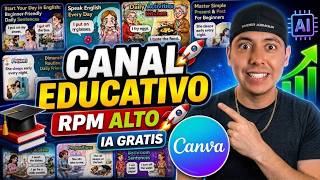
This video presents a free, AI-powered method for creating educational YouTube channels that can generate up to $5,000 per month. The creator demonstrates a step-by-step workflow using AI tools like Claude and Flow AI to produce videos, edit them in Canva, and create thumbnails, all without manual filming or editing.
Chapters
The video introduces a niche educational channel called 'Learn English with Fun' that teaches everyday English phrases. It claims this type of channel can earn up to $5,000 monthly, with a large audience from Europe and Asia, and one video reaching over 1 million views.
The creator emphasizes that AI-generated educational content can be monetized because it provides real value to viewers, as evidenced by positive comments. This helps avoid demonetization.
The process starts by copying a prompt into an AI like Claude, which generates 10 title ideas. After selecting one, the AI produces 10 complete video prompts, each including character, setting, and dialogue.
The first method uses Flow AI's text-to-video feature. Users paste the prompt, select video mode, set aspect ratio to 9:16, choose the Veo 3.1 Fast model, and generate the video.
The second method involves generating images first in Flow AI (using Nanobanana Pro model) and then converting them into videos. This allows for more control over visual elements before animation.
Videos are edited in Canva: create a 1920x1080 canvas, add a colored box for text, upload and position the video, add subtitles, and repeat for each scene. The final export is MP4 1080p.
Thumbnails are made by taking a screenshot of the channel, uploading it to ChatGPT's image generator, and using a prompt to create a thumbnail with text and characters in a specific style.
The final video is uploaded to YouTube and other platforms. The creator suggests adding affiliate links to language products on Hotmart to earn commissions, emphasizing consistency and daily posting.
The video provides a complete, free workflow for creating AI-generated educational content, from idea generation to monetization. It highlights the potential for passive income but stresses the need for consistency and value delivery.
Mentioned in this Video
Tutorial Checklist
Study Flashcards (7)
What is the potential monthly income from an educational AI channel as mentioned in the video?
easy
Click to reveal answer
What is the potential monthly income from an educational AI channel as mentioned in the video?
Up to $5,000 a month.
00:02
What is the first step in generating video prompts using AI?
easy
Click to reveal answer
What is the first step in generating video prompts using AI?
Copy a prompt and paste it into an AI like Claude, which generates 10 title ideas.
01:55
What are the two methods for generating videos with Flow AI?
medium
Click to reveal answer
What are the two methods for generating videos with Flow AI?
Text-to-video directly, or generating images first and then converting them into video.
02:37
What aspect ratio is recommended for the video in Flow AI?
medium
Click to reveal answer
What aspect ratio is recommended for the video in Flow AI?
9:16 (vertical).
03:06
What model is used for image generation in Flow AI?
medium
Click to reveal answer
What model is used for image generation in Flow AI?
Nanobanana Pro.
04:03
What canvas size is used in Canva for the video?
easy
Click to reveal answer
What canvas size is used in Canva for the video?
1920 by 1080 pixels.
04:43
How is the thumbnail created?
medium
Click to reveal answer
How is the thumbnail created?
By uploading a screenshot of the channel to ChatGPT's image generator with a prompt to create a styled thumbnail.
06:58
💡 Key Takeaways
AI Channel Income Potential
Provides a concrete financial incentive for viewers, making the content immediately relevant.
00:02AI Prompt Workflow
Demonstrates a practical, repeatable method for generating video ideas and scripts using AI.
01:55Text-to-Video vs Image-to-Video
Offers two distinct approaches, giving creators flexibility based on their preferences.
02:37Canva Editing Workflow
Shows a free, accessible way to edit videos with subtitles and branding, lowering the barrier to entry.
04:43Monetization via Affiliate Marketing
Explains how to earn from the channel beyond ad revenue, adding a second income stream.
07:26Full Transcript
[00:02] educational niche that's easy to create and can generate up to $5,000 a month. Most of their audience comes from Europe and Asia. The channel is called Learn English with Fun.
[00:20] few months ago, one of the videos reached over 1 million views. This demonstrates that educational content like this is in high demand, and of course this type of channel can be monetized even if it is made
[00:35] entirely with artificial intelligence because it provides value to their videos. I look in the mirror. Perfect. So, the concept here is to teach everyday English. As you can
[00:50] teach everyday English. As you can see, the title is 25 daily household phrases you should know. It focuses on simple phrases that people use in everyday life. And if you look at the comments, many people in his
[01:03] audience say that this video really helped them. That means your videos can also be safe from demonetization because you're offering real value to your audience. Now we're going to create the video
[01:16] step by step, but first, if you want Primo Franco to guide you pre-recorded classes so you can learn at your own pace, and personalized audits of your content where I tell you what to do, what to add, what to remove, or what to change
[01:30] so you can get results and live off a fully automated business, I invite you to my new mastermine/digital empire community . I'm going to leave a link below in the description of this video so you
[01:42] can enter right now and I'll see you inside. Ready. I'm going to copy this entire prompt. All the command prompts that I'm going to show in this tutorial will be listed below in the description so you can use them. Once you
[01:55] copy it, you'll paste it into your artificial intelligence like Gemini, Clot Chat GPT. They're basically the same, there's no big difference, but here I'm going to use clot. Then you press enter. Now Cloud will generate 10 title ideas
[02:10] and you need to choose one. I choose number one. Type number one and press enter. After that, cloud will generate 10 complete prompts that you can use to create the video. This is a prompt. As you can see, it already includes the
[02:23] character, the setting, and the conversation. Now, there are two methods to generate the video. First, you can use the prompt directly in Flow AI with the text-to-video method. Second, you can generate the
[02:37] images first and then convert them into video. Now, let's try the first one because I like this method, since we're going to do it using text-to-video directly. Copy the complete prompt from number one. Then you'll go to Flow AI and log in to your
[02:52] so you can continue using the free version, but if you don't want to switch between accounts, you can buy the Pro version. It's up to you. Now apply these settings. Click here, select video mode, and then choose
[03:06] frame. Set the aspect ratio to 9x1 and then choose how many videos you want to generate. Here I choose only one. Finally, select the Veo 3.1
[03:18] Fast model. Paste the prompt here and generate. Let's play it back. Let's play it back. I wake up early. I wake up early. Excellent. Now do the same with all
[03:33] the prompts until everything is finished. Boom. Let's move on to the second method, which consists of creating the images first and then the video. This method helps you choose the visual elements first before converting them into video.
[03:46] character and stage parts. We'll use the action itself a little later for the video promo. Now, copy this and paste it into Flow. Then change the settings. You will select image frame 16x9 output twice and
[04:03] then nanobanana pro. Paste the prompt here and press enter. Boom. Now you have two image options that you can convert into video. If you don't like them, you can generate them again. After that, add the rest of the prompt, which is
[04:16] the action and dialogue. Copy and paste the prompt and flow. Then, click on this plus button. Choose the image you like. I'm going to choose this one. You click on the image and then change the settings to the video generator.
[04:29] Press the arrow button. Boom. Excellent. Now repeat this process until you have finished all the prompts. And once all the videos are ready, it's time to edit them, add subtitles, and choose a theme. You're going to
[04:43] Canva. Click the plus button and choose custom size. Then choose custom size. Then type 1920 by 1080 and click. Click on elements, choose shape, click on the square element, place it in a
[04:57] corner and adjust it exactly like this. This is for adding the topic text and description like this, because this channel actually uses this style of description as well. Upload your video, click on the video to place it on
[05:12] the canvas. Now resize the video so that it fills the canvas like this. Then move it to the back layer. Click on position and then on send back. Thus, this blue box will remain on top of the video. Now move the video, but keep
[05:27] the person visible so that the dialogue remains clear. Then change the color video and you can follow this tutorial. Basically, click on the box, click here, and then here. Move your cursor over the video and choose a color that
[05:41] matches the scene. Here I choose the wall color. Click on it. Now go to the text, choose a text template you like, write the topic and add subtitles according to the dialogue. Here I will speed up the process because choosing the
[05:54] personal preferences. You can add animation to the subtitles if you want, but that's fine too if you don't . Now, once you're finished, click on add page to add the next video. Upload your second video,
[06:09] adjust it to fill the canvas, copy the shape box and text to the by selecting them and then pressing Ctrl+C and Ctrl+V. It changes the dialog box, and here's the result. I wake up early. I
[06:27] wake up early. I brush my teeth. I brush my teeth. I brush my teeth. Boom. I loved it. What do you think? When everything is ready, export it. Choose MP4
[06:44] 1080. This is free, a 100% free method. You can be as creative as you want. If possible, don't just follow this design. Try to create a design that you find appealing. This design is just an example and is made using
[06:58] free elements. Now let's move on to creating the thumbnail. Take a screenshot of the channel, then go to GPT chat and click the plus button and choose create image. Configure the aspect ratio for widescreen 16x9. Then
[07:12] upload your image and write this prom. Create a thumbnail in this style for the title of your video about daily routine. Please create all the text and characters here. Excellent. The miniature looks, I would say, amazing. Download it
[07:26] and now you can copy and modify the title to suit your theme. Just follow this. Then, once you 've done all that, you upload it to your YouTube channel. You can even upload it to multiple social media platforms
[07:40] . It only takes one of your videos going viral for you to completely change your life, since you can simultaneously choose a language product on Hotmart, place your affiliate link in your
[07:52] affiliate marketing. But for that you have to be consistent and post every day. If you liked this video, give it a like and share it with information could change their life
[08:06] see how I'm scaling AI-powered automated channels your screen. And if you want to see how my client billed more than $4,000 in just
[08:21] 30 days by applying what I taught him, watch this other video that appears taught him, watch this other video that appears on your screen. Cheek.