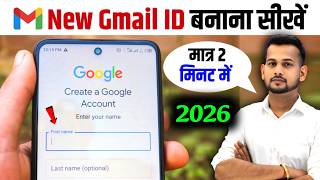

How to Create Gmail in 1 Minute!
44sClear, step-by-step tutorial that promises a quick solution, appealing to viewers seeking fast answers.
▶ Play Clip"Delivers exactly what the title promises — a clear, step-by-step guide to creating a Gmail account."
This video provides a step-by-step guide to creating a new Gmail account on any phone. It covers two scenarios: when no Gmail account exists on the device and when you already have one and want to add another. The tutorial walks through the entire process, from opening the Gmail app to setting a strong password and finalizing the account.
The video explains that a Gmail ID, Google Account, and Play Store ID are essentially the same thing.
If no Gmail account exists, open the Gmail app and tap the plus icon to start creating a new account.
If you already have a Gmail account, tap your profile picture and select 'Add Another Account'.
After selecting Google, tap 'Create Account' and fill in your name, date of birth, and gender.
Choose a Gmail address; if the desired name is taken, add numbers or variations until an available one is found.
Create a strong password with at least eight characters, mixing letters, numbers, and symbols.
Note down the new Gmail ID, tap 'I Agree' to accept terms, and the account will be integrated into the Gmail app.
The video briefly mentions that you can permanently delete any Gmail ID from your Google Account settings.
How do you start creating a new Gmail account if your phone has no existing account?
Open the Gmail app and tap the plus icon.
00:53
What is the first step to add a new Gmail account when you already have one on your phone?
Tap your profile picture and select 'Add Another Account'.
01:07
What option do you choose after tapping 'Google' to create a new Gmail account?
Tap 'Create Account' after selecting Google.
01:58
What are the requirements for a strong Gmail password?
At least eight characters, mixing letters, numbers, and symbols.
03:31
What is the final step to complete Gmail account creation?
Tap 'I Agree' to accept the terms.
04:28
Adding an account from an existing profile
Shows the exact path for users who already have a Gmail account, a common scenario not always covered in guides.
01:07Handling unavailable usernames
Provides a practical tip to add numbers when the desired username is taken, saving users from frustration.
03:17Strong password creation
Emphasizes the importance of mixing characters for security, a key principle for account safety.
03:31Deleting a Gmail account
Mentions that accounts can be permanently deleted, a useful piece of information for account management.
04:55[00:02] Friends, I will tell you the easiest way to create a new Gmail ID from any phone. Google Account or Play Store ID. This is all the same thing. People just say different things. Ok? So how to create this ID? Let me
[00:14] tell you in detail, step by step. Now friends, see, there are many types of cases that people face. For example, suppose you have an old phone and there is already a Gmail ID created in your phone and you want to create a new one, then
[00:27] how to create it? Or suppose you have bought a brand new phone. There is not a single Gmail ID in this phone yet, so how will it be created? I will tell you the process of both. how to create a Gmail ID if you don't have one on your phone yet
[00:40] ? So for that, look here, you will see it next to you, you have to open the Gmail app of your phone. Gmail app will be available in everyone's phone. Ok? So open the Gmail app. Find it. After searching, when you open it, it will appear directly in front of you.
[00:53] you open the Gmail app, a plus icon will appear. If there is no ID in your phone then just click on plus. Then some such option will appear. Ok? Now friends, suppose your phone already has a built-in charger and you want to get a new one, then what should you do
[01:07] ? So it also has the same process. You just need to open the Gmail app. After opening the Gmail app, look on the right side and you will find your profile there. Ok? Logo. You have to click on it. Now after clicking, you have to look a little below. There you will
[01:19] find the option of Add Another Account. You have to click on Add Another Account. Ok? As soon as you click, friends, all the same options will appear in front of you again. Let me tell you in detail on the screen. What to do? Look here, you have to simply
[01:33] click on Google. As soon as you click on Google, this type of interface will appear in front of you. Now here it will
[01:45] Done it here. Then after a little processing, this kind of interface will appear in front of you. Now friends, look here you will get the option to enter Gmail and phone number. But friends, whoever has made it can login by entering it from here. But we have to
[01:58] create a new and good fresh Gmail ID. So here we will tap on Create Account. As soon as you tap, you have to pay here for my personal after clicking on it, friends, an interface like this will appear. Where he is talking about Gmail.
[02:12] You enter your first name here and your last name here. Meaning, you can enter your name here which you want to create in Gmail. So for example here I want to do Raj Kumar. Ok? I want to create a Gmail account with this name. So I have made him a
[02:24] Now here it will ask your date of birth. So whatever your birthday is, you can easily post it here. There is no problem. Let me put it here in a simple way. Now after that, whatever your gender is, male or female, do it as per your convenience.
[02:37] Then from here click on Next. Now after clicking next, you will see an interface like this. Now here it will ask you to create a Gmail address. The ID which is Gmail. Now see, in all Gmail IDs, this
[02:51] @gmail.com is there at the end. Ok? So now you just have to enter your Gmail here. The ID is already entered here. Ok ? Meaning the address is entered here. So like here I do Raj Kumar. Ok? Look, I have put it here,
[03:04] Prince. So Raj [email protected] this will be my total. So now from here I click on Next. Now if I do the next one, then look here, this is not mine. [email protected] is already created with this name. So I will have to make
[03:17] This is fixed. So what should I do? Let me add some numbers next to this here Look, this is also not available. It is also made from this name. So you try two-three times, whatever is available will be yours. Like look, this was my available. This is mine.
[03:31] Now after that, the time will come to create a strong password. Now brother, what is a strong password? Look brother, it means everything should be mixed in your password. For example, letter number symbols should all be mixed and A B C D should also be mixed. The
[03:44] numbers 1 2 3 4 5 should also be mixed. And star#sh dollars etc. all this create a password by combining all these. So how is it made ? So let me create a password here. All mixed up. Ok? Meaning you have to mix everything and make at least eight characters.
[03:58] You have to pay the tax from here, which means done. Now after doing it, look here, Ok? You can see that I have blurred it a little here. This is my Gmail what will I do here? I will click on next. Now this Gmail ID which is being shown
[04:13] , note down this ID somewhere. And ID in any phone, note this down, don't forget it. Now after that you will come down and click on the I Agree
[04:28] click on it, friends, look here, it will show some loading like this in front of us. Meaning two-three seconds. Then after a little processing, this email will be integrated into your Gmail app. It will be
[04:40] show you. Here I click simply and now I switch. which I had created just now, look, my Gmail is ready. because I just created it immediately. Ok? So friend, this is the
[04:55] method to create a new Gmail ID. But friends, suppose you have many Gmail IDs and you want to delete any ID forever, then how to do it? So for that So by clicking on it you can permanently delete any Gmail ID
[05:08] without any problem. Rest of the friends, if you found this video even a little not forget to like the video and also subscribe to the channel for our hard work.




⚡ Saved you 0h 05m reading this? Transcribe any YouTube video for free — no signup needed.