[00:01]
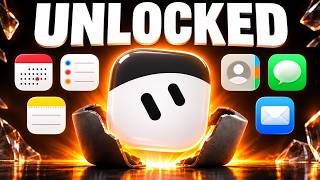
Mac. Calendar, reminders, notes, [music] contacts, messages, and mail all from one message. You type one sentence and it books the meeting, writes the to-do list, and saves the notes for you. One
[00:14]
early user handed it 2,000 photos to sort, a job [music] they expected to take a week. It was done in 5 minutes. Today, I'm going to build one Grokbot that runs the admin side of a business straight from the Mac. I'll show you the
[00:28]
exact screen where you switch it on, the exact messages I send, and what lands in because the last job is the one that for good. By the end of this video, you'll have a bot that plans your week,
[00:42]
chases your to-dos, and keeps your notes in order, and you'll know exactly how to set it up. Let's get into it. Let me start with what actually changed. Grokbot has had a Mac app for a while. It could chat, build pages, and run jobs
[00:57]
on a schedule. What it couldn't do was touch the apps you already live in every day. This update fixes that. Inside the app, there's a screen called Connect Apps. Scroll down and there's a new section called This Mac. Messages,
[01:12]
notes, reminders, calendar, location, and contacts, each with its own connect button. Nothing is switched on until you press that button, and your Mac asks you to allow it once, the same way it does for any app that wants your calendar.
[01:26]
Here's what each one can do in plain words. Calendar lets it see your day and add events. Reminders lets it set and check your to-dos. Notes lets it find and save notes. Contacts lets it look up the people you ask about. Messages lets
[01:42]
it read and reply to texts. And mail lets it search your inbox and draft emails, but it doesn't send them for you. That last part matters. Grokbot drafts and you decide what goes out. And if you want it to ask before it touches
[01:56]
anything, you can set that in the permission screen so it and checks with you first. Here's why this is a big deal. Most AI tools live in a browser tab. You ask them something, they give you text, and
[02:09]
then you copy that text into the app where the work actually happens, into your calendar, into your to-do list, into a note. That copying is the boring part, and it's the part that eats your day. With this update, GrokBot skips the
[02:24]
the app. To show you how useful this is, I set up two made-up businesses that look like the people I work with every day. The first is an online store called Copper and Clay. It sells handmade ceramics,
[02:39]
and Clay. It sells handmade ceramics, mugs, bowls, and planters. The second is a marketing agency called TideWave Digital. It runs content and ads for a handful of online stores. Everything you'll see uses sample data for those
[02:52]
two businesses. And I built one bot for both of them. I called it Mac Desk. It has one job, run the admin side of the business from the apps already on the Mac. If you want the exact Mac Desk setup for
[03:05]
your own business, that's what we do every day inside the AI Profit Boardroom. You get the Mac Desk system with the messages I send in this video ready to paste into your own GrokBot. You get a 30-day roadmap for setting up
[03:19]
GrokBot, from connecting your first app to running your first routine. You get coaching calls every week where you can bring your exact setup and get it working with people who use GrokBot every day. You get daily tutorials on
[03:32]
every new GrokBot update as it ships, and there are a lot of them right now. And you get the full prompt library and the automations that chain these bots together, so they plan, check, and build for you. There are over 3,400
[03:47]
business owners inside, plus a member map so you can find people near you. The link is in the comments and description, or go to ai profit boardroom.com. Let me show you the first job. Copper and Clay has a new collection launching
[04:01]
next month. The plan lives in a messy note. Photos on Monday, product pages on Wednesday, the email on Friday launch the week after. So I send Mac Desk one message. Read my launch plan note, then put every step into my calendar and add
[04:17]
a reminder the day before each one. Watch what happens. It reads the note. It turns each line into a calendar event on the right day, and it adds a reminder the day before so nothing sneaks up on you. The old way? That's 20 minutes of
[04:32]
clicking between three apps. The new way? It's one message. The second job is for the agency. Tidewave Digital just finished a client call and the notes are a wall of text. Who said what? What's due? What got
[04:47]
promised? So I ask Mac Desk to read the call notes and pull out every task. It makes a reminders list just for that client. Each task gets its own line with a due date if one was mentioned, and it writes a clean summary note at the top
[05:02]
so anyone on the team can see where things stand in 10 seconds. That's the job most agencies quietly drop. The call ends, everyone feels good, and then half the tasks never make it anywhere. The third job is about people. Your
[05:17]
contacts list is full of names you half remember. So you can ask Mac Desk, who's my contact at the supplier and when did I last talk to them? It looks up the contact, checks your calendar for the last meeting and tells you. Then you can
[05:31]
say, book a 30-minute call with them next Tuesday morning, and it's in your calendar. The fourth job is the busy day rescue. You open your laptop and your day is already too full. So you ask Mac Desk,
[05:45]
look at my calendar today and tell me what I can move. It reads your day, spots the meetings that could wait and suggests a better order. Then it moves the ones you agree to. You stay in charge of the decisions. It does the
[05:58]
Now let me show you how this is different from how most people work today. The old way looks like this. You keep your plans in your head. You copy tasks from a call into a to-do app by hand. You flip between your calendar,
[06:13]
your notes, and your inbox all day. And things fall through the gaps because nobody had time to write them down. The new way looks like this. You send one message. Grokbot reads the note, books the time, and sets the reminder. Your
[06:28]
calendar, your to-dos, and your notes all stay in step. And you spend that time on the work that actually grows the business. Now, you might be sitting there with a few doubts. The first one is, is it safe to let a bot into my
[06:41]
calendar and my messages? You choose every app one at a time. Nothing is connected until you press connect and your Mac asks you to allow it. Mail can only draft, never send. And you can tell Grokbot to stop and ask you before it
[06:56]
changes anything. The second doubt is, I'm not technical. Can I really set this up? If you can press a button and type a sentence, you can do this. There's no code anywhere in this video. The third doubt is, does this work for my kind of
[07:11]
business? If you run a store, an agency, or you make content, your week is full of meetings, to-dos, and notes. That's exactly what this handles. So here's the last job, the one I told you about at the start. I asked Mac Desk
[07:26]
to make it a routine. A routine is a job the bot does again and again at a time you pick without you asking. Every Monday at 8:00 in the morning, Mac Desk reads your calendar for the week, checks your open reminders, and writes a
[07:40]
note called this week. What's booked, what's due, what's overdue, and the three things that matter most. So when you sit down on Monday, your week is already planned. You set it up once and it shows up every Monday.
[07:54]
So here's what you can do this week. Step one, update the Grokbot app on your Mac. Open Connect apps and scroll down to this Mac. Step two, connect calendar, reminders, and notes first and allow each one when your Mac asks. Step three,
[08:11]
make one bot just for admin and send it your messiest notes and ask it to turn that note into calendar events and reminders. Step four, when that works, turn it into a Monday routine. One app at a time, one job at a time.
[08:26]
And if you want help doing that, join the AI Profit Boardroom. You get the full Mac desk system from this video with every message I sent. So your bot plans the week, sorts your call notes, and runs the Monday routine from day
[08:39]
one. You get the launch planner for online stores and the client task tracker for agencies ready to paste. You get weekly coaching calls where you can share your screen and get your Grokbot connected properly. And you get every
[08:53]
new Grokbot update explained the day it lands with the automations that link your bots together so the whole system runs without you. Over 3,400 business owners are in there building this right now. The link is in the comments and
[09:06]
description or go to aiprofitboardroom.com. So that's the new Grokbot Mac update. It connects to calendar, reminders, notes, contacts, messages, and mail. You switch on each app yourself, one button at a
[09:21]
time. It drafts emails but never sends them on its own. And one bot can plan a launch, sort a client call, find a contact, rescue a busy day, and write your Monday plan. Drop a comment and tell me which app would you connect
[09:35]
first, your calendar or your notes? I'll see you in the next one.