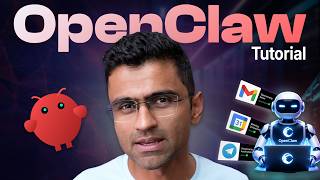

ChatGPT is just a chatbot—OpenClaw actually does your work
41sInstantly frames a familiar tool as outdated and teases a digital employee that performs tasks end-to-end.
▶ Play Clip"A genuinely instructive tutorial that delivers a full digital-employee setup, with only minor sponsor-read length."
OpenClaw is an AI-powered digital employee that can execute tasks end-to-end, from reading and replying to emails to scheduling meetings. This beginner-friendly tutorial demonstrates how to deploy OpenClaw on a Hostinger VPS, connect it to Telegram, Gmail, Google Drive, and Google Calendar, and build two real-world automations: auto-responding to sponsorship emails and scheduling meetings. By the end, viewers have a functional digital assistant accessible from their phone.
Unlike a chatbot that only answers questions, OpenClaw can read and respond to emails, schedule meetings, connect to tools, and execute tasks end-to-end, acting as a digital employee.
Running OpenClaw locally requires a separate Mac mini or laptop and complex Linux setup, while a VPS offers one-click deployment, lower cost, and a disposable environment that can be killed and restarted if something goes wrong.
The tutorial uses Hostinger's KVM 2 VPS plan, with a 20% discount via a coupon code from the video description. You can skip API credits if you already have Google Cloud or OpenAI keys.
First launch asks for identity, personality, vibe, and an emoji. OpenClaw creates a soul.md file with baseline behavior like 'genuinely helpful without fluff', which you can edit or accept.
To interact with OpenClaw on your phone, create a bot in Telegram with /newbot, choose a unique username, get the access token, and paste it into OpenClaw. Then approve the pairing request to chat.
OpenClaw guides you through enabling two-factor authentication and generating an app password so it can read and send emails. It verifies the connection by pulling recent messages.
You need to create an OAuth client ID in Google Cloud Console (desktop app), download the JSON, paste it into OpenClaw, and authorize access through a broken 127.0.0.0 URL workaround.
With a single Telegram prompt, OpenClaw read emails, declined an EdTech offer, and sent the media kit PDF from Google Drive to Amazon—without explicit file instructions, using its own reasoning.
You can ask OpenClaw to run the sponsorship workflow daily at 4 p.m. It creates a cron job (visible in the OpenClaw dashboard) and you can edit or disable it anytime.
After connecting Google Calendar, a Telegram command like 'schedule a 30-minute meeting with Karandeep tomorrow between 9-12 for Boston project' results in OpenClaw finding a common slot and booking it automatically.
OpenClaw transforms AI from a passive chatbot into an autonomous digital employee capable of handling real-world tasks like email triage and meeting scheduling. With a VPS deployment and phone-based Telegram interface, it becomes a reliable, always-on assistant that saves significant time and effort.
What is OpenClaw?
An AI digital employee that can perform tasks end-to-end, like reading emails, responding, scheduling meetings, while ChatGPT is just a chatbot.
00:02
Why use a VPS over a local machine for OpenClaw?
VPS offers lower cost, one-click setup, and a disposable environment; local requires a separate machine and complex Linux setup.
00:59
How do you create a Telegram bot for OpenClaw?
Open Telegram, search BotFather, send /newbot, choose a name and unique username, then copy the access token into OpenClaw.
07:08
How do you connect Gmail to OpenClaw?
Enable two-factor authentication, create an app password in Google account, and give OpenClaw the email and 16-character password.
12:04
What is a cron job in the context of OpenClaw?
A way to schedule recurring tasks in a Linux system; OpenClaw can create cron jobs via natural language to run automations daily.
20:26
How does OpenClaw decide whether to accept or decline a sponsorship email?
It follows instructions in the prompt; for example, decline offers that conflict with your own products, accept if the product is useful to your audience.
10:27
What did OpenClaw do when asked to reply to sponsorship emails?
It read incoming emails, declined an EdTech offer, and sent the media kit PDF from Google Drive to Amazon, attaching it automatically.
18:50
How can OpenClaw schedule a meeting with a contact in a different timezone?
Ask it via Telegram to find a 30-minute common slot within specified hours, using Google Calendar integration to book it automatically.
23:28
OpenClaw vs ChatGPT
Defines the paradigm shift from conversational AI to autonomous agents that execute tasks.
00:02Why VPS is the smart deployment choice
Highlights cost, ease, and disposability advantages over local hardware.
02:36Autonomous email handling with media kit attachment
Demonstrates how the agent uses tools (Gmail, Drive) without step-by-step instructions.
18:50Setting up recurring cron jobs via natural language
Shows how OpenClaw translates prompts into scheduled automation.
19:59Autonomous meeting scheduling across time zones
Proves capability to handle real-world coordination tasks.
23:28[00:02] lately. People call it a digital employee. While ChatGPT can answer your questions, it's just a chatbot, Open Claw can perform tasks for you. For example, it can read email, respond to them intelligently, schedule meetings,
[00:15] connect to your tools, and execute tasks end-to-end. In short, instead of using AI as a chatbot, you're using AI as a digital employee here. In this beginner-friendly tutorial, I will show you how you can set up Open Claw using a
[00:29] very easy method, and we will build two real-world automations. The first one is automatically responding to sponsorship emails, and the second one is scheduling meetings. By the end of this video, you would have built your first digital
[00:43] employee. All right, let's get started. Let's set up Open Claw now. There are two ways to set it up. The first one is using local machine, second one is VPS, virtual private server. We're going to use VPS because of several benefits it
[00:59] offers over the local setup. If you're doing local setup, you have to get a separate Mac mini or a Windows laptop to run Open Claw. You can't run it on your regular laptop because it will be a security nightmare. So, you're buying
[01:13] this separate machine [music] just to run it, and that might be just to run it, and that might be costly. If you're using VPS, the cost uh is much lower compared to the dedicated machine. The second benefit is on local
[01:27] machine, setup is actually very complex and hard because you need to be aware about Linux, and you have to set up so many [music] things. Whereas in VPS, uh you just have one click, and through one click, everything is set up for you. In
[01:41] China, companies like Baidu, Tencent, etc., they were having special fairs, and you know, special events where people will come with their laptop, and their technical staff will help it install. So, that is that local setup
[01:56] option, number one option that we discussed. And it was so difficult that somebody will install it for you. Whereas in case of VPS, you go to cloud server basically. You are running this virtual private server on a cloud in a
[02:10] virtual private server on a cloud in a container environment. And this where you just click it [music] and everything is set up for you. The third benefit is VPS server is disposable.
[02:23] What it means is [music] if something goes wrong, you can kill the entire environment and you can [music] start fresh. If you are on Mac Mini, doing that will require a lot of work. We will be using Hostinger for
[02:36] setting this up and we want to thank Hostinger for partnering with us. They Hostinger for partnering with us. They are giving 20% discount on their VPS plan when you use the coupon code that we have mentioned in the video
[02:49] description below. So, click on the link in the video description where you will in the video description where you will come here. Then just say get started. come here. Then just say get started. I'm going to use this KVM 2 plan because
[03:02] it gives you the best price to performance ratio. And also, using the coupon code that you have, you get 20% off on 12 months or above plan.
[03:14] plan, uh and if you enter the coupon code that we have given, you will get the discount. Now, here I'm going to
[03:27] unselect this. If you have your API keys from Google Cloud, OpenAI, etc., you don't need this. But, let's say if you want to buy some API credits, then you can keep it selected. So, let's unselect
[03:41] this, okay? Enter the coupon code here and hit continue. Upon hitting continue, it is asking me for login. I'm going to use Google. So, provide your billing address, etc. Hit continue, provide payment, and uh move on to the next
[03:56] step. Okay? Congrats. So, it's all set up. And we will get started. Now, see here, it is showing you the gateway token, which you can Uh it's okay even if you don't copy here. Uh and here, you're going to
[04:12] here. Uh and here, you're going to provide your API keys. All right. And this is how it looks. Your project is being deployed, so wait until uh this is done. After some time, it will show this as running. To open
[04:27] it, just click on this, where it will ask for gateway token. So, gateway token is something you can copy from here.
[04:40] something like hi, etc., it will ask you for this initial bootstrap question. Who for this initial bootstrap question. Who am I? Who are you? etc. Okay? So, let's uh do that initial setup, and then you can do your work. So, I will say
[04:55] I am the world. You are Claw Buddy. Then it is asking what kind of creature I am. I will say of creature I am. I will say you are a friendly AI. Vibe
[05:10] you are a friendly AI. Vibe is equal to warm and funny. And then, pick your own signature emoji. So, this is part of the initial setup, so that the Claw Buddy knows how it should respond, what should
[05:27] be its personality, and so on. It's just a part of that bootstrapping process. The next step is it is figuring out its soul. So, there is a soul.md file, which uh sets my baseline to be genuinely helpful
[05:42] uh without fluff. And these default settings look good. If you want to add any specific setting, any specific boundaries, for example, let's say you are using this for as an uh personal assistant and you want it to schedule
[05:57] appointments, etc., but you don't want it to do some other work, then you can Here, this is our first time, we'll just say uh go with default or or we'll just say I am good with default settings. Let's go to the next step. The next step
[06:14] is you have to configure WhatsApp, Telegram, etc., to interact with OpenClaw. Now, the way it works is OpenClaw is like your digital assistant.
[06:27] It can do work for you where you are on the go. Let's say I am waiting at a bus the go. Let's say I am waiting at a bus station or airport and I want OpenClaw to do some work, I can take my phone and on WhatsApp or Telegram, whatever you
[06:40] have configured, you can give it some work that, okay, do this uh work, uh set up an appointment, or review this report, or run this code and generate this Excel file, and it will do that thing for you.
[06:54] So, from that standpoint, WhatsApp and Telegram is useful. We are going to set up Telegram. So, I will just say it has given, so we'll follow these steps to set up Telegram. The first
[07:08] step, open Telegram and search for BotFather. So, you go here, search for BotFather. You'll find this. You'll see start icon here, click on that. And just say {slash} new bot, okay? So,
[07:23] {slash} new bot. So, this will create a new bot in our Telegram environment. What are we going to call it? We can call it ClawBuddy. And then
[07:37] let's choose a username for your bot, okay? So, teddy_bot, so let's say okay? So, teddy_bot, so let's say clawbuddy _bot, that's the username. clawbuddy _bot, that's the username. The username is already taken. DP
[07:52] The username is already taken. DP clawbuddy _bot, looks like it has to be clawbuddy _bot, looks like it has to be unique. All right, it created a new bot and it has given me this access token. So, just copy this token.
[08:05] Okay, so we are going to copy this token copy this token and we can copy-paste the token. Here is and we can copy-paste the token. Here is the HTTP API token.
[08:17] The good thing about OpenClaw is that you talk as if you're talking to some token. Oh, do this Google Calendar setup." and it will do it all for you. All right, so our Telegram is set up. Now, we can say hi in Telegram.
[08:33] Now, we can say hi in Telegram. So, let's go here and at this place you So, let's go here and at this place you can open the bot here. This is the clawbuddy bot. Click on start and here I will just say
[08:46] happened but I see this So, ask the bot owner to approve with this. So, I'll just copy this
[08:58] and run this here. It is saying I have approved the pairing request. Now, I'll just say hi here. You see? Now, your Telegram and OpenClaw is connected. Now, you can interact with
[09:15] OpenClaw via Telegram and you can say things like, "Okay, who invented Kriya Yoga?" I'm just treating once again like a chatbot just for just to verify setup and everything. Uh we'll do the real work
[09:30] later, but see, when I type in a question, the question is actually going here and you are getting this answer. See, you are getting the answer in Telegram. So, whether you're using
[09:43] Telegram or WhatsApp, it's like you have this OpenCloak connected in the backend, and you can utilize the power of and you can utilize the power of OpenCloak, power of LLMs right from your
[09:55] WhatsApp or Telegram. Now begins the fun part. We are going to work on our first use case, which is automating the sponsorship emails. So, as a content creator, as a YouTuber, I get emails for sponsorships from
[10:11] Uh here I have these two emails, okay? And usually what I do is when I get an email like this where a company wants to do sponsorship for their uh let's say course or a bootcamp, usually I say no
[10:27] because I myself have a course platform, okay? So, I myself have this uh platform where we have our bootcamps, courses, and so on. And it is
[10:39] it is a conflict of interest. So, usually I reply and I say, "Not interested." But when I get an email like this from a company like Amazon, etc., where they want uh to uh sponsor the product
[10:56] which can be useful to my audience, then usually I will say, "Yes." Uh of course, I will have my own selection criteria, but I'm open to this kind of collaboration request where uh they're talking about a product which
[11:09] is useful to uh the audience that I'm serving to, okay? So, my workflow is I look at the email, I read the content, and then I do that matching in my brain.
[11:22] We can automate this whole thing in OpenCloak, okay? Now, see, for Amazon, usually they're asking for the commercials. So, what I would do is I would go to my OneDrive, Google Drive, etc. I will have many folders. Then I
[11:36] will go to my media kit. You know, they ask for media kit which contains the commercials and so on. And I will attach this kind of PDF. So usually sponsors will ask for the demographics details. So I have that.
[11:50] They ask for the commercials, which is okay, how much you charge for mid-roll integration, long-form sponsorship, and so on. So I have all these details here, okay? So we're going to automate this whole flow
[12:04] in OpenClaw. So the first thing we need to do is connect to our Gmail. So we can say, "Help me connect to Gmail." Now it will give all
[12:16] the details in the response. So the first step is you go to myaccount.google.com. You go to security and you enable You go to security and you enable two-factor authentication. So two-step
[12:29] verification you need to enable. All right, so I added my phone number and authenticator app, and this is done now. Okay, so we are done with this step. Now search for app passwords. And then we need to create that
[12:43] password. So let's do this. So app passwords here. And you can just say OpenClaw. So this is the password I'm going to copy paste. Okay, so I'm specifying my
[13:00] email. See email and 16-character password. So let's go. Look at this. Setup is done and it is able to read some uh emails. See? Uh you have a few
[13:14] recent Google security alerts, collaboration with Amazon. See? Google security alerts, collaboration with Amazon, and so on. So it's able to connect and you can do things with your email now. Now, the
[13:30] last step in this setup is to connect with Google Drive for same email ID because when somebody ask for the commercials,
[13:42] to Google Drive and get this PDF. So, let's do this. I followed all these steps, okay, for the drive setup. And eventually,
[13:56] I will get to this stage where I would have created client ID. So, click on download JSON. Okay, it's a common sense steps, folks. Just follow it. And I clicked on the download JSON here.
[14:09] And this is the JSON file that I received and I will give that to OpenClaw. Okay, so essentially, just copy-paste the content of
[14:22] that JSON file. And by the way, here it asks for the desktop app. I selected web because I remember when I was doing the setup once, I have to do that. So, I selected web app. If there is a problem, we'll go ahead and do the desktop app
[14:38] configuration once again. So, now it says, "Please click this link to authorize my Google access." And it is saying, "Don't panic when it says this. Just look at the URL. When it fails, copy the entire URL and
[14:53] authorization code." So, it knows all the hacks, actually, looks like. So, I have given that here. Okay, it looks like it needs the desktop app. So, I will go to API and services and
[15:09] I will go to API and services and credentials. Let's do that. API and services. Go to credentials. And this is what we created, right? So, I'm going to edit this. And let me see if I can change it
[15:21] to desktop from here or do I need to create a new one? create a new one? I think I might just create a new one. So, let's delete this. So, this is deleted.
[15:37] And OAuth client ID, you need to create that, right? So, OAuth client ID. that, right? So, OAuth client ID. And here, specify desktop app. Create. Download JSON.
[15:53] Download JSON. This is the new one. Here is the JSON for desktop client. So, folks, I know that uh setting things up can get little lengthy, but that's
[16:07] okay. Once you have set up everything, once you have connected with all the tools, Gmail, Google Drive, Outlook, whatever you want to use, then you'll after you don't have to worry, it will just work and it will reduce a lot of
[16:22] uh time and effort for you. Okay, let's click on it again. Okay, it's saying you don't have to worry about it. Just copy paste. uh production status. Okay, so publish app.
[16:39] So, I have to do publish app, looks like. So, let's click on okay here. Okay, I think in the audience, now you can say publish app. Confirm. So, now this is in production. It is in production now.
[16:55] production. It is in production now. Okay, after that, I clicked on this. And I'm getting this access. Okay.
[17:11] And here, you're giving OpenClaw an access to all of this. So, I'll just say select all, continue, and I got the site can't be I will just say this, right? After you click continue, paste that broken
[17:26] This is so smart, see? Broken that 127, whatever URL, uh you have to paste it here. Perfect. Now, it is connected to your Google Drive. I can ask questions, uh list the folders
[17:42] Google Drive. Look at this. It is working. So, I have all these folders, media kit, YouTube content, courses, and so on. You can see this, see? Media kit, YouTube content,
[17:55] this, see? Media kit, YouTube content, etc. So, it took some retries, but if it as if you're talking to an expert, as if you're talking to a human, and it will help, okay? So, at this point, our connection to
[18:09] connection to uh Gmail, uh Google Drive is all done. Now, I'm going to give it some command, okay? Some task to perform. So, I can go to my Telegram, and in the Telegram, I will
[18:22] say that, okay, once again, uh let's assume I'm having a walk in my community, and I want to do some work. Usually, I have to come back to laptop, do the work, but here, in Telegram, I will say,
[18:36] "Read the emails today for sponsorship offers from EdTech company, decline for any other offer, send them a media kit, okay?" So, I'm going to send it here, and you can see that message gets replicated here, and my OpenClaw is
[18:50] working on this request now. Wonderful. It replied to both the emails. So, now, I will go to the inbox of the sender, okay? So, of course, I have one inbox. Usually, it will be two inboxes, one for Amazon, one
[19:04] will be two inboxes, one for Amazon, one for Simply On EdTech. So, let's see what is the response it gave. So, see? here, "Hey Peter, thanks for reaching out. Unfortunately, I must
[19:16] politely decline this offer since I run a ad tech company." Amazing, right? And then, for Amazon, let's look at it. So, see, "Thank you for getting in I have attached my media kit. It It actually attached the media kit." Now,
[19:30] here is the interesting part. What I said in the prompt is this, "For any offers, respond by attaching media kit. You can find media kit in Google Drive." I did not say that, "In Google Drive, go to media kit folder. There is
[19:47] this PDF file." I did not say all of that. As if I have a human assistant, and if I tell them that, "Hey, go to drive," they will use their brain, and that file." Open Clo did the same thing, folks. So,
[19:59] it automated the entire workflow, okay? So, you will see the emails here again in sent. You can also set up a daily job. You can say that, "For this sponsorship email
[20:14] workflow, set up this at 4:00 p.m. every day," day," uh which will do the same thing. And I'm typing in the Open Clo chat here, but usually you'll you'll use
[20:26] everything. And look at the tool calls, also. See, it is doing the tool call for cron job. So, cron is a way to schedule jobs in a
[20:38] Linux system. So, it is setting that up, see? this is what it is. And then, if you look at the tool output, it will say, "Yes," you know, whatever is the output. And if you look
[20:51] at the tool call that you got previously, see, you you should look at it so that you understand what it is doing. See, it was calling exact tool Then, here, it was calling again exact tool. Okay, exact tool. It called cron,
[21:06] and so on. Now, when I look at cron jobs here, see daily sponsorship auto reply. here, see daily sponsorship auto reply. This particular job is enabled, okay? And you can edit, by the way. You can also manually add the job if if you want
[21:22] to do it, but here uh we did it through the chat. So, see this cron job is enabled right now. And it looks beautiful. See, every day And it is going to do the work. So, now I don't have to worry about it, okay?
[21:37] So, this is one solid workflow, which is the real problem that I face in my life. automated. Now, let's take a look at this use case where I want Open Claw to schedule meetings for me.
[21:51] Here is my Google Calendar. These are all real meetings, by the way. And I want Open Claw to schedule meetings via Telegram interface. So, let's say if I'm traveling, I'm waiting somewhere, and if I want to schedule a
[22:03] meeting with one of my contacts, let's say I have all these contacts right now, and I want to schedule a meeting for some project in Boston with Karan on Wednesday. Now, Karan is in India time zone, so usually 9:00
[22:19] to 12:00 uh works for him. So, I I want to ask uh Open Claw that, "Okay, find a 30-minute common slot and book a meeting with him." And it should be able to do it. So, for that we have to do some setup. So, I'm going to ask Open Claw to
[22:35] guide me on what kind of setup is needed to integrate Google Calendar. All right, here it says to integrate Google Calendar, I need to click on this link. So, let's go here. It is similar to the Google Drive authentication that we did
[22:48] previously. All right. So, when you get this 127.0.0 All right. So, when you get this 127.0.0 broken link, you can provide it to Open Claw chat. There was one more step, which was to uh enable Google Calendar
[23:03] API uh by going here. I did that and eventually it pulled all the meetings. Look at this. When I say it's tomorrow's meeting, it knows today's this particular date, okay? And for
[23:15] tomorrow I have these three meetings and it is pulling up that information correctly. Now let me go to my Telegram and schedule a meeting. So I want to have a discussion with Karan tomorrow on some project. So
[23:28] with Karan tomorrow on some project. So I will say uh schedule a meeting with Karandeep Karandeep tomorrow
[23:46] uh for a discussion on Boston project. Pick any 30-minute time between 9:00 to 12:00 noon. This meeting I'm scheduling, let's say when I'm away from my laptop, I don't have access to Google Calendar,
[24:01] etc. And I'm commanding it as if I have a digital assistant and I want to have a discussion. Now you saw, I think if you were watching the this one Isn't this amazing? You see this
[24:14] Isn't this amazing? You see this project? This particular meeting it came up. All right, so folks, this is another use case of OpenClaw where you can manage your meeting scheduling, etc. in a autonomous fashion using ClawBuddy.
[24:28] That's it for this tutorial. If you have any question, post in the comment box any question, post in the comment box below. Thank you very much for watching.


⚡ Saved you 0h 24m reading this? Transcribe any YouTube video for free — no signup needed.