
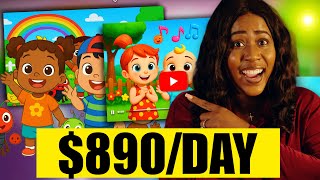
How I Made $15K/Month Kids YouTube Video with AI
43sHigh earning potential and AI tool reveal creates instant curiosity and FOMO.
▶ Play Clip"Delivers a solid tutorial but oversells the 'repost' angle; it's actually about creating original AI content."
The video demonstrates a method for creating original nursery rhyme videos for YouTube using AI tools, potentially generating significant income. The creator walks through using Suno AI to generate a song and NVIDIA AI to create an animated video, then discusses monetization strategies and important considerations for kids' content.
The video starts by showcasing a channel making $15,000 a month with nursery rhyme videos. The creator copies the title of a trending video and uses AI tools to create an original song and animated video, all with simple prompts.
Kids content, especially nursery rhymes, is one of the most watched genres on YouTube. Parents use YouTube as digital babysitters, and kids watch the same video repeatedly, driving massive views and engagement. An example channel got 62 million views in a year and makes $12,000-$38,000 per month.
YouTube limits certain ads on made-for-kids content, but creators still earn significant money through ads and other methods like memberships, merchandise, printables, ebooks, and affiliate links.
The process starts by finding a viral video on YouTube. The creator uses a nursery rhyme about community helpers that got 32 million views in 2 years, indicating high popularity and potential for income.
Suno AI is used to create an original song. The free account allows a limited number of songs per day. The prompt includes the video title and details about community helpers, with instructions for a melodic nursery rhyme for kids aged 3-5, using children's music, group vocals, and playful tone.
Suno AI generates two song options. The creator reviews them and downloads the MP3, also copying the lyrics for the next step.
NVIDIA AI is used to transform the lyrics into an animated video. The user selects 'create AI video' and 'use my script', pastes the lyrics (removing 'chorus' and 'verse' labels), and chooses settings: 'only generated clips', no subtitles, and 'Disney Pixar' generative style.
The creator specifies a 150-second 3D animated video to match the song's length (2:28). They also disable narrator voice to avoid unwanted narration.
After generating the video, the creator edits it to add the song: go to edit, select music, upload the song, replace, and apply changes.
If changes are needed, the creator can use the edit command box to type instructions like 'change the first scene to children smiling', or manually edit scenes using generative media.
After finalizing, download the video. NVIDIA AI has a generative plan starting at $96/month (yearly plan), which is cost-effective compared to producing one video elsewhere for hundreds of dollars.
Thumbnails are crucial for catching kids' attention. Simple methods include taking a screenshot from the video (using Shift+Command+3 on Mac) or using Vid IQ's thumbnail creator. Other tools like Pixart or Canva can also be used.
Success won't happen overnight. Upload at least once a week, keep videos 2-3 minutes long, and analyze your channel to see what works. Replicate successful titles and thumbnails.
To be monetized, you need 1,000 subscribers and 4,000 watch hours to join the YouTube Partner Program. After that, ads are placed in videos and you get paid. Other income sources include memberships, merchandise, printables, ebooks, and affiliate links.
The video provides a step-by-step guide to creating AI-generated nursery rhyme videos for YouTube, emphasizing the potential for significant income despite ad restrictions on kids' content. Success requires consistency, patience, and leveraging multiple monetization strategies.
What is the first step in creating a viral nursery rhyme video?
Find a viral video on YouTube to replicate.
02:33
Which AI tool is used to create the original song?
Suno AI
02:59
What settings are recommended in NVIDIA AI for animated videos?
Choose 'only generated clips', no subtitles, and 'Disney Pixar' generative style.
06:11
How long should the video be to match the song?
150 seconds, matching the song's length of 2 minutes and 28 seconds.
06:56
What is the cost of NVIDIA AI's generative plan?
$96 per month on the yearly plan.
10:18
What are the requirements for YouTube monetization?
1,000 subscribers and 4,000 watch hours.
13:03
Kids content is a goldmine
Highlights the massive viewership and revenue potential of nursery rhyme channels.
01:22Monetization despite restrictions
Shows that even with ad limitations, creators can earn through multiple streams.
02:06AI video creation workflow
Demonstrates a practical use of AI to generate animated videos from lyrics.
05:15Thumbnails matter
Emphasizes the importance of thumbnails in attracting views, especially for kids.
10:45Consistency is key
Reinforces that success requires regular uploads and patience.
12:06[00:02] rhyme video on YouTube from a channel that's making $15,000 a month. Now, stay with me now because what I end up doing was copying the title of that video and paste it into an AI tool that created me an original song completely free. I took
[00:19] the lyrics to that song that it created and I paste it into another AI tool that then created an entire animated video. And this is made very similar to the trending video that's making up to $900 a day. The crazy thing is I was able to
[00:34] do this with only a few simple prompts. And today I want to show you how to do the same and how to actually get [Music]
[00:54] paid. What's up guys? This is Monique and welcome back to the channel. I am back with the news that you can use. But first, if you are new here, hello bonjour, hola, aloha, konichi wah wan, shalom, assalam alaikum, jambo child,
[01:07] namaste. Now let me tell you why this method is actually work you paying attention to. I have told you this many times before, but just in case you missed it, kids content, especially nursery rhyme videos, is one of the most
[01:22] watched genres on YouTube. is probably because parents tend to use YouTube as digital babysitters. And those kids will watch the same video backto back 20 times or more. And what they end up doing is driving in massive views and
[01:35] engagement as we see right here on this channel that posted this video right channel that posted this video right here 1 year ago and it has gotten 62 million views. And the channel is only 3 years old. And if we go over to Vid IQ,
[01:49] they are saying that this channel makes anywhere from $12,000 to $38,000 every single month. Not in a year, a month. Now, I do want to be 100% real with you before we even hop in. YouTube does limit certain ads on made for kids
[02:06] content. But regardless of that, there are creators, as we can see, that's still raking in a lot of money by creating these type of videos. And on top of ads, they also use other methods to make money. And I'll mention a few of
[02:19] want to do right now is break down step by step how you can create these type of viral videos with the same copy and paste method that I just did. And it's all going to start with you finding that perfect viral video on YouTube. And you
[02:33] don't have to use this method for nursery rhyme videos or just kid content. You can do all types of content. But for the purpose of this video, I'm going to focus on nursery rhyme videos. And this is the particular
[02:45] one right here that I'm going to use. It is about community helpers and more than it being cute. It has gotten 32 million views in the last 2 years. So it means that the kids like it and our pockets definitely will too. So what I am going
[02:59] to do now is head over to our first tool which is Suno AI and this is what we will be using to create our original song. And the good thing about this is you can create an account with them for absolutely free. Now, the free account
[03:15] does come with a limited amount of songs that you can make in a day, but it's So, once you have your free account, and I put a link down in the description that you can use that'll take you right there. But when you are logged in,
[03:27] you'll see this box right here where you are able to enter a prompt, which is you wanted to create. And what we are going to do is tell it to create a going to do is tell it to create a melodic nursery rhyme for kids that's
[03:40] about. And we'll paste that title of the video that we copied right here. And I details so we can make sure it's creating exactly what we want. So I'll add tell what police officers do, what firefighters do, and what nurses do. But
[03:56] for you to include especially for nursery rhymes is going to be use nursery rhymes is going to be use children's music group vocals and make it playful. And I also did add make this for kids that's 3 to five. And I just
[04:10] hit enter. And after a few seconds it's going to create two songs for you to regenerate more if you don't like the song choices that they have. But the ones that they provided for us today, this is song number one. Police officers
[04:27] this is song number one. Police officers keep us safe all day. They guide the keep us safe all day. They guide the traffic and show us the way. All right. And this right here is the second song that it created.
[04:48] Police. [Music] comments if you think song one or song two is the better choice for kids age 3
[05:00] one here because they both sound pretty good. And all you'll have to do at this point is just download it. And we want to download the MP3. And also, what you lyrics. And you will find them on the right side right here. And that's going
[05:15] to be important in the next step which will require another AI tool called Nvidia AI. And this is going to transform these lyrics into an entire animated video. So to get started with NVIDIA AI, you can just go down to the
[05:30] link in my description and create your account. And once you are logged in, then we are going to select create AI video. And from there we are going to select the option use my script. And this is where we will paste the lyrics
[05:44] from the song that we just created, our original masterpiece. And once you paste and make sure you remove everything that says chorus and verse. We just want the
[05:56] lyrics to the song only. And then after that, we are going to go down to the settings. And the first thing we want to make sure we choose is only generated clips. That's going to be what creates those animated clips for us. Now, the
[06:11] next thing in the settings that we want to go to is going to be the subtitles. And we want to select not to use any subtitles because they may have the subtitles playing at a part of the song that the words are not even saying it.
[06:25] together. But another thing that I like to make sure I select in the settings specifically when it comes to animated style videos like what we are doing, I go to generative style and I like to choose Disney Pixar. I mean because you
[06:41] can't go wrong with Disney. And it's going to create that Disney cartoon style. After I have all of my selections, I will select continue. And on this page, I'm going to add a bit more detail. I'll add to create a 150
[06:56] second 3D animated video. And I chose 150 seconds because if we go back over to Sunno, we will see that the time of that song that it created that we're going to go with is 2 minutes and 28 seconds. And then I'm also going to
[07:09] scroll to the bottom under settings. And one more thing I'm going to add there is don't add any narrator voice because a lot of times they tend to add someone that's narrating and we don't want them to do that with this song. So, at this
[07:22] point, we are ready to move on. And it's going to analyze the video and ask you a few more questions to make sure that it makes a video that you want. And it'll ask for the audience type. It'll ask you the look and feel you're going for and
[07:36] the platform. I usually leave it as is because it tends to select the best options. And then I'll just select continue. And at this point, it will work its magic. And just like that, we have an entire animated video. But we
[07:50] are not done yet. I know you ready to see the video. I know. But we now have to attach that song that we created to the video. So to do that, what we are going to have to do is go to the edit button and then we'll select music. And
[08:04] uploaded music. We want to choose that and then we'll select upload song. Search for your song, add it, and it's going to upload it. And once you are done, we want to select replace. And
[08:16] after you replace it, always apply the changes. If it don't apply, it don't apply. And also make sure you save your changes. But after it's all said and done, this is the video that it created for us. Police officers keep us safe all
[08:32] for us. Police officers keep us safe all day. They guide the traffic and show us day. They guide the traffic and show us the way with shiny badges and uniforms the way with shiny badges and uniforms so neat. They help our
[08:46] neighborhoods stay sweet. Community helpers hip hooray. They work together helpers hip hooray. They work together and helping people and
[08:58] let's clap here. All right. Now, I need y'all to drop nursery rhyme down in the comments if you think that this is a pretty good video just straight like that. I think this is honestly something that kids will be entertained by. Now,
[09:12] sometimes when it comes to these videos, you will have to make a few edits and changes to it. And it's really simple to do that. You can literally go down to the bottom to this edit command box and tell it whatever you want to change.
[09:24] Let's say, for instance, you do not like the first scene and you want to see kids in the first scene. All you have to do is type in change the first scene to children smiling and it will change the scene just like that. You are also able
[09:37] to manually edit your scenes as well by just selecting that edit button. And under media, you can select the particular scene that you want to change and then choose generative media. And in here, you can actually type specifically
[09:51] what you want this scene to look like. And after you tell it, it will generate it and you can replace it. And when you are done making all of your changes, all And you'll just simply hit that download
[10:04] button and download video. Now listen, while you are able to start with Invido AI for free, if you want to generate the nursery rhyme style videos like we just did, you will need the generative plan.
[10:18] And that starts at $96 a month when you select the yearly plan. Now, when you think about all of the things that this thing produced, when you look at the important, especially when you're entering into this animation kids world
[10:33] on YouTube, for what this thing is able to give you, you cannot beat that price. And if you go anywhere else, honestly, to produce one video like this could end up costing you hundreds just for that one video. Now, I do want to go over a
[10:45] few more things that's important when it comes to you creating these type of videos on YouTube. And one of them is going to be the thumbnail because that's what catches the kids attention. And honestly, if you go to YouTube and you
[10:57] just type in nursery rhyme and you look at all of the thumbnails for those, it's typically it's just a shot from within the video itself. So you don't have to do too much work, especially if you are producing highquality videos. You can
[11:11] find a point that you like, and take a screenshot of it. I just use shift command and the number three on my Mac. Another thing you can use is Vid IQ. And when you add the extension to YouTube, when you go to upload your videos under
[11:26] thumbnails, you'll find an area that allows you to create thumbnails. And you can just choose a part of the video from within YouTube and it'll allow you to add text. It's really simple, guys. You don't have to overthink this. Even when
[11:41] some points that they think are pretty good. Sometimes it's hit or miss with that one, but you can just select that and go with it. There are many different ways that you can do it. When I edit thumbnails, something that I use is
[11:54] Pixart. You can also edit in Canva. There's many options that's out there. description, you will be able to get started with Vid IQ today for just $1.
[12:06] be nosy and see what all of these channels are making. Now, I do want to let you know when it comes to these type of videos, if you really want to see understand that this will not happen overnight. You will have to be
[12:21] that. I know it's something that everybody always throw out there, consistent, consistent, but it's the truth. If you really want to grow, you'll have to put in the work. And I suggest uploading at least once a week
[12:34] You don't have to make them really long. I see that usually these type of songs are two to three minutes, long enough to keep the attention of these kids. But one of the biggest mistakes that I see a lot of people that start out tend to do,
[12:47] to look at your channel once you start posting and see what's working. I don't care if you just got 10 views on one video and two views on the other. You that has 10 views. Look at that title that you use, which is important. see
[13:03] how you capture that thumbnail and you want to try to replicate that. Now, when it comes to being monetized, you do have to hit 1,000 subscribers and receive 4,000 watchtime hours on YouTube in order to be able to be accepted into the
[13:18] YouTube partner program. And once you are accepted there, that's when you will have ads placed inside of your videos before your videos, depending on how long it is, and you will be paid by YouTube for those ads. There are also
[13:30] many other ways that people make money that I told you about earlier. Some people offer memberships. I don't know how well a membership will do on a kids channel do. But other ways that people make money on kids channels specifically
[13:43] will be by selling merchandise once you find your rhythm. Some people like to make toys or different things that kids may be interested in. If you create nursery rhymes about educational things, some people will create educational
[13:57] printables. Sometimes there may be some kind of ebook for kids. And of course, before, you have heard about affiliate links. A lot of people use affiliate can make up for what some people consider as a loss because of those
[14:12] regulations when it comes to ad on made for kids content. But, I hope that this hearing all about this. I pray that you are successful in all that you do. I do me a favor and like this video because it helps me out. But until next
[14:28] because it helps me out. But until next time, we are out. Peace.
⚡ Saved you 0h 14m reading this? Transcribe any YouTube video for free — no signup needed.