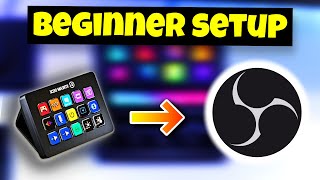
How to Install Elgato Stream Deck Software
45sClear step-by-step instructions make this a must-watch for beginners setting up their device.
▶ Play ClipThis video provides a beginner-friendly guide on configuring an Elgato Stream Deck with OBS Studio. It covers downloading the necessary software, assigning actions to keys, and customizing settings. The tutorial also explains how to install plugins and create profiles for different streaming or recording scenarios.
Download the Elgato Streamlight software from the provided link or by searching for it.
Drag actions from the menu on the right to the keys on the left to assign them.
Change the title, press type (long/short), and icon for each key.
Click the keyboard RGB icon, go to plugins, and search for OBS tools or other plugins to download.
Use profiles to have different actions for streaming, recording, or other activities.
Adjust brightness and check for updates in the general settings.
"The title accurately describes a beginner's guide to setting up the Stream Deck with OBS, matching the content."
How do you get the software to configure the Elgato Stream Deck?
Download the Elgato Streamlight software from the link in the description or search for it.
0:04
How do you assign an action to a key on the Stream Deck?
Hold left click on the action and drag it to the desired key.
0:50
How do you install additional plugins for the Stream Deck?
Click on the keyboard RGB icon, then plugins, and search for OBS tools or other plugins.
1:19
How do you set up different profiles on the Stream Deck?
Go to settings, click on the cog wheel, then profiles, and create different profiles for streaming, recording, etc.
1:50
How do you ensure your Stream Deck software is up to date?
Click on check for updates in the general settings.
2:21
Drag-and-drop action assignment
Explains the core interaction method for configuring Stream Deck keys.
0:50Installing plugins for extended functionality
Shows how to expand Stream Deck capabilities beyond default actions.
1:19Using profiles for different scenarios
Introduces a key organizational feature for managing multiple setups.
1:50[00:00] assuming you already have one of these
[00:01] guys and if not the link will be in
[00:03] description in order to configure your
[00:04] Elgato stream Deck with your OBS Studio
[00:06] you'll want to download the Elgato
[00:08] Streamlight software if you do so by
[00:10] going to the link in the description or
[00:11] just search for Elgato stream deck
[00:13] software just select whatever product
[00:16] you have so in my case I have the stream
[00:18] decking mini and from here press on
[00:20] download and with the software
[00:22] downloaded it should look kind of like
[00:23] this and the main idea of how this works
[00:26] is that you got your keys here perfect
[00:29] um this is where you will edit all your
[00:31] actions and to the right you got this
[00:33] big menu of all the different actions
[00:36] that you can configure into your stream
[00:37] deck if you scroll down a bit you will
[00:39] directly see here OBS studio so there
[00:41] are a bunch of already pre-made actions
[00:43] for your stream deck that's Elgato
[00:45] provides you in order for you to
[00:47] actually put this on to your stream deck
[00:50] so you can use it it's by holding left
[00:51] click on the one you want and dragging
[00:54] it to the key that you want So Perfect
[00:57] now this key will be as my record action
[01:01] and yeah at the bottom we can change
[01:03] stuff like the title of it if you need a
[01:05] long press or just a simple press on the
[01:08] key for it to take action you can also
[01:10] change the icon of it depending on if
[01:14] you want to if you're not happy with the
[01:16] ones that Elgato offered by default you
[01:19] want to click on this keyboard RGB thing
[01:22] and you want to click on plugins
[01:24] basically just search at the search bar
[01:26] for OBS for example the best one is this
[01:29] one OBS tools however you also got a
[01:31] stream elements plugin for example and
[01:34] yeah you can see you can check out the
[01:35] other ones as well if you want to or you
[01:37] want to click on download and you got
[01:38] all these brand new uh actions that you
[01:41] can put for your stream deck like I
[01:42] can't tell you exactly what you should
[01:44] have it depends on your needs like
[01:47] everyone have different needs in this
[01:48] Society now if you go to the settings to
[01:50] click on ecog wheel and then profiles
[01:52] basically you have different actions on
[01:54] your stream deck depending on what
[01:56] profile you have an example could be one
[01:58] profile for when you're streaming
[02:00] profile for when you're recording and
[02:01] then maybe one for when you're just
[02:03] lousing around watching Netflix like I
[02:05] don't know as accounts you'll be able to
[02:06] connect your account I would suggest
[02:08] doing this in case any of the plugins
[02:09] require this or just just so you can
[02:12] give Elgato your login info and over
[02:14] here at the general settings you'll be
[02:16] able to change some stuff like including
[02:18] the brightness of your keypads and very
[02:21] important that you every once in a while
[02:23] click on check for updates and so you
[02:25] know that your stream deck is healthy
[02:27] the left up around corner over here this
[02:29] is where you will change stuff like
[02:30] selecting what device you want to have
[02:32] on the preview over here and what a
[02:35] profile you want to set so leave a tiny
[02:37] tiny like on this video if anything did
[02:39] help would mean so much questions in the
[02:42] comment section as always out
⚡ Saved you time reading this? Transcribe any YouTube video for free — no signup needed.