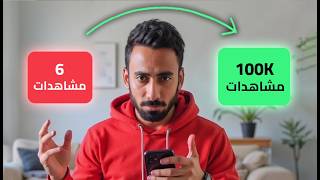

5 Hidden YouTube Settings for Growth
47sReveals secret settings that can fix zero views, appealing to frustrated creators.
▶ Play Clip"Title promises hidden settings and delivers actionable steps, though some advice is common knowledge."
This video reveals five hidden YouTube settings that can boost channel growth. The creator shares personal experience of going from zero views to thousands by tweaking these settings, emphasizing that most beginners overlook them.
Five hidden YouTube settings that can make or break a channel; the creator's channel grew after applying them.
In YouTube Studio > Settings > Channel > Advanced Settings, set 'Made for Kids' to 'No' unless your content is specifically for children, otherwise your videos won't get recommended.
When uploading, under 'Modified Content', select 'No' unless your video uses AI-generated content; choosing 'Yes' can drastically reduce views.
Create a public playlist with a catchy name, add related videos, and put the playlist link in the description and pinned comment. Also, share a specific video from the playlist with a timestamp to trigger YouTube's suggestion algorithm.
Instead of a subscribe button, use the end screen to link to your playlist so the next video plays automatically, increasing watch time.
Add a playlist card at 10 seconds to catch viewers before they leave; use curiosity-piquing phrases like 'Don't miss this video!'
Add a card for another related video later in the video to keep viewers engaged and signal YouTube of high engagement.
By applying these five settings—Made for Kids, AI-modified content, playlist strategy, end screen, and cards—you can significantly improve your channel's visibility and watch time.
What should you set the 'Made for Kids' option to if your content is not for children?
No
01:30
What happens if you set 'Made for Kids' to 'Yes' for non-children content?
YouTube may feature your content on YouTube Kids, reducing recommendations and homepage appearances.
01:46
What is the recommended setting for 'Modified Content' if your video uses real people and events?
No
02:15
What effect does selecting 'Yes' for 'Modified Content' have on views?
It can drastically reduce views, as the creator experienced a drop.
02:15
How can you use playlists to increase watch time?
Create a public playlist with related videos, put the link in description and pinned comment, and share a specific video with a timestamp to trigger suggestions.
03:48
What should you put in the end screen instead of a subscribe button?
A link to your playlist so the next video plays automatically.
04:36
At what time should you add a playlist card to catch viewers before they leave?
At 10 seconds.
05:23
What kind of text should you use for card titles to increase clicks?
Curiosity-piquing phrases like 'Don't miss this video! A trick to editing!'
05:53
Hidden settings exist
Reveals that YouTube has undocumented settings that significantly impact channel growth.
00:02Made for Kids setting traps beginners
Many beginners mistakenly set this to 'Yes', burying their content.
01:30AI-modified content setting kills views
Selecting 'Yes' can drastically reduce visibility, a critical tip for AI-assisted creators.
02:15Playlist strategy for suggestions
Using playlists with timestamps can trigger YouTube to suggest your videos sequentially.
03:48End screen playlist trap
Replacing subscribe button with playlist link increases watch time and recommendations.
04:36Card placement at 10 seconds
Early card catches viewers before they decide to leave, boosting engagement.
05:07[00:02] you upload short or long videos and still aren't seeing any results, then you're probably making the same mistake I did. There are five hidden YouTube settings that YouTube doesn't tell anyone about, but if you make one of them wrong, your entire channel could remain hidden. I was in the exact same situation:
[00:18] zero views, zero watch time, and I had no hope at all. But I changed a few important settings, and everything changed. I'll tell you how to do the same thing. I used to upload content that I believed in and
[00:30] felt was good, but nothing worked. I was about to give up and I kept asking why YouTube wasn't giving me a chance. But I decided to stop guessing and start experimenting. I spent hours searching in YouTube Studio and watching interviews with people inside YouTube, and I found a specific pattern—a combination of
[00:47] settings that almost all successful channels use, and most beginners probably don't know about. So I tried it. I applied all five changes, uploaded a video, and it got thousands of views. I
[00:59] want the same. This is exactly what will happen to you, so take five minutes and pay close attention because every step builds on the one before it. I never imagined a month ago that my video recommendations would reach 1,100,000. These numbers are small for channels with hundreds of thousands of subscribers, but my channel has
[01:16] barely reached 4,000. On this occasion, I want to thank each and every one of you, and this isn't just empty talk, because we know that without people interacting with videos, there wouldn't be anything with videos, there wouldn't be anything called a content creator or YouTube in general.
[01:30] called a content creator or YouTube in general. First, go to YouTube Studio, Settings, First, go to YouTube Studio, Settings, Channel, Advanced Settings. You'll find the option to choose whether you want to classify your channel as made for kids. Honestly, if you make children's songs or videos about
[01:46] opening toys, for example, then fine. Otherwise, leave it as "No" because if you choose "Yes," YouTube might feature your content on the YouTube Kids platform, and that's like burying your work with your own hands. No recommendations, no appearance on the
[01:58] homepage, your video disappears like a drop in the ocean. The washing machine exactly. YouTube recently introduced a new AI-related feature for modified content. If you miss it, your video might not get the growth it deserves. When you upload your video, scroll
[02:15] down and you'll find "Modified Content." If you click "Yes," it's like telling YouTube, "I'm a robot from the year 3025. Throw my video into space; I don't want to see it." I'm not kidding. I experienced it myself. When I clicked " Yes," my views dropped faster than yours right now. I'm already commenting to tell you "
[02:31] Thank you," but seriously, when I click "No," the same video starts appearing in search results and suggestions. This setting is a bit harsh, especially on shorts. YouTube is flooded with AI-generated content, but it's starting to affect longer videos too, particularly if you use
[02:47] stock videos, AI voices, or faceless scripts. So, if your video uses real people or real events and has been AI-generated, click "Yes." Otherwise, choose "No." Before I tell you about the third step... I've talked before about people
[03:03] stealing my video ideas. It might not be a big deal, that's what's expected from YouTube. But this time we're facing a copy-paste copy at a scandalous level. Someone decided to take
[03:15] the studio I built piece by piece, every shot and every detail in it. Yes, I made it with artificial intelligence, but I made it with work, effort, and hard work. He ignored all of that, removed my face, and put his own face in my place. The difference between me and him is that I'm someone who thinks and innovates, while he waits for someone else's effort and
[03:31] steals it. This is a small message to him. I feel like he's watching. If you think success comes from stealing, then you're not creative, and you're not using your brain. To me, you're just a pathetic thief. Back to the topic of the third video. Have you ever noticed that while watching a video, all
[03:48] the suggestions on the side are from the same content creator? That's not luck; it's planning. I'll tell you exactly how to do it. Go to YouTube Studio and create a new playlist. Give it a name that makes people want to click on it, something like "Quick Growth Methods That Got Millions of Views," something to pique
[04:03] their curiosity. Then add the best videos to this playlist—videos related to each other. Make it public and copy the playlist link. Now for the tricky part: put the link in your video description and a pinned comment. But wait, don't just do that. Be smarter. Now go
[04:19] to one video from this playlist, click share, and add a link with a specific time. This way, whoever clicks will be taken to a specific video within the playlist. This is the fourth setting, and then YouTube will start suggesting your other videos one after another. This setting is simple but very powerful. Inside each
[04:36] video, click the end screen button. Most content creators just put a subscribe button, but we're smarter now. We're thinking like pros. Instead of subscribe, we'll choose the playlist we created so that the first video in the playlist will appear on
[04:51] your end screen. When someone clicks on it, the next video will play automatically, like a trap that YouTube loves. You turn one view into multiple views in one rule, which leads to more watch time and more recommendations. But since this end screen appears in the last 20
[05:07] seconds, and most people might not watch it all the way through, we'll need the next step. Okay, in this step, we've made a great video, but people are still leaving early because they're not using the cards correctly. Go to the screen settings. The end. Click on the cards. Listen carefully. At
[05:23] 10 seconds, add a playlist card—the same awesome playlist we just made. Why choose the first 10 seconds? Because most viewers are already preparing to go back to the video. So, at 15 seconds, you need to catch them before their brains tell them to move on to the
[05:38] next video. We're not giving them choices; that's the first trap. Now, fast-forward the video. Things are heating up, and they're engrossed in the video. They've finished watching and reached this point. We'll add a card for another video related to the same content we're presenting. Don't use boring
[05:53] phrases like "Watch this video" or leave the video title blank. Instead, use phrases that pique curiosity, like "Don't miss this video! A trick to editing!" or "Edit like a pro!" if that's your type of content. Of course, we'll use phrases depending on the type of content. These aren't just
[06:08] suggestions; they're signals to the curious brain. Every time someone clicks, they delve deeper into the world you've created, and YouTube sees this from afar. They see them watching more and clicking more, which
[06:20] means YouTube will like you. And don't forget that this will greatly help you meet YouTube's requirements, which we all know. If you liked this video, let me know in the comments. If you want to know other secrets that no one else has talked about, which might help you more in the stage before you upload your video, I like to give you
[06:36] the gist so that it's easier for small content creators like me to finally succeed in the world of YouTube and not face the same difficulties I've faced so far. If you learned even one thing today from the video, hit the like button. And if you're still dreaming of reaching your goals and haven't yet achieved them,
[06:51] subscribe and turn on notifications so that in the next video you'll learn something very special. See you there, bye.
⚡ Saved you 0h 07m reading this? Transcribe any YouTube video for free — no signup needed.