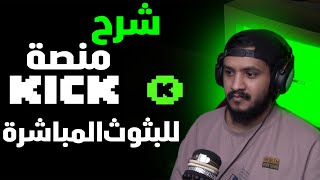

Kick is exactly like Twitch – big names are moving!
42sHighlights a new platform challenging Twitch, sparking curiosity and debate.
▶ Play Clip"Delivers on the promise of covering everything needed for Kick streaming, but padded with informal chatter and religious phrases."
The video is a comprehensive tutorial on using the Kick platform for live streaming, covering account setup, security, restreaming via Restream, and OBS configuration. The creator demonstrates how Kick is similar to Twitch and provides step-by-step guidance for new streamers to start streaming on multiple platforms simultaneously.
Kick is a Bluetooth (streaming) platform similar to Twitch, with many big names moving there. The interface is nearly identical to Twitch, including followers, browsing, and stream settings.
Strong password, phone number, and two-factor authentication (2FA) are essential to secure your Kick account and prevent theft.
Currently, Kick has limited Arabic tags; you must search by name for Arabic content. Language can be set to English or Arabic, and adult content can be restricted.
Moderators can be added, and badges like OG (founder) and VIP can be assigned to loyal supporters.
Use Restream to broadcast to multiple platforms simultaneously. Free accounts allow two platforms; paid accounts allow more.
From Kick settings, copy the stream key and RTMP URL. Paste them into Restream when adding a new channel.
Use an external site to test the best ingest server (e.g., Frankfurt) for low latency and stable connection.
Set bitrate according to upload speed. Maximum allowed is 8000; use 5000 as a good starting point for quality.
Add the bot as a moderator in Kick by pasting the provided code, then follow the link to complete connection for chat features.
Copy the overlay link from Potterx and add it as a browser source in OBS for live alerts and follow notifications.
With proper setup, Kick can be used alongside Twitch, enabling streamers to reach a wider audience. The creator emphasizes testing servers and securing accounts for a smooth streaming experience.
What is the maximum bitrate allowed on streaming platforms like Kick and Twitch?
8000
10:04
What are the three steps to secure your Kick account according to the video?
Set a strong password, add your phone number, and enable two-factor authentication.
02:25
How many platforms can you stream to simultaneously with a free Restream account?
Two platforms.
06:41
What is the purpose of the Potterx bot?
It provides chat features, alerts, and overlays for the stream (e.g., follow notifications).
12:39
How do you add a channel to Restream for Kick?
Go to Restream, click add account, select Custom RTMP, paste the stream key and RTMP URL from Kick, and enter your channel link.
06:54
What does the OG badge represent on Kick?
It indicates the first people who started following you from the beginning (founders).
05:43
Why is it important to test ingest servers before streaming?
To find the server with the lowest latency and best connection to avoid stream drops.
09:03
Kick is Similar to Twitch
The video emphasizes that Kick's interface and features are nearly identical to Twitch, making it easy for existing streamers to transition.
01:12Security Emphasis
Strong emphasis on two-factor authentication as critical for account security, a universal best practice.
02:25Restream for Multi-Platform
Using Restream allows simultaneous streaming to Kick and Twitch, maximizing reach without additional software.
06:26Bitrate Limit 8000
Clarifies the standard bitrate cap across platforms, a key technical detail for stream quality.
10:04Successful Test Stream
Demonstration that the setup works correctly, providing confidence to viewers following the guide.
15:25[00:03] we did previously in tutorials on OPS and Twitch, today, God willing, I'll be making tutorials on restreaming using the program that will be our content for today: Kik. First, let me introduce you to Kik. Kik is a Bluetooth platform, just like Twitch, with absolutely no
[00:16] difference. Currently, many big names are moving there, and I'm also a big name. I moved there. If you want a link, it's below. all the platforms and things you like. Follow me wherever
[00:31] you want. The platform you like and want to follow me on is right here. This link is for you, everyone. You have to go to it, God willing. I mean, if you want to follow us, I'm saying no, just watch, don't just follow us. As you can see,
[00:45] this is the Kik platform on your browser. And, God willing, I'm seeing a beast here—this is the streamer/YouTuber. Wow, look, you can just click and stop right here. The quality is always there, mashallah. This dedication, the subscriptions were activated on his first
[00:59] stream, mashallah. Is it his first stream here or not? I mean, I'm one of the oldest people on this platform. I've been here since before Ramadan, since it first came out. So, currently, I see Arabs, mashallah, all coming to the platform. May God grant them success and provide for us and them,
[01:12] mashallah, and provide for you too. Here are the followers, here's the browsing, and this is the Kik. Look, it's exactly like Twitch, guys. Here are the people you follow, and here's your account. Let's get to the point for those who are just starting out and want to know. Sorry for the long
[01:26] introduction, but these are the settings you have here if you want to access your channel, just like Twitch. See, exactly like Twitch. These are your videos. These are the last videos we made. This one was eight hours long. You can edit when you go to About. Here you can edit, add, and add the
[01:41] things you want. It's very similar, almost identical to Twitch, but let's go to another site called Racestream. Before we go to Racestream, let's go into
[01:53] settings you need to know. Profile: Here you add your profile picture, banner, and image. Stop the stream, and your profile picture will appear. Here's your name, and here you write your status (or rather, your name
[02:13] TikTok). After you finish, save here, edit here. That's the important part, folks. You'll find the stream key here. That's what we want to talk about now. But
[02:25] before that, security is crucial. It's essential to secure your account. You must set a strong password, add your phone number, and enable two-factor authentication. This is very important, and I'm telling you now, don't forget two-factor authentication. It's very important; it protects you, with God's help, from having your account stolen. Regarding
[02:41] notifications, I prefer them all to be turned off, especially if I'm on a PC. I'm keeping it off. I don't like annoying people. They can send messages before we even talk. Let's close the broadcast and start from here. Above the broadcast, okay? This is the page for the broadcast. These are the items.
[02:54] When you close it like this, everything will close, and you won't have anything. But if you want to open something specific, if you want to turn off the broadcast, what number? The people who are watching you, the people who are following you, the people who are currently watching, and the broadcast time. If you just want to see your broadcast without seeing
[03:08] the numbers, if you want, from here. The people who are watching you, God bless them, these are all the people, thank you very much. If you want to see the purchases, the moderators, and
[03:20] chat to be available, activate it all. And from here, edit the broadcast information. I clicked on this, and you can edit the broadcast title, the category ( which means you change the game name), and these are the tags. God willing, this platform will come. It
[03:36] currently has one drawback, which is the tags. When you want to search for Arabic tags... Arabs, you have to search by name, not necessarily go to the filter and specify the region you want (Arabs, foreigners, etc.). This option will hopefully appear soon. Regarding the language, you can set English,
[03:52] Arabic, or the interface language. If you do n't want children to see your stream, you can activate this option, save it, and it will be activated. Only
[05:01] wants to chat, they'll see this message when they click the chat box. Or, write whatever you want. I added a human, and the words you don't want to appear in the chat from here. Here's the option to allow
[05:15] viewers. Personally, I let people send links. When we're watching or chatting, if someone wants to share a link to a video or montage, I can leave it open for everyone. Here, the moderators are participating with me. You can add the moderators to your list, and we'll talk about that a bit later, God
[05:29] willing. These are my mods, and here are the moderation badges that will appear next to people's names, God willing, when we activate this. There's also something called an "OG" badge, something really legendary. Here, you'll add people whose
[05:43] badges have an "OG," or the founders, the first people who started with you from scratch. This platform is the same as the Founder badge on Twitch. Here, the VIP badge gives you the VIP status of the people you support the most, or the people you like the most, or the people who,
[05:56] God willing, are very supportive of you. Here's the profile picture. This is important. You can add, my friends, about fifty-two things, meaning you can add some really large things, but the problem is that their size has to be less than 500 pixels, like 500 x 500 pixels, and they have to be
[06:13] less than one megabyte. Okay, I've explained the settings and the interface. Now let's go to the stream button first. So, that's all we've done. Now you need to that's all we've done. Now you need to create an account on ReesRem. This, my friends, is the
[06:26] platform you see in front of you right now. I've been using this platform for a long time, ever since it came out. As you can see, I have many channels here that I'm currently using. I can stream on more than one platform. You new people who want to stream will only be able to
[06:41] stream on two platforms at a time. But because I have an activation for a while, I don't know how long, so I can stream because I have an activation for a while, I don't know how long, so I can stream on more than one platform. I'm currently using this method to stream on two platforms. When you want to add your channel, what do you do? Go to the website,
[06:54] add your account, click here, then click here again and add the platform you want. They've put a new option; click on it. What do you do? Here you put the on it. What do you do? Here you put the stream number, and here's the RTM URL,
[07:09] which is the link, and here's your channel link. Your channel link usually comes automatically. The channel comes and copies its name and pastes it here. For those who have a TikTok broadcast key, you can add it from here and broadcast directly to TikTok from the OPS. You don't need to open a
[07:22] program because their program is one of the worst for broadcasting; it's very slow. So how do you get these things from this same site? Go to Kik, then to settings, then to broadcast key, and copy these two. Copy them and come here, as you can see.
[07:37] Copy them and paste them here. I'm not going to show you how because what I showed you now means anyone can broadcast on my channel, so that's wrong. Here, you put the link name of your channel. How do you get it? Go to your channel, exit, return to
[07:51] Go to your channel, exit, return to Kik, click here, then the channel. Once you're on this page, copy the link above and paste it here. That's how copy the link above and paste it here. That's how
[08:10] you added it. Excellent! Now you've done this. You have both platforms; you don't need to edit anything. So, you just go back here and add the title, adding these girls to the YouTube channel. That's the important thing here, just edit it and that's it. Okay, let's open it now. You need to have the app.
[08:23] Remember the people who watched the old videos where I explained things? Okay, after I did all that, what do we do now? We want to get the key for the same thing so we can add it to both platforms, on Kik and Twitch. Okay, after I finished, we prepared the channels and linked them in the server.
[08:38] We created an account and linked the channels. We get these two codes. Let's leave them aside for a bit. Now we go to codes. Let's leave them aside for a bit. Now we go to another site called...
[08:51] put links under the description because they might get banned or something, as happened to me before. So I'll put the links for you to see here and copy them as they are, or write them as I'm saying. Okay, after this page opens,
[09:03] go straight to the link. You'll go to it and test the best server available here. Why? Because of this trip, God willing. Where do we put it? We'll put it here in the OPS after you log into your OPS account. Okay, let's see. For me,
[09:18] Frankfurt is probably the best. I actually use servers, specifically private servers. I have a private server with the main stream. I have my own private server that streams on, so there's no congestion or anything. As you can see, it's giving me 900.
[09:33] giving me 900. Of course, it focuses on upload speed the most. Let's go back and repeat, everyone, it's absolutely essential that you watch my video tutorials on how to make your OPS work well with streams and how you can stream even if your device is weak.
[09:47] All of this is covered. It's very important to check the stream here, in the output stream in the bitrate. You have to set it to your upload speed. I mean, if your upload reaches 20, don't go and set it now. No, set it within the limits. Look at the people who just started; they set their limit to 5000, which is very
[10:04] good. I have very good quality. It's good if you have the Yafei server at 8000 and you're comfortable with it because that's the limit on all streaming platforms. Eight thousand is the limit unless there are updates or
[10:16] future changes that might increase it to ten or twenty, I don't know, but currently the limit is 8000. As we saw, Frankfurt is the best thing for me. I don't know how many servers you have, test which me. I don't know how many servers you have, test which one. Look at Paris, it's practically the one we Arabs have
[10:29] here, and it might be the best one for people later. Look, as you can see, always make sure it's straight, like this system, with a few minor adjustments, but it should be clear so you don't have any drops in the stream. Of course, it also gave me 19, so
[10:43] let's see. Let's say we liked this one, Frankfurt. As soon as you like it, you choose its name, Frankfurt, which is in EU Central. You go to the OPS. We said this is the one we liked. You go to the We said this is the one we liked. You go to the OPS, then to Stream. Here you choose
[10:58] the platform we'll be streaming on and connect. With your account, may God help you. I'll go back and connect to my account. It's a hassle. You come here to stream, choose my account. It's a hassle. You come here to stream, choose
[11:14] Frankfurt, select it, apply, or before applying, you come here and set the speed. Let's say it gave me 20,000, right? We set 5,000, which is a good number. Make sure, guys, I don't like to
[11:27] repeat this explanation because I explained it quickly. Here, there are always two, which is the key. Here, it depends on how strong your device is. For me, I set it to the strongest. It also makes a difference. I set everything to the strongest because it's the internet and my device that make a difference. So, I set everything very strong.
[11:45] This is for the coder. Also, in Multipass, set it to full resolution or leave it at quarter resolution. You see what suits you, what works with your device, and what works with your stream. Always put your stream first, the quality first, then check the internet if your internet is bad.
[11:59] Okay, after we've prepared everything, now We'll go to another link, this is Potterx. We'll go to Potterx. Of course, I'm logged into an account, so I'll log out so we can explain. Okay, these pages appeared: Omar Kik isn't there, where's Kik? And is it okay to go to YouTube? Ouch, do a login on
[12:15] And is it okay to go to YouTube? Ouch, do a login on any platform, but the most important thing is to log in. Okay, guys, please, I logged out and created a new account to explain this point to you because maybe I didn't explain it clearly enough. If you see this icon,
[12:27] click on it, and it will ask you to enter your channel name. I made another channel for the test, so don't follow it or anything for the test, as you can see, the four-letter code and so on. Okay, now, look, it says, "Please stop this
[12:39] moderator," which is what we copy and paste. We add it and make it a moderator in our stream. We go to the Kik app, go to Account, then Community, then Moderators, then
[12:51] Add New, and click here and paste the thing. You'll see a verification icon next to its name. Add it, click Add, and it's added to the moderator list. Now we go back here and click Continue. It will give us
[13:04] directions to The program is as it is now. After we've done it, you copy this link to connect it. Then click on this link connect it. Then click on this link again. After you copy this code,
[13:19] click on this green link. As soon as you click on it, it will take you to this place. Look, some people are writing, " Wow!" They all want to connect the bot, but you're just Wow!" They all want to connect the bot, but you're just typing. You'll do this to paste it.
[13:33] Send it. Okay, wait a bit. That's it for me now. It says, "The
[13:45] bot is connected to my account." Perfect. Now we go back and finish. We're done. The connection is complete. Excellent. Okay, now we've logged in. As soon as you see this, this, click on it. It will go to Earth. It will log in immediately.
[13:57] You'll get... I mean, guys, the warning icon, if you click mean, guys, the warning icon, if you click on it, it will do Twitch, not Kik. on it, it will do Twitch, not Kik. But we do it like this: we click. Okay, we got it. Right, Omar,
[14:10] But we do it like this: we click. Okay, we got it. Right, Omar, go to... Now we start. The first thing you do, before anything else, is come here. Come here, everyone, and copy this link. You can do it from here, but we want to copy it directly. Then go back to the OPS,
[14:26] go anywhere, and we'll see everything on Plus. Or you can right-click, then create a browser, and type the name of the thing you want to add. This is like a control—a control— to move the first link and add
[14:42] move it by hand, or leave it at 1080 (nine hundred and twenty by 1080). Click OK after you've specified it. You can zoom in and out from here. They're
[14:56] or put them wherever you want to see what suits you. Now that we're done with this, let's go back to the same platform. This icon—if you see it, if you remove it and save below, it won't appear. Just leave this icon enabled. It's a green color. And save, or
[15:10] if you want to add something, add it here. If you want to add something, you can add it here too. The gift, the follow, the wind, everything is here. You can add it and edit it. Okay, let's try it, You can add it and edit it. Okay, let's try it, everyone. In the name of God, this is what we have. We see
[15:25] death, as you can see, everyone, it's working perfectly. And here's the follow too. This follow is working perfectly. The linking and everything we did was correct. If you follow the method exactly as I did, it will work perfectly for you. In this way, God willing, we've done everything right. you follow the method exactly as I did, it will work perfectly for you. In this way, God willing, we've done everything right.
[15:43] I've taught you everything. God willing, with the updates and new things that will be added, we will talk more and learn more about change because there are many things that must change. They must change. Thank you,
[15:58] everyone. I hope I helped you. It's necessary, everyone. You can find the links to the older videos below in the description. These older videos teach you how to set up streaming. If you want to start new streams, I'll put them below. They're also available on
[16:11] Twitch. If you go to my Twitch channel and scroll down, you'll find two videos on how to start streaming: 101 and 102. This is video number 103. We'll be
[16:25] If you have any problems you don't know how to solve, please contact me. I'll do my best to help. If I can't, I'll give you the gist of it: I don't know what the problem is, but I'm confident that all problems can be solved. Their support team is very responsive; their
[16:38] Arabic support team gets in touch quickly. Try contacting them; they're the best and will help you the best. Thank you. I hope you watched this video in its entirety. Sorry if it's too long or too short; I don't know how long it will be. Thank you, I love you all so much! I hope to see you all again. May
[16:52] God Almighty protect you. Peace be upon you.
⚡ Saved you 0h 17m reading this? Transcribe any YouTube video for free — no signup needed.