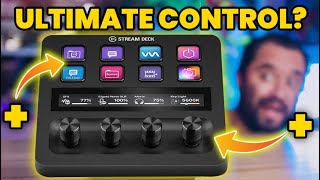
Stream Deck Plus is game-changing
41sImmediately showcases the new touch screen swipe to change pages, solving a major pain point for users.
▶ Play ClipThe Stream Deck Plus by Elgato adds four knobs and a touch screen, sacrificing seven keys for enhanced functionality. This review explores its build quality, key features like volume control and Discord integration, and how it serves as a command center for streamers and PC users.
The device has 8 keys, 4 knobs, and a touch screen. The touch screen displays knob functions and allows page swiping, eliminating the need for a dedicated page-switch key.
Buttons feel similar to previous models, knobs have a satisfying click. The stand is non-adjustable and unremovable, which is a downside.
Not all functions can be assigned to knobs; only dial-compatible functions work. The host hopes Elgato will update software to allow key functions on dials since dials are also buttons.
The volume controller plugin is a standout feature. It auto-detects all audio sources on the PC, allowing fine-tuning of individual app volumes via knobs. Example: muting Firefox or Discord directly.
The device can adjust OBS audio levels independently of headphone output. A knob assigned to OBS mic level shows real-time changes on the touch screen.
Updated Discord plugin shows user status and volume on touch screen. Users can cycle through channel members by pressing the knob, adjusting individual volumes. Also supports Discord's built-in soundboard.
Swipe on the touch screen to switch pages, saving keys. Example: page 1 for general controls, page 2 for OBS scenes.
Despite higher cost, the Stream Deck Plus integrates with Elgato's Wave Link software for advanced audio routing, EQ, and lighting control. Third-party icon packs (e.g., Side Effects) enhance usability for editors.
The Stream Deck Plus is the best Stream Deck Elgato has made, offering unparalleled control over audio, streaming, and PC tasks. Its combination of knobs, touch screen, and software ecosystem makes it a powerful command center for creators.
"The title accurately reflects the video's content: it explores best uses of the Stream Deck Plus, though it's more of a review than a pure tutorial."
How many keys and knobs does the Stream Deck Plus have?
8 keys and 4 knobs.
What is a limitation of the knobs on the Stream Deck Plus?
Only dial-compatible functions can be assigned to knobs; key-specific functions cannot be used on them.
01:12
How can you switch pages on the Stream Deck Plus without using a key?
By swiping on the touch screen.
00:25
What does the volume controller plugin do?
It auto-detects all active audio sources on the PC and allows individual volume adjustment via knobs.
02:40
How can you adjust OBS audio levels independently of system audio?
Assign a knob to control OBS-specific audio sources (e.g., mic volume) using the volume controller plugin.
04:17
How does the Discord plugin on the Stream Deck Plus handle multiple users?
Press the knob to cycle through channel members and adjust individual volumes.
06:09
What is one downside of the Stream Deck Plus stand?
It is non-adjustable and unremovable.
00:41
Game-Changing Design
Introduces knobs and touch screen, fundamentally changing how users interact with the Stream Deck.
Knob Functionality Gap
Highlights a current software limitation that prevents full use of knobs as buttons.
01:12Volume Controller Plugin Power
Demonstrates a practical, time-saving feature for managing multiple audio sources.
02:40Discord Integration Depth
Shows advanced control over Discord audio and soundboard, enhancing communication during streams.
04:48Ecosystem Value
Emphasizes that the device's true value comes from integration with Wave Link and third-party plugins.
08:08[00:00] The Stream Deck Plus is game-changing. Let me tell you why. I got a went-and-added knob so the Stream Deck and even though it came at the cost of seven keys,
[00:13] the functionality you gain is insane. You have my curiosity but now you have my attention. So the Stream Deck cuts down the number of keys to eight adding four knobs and a touch screen in the
[00:25] process. A cool feature of the touch screen is that any function you assign to the knob is a display above that knob on the touch screen. Even better to change pages you no longer need to waste a key to do that and instead you can just swipe on the touch screen. Great quality of life feature.
[00:41] While the buttons look and feel much the same as previous Stream Deck's, the overall build quality of the device is solid and the knobs have a good satisfying click as you turn them. One downside though is the stand is non-adjustable and unremovable so maybe we'll see those features added in the future
[00:57] as well as possibly making the device a little taller to add another row of buttons to the top. I like buttons, I want more buttons but I don't want to sacrifice the knobs. If you want to personalize this though, a godo does sell different colored knobs so there's always that. Now why is this game
[01:12] changing? Let me show you why. Welcome back. If you're new around here, my name is Chris, this is Coalition Gaming and I like to teach you guys about repairing, setting up and streaming from your PC. If you're into that sort of thing make sure you hit that subscribe button so you don't miss
[01:26] one thing I do want to point out about the knobs or the dials is that you can't assign just anything to them. There are functions that assign to just the keys and functions that assign to just the dials. You can't assign anything that's made for a key to go on a dial so I hope that this is
[01:41] something that Elgato works on possibly updating in the future because the dials are buttons themselves so I would like the idea of being able to use the dial as a button just to make up for the
[01:53] I guess lack of buttons overall on this device instead of being relegated to using only dial compatible functions on the dials. Let me show you what I mean here. You can see here in the software
[02:05] you have keys and you have dials. Now if I try to take a key something like play audio through a soundboard which you should be able to do with just any kind of button press right doesn't necessarily need to be an LCD key could just be one of the dial buttons and I tried to drag it over to the dial
[02:21] nothing can't put it there but then if you see it I can I can put that on the key that's what it's made for but I can't put it on the dial. Now if I go to the dial section then I can go ahead and put whatever I want there. See it lights up now it lets me it's not exactly free to do anything
[02:40] from this side on the dial only from this side. Now the volume controller plugin is almost the star of the show for me because it can do so much in terms of fine tuning and controlling all sorts of
[02:52] different volume levels throughout your computer. What I mean by that is anything that's making noise will pop up as long as you have let's say the auto detection volume controller button assigned to a key and then you press it on the key then you can adjust things with the dial. Okay so right now I've
[03:07] unmuted a bunch of stuff so I have all sorts of stuff playing in my headset you can probably hear it in the background a little bit I have stuff in Firefox stuff in Google Chrome I have media player running if there is a game you'd also see that. So I'll show you I'm going to press the volume
[03:20] controller button right here and I push the button and I get a little list and little things on the dials of everything that happens to be making noise right now. So if I wanted to mute Firefox or just to just adjust the volume of Firefox I can turn it down just like that to tap it to mute it.
[03:35] Discord being noisy I can mute it there too or control its volume as well and you can either push this button here and it will change what's on there or you can just the actual don't swap just push
[03:47] the button there and then you see more things. Now I have Google Chrome that's where crab ravers playing mute that and then OBS as well if you have like alerts making noise you can jump over to that and press that what do I have playing still I have I have my media player so let's see what else is there there
[04:03] is media player let's mute that or let's turn that up yeah having that kind of volume control access without having to look to other windows alt tab mute or just just pushing a button scrolling around
[04:17] a little bit moving the dials is awesome now something else that's really awesome is you can adjust the volume levels of what's inside OBS independent of what you're hearing in your headphones so I've assigned a button to the knob here and if I just turned it down here you can see that my mic
[04:33] ox 2 level is moving up and down that's my OBS volume mixer that I dragged out onto the desktop I'm pointing it you could you could see it moving right there I'm just moving that knob you can see what level it's at it tells you what number right on the touchscreen that's pretty useful recently
[04:48] Ogado updated their discord plugin for all the stream decks but with the stream deck plus you get some additional functionality that I think it's awesome let me show you I'm in a discord server right now and I muted I can just go into my little discord folder that I made here and I can unmute
[05:02] discord with the button what see and a couple of what's over there and but you can see here dynamically also showing on the button or rather on the touchscreen discord volume discord it shows you that
[05:16] you know your current status muted or I can or I can turn them down like that muted back up but while it's muted I can turn them back up but what's also cool is you can adjust individual volume
[05:28] here now this one will show the active user that's speaking but the one and it's actually really nice in that it updates in real time so whenever somebody's talking that one will light up but here's the
[05:41] problem that I've encountered with it is that it doesn't dynamically update who is talking it will change depending on like if I swipe and swipe away I go here right here somebody else is talking
[05:53] nope still on that person and let me see real quick doing good okay it's only on one user so that one can use a little work and actually just spending another couple of seconds with it I figured out
[06:09] how to cycle it between users instead of relying on an automatic method for it to detect who's talking you showed on the screen you can just press the knob down and it will change between who is speaking or rather who's in that channel with you so if you know that somebody's talking and they're being
[06:24] loud you can just go into them and turn them down right there so which users by pushing the button I could probably turn him up a little bit push the button and probably bring down bring him down a little bit that is super neat now furthermore on the discord integration is the ability to push
[06:42] buttons the discord's built in soundboard which is relatively new thing that they added on the stream deck now this isn't specific to the stream deck plus but it's nice that if you wanted to push a button to make a sound effect in discord for your friends to hear and you don't want to
[06:56] use soundpad which is like five bucks have routed through your mic line so that anything anybody can hear most of the time people are just trolling around a discord with it discord has solved that and you could just do this stuff with it by pushing the buttons there that's another useful feature
[07:12] of just a good example of like the power of the plug-ins you get from the Elgato marketplace now another really good quality of life feature on the stream deck plus is using the touchscreen to switch pages no longer do you have to make a button to change pages which would essentially waste a button
[07:26] and considering that you have less buttons on this device that's actually a really smart thing to do so if you just want to change pages again just swipe in there that page one there there's page two
[07:39] and the page two has all my OBS scenes on it so if I wanted to just use that have a page dedicated to that I can swipe over to it no problem and I can go to this scene I can go to this scene
[07:52] and you know really useful of course I keep saying that but that's all this devices it just makes everything so useful one complaint people have had about Elgato stream decks has been that they're kind of expensive and cheaper free options that do much of the same functionality do exist however
[08:08] there's nothing out there like the stream deck plus the fact this enables access to Elgato's top notch wavelength software is the value add that puts this over the top this thing is just buttons and knobs but it gives you the ability to EQ your mic separate your audio between what you want your
[08:24] audience to hear what you what you hear dynamically control volumes of literally anything on your computer for you or your stream and control scenes sources filters and everything stream related it's just awesome
[08:37] and I'm still only scratching the surface of what it can do for example control all the lighting in your room one button turns everything off
[08:52] bam the stream deck plus basically becomes your command center for anything you want to do on your pc and then companies like side to effects exist out there that sell icon and profile packs to make this even more useful for people like photo and video editors in my opinion this is the best stream
[09:09] deck that Elgato has ever made what do you think drop a comment down below and let's talk about it if you like this video you know what to do hit that subscribe button and that bell so you don't miss any uploads also I see my twitch every Friday at 8 p.m. Pacific so swing by drop a follow and let's talk
[09:24] more stream tech my name is Chris and I've been the stream technician catch you guys in the next one
⚡ Saved you 0h 09m reading this? Transcribe any YouTube video for free — no signup needed.