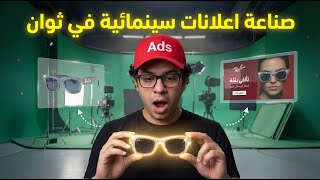

Create Cinematic AI Ads in Minutes
54sHigh-value promise of creating professional ads easily without experience, appealing to marketers and e-commerce owners.
▶ Play Clip"Title promises an easy method and delivers exactly that, though it oversells the 'cinematic' quality and includes a lengthy intro and sponsor-like promotion."
This video demonstrates how to create cinematic promotional videos and image ads for e-commerce products using the AI tool Soda Marketing AI. The host, Yasser Selim, walks through the entire process step-by-step, from importing brand data to generating scenes, editing in CapCut, and adding AI-generated music, all without prior experience.
The video claims that anyone can create stunning cinematic promotional videos in minutes using just one tool, Soda Marketing AI, without prior ad creation experience.
Users can import brand data by pasting a website link (e.g., Ray-Ban) into Soda Marketing AI, which retrieves the name, description, logo, colors, and target customers automatically.
The tool offers two options: 'Product' for physical items and 'Service' for services or local businesses like clinics or gyms. The video chooses 'Product' for the demonstration.
Soda Marketing AI trains on the product by searching online for additional information, saving all data in the account for future ad creation without re-entering details.
Users can generate professional product images using prompts, then convert them to videos. The video demonstrates creating two scenes with specific prompts for images and corresponding video conversions.
The final scene is created as a static ad with brand logo, text, and a 'Shop Now' call-to-action, then converted to a six-second video.
The three video scenes are combined in CapCut (free version) by cutting each scene into half-second or one-second clips and alternating them for a fast-paced, eye-catching effect.
The host uses ChatGPT to describe the desired music, then generates an instrumental track with Suno AI, downloads it, and adds it to the video in CapCut.
The same prompts used for video scenes are repurposed to create static image ads, with resizing options to generate multiple ad sizes for a complete campaign.
The host emphasizes that AI tools save time and money, produce high-quality ads quickly, and give a competitive edge over traditional methods. He encourages subscribing and checking the description for links.
The video provides a practical, step-by-step guide to creating a complete ad package using AI tools, highlighting the efficiency and cost-effectiveness of AI in modern advertising. It encourages viewers to adopt these tools to stay competitive.
What is the main tool used in the video to create ads?
Soda Marketing AI
00:12
What are the two options for adding a brand in Soda Marketing AI?
Paste a website link or manually add the brand.
01:06
What is the difference between 'Product' and 'Service' options?
Product is for physical items, Service is for services or local businesses like clinics or gyms.
01:50
What does 'Train any model' do?
It searches online for information about the product and saves it in your account for future use.
02:32
What is the recommended video length for the final scene?
Six seconds.
06:06
What editing technique is used in CapCut to make the video fast-paced?
Cutting scenes into half-second or one-second clips and alternating them.
07:07
Which AI tool is used to generate the music track?
Suno AI.
08:24
What is the purpose of the final scene in the ad?
To include the brand logo, text, and a call-to-action like 'Buy Now' or 'Shop Now'.
05:36
How can you create multiple ad sizes from one image?
Use the 'Resize' feature in Soda Marketing AI.
09:38
AI-Generated Ads in Minutes
Highlights the core promise of the video: creating professional ads quickly with AI, which is a key value proposition for marketers.
00:12AI Training on Product Data
Explains a unique feature where the tool learns about the product online, saving time for future campaigns.
02:32Fast-Paced Editing Trick
Provides a concrete editing technique to make ads more engaging on social media.
07:07AI vs. Traditional Methods
Emphasizes the cost and time savings of AI tools compared to traditional design, a compelling argument for adoption.
10:35[00:12] created 100% with artificial intelligence, and the best part is that it's incredibly easy to produce in minutes using just one tool. Anyone watching this video right now will be able to create stunning cinematic promotional videos like the one we just saw in minutes, even
[00:26] without any prior experience in creating ads. So, if you have an online store selling any kind of product, offering any kind of service, or work in advertising or marketing, this video will show you step-by-step how to create videos like this in minutes with
[00:40] utmost ease. And it's not just videos; we'll work together, step by step, to create a complete ad package for this product, like this ad, this ad, and others. This way, we'll have created a complete, high-converting ad package that will dominate social media for any product you have. We'll create
[00:54] all these promotional videos and images using just one tool: Soda Marketing AI. If you want to follow along with me step by step, You'll find the link to Soda Marketing AI in the video description. Let's begin, in the name of God, the Most Gracious, the Most Merciful. The first step you'll take
[01:06] after opening your account on Soda Marketing AI is creating your brand. We'll use the famous eyewear brand Ray-Ban as an example today. In this video, we'll copy the Ray-Ban website link and paste it here. Here, you 'll copy and paste your website link or your
[01:21] client's website link. You can also manually add the brand using this option if you don't have an online store or if you prefer to add it manually for any reason. After pasting, click "Import," and Soda Marketing AI will have retrieved all the brand data: the name, a full brand description, the logo,
[01:36] colors, target customers, and other data that will allow us to easily create professional ads that are perfectly aligned with the brand in seconds, without any effort. After reviewing the brand data, click "Create Brand." Here, we'll find two
[01:50] options: "Add Product" and " Add If you're running an advertising campaign for a product like the one we're discussing today, you'll select "Product." If you're running a campaign for a service, such as marketing services, house cleaning services, etc., or if you're running a campaign
[02:04] for a local business like a dental clinic, beauty clinic, gym, you'll select the " Service" option. Since we're running a product campaign in this video, we'll choose "Product." Here, we have two options: we can copy the product page link here, and "Soda Marketing"
[02:19] will retrieve the product details and images. Alternatively, we can click on this option and manually add the data. This time, we'll choose the manual option. This is the product we'll be running the campaign for today. I'll copy the product name here and add a brief description: it's a pair of
[02:32] here and add a brief description: it's a pair of to the product page, download the product images, and upload them here. Then I'll click on "Train any model." In this step, SodaMarketing.ai doesn't just save
[02:48] all the product data; it also searches for all the information it can find online about that product and practices it. This is a great feature of SodaMarketing.ai, as it means the brand and product are now fully saved in your SodaMarketing.ai account. So, when you want to
[03:02] create new ads for this product at any time, you won't need to add this data again. After the training is finished, I'll click on "Create Ad Set" to create the first ad set for this product. Then, from this menu, we'll see that we can create static ads (static ads with
[03:16] images), photoshoots (professional images of the product), and applies to services. Let's start with photoshoots. We'll choose the size 16:9, and
[03:30] then select the "Prompt" option so we can write prompts and get the desired result. We want it exactly like this. We'll start with the
[03:51] can see. It shows us a professional image of a model wearing the glasses, and all the product details are done with great precision; there are no mistakes. Now we'll press " Convert to Video" to convert this image to a video and get the first scene. All the prompts I've prepared for you today are divided into
[04:07] pairs, meaning one prompt creates the image, and the corresponding prompt converts that same image to a video. You'll find them divided like this in the video description. You can use these prompts for any product, not just glasses—any product, of course. Now we'll copy the prompt here and press "
[04:21] Generate," and there you have it, our first video. Let's go! Let's look at this very professional, and every detail of the product is clear and incredibly precise. It's truly excellent. Now we'll repeat
[04:39] prompt. We'll copy the second prompt and go back to Soda Marketing. We'll make sure we're on the Photoshop option and that the size is 16 inches. We'll select Photoshop option and that the size is 16 inches. We'll select Prompt and paste the prompt here.
[04:54] Then we'll click on Generate, and that's how the second image appears. It's an amazing image with incredible precision in displaying the product details. It's absolutely fantastic! Now we'll click on Convert to Video to convert this image to a video. We'll copy the prompt that will convert
[05:08] this image to a video, which is the prompt for the second scene, and click Generate. In a few minutes, the video appears. Let's watch it. It's truly amazing! So
[05:22] and the final scene of the video is still to come. Of course, if you'd like to... Three or four scenes can work in the same way, no problem. But because of the video's time constraints, we'll limit ourselves to two scenes. However, you can create three or four scenes using the same method. Now, the final scene of the ad needs to be
[05:36] different. It must include the brand logo, text, and two-way actions like "Buy Now" and "Shop Now." Therefore, for the final scene of the video, we'll choose "Static Ad" to create a complete image ad. Then, we'll select Arabic,
[05:50] and the size 16x9. Next, we'll copy the prompt from the final scene and add it here, then click "Generate." This will produce a global product ad with images, strong text, a clear and accurate brand logo, and the "Shop Now" call to action. There are no mistakes or anything that needs adjusting.
[06:06] Excellent! The same steps apply. We'll click " Convert to Video," add the prompt that will convert this ad to a video, and this time, we'll choose a video length of six seconds. Then, we'll click " Generate." And that's the final video! Let's watch this
[06:26] these videos into one video in a way that makes it fast-paced and instantly eye-catching, so no one can scroll past it on social media. We'll go to any video editing program or application. Here, I'll use CapCut. You can use any
[06:40] video editing program you like, and the free version of CapCut, whether for desktop or mobile, can do everything we'll do here. There's no problem; you won't need any of CapCut's paid features. We'll add the three videos we have here to the
[06:54] media, then I'll take the first video and put it here on the timeline like this. Then I'll take the second video and put it on top of it like this. Now I want to mix or blend these two videos together, to swirl them together like this. Let's see how we'll do this in a very easy way.
[07:07] We'll do a really cool and easy trick. We'll go to the first scene and scroll like this... I'll cut to exactly halfway through, to the first scene and scroll like this... I'll cut to exactly halfway through, then add the second scene here. then add the second scene here. I'll also cut to exactly half a second, then
[07:25] I have five very quick scenes, each exactly half a second long. Then I'll continue in the same way for the rest of my two scenes, or the rest of the two videos, but I'll cut after every second instead of every half second to add variety to the video. I'll continue until I finish all the scenes I have.
[07:40] Of course, you can have three or four scenes and follow the same method exactly. Then I'll add the final scene as is at the end. This is a clip I can leave uncut. With that, the In the same way we'll add the music track, you can also add a voiceover
[07:55] if you like. We'll go to Shadge Beattie and I'll simply tell him, in Arabic or English, that I'm making an advertisement for Ray-Ban sunglasses. I can add a link to the product page, for example. I'll explain to him that the video is fast-paced and consists of overlapping scenes, each half a second long, followed by
[08:08] longer scenes, each a second long. Then I have a closing scene in Call to Action. I'll ask him to give me a short description in a sentence of a music track that would work with this ad. He gives me the text, so I'll take this first part and copy it. I'll go to a tool called Sonu, which is one of the best tools
[08:24] for creating music with artificial intelligence. There are many other excellent tools, like 11Labs, for example. I'll select the word "instrumental" because I want an instrumental track, not a song. Then I'll paste the description from ChatGPT here and click "Create." In a minute, the
[08:37] required music track will appear. I'll download the track and go back to CapCut and add it below the video video, but pay attention to this part and choose an ending that suits the video, meaning the music should be complete. Unbelievable cuts! And that's it. We'll click on Export, and this is the final result. It's
[09:09] fantastic video ad. Okay, but to create a successful advertising campaign, I need to make other ads with images alongside the video ads. We want them to be in the same style, meaning cinematic as well. Since I'm creating cinematic ads here, we'll do this very easily. We'll go back to
[09:23] our ad group on Soda Marketing.ae and take the prompt we used to create the first scene image. It's exactly the same, but this time we'll use it to create a complete image ad. So, we'll choose Static Ads, select Arabic as the language, choose the size, then paste the prompt
[09:38] here and click Generate. Wow, an amazing image ad! Now, to complete the campaign, I'll need at least two more sizes of this ad. No problem at all. We'll click on Resize, and I'll generate two more versions of the ad in two different sizes, as you can see. Now I have the
[09:53] other two sizes. And so, I can repeat the same steps using the Prompts we used for the second scene, and create a second, third, and fourth ad. I can make each ad the size I need and convert all the ads into videos. From here, I can create a very strong, huge, and high-conversion ad campaign that, God willing, will guarantee
[10:06] From here, I can create a very strong, huge, and high-conversion ad campaign that, God willing, will guarantee because your ads are very strong and stronger than the ads of competitors who are still using traditional methods in advertising, but also because you can create them quickly, in
[10:20] large quantities, and at a low cost. This has become a significant factor in the success of any advertising campaign today. Of course, you can also use all these ads as posts on social media, Instagram, TikTok, Snapchat, and others. This way, you'll have completed your marketing cycle perfectly. Let's
[10:35] quickly review all the creatives or ads we made for the product Ja.
[11:04] very low cost, would normally require a whole marketing team to work on for a week just to achieve results like these. The AI revolution is changing the advertising and marketing industry forever, just as it's changing all other industries. So, if you're still relying on designers and traditional design programs
[11:17] like Canva and Photoshop, you're way behind and wasting a lot of time and money. Use modern AI tools like Soda Marketing AI in your advertising and social media posts. You'll save hundreds of dollars and dozens of hours of work, and you'll
[11:31] crush your competitors. Don't forget to check the links in the video description; you'll find things there that will greatly help you on your journey. And if you have n't subscribed to the channel yet, subscribe now and activate the bell to receive very valuable videos. Thank you very much. This is Yasser Selim signing off, and I'll see you
[11:43] in a new video. Peace, mercy, and blessings of God be upon you.




⚡ Saved you 0h 11m reading this? Transcribe any YouTube video for free — no signup needed.