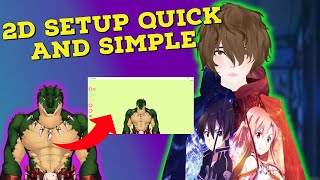
Why 2D VTubing is Exploding
45sTaps into the growing VTuber trend with a promise to solve a common problem.
▶ Play ClipThis tutorial demonstrates how to import a Live2D model into VTube Studio, set up webcam tracking, and configure the software for OBS streaming. It covers downloading the free version, importing the model, adjusting settings, and integrating with OBS.
Open Steam, search for VTube Studio, and download the free version to test your model. The paid version ($17.49) removes the watermark.
Double-click anywhere in the VTube Studio window to bring up the menu for avatar import, settings, etc.
Click the avatar icon (person icon) on the top left, select 'Import your own model', then click 'Open folder'. Drag your Live2D model folder into the opened folder. Close and reopen VTube Studio to detect the model.
Click the avatar icon again, double-click your model's name, then click OK. Choose 'Auto setup for iPhone/webcam' to create tracking parameters.
Your Live2D model must be rigged before importing; otherwise, tracking steps won't work.
Double-click the avatar, click the gear icon, then the webcam icon. Select your webcam, resolution (e.g., 1080p), frame rate (e.g., 60fps), and color format. Turn on the camera; you may need to purchase the webcam tracking DLC.
Use blink sensitivity, eye open sensitivity, and other settings to fine-tune tracking.
Click the photo icon, choose 'Color picker' background, then enable 'Transparent in capture' for a transparent background. In OBS, add a Game Capture source, select VTube Studio window, and enable 'Allow transparency'.
Enable 'Remember scene' to save layout. Use Wi-Fi or USB connection settings to use a phone as a webcam. Enable virtual webcam for use in Discord, Skype, etc.
In OBS, add Game Capture source, name it 'VTube', select 'Capture specific window' and choose VTube Studio, enable 'Allow transparency', then position and resize the avatar as desired.
VTube Studio is a powerful and user-friendly tool for Live2D vtubing, offering extensive settings and seamless OBS integration. Supporting the developers by purchasing the software is encouraged.
"The title accurately promises a VTube Studio tutorial, and the video delivers exactly that."
What is the first step to import a Live2D model into VTube Studio?
Click the avatar icon (person icon) on the top left, select 'Import your own model', then click 'Open folder'.
1:54
Why must you close and reopen VTube Studio after dragging the model folder?
Because the software will not detect the model otherwise.
2:48
What is the prerequisite for importing a Live2D model into VTube Studio?
The model must be rigged.
4:04
How do you enable transparent background in VTube Studio for OBS?
Click the photo icon, choose 'Color picker', then enable 'Transparent in capture'.
6:33
What OBS source type should you use to capture VTube Studio with transparency?
Game Capture with 'Allow transparency' enabled.
10:19
What does the 'Remember scene' setting do?
It saves your layout so that everything you selected before shows up again when you reopen the software.
7:44
How can you use your phone as a webcam in VTube Studio?
Via Wi-Fi connection settings or USB settings, using the VTube Studio app on iPhone or Android.
8:04
What is the cost to remove the watermark in VTube Studio?
$17.49.
1:18
Free vs Paid Version
Explains that the free version can be used to test the model before purchasing to remove the watermark.
1:18Crucial Step: Close and Reopen
Emphasizes that failing to close and reopen the software will prevent model detection.
2:48Rigging Prerequisite
Highlights a common pitfall: the model must be rigged before import.
4:04Transparent Background Support
VTube Studio supports transparent background natively, eliminating the need for chroma key.
7:00VTube Studio Triumphs Over 3D Software
The creator claims VTube Studio is better than many 3D vtubing software due to its settings and care.
11:30[00:00] hello everyone my name is anubislives and i'm
[00:06] insanely popular and sadly there isn't a lot of
[00:13] model into applications like vtube studio but
[00:18] to show you on how to import your live 2d model
[00:25] happen to like today's video or the content i am
[00:30] like and subscribe button by liking the video you
[00:35] by subscribing you help the channel itself
[00:40] consider checking out my twitch my twitter and
[00:45] and ping comments down below but enough about all
[00:51] open up steam and go to v tube studio now here we
[00:58] tube studio and we see it actually auto completes
[01:05] going to download the free version of the software
[01:11] sure it works the way it should as soon as we do
[01:18] to remove the watermark but if you can't afford
[01:24] that's done downloading and installing all we need
[01:31] now that we have the application itself open we're
[01:35] left hand side that appears all you got to do to
[01:40] the window and as you see this now appears so we
[01:46] on the screen and our settings let's first tackle
[01:54] right now we're going to click on this little icon
[01:59] i'm going to bring up this now we have import
[02:05] the software what we're going to do is we're
[02:10] tell us where the path is but handy enough they
[02:17] now that the folder actually opened we
[02:24] if you're using typically a 3d avatar you're going
[02:31] actually imports with all these different little
[02:36] we're just going to keep all of our avatar stuff
[02:40] it into the live 2d close this click ok here close
[02:48] now this part is very crucial because if you don't
[02:54] no matter how long you wait i also want to give a
[02:59] at twitch.tv forward slash thorntail swamp he was
[03:06] video so make sure you go say hi give a follow and
[03:12] software reopened what we're going to do is we're
[03:18] gonna see that the name of our avatar is located
[03:23] and then we see that it gives you some
[03:29] all that fun stuff we're just gonna click okay
[03:35] setup for model actually i kind of do so we're
[03:40] click on that it'll create 19 new vts parameters
[03:48] is set up so we're going to zoom in just a little
[03:52] with the scroll wheel move the avatar around with
[03:59] pretty good right there but we aren't done
[04:04] we go too too far i want to make sure that you
[04:08] before you bring it into v tube studio the main
[04:14] these next steps probably won't work so make sure
[04:19] the tracking on your avatar what we got to do is
[04:23] little gear icon we're going to click it and we're
[04:29] top left hand side right here we're going to see
[04:35] yours is probably going to be set to the wrong one
[04:40] to the appropriate webcam now your webcam might be
[04:46] select your webcam and then hit select it's going
[04:54] because that's what my camera can handle we're
[04:59] per second because again that's what my camera
[05:04] to hit select and then right here it says please
[05:12] or cpu performance click on whatever one you
[05:17] click on yuy and then i'm going to hit select
[05:24] camera so let's click on the camera on and this
[05:31] you to purchase v tube studio webcam tracking
[05:38] please please please do so please purchase this
[05:44] this and i'll explain to you a little bit later
[05:51] well everything's kind of working we see that i'm
[05:58] perfect perfect it's hey i'm winking perfect
[06:06] now let's take a look at some other settings
[06:12] all these little different settings you can play
[06:19] set up all right so now let's take a look at some
[06:23] for obs but not only that this program actually
[06:28] think we really should take a look at all right
[06:33] what we're going to do right now is click on this
[06:40] see there's a lot of different backgrounds
[06:44] but what we're going to do is we're going to
[06:49] right now it pops up with a prompt please
[06:53] with transparent background on windows so you
[07:00] in your capture software to use this activate the
[07:08] capture in obs with the option allow transparency
[07:16] best in your capture so we're actually going to
[07:21] well it's already selected transparent in capture
[07:27] out some very noteworthy settings so let's bring
[07:32] the gear icon and we see here hide v tube studio
[07:39] on the bottom left-hand side we're gonna keep that
[07:44] is remember scene what that does is basically
[07:50] you have selected before shows up again open data
[07:57] connection settings wi-fi what this lets us do is
[08:04] have this built-in and they have an app that
[08:09] that allows you to connect all your stuff
[08:14] own a webcam your iphone or your android phone
[08:21] we're going to scroll down a little bit more and
[08:26] via usb that is definitely a doable thing mouse
[08:33] microphone settings so right now it is capturing
[08:40] the webcam so if you want to use your microphone
[08:45] good scroll down a little bit more nothing
[08:49] webcam icon again and we see quality and effects
[08:55] it to whatever you want we also have a virtual
[09:03] i played with it a little bit it is fantastic
[09:10] feed out to discord skype whatever you can just
[09:16] instructions fantastic software all right we're
[09:21] we see that's the model and we can actually
[09:27] but again auto blinking auto breathing inputs
[09:34] it's looking one way or looking another this is
[09:41] with this software so we got here the little film
[09:49] hotkeys basically this is stuff for recording if
[09:56] your obs stuff this is where you can play with
[10:01] the settings let's get this into obs and fully
[10:08] set up and ready to go if it is not please check
[10:14] where i guide you through setting up all your
[10:19] now is under sources we're going to click on
[10:24] game capture under game capture we're just going
[10:29] ok then we're going to go to mode we're going
[10:35] to click on v tube studio and then we're going to
[10:41] the background and then click ok then what we're
[10:47] position so down and right here is the watermark
[10:55] really suggest that you buy the software if you
[11:00] absolutely deserve every penny in fact i
[11:06] plan on getting a 2d model in the future and i
[11:12] right now we can just move it to where we need
[11:17] but adjust it to where you want it and you can
[11:23] 2d software i checked out so far v tube studio is
[11:30] i actually think v tube studio triumphs over a lot
[11:36] and care they put into it a lot of settings uh
[11:43] 3d v-tubing software creators i'm calling you out
[11:50] maybe you can twist your own version of it again
[11:56] monday wednesday friday evenings come on by say hi
[12:03] and well i'll catch you in the next one bye lizard
⚡ Saved you time reading this? Transcribe any YouTube video for free — no signup needed.