
Make Money When Market Falls
37sChallenges common belief that you can only profit in rising markets, appealing to curiosity.
▶ Play Clip"The title accurately promises a step-by-step mobile guide for beginners, and the video delivers exactly that."
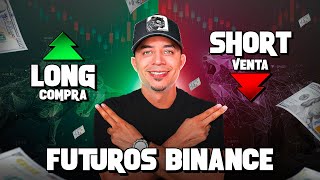
This video provides a step-by-step guide for beginners on how to trade cryptocurrency futures using the Binance mobile app. It covers the basics of futures trading, leverage, risk management, and practical instructions for setting up and executing trades.
Futures allow you to profit from price movements without owning the asset. You predict whether the price will go up or down, and if correct, you earn money.
Leverage lets you trade with more money than you have. Example: $10 with 10x leverage gives a $100 position. A 10% price increase doubles your money, but a 10% drop liquidates your position.
With 50x leverage, a 2% drop wipes you out; with 100x, just 1%. Higher leverage reduces margin for error.
Beginners should start with small amounts to learn. Binance allows trading futures with minimal capital.
Download the Binance app, log in, and switch to Binance Pro mode to access futures trading.
Buy USDT (digital dollars) using local currency via the Spot wallet, then transfer to the Futures wallet.
Tap 'Futures' at the bottom, then 'Claim' to open the account. Select 'Advanced' level for full leverage access.
Ensure USD-M is selected. Set position mode to 'Coverage' (hedge mode) and margin mode to 'Isolated' to limit risk to the trade's capital.
Set leverage low (2x or 5x) for beginners. Higher leverage increases risk.
Use single asset mode so each trade is independent; losses in one trade won't affect others.
Select 'Market' order type. Enter the amount in USDT. The initial margin shows the capital required based on leverage.
Based on bearish 15-minute candles, the presenter opens a short position with 5x leverage, setting take profit and stop loss.
PNL shows real-time profit/loss. Entry price, mark price, and liquidation price are displayed. Liquidation price is where margin is lost.
After opening a trade, tap TPSL to set profit and loss limits in USDT. This automates exit at desired levels.
Tap 'Close Everything' and select 'Close with Market' to exit the position immediately.
With 40x leverage, a $200 position requires only $5 margin. This amplifies both gains and losses.
Futures trading offers opportunities to profit in both rising and falling markets, but leverage magnifies risk. Beginners should start with low leverage, small capital, and proper risk management to learn effectively.
What is the key difference between spot trading and futures trading?
In spot trading, you own the asset and profit only if the price rises. In futures, you predict price direction and can profit from both rises and falls without owning the asset.
00:13
How does 10x leverage work with a $10 investment?
With 10x leverage, a $10 investment opens a $100 position. A 10% price increase yields $10 profit (doubling your money), but a 10% drop results in total loss of $10.
01:16
What happens to a trade with 50x leverage if the price drops 2%?
With 50x leverage, a 2% price drop causes total loss of the margin (liquidation).
02:13
What is the recommended leverage for beginners?
2x or 5x leverage is recommended for beginners to limit risk.
07:36
What is the difference between isolated and cross margin mode?
Isolated mode limits risk to the capital used in that trade. Cross mode uses your entire available balance as collateral, risking more.
07:21
What is the purpose of setting a stop loss?
A stop loss automatically closes a trade at a predetermined price to limit losses.
12:33
What does 'PNL' stand for and what does it show?
PNL stands for Profit and Loss. It shows the current profit or loss of an open trade in real money (USDT).
11:29
What is the liquidation price?
The liquidation price is the price at which the trade will be closed automatically and you lose all the margin used for that trade.
12:07
Why should you select 'Advanced' level when opening a futures account?
Selecting 'Advanced' gives full access to leverage options, while 'Beginner' may limit maximum leverage.
04:36
What is the advantage of using single asset mode?
Single asset mode keeps each trade independent, so losses in one trade do not affect the margin of other trades.
08:07
Futures vs Spot
Clearly explains the fundamental difference between spot and futures trading, setting the foundation for the tutorial.
00:13Leverage Example
Provides a concrete example of how 10x leverage works, illustrating both profit potential and risk of total loss.
01:16High Leverage Risks
Quantifies the extreme risk of high leverage (50x, 100x) with small price movements leading to liquidation.
02:13Isolated vs Cross Margin
Explains a critical risk management setting that beginners must understand to avoid losing more than intended.
07:21Setting TPSL After Entry
Demonstrates how to set take profit and stop loss after opening a trade, a practical skill for managing positions.
12:33[00:01] money even when the market is falling? Yes, you heard right. Today I'm going to teach you how to trade futures from your cell phone, step by step, without complications and without needing to be an expert. If you're a beginner,
[00:13] this video is definitely for you. First, what is this about futures? When you buy a cryptocurrency on the spot market, the way to make money is by holding it and waiting for the price to rise. If it actually goes up, you win. It's that easy.
[00:26] But in futures you don't need to own the currency or wait months for it to rise. What you need to do is predict whether the price of an asset like Bitcoin, Ethereum, etc., will go up or down. If your prediction is correct, you win
[00:38] money. It's that simple. That's why, in futures you can make money whether the market goes up or down, because the important thing is knowing which direction to trade in. And when that prediction happens, well, in the future, as its name
[00:50] indicates, if at that moment your prediction comes true, you win, if not you lose. However, this is where analysis, your experience, and your understanding of the market come into play. There are many ways to analyze, but that's a topic for another
[01:02] video. Now, let's talk about something that's often mentioned in futures trading: leverage. This may sound a little complicated, but I'll explain it simply. trade with more money than you actually have. For example, if you have $10 and
[01:16] use 10x leverage, you can open a trade as if you had $ 100. This maximizes your profits, but also your losses. Let's look at it with a fairly simple example. Let's assume the price of Bitcoin is
[01:29] 100,000. You decide to open a trade with 10 using 10x leverage. That means your total position will be 100, even though you only put in 10. Now, if the price of Bitcoin goes up by 10%, that is, from 100,000 to
[01:44] 110,000, you earn 10% on your 100 position. And how much is that? 10. This means you doubled your money thanks to leverage. But be aware, this also works in reverse. If the price of Bitcoin drops by 10%, your
[01:58] trade is liquidated and you lose your 10. Why? Because you entered with a position of 100, a 10% drop represents a total loss of your capital, which was 10. So you lose everything. Now imagine you use 50X or 100X.
[02:13] With 50X, a price drop of just 2% is enough to make you lose everything. And with 100x, if the price drops by just 1%, you'd be wiped out. Do you see the difference? The higher the leverage, the smaller the margin of error you
[02:28] have. You can win much more, yes, but you can also lose everything in seconds if you don't manage your entries well. This brings me to the most important point. If you're just starting out, don't get carried away, don't throw all your
[02:40] capital at it, start small. Literally, on Binance you can trade futures from, so there's no excuse not to practice with low risk. Think of this first step as a way to learn, to understand how the market moves, how
[02:52] the platform works. Now, if you're here it's because you're really interested in you already have a Binance account, great. But if you don't have it yet, you're going to description I've left you the official link to Vainas so you can create your account.
[03:06] Additionally, I've also included a video tutorial where I explain step-by-step how you can verify your account by sending a photo of your face and uploading a photo of your ID. With that, Binance will activate your account and you will be able to
[03:18] including the futures section, which is what we are going to look at today. Now then, let's continue from the cell phone. The first thing you need to do is download the pods app. Log in with your email and password. Once you're logged in
[03:31] , look for a small yellow square in the top left corner. a button labeled "Binance Pro" will appear at the bottom. Tap it to switch to the the advanced features, including futures trading. Now, if you see
[03:46] three lines at the top and tap them, and it says Binance Light below, then don't tap anything because you're already on the Pro version. Before trading, you need to fund your account. That means having money in Binance. If you don't know how to do it, I've
[03:58] also included this recommended video tutorial in the description where I explain step by step how to buy USDT, which is like having digital dollars. You can buy from any country you are in using your local currency, whether it's
[04:11] Colombian pesos, Argentine pesos, Mexican pesos, whatever you have. This will give you a balance available to trade futures. Now, let's go into the futures section. At the bottom of the menu, tap where it says "futures". If this is your
[04:24] see a button that says " Welcome." Open your account to trade futures. Today it's time to press the button that says " claim". Next, it will ask you to select your level, whether you are a
[04:36] beginner, expert, or advanced user. I recommend you select advanced here, even if you are new. Because? because this will allow you to have full access to leverage. You can use 2x or 5x if you want, but if
[04:49] you choose beginner, they may limit the maximum leverage you can use, and then changing it might not be so easy. So, we'd better select advanced from the start. You accept the terms and conditions,
[05:01] click next and that's it, your futures account is now active. Now, something showing you is something that appears on a new account I'm using, but it might look a little different to you , maybe because your phone is
[05:14] Android or iPhone, or simply because something happened to it, which it worry, the important thing is that if they ask you any additional questions, they are very simple. You simply answer that question, accept the terms and
[05:27] conditions, and that's it. Once you're finished, you should reach a screen where I show you everything you need to know to place your first trade. Now we're going to set everything up before making any trades. First,
[05:40] make sure it says USD-M at the top. That's the section where we're going to trade USDT, which is the digital dollar I recommended you buy. Right below you will see a pair of coins, such as
[05:54] BTC/USDT, which means you are seeing the price of Bitcoin expressed in dollars. If you tap there, you can switch and choose the cryptocurrency you prefer to trade. On the right side of that pair you'll see a
[06:08] gift icon. That section is designed for people with a bit more experience because it features challenges or tournaments where you can win prizes for trading. Some contests give away thousands of dollars. You can explore it and
[06:22] join to participate whenever you want. Next to the gift icon you will see a Japanese candle icon. This is the price chart. There you can change the time frame of the analysis. If you put it in 1D, each candle represents a
[06:36] day. If you put it on a 4H timescale, each Japanese candlestick represents what happened in 4 hours. If you set it to 15M, you'll be able to see what's been happening in the last few minutes. For a test trade, the 15- minute timeframe can help you see if the
[06:51] price is going up or down. Now you will see three dots on the right side. If you tap it, you'll see an option that says preferences. You go in there and you'll see a section called position details. It's probably in
[07:06] unilateral mode. I recommend switching it to coverage mode. This allows you to open a buy or long position and a sell or short position at the same time. Something useful when you want to hedge risks or test strategies. Further down you will see something
[07:21] that says cruzado or cross. Change it to isolated. This is very important. In standalone mode, you only risk the capital you used in that operation. In contrast, with a cross bet you could end up losing more because
[07:36] your entire available balance is used as collateral. Next to it you'll see the leverage you can adjust if you're starting out, keep it low, for example, 2x or 5x. You don't need anything more than that to practice and learn. Remember what I explained to you. The
[07:51] higher the leverage, the higher the risk. Next to the leverage you'll see a letter, it might be M or S. Tap it. It will show you two options: multiple asset mode and single asset mode. I recommend leaving it as a single asset because that way each
[08:07] operation you make will be independent. For example, if you open a trade in BTC and another in ETH and one is losing money, you won't take funds or money from the other to cover the loss. In contrast, in multiple mode, if one operation goes wrong, it can use the
[08:23] margin of the other, and that can end up affecting both. For more control and to avoid confusion, leave it in single active mode. At the bottom you will see your available balance in the futures account. If you have a balance in your
[08:37] Spot wallet, you can transfer it using the arrows that appear next to it. You tap up there that says spot and down below USD-M. Enter the amount or select the maximum and click confirm transfer. There is no commission charged for doing this
[08:51] because it is an internal transfer between the wallets themselves within pods. So don't worry, you can move the money around as many times as you want. Once you have the money in futures, let's move on to the
[09:03] trading part. The first thing you'll see is an option that says limit. We won't be using that in this video; we can cover it in another tutorial. If you want to make a quick transaction, select market or market price.
[09:16] Next, you will see an option to define the amount of your transaction. You can choose whether you want to see the amount in cryptocurrency, such as BTC or USDT. Below you will see an option that says "show amount by order size" which shows how much
[09:31] of your money will be used to open the operation. Initial margin shows you how much you will buy directly. The clearest way to start is to leave the order size in USDT. This way you'll know exactly how much of your capital you're
[09:45] 've finished the setup. Now we're If you want to change the pair, select it here and, for example, let's trade XRP. When you select it, you'll have to check that nothing changes
[09:58] because suddenly isolated can change to crossed and you leave everything the same as we had left it here in amount. Note that I have 100 USDT. I'm going to specify how much money I want to use to trade this currency. Example, $200. Since
[10:11] we have 5x leverage here in cost, whether long or short, it used for the trade. Example, $40. Because? Leveraged at 5x, that already
[10:23] gives me $200. Before opening a long or short position, let's check the chart here to see if it's falling or rising in 15 minutes . It was moving sideways here , but notice that these last three candles are quite
[10:35] bearish, so I would be more inclined to add a short position. Note: If you want to open this trade with a take profit and a stop the take profit
[10:47] or stop loss will be enabled I'm going to enter a short position, the price would have to reach, for example, 2.6, right? So that I can win. Let's put the 200 back here that were deleted. 2.6
[11:02] tells me how much I'm going to earn. $25. And in stop loss, if it goes up, it doesn't go down, but suddenly rises to $3.1. That's as far as I want to lose $7.98. click here where it says "open short". It will appear as this message. If you don't
[11:16] want it to appear anymore, check this box below and then click confirm. Once you open a transaction, a box appears at the bottom with all the important information. PNL
[11:29] USDT is the current profit or loss in real money. If it's green, you're winning; if it's red, you're losing. Roy is the return on investment. It tells you the percentage of profit or loss based on the margin you used to
[11:41] open the trade. USDT Size is the total value of the trade you opened. In my case I put in $200, but my margin is 40 because I used 5x leverage. Margin rate is the percentage of your capital that is being used
[11:54] as margin relative to the total available. It is sometimes also interpreted as a risk mediator. If it goes up a lot, it indicates that you are using more margin than you should and are approaching a possible liquidation.
[12:07] Entry price is the price at which you entered the trade. Mark price is a real-time estimated price that Binance uses to calculate profits and losses. Liquidation price is the price at which, if the market reaches it,
[12:19] you would lose all the money you put in margin for that operation. In my case with XRP, you know I would lose about $40 if the price reached 3.5. But Anthony, I forgot, I didn't set
[12:33] the operation is open, simply click here where it says TPSL, then here where it says TPSL of position. And I like this one much more because I can set how much money in USDT I want to earn. For example, I want to earn
[12:46] $10 and here it tells me how high the price should go and also how much I want to lose. For example, I just want to lose $5. You'd be risking five the price would have to go and settles you. Let's confirm, then
[13:01] confirm again, and as you can see, the take profit and the opposite SL would already be changed, in case you didn't set it previously. How do I exit? I don't want to wait until it reaches the simple take profit or stop loss. We're
[13:14] going to click here where it says "close everything". Then we'll close everything according to PL or close everything with market. Let's close everything with market and then we'll confirm. The transaction was thus completed. Note that I have
[13:26] 99.64 for each operation. In this case, the result was negative for the example, and they will also charge you a commission, which is almost always around 0.04%, and if you are operating with little capital
[13:38] , it is really very little. Now, look at something super interesting. If I increase the leverage, let's put it at 40x and I want to make a trade, let's put it back at 40x because it didn't work . I have to click here below where it
[13:51] says confirm. Now I really want to do another one for $200. Figure out how much money I need to enter into that operation. Just $5. It's crazy. take profit and without stop loss. Let's open it. And that's it, the
[14:06] order has been opened. He already mentioned here that I didn't set a take profit or stop loss. I select it here. You already know how to position it, and that's it. That was just an deal now. We will always close at market so that it closes at market.
[14:19] your transaction history, you can right. Here you'll see the order history and you'll see exactly if you closed with a loss, if you closed with a profit, and how much commission you were
[14:32] know how to trade futures on Binance. If you liked it, I would greatly appreciate it if you liked it and shared it with someone who is learn. If you have any questions or concerns, please leave them in
[14:46] the comments below, and I will personally answer them as soon as possible. And if you want to learn more strategies for making money through trading, I invite you sharing signals, other tutorials, and I also do
[14:59] cash giveaways almost every week where you can easily win from 10 to 20 direct link to my channel below in the description or in the first pinned comment. I hope you've learned a lot about the basics of
[15:13] futures trading, and I'll see you in the next video. Let's go.
⚡ Saved you 0h 15m reading this? Transcribe any YouTube video for free — no signup needed.