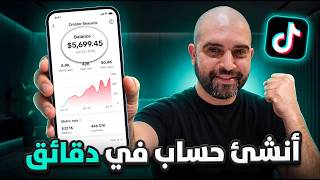

Why 87k Views Only Earned $2 on TikTok?
53sExposes the shocking discrepancy between high view counts and low RPM, sparking curiosity and frustration among creators.
▶ Play Clip"Delivers a detailed step-by-step guide that matches the title; the only minor fluff is the long intro and sponsor pitch."
This video is a comprehensive tutorial on how to create a TikTok Beta account with monetization enabled from day one, targeting high-RPM niches like finance. The creator walks through the entire process, from setting up a virtual French device using MultiLogin to generating AI-powered videos with 2D characters and publishing them for maximum views and earnings.
Many creators suffer from low RPM (revenue per 1000 views) even with high view counts and viewers from high-paying countries like France.
RPM depends on (1) viewer country (US, UK, Germany, France, Australia, Canada are best), (2) niche (finance, technology, business are top), and (3) watch time (higher engagement increases RPM).
Use MultiLogin platform to get a cloud phone with a French IP, set up a virtual Android device, and register a TikTok account using an older email address to avoid suspicion.
After creating the account, set a French-language bio and profile picture. The Creator Rewards Program requires 100 followers and 100,000 views in 30 days; the account already meets the age requirement.
Create engaging finance stories using 2D animated characters narrated in French. Videos should be 1 to 1.5 minutes long, combining entertainment with valuable info to boost watch time.
Use ChatGPT to generate a script and scene prompts. Then use Google Labs' Flow (or similar) to create each scene as an AI-generated video, using the same character for consistency.
Translate the script to French via ChatGPT, then use 11Labs to generate a natural-sounding French voiceover. Download royalty-free cinematic music from websites like Between Sound.
Combine scenes, voiceover, and music in CapCut. Remove all silences from the voiceover, match scenes to narration, lower scene audio to zero, and add auto-captions in French.
Upload the final video to TikTok with a keyword-rich French description and hashtags. Post one video daily to quickly meet the Creator Rewards Program requirements.
By following these steps — creating a geo-targeted TikTok Beta account, choosing a high-RPM niche like finance, and producing AI-assisted engaging videos consistently — you can join the Creator Rewards Program and start earning.
What does RPM stand for on TikTok?
Revenue per 1000 views.
00:55
Name three factors that influence TikTok RPM.
Viewer country, niche, and watch time.
02:00
Which countries have the highest TikTok RPM?
United States, United Kingdom, Germany, France, Australia, and Canada.
02:27
What are the three most profitable niches on TikTok Beta?
Finance (money), technology, and business.
03:19
Why should you choose France instead of the US when creating a TikTok Beta account?
The US version may require identity verification when receiving earnings; France does not.
07:28
What is the minimum video length to earn money on TikTok Beta?
At least 1 minute.
22:50
What are the two conditions to join the TikTok Creator Rewards Program after being over 18?
100 followers and 100,000 views in the last 30 days.
15:00
What tool does the video recommend to get a virtual device with a targeted country IP?
MultiLogin.
05:06
How can you get more credits in Google Labs Flow when they run out?
Create a new account using a different Gmail address.
30:24
What is the ideal video length for TikTok finance stories according to the tutorial?
1 to 1.5 minutes.
23:05
Low RPM Problem
Exposes that many creators earn very low RPM even with high views from good countries, setting up the need for the tutorial.
00:02Three RPM Factors
Clearly explains the key drivers of TikTok earnings, foundational for any creator.
02:00MultiLogin as a Solution
Offers a specific tool to overcome account creation and targeting issues.
04:48Finance Niche + 2D Characters
Reveals a proven content strategy that combines high RPM niche with engaging storytelling.
21:54AI-Generated Scenes
Demonstrates a practical workflow using AI to create professional-looking video scenes for free.
24:22[00:02] TikTok Beta," "TikTok Creator Rewards Program," or "TikTok monetization program for content creators," we'll find many videos. Most of these videos actually discuss how to create a TikTok account with
[00:17] monetization enabled. This means that creating a TikTok Beta account is no longer the biggest problem, as the main issue with making money on TikTok is the low earnings. If we join this group that
[00:29] low earnings. If we join this group that brings together many Arab content creators on TikTok, we'll notice that the problem of low RPM is recurring. For example, this account earned $2
[00:41] low RPM is recurring. For example, this account earned $2 for 87,000 views, even though most of its viewers come for 87,000 views, even though most of its viewers come from France, one of the countries with the highest RPM. RPM, of course, stands for revenue per 1,000
[00:55] revenue per 1,000 views. This account also suffers from almost the same problem. Notice that the RPM, or revenue per 1,000 views, is
[01:07] $0.13, even though it claims that the content is mostly foreign. 100% While some other accounts mostly foreign. 100% While some other accounts earn very respectable amounts, like this account earn very respectable amounts, like this account which earned almost $92, I decided to
[01:21] share with you today how to create a TikTok Beta account activated from day one, and also one of the best niches, the highest in terms of revenue per view, and how to create
[01:35] powerful and free videos using artificial intelligence. All these steps and more will be covered in this explanation. But before we begin, don't forget to press the like button and subscribe to the
[01:47] channel, and activate the bell icon on the "First" or "All" setting to receive notifications for all upcoming explanations. Now, without wasting any more time, let's start directly with the explanation. Peace be upon you and
[02:00] God's mercy. With you is Haitham in a new explanation from the " Out of the Box" channel. I promised you in a previous explanation that I would explain to you how to profit from TikTok Beta, if requested. Indeed, I received many messages asking
[02:13] me to explain the method in detail. But before we move on to the practical explanation, let's quickly explain the KPIs, or the factors that TikTok's algorithms take into account to calculate the revenue. Revenue per
[02:27] 1000 views (RPM) is primarily determined by the country from which your views originate. Simply put, these are the countries of origin. If most of your views come from one of these countries—namely, the United States, the United Kingdom, the United Kingdom, Germany,
[02:40] one of these countries—namely, the United States, the United Kingdom, the United Kingdom, Germany, France, Australia, and Canada—then
[02:52] targeting one of these countries will significantly impact your RPM. Secondly, and naturally, your niche is crucial. The RPM you earn as a content creator depends primarily on advertisers
[03:07] you earn as a content creator depends primarily on advertisers more advertisers are willing to pay to appear in your videos, the
[03:19] higher your earnings will be. So, what niches attract high advertiser interest? The high advertiser interest? The top niches on TikTok are finance (anything related to money), technology, and business. These are the three
[03:36] most profitable niches on TikTok Beta. Of course, other niches exist, such as health. other niches exist, such as health. AI or artificial intelligence also has a high RPM on TikTok Beta, but the three most profitable niches are finance, technology,
[03:53] profitable niches are finance, technology, and business. There's also a third factor: watch time. The more and business. There's also a third factor: watch time. The more
[04:07] viewer engagement your videos or content have, the higher the RPM. For example, if two people target the same niche higher the RPM. For example, if two people target the same niche and the same country, but the first person's audience watches and the same country, but the first person's audience watches 80% of their videos while the second
[04:19] 80% of their videos while the second only watches 30%, the only watches 30%, the first content creator will get a higher RPM (revenue per 1000 views). [Ahem] So, it's important that the videos aren't boring and aren't
[04:34] too long. They should be dynamic, moving, and easy on the eyes. These are roughly the factors that give you a very high RPM. Now, let's [Ahem] move on
[04:48] very high RPM. Now, let's [Ahem] move on to the first step in this explanation, which is creating a TikTok Beta account. As I mentioned, there are many tutorials in this field. To be honest, I haven't watched them all, but I think... Many of these methods are effective, and you can use them to get a TikTok
[05:06] beta account. However, the method I used to get a TikTok beta account activated from day one, and more importantly, one that didn't get shut down, is using the MultiLogin platform. This is not
[05:18] only because it provides a real IP address that we can use to target the country where we we can use to target the country where we want to create the account, but also because it offers a smartphone service that avoids many problems, such as removing the
[05:35] SIM card when creating the account, changing the phone's time, and not using the phone's local IP address. All these problems ultimately lead to account closure. So, in this method, we will
[05:48] use the cloud phone service provided by the MultiLogin platform. However, if you want to create an account MultiLogin platform. However, if you want to create an account using a regular desktop, you can do that, but I personally prefer using the TikTok app instead of the website. So, to
[06:04] create an account on the MultiLogin platform, we will click on Pricing, then we will click on Pay Like Me or Monthly Payment. We can choose between a three-day trial period for
[06:16] choose between a three-day trial period for $2. Here you can get 200 MB of Premium Proxy to choose the country where you will create your to choose the country where you will create your account, as well as 60 minutes of Mobile Cloud.
[06:30] [Ahem] You can download the app and use it on your mobile phone. The most popular package, and use it on your mobile phone. The most popular package, which I recommend, is the Pro package. It offers 1 GB of Premium Proxy and 60 minutes of
[06:45] Mobile Cloud per month. If you choose the Pro version, you can use this promo code, which you can use this promo code, which will give you a 50% discount, bringing the price down will give you a 50% discount, bringing the price down to $6.71 instead of $13.
[07:01] After creating your account on the MultiLogin platform, click on Login or Sign In. Click on Continue. Here, in the account type selection section, choose Mobile. Click Create
[07:14] choose Mobile. Click Create and choose a name for your phone. For example, I will type TikTok. Now, scroll down, and in the Location section, choose one of the countries with the highest RPM.
[07:28] one of the countries with the highest RPM. simple reason: I've noticed in many videos that you If you choose the United States, TikTok might request some
[07:45] identity verification documents when receiving earnings. To be honest, I haven't tried the US version of TikTok; you can verify this information by searching. However, the French version of TikTok doesn't require this step. So,
[07:57] French version of TikTok doesn't require this step. So, in the location settings, I'll choose France. I'll leave the rest of the settings as they are; I only want a French IP address. I won't specify the region or city. But
[08:09] here in the ISP (or carrier), I'll choose Sever, then click on Check Proxy. As you can see here, Sever, then click on Check Proxy. As you can see here, the result is a Check Paste proxy. The proxy is working successfully now. For the OS version or operating system, I'll leave it on
[08:25] operating system, I'll leave it on Android 16, but if you want an older version, you can choose the one that suits you from this list. For the device brand or For the device brand or type, I'll choose Samsung, and for the device
[08:38] model, I can only choose the Galaxy Z Flip, so I'll select it here. In the network settings, I won't Flip, so I'll select it here. In the network settings, I won't choose Wi-Fi; I'll choose Cellular or 4G/ AlphaG. Then, in the Phone Number settings... I'll leave it set to Auto-Generated,
[08:53] Phone Number settings... I'll leave it set to Auto-Generated, and for the location, I'll leave it set to iBezen, which will take the same location as here in the IP address. Then, click on Create. As you can see here in Device Info, I'm using
[09:11] Device Info, I'm using Android 16, and the location is in France. Now, we'll press this button, the Start button, to open the device. We'll click on Run Applications, then Open, to open the device. We'll click on Run Applications, then Open, and wait until all the device settings we
[09:25] selected in the previous step are loaded. By the way, if this is your first time using Multi- By the way, if this is your first time using Multi- Login, you'll be asked to download Login, you'll be asked to download the assistant. Download and install it to
[09:39] open it like this. Now, the account is open. We'll download the TikTok app. So, we'll click on the Play Store, then Sign In, then Skip. We'll enter
[09:56] the password, then Next. I use this account on my phone, so I'll allow this account to log in. Click Yes, It's Me, and select the number 91
[10:14] to allow the account. Upon entering, click Next to be redirected to the Play Store. Click Start Skip. Now, in the search bar, type TikTok. search bar, type TikTok.
[10:31] Click the search button to find the TikTok app. Click Install and TikTok app. Click Install and wait for the app to download and install on your wait for the app to download and install on your new device. The app is
[10:43] new device. The app is now installed. Click Open to launch it and create an account. To create an account using email on TikTok, click on TikTok, click
[10:58] date of birth. It's very important that you are over 18 years old. I will enter my date of birth. Then click Next. As you can see, the app immediately gives us FR (
[11:12] France), but of course, we won't use a phone number; we'll use an email. So, instead of Phone, click Email. Enter your email in this field and click Continue. It's important to note that the
[11:30] note that the email account you use for registration should be an older one. You used it for other services like YouTube, or you used it to create a YouTube, or you used it to create a Facebook account, etc., because new accounts are
[11:43] always suspicious. So, an activation code has been sent to the Gmail account we used for registration. Now, if we go back here, we've received the message. We open it and
[11:56] received the message. We open it and copy this code. Do not click on " Verify Email" because in this case, the account will open in your real browser with the IP address of your country. Only open the account with the IP address you
[12:13] used for registration. In this case, for example, it's the French IP. So, instead of clicking on "Verify Email," we copy this code. We return to the application and press
[12:26] code. We return to the application and press Control, then press Lo. Here, in Add Your Phone Control, then press Lo. Here, in Add Your Phone Number, we press Skip. We Number, we press Skip. We create a password and
[12:38] press Continue. Here, we choose a nickname or username for this account. If nickname or username for this account. If you remember, at the beginning of this explanation, I shared with you the you remember, at the beginning of this explanation, I shared with you the three most profitable niches on TikTok,
[12:52] including... In this explanation, I will target the finance niche, so I will target the finance niche, so I will choose a nickname or username related to this niche. To save time, I will use my friend Chat GBT. Here, I
[13:09] will use my friend Chat GBT. Here, I will write to him: "I'm creating a French TikTok account about finance." I am creating a French TikTok account about the finance or money niche, French TikTok account about the finance or money niche,
[13:28] where I share real stories and some tips about finance and business.
[13:40] account. Now I will send them and choose, for example, this name: "Story of for example, this name: "Story of Millions." So, I will choose this name. Copy, go back to my TikTok account and paste the name. Click on Continue. Here, in the
[13:57] Click on Continue. Here, in the Choose Post Languages section, I will choose French. Click on Next, and here it tells me to browse to start watching. As you can see, here the account has been opened, and the accounts that appear to me are mostly either international or
[14:15] mostly either international or 100% French. Now, if I go to my account and click here on These three lines, then I clicked on TikTok Studio. I activated this option and then clicked on Confirm. Notice here there is the word "
[14:30] Confirm. Notice here there is the word " Monetization" or "Earnings." As you can see, it shows me my balance or earnings. If we scroll down, there is the word "Creator Rewards Program." I clicked on it. Notice what TikTok tells us: "So
[14:47] close to joining the Creator Rewards Program. You are very close to joining the Creator Rewards Program." So Rewards Program." So
[15:00] we are eligible to join this program, and we have already met the first condition by creating an account, which is being over 18 years old. We account, which is being over 18 years old. We only need to meet the other two conditions, which are only need to meet the other two conditions, which are 100 followers and 100,000 views in the last 30
[15:13] 100 followers and 100,000 views in the last 30 days. By the way, these numbers are very easy to achieve on the TikTok platform, especially if your content is good. Now we will click on Notify Me. If you want to be notified
[15:25] when you become eligible, click here. Click on Go. Now we will set up this account. So the first thing we will do is create a logo for this account. We'll go back to GBT Chat
[15:38] and tell them we've chosen this name and ask them to design a logo for this account. So I'll design a logo for this account. So I'll write to them, "I have chosen this name as my write to them, "I have chosen this name as my username. Image this logo.
[15:54] username. Image this logo. Imagine a 2D logo for this account." I'll send it. It seems I've reached the allowed number of image creations on the free GBT Chat, so I'll just ask them to give me the brochure. I'll write, "So give me the brochure to create this logo."
[16:11] give me the brochure. I'll write, "So give me the brochure to create this logo." I'll send it. I'll copy this brochure and go to our website, which I shared with you in previous tutorials. I'll paste the brochure here and send it. We'll wait until
[16:29] send it. We'll wait until Arena gives me two results to choose from. I've got the first result, and the second is still being created. I'll be second is still being created. I'll be satisfied with this result. So I'll click this
[16:42] button, the download button, to upload the image. It's uploaded now. I'll go back to my TikTok account, and before I post... The image in the account needs to be uploaded to the device. To do
[16:54] the account needs to be uploaded to the device. To do this, we will press this button, the this, we will press this button, the upload button located on the right side of the device. If you upload button located on the right side of the device. If you press here, press Draw the file here,
[17:06] select the image, and press Open. We wait until the image is uploaded. The image has been uploaded successfully. Now we will press the location of the image in our TikTok account,
[17:21] then press Upload Photo. Press the lower button, and the image is now on the device. We select it, press Next, then Next, then Save and Post. press Next, then Next, then Save and Post. We wait until the image is uploaded. As you can see,
[17:34] the image has been added to our account. Now we will add a bio or a short description for this account. add a bio or a short description for this account. So we will go back to the GBT chat and write to him, " So we will go back to the GBT chat and write to him, "
[18:02] Give me a bio consisting of one sentence with some targeted and strong keywords." I targeted and strong keywords." I send it. For example, I choose this sentence: "Financeswa send it. For example, I choose this sentence: "Financeswa Dak Kof Kon Lech Bons Gosis." This sentence is
[18:16] strong. I copy it. I go back to my TikTok account, and now we will press here Add In the bio, click the plus sign and paste the sentence here. Control key, press
[18:31] and paste the sentence here. Control key, press save, and that's how our account is ready. As we're used to with any new account on any social media platform, we need to warm up the account. It's not complicated. We just need to look for videos
[18:46] in the same niche we're targeting. We watch a few of them and then interact with them by liking and few of them and then interact with them by liking and commenting. For example, I'll go back to the home page and in the search box I'll type something like "common why." I'll
[19:02] type something like "common why." I'll choose something like "common why gas, how to choose something like "common why gas, how to keep the rich rich." I'll open, for example, this video with Warren Buffy. This is a post, not a video, so I'll browse the images.
[19:17] This is a post, not a video, so I'll browse the images. Then I'll click the like button and write a comment in French. Of course, if you don't know French, you can use Google French, you can use Google Translate. I'll send it,
[19:31] Translate. I'll send it, then I'll browse other videos, and most likely, you'll find more videos in the same niche. For example, this video is also in the in the same niche. For example, this video is also in the finance niche. I'll watch a few of them and,
[19:45] finance niche. I'll watch a few of them and, as usual, click I click the like button, then leave a comment, or perhaps I save the video. I've watched a little of it, so I like it, then leave a a little of it, so I like it, then leave a comment. I might write something like, "Merci
[20:01] d'avouage, partage, ses infosion, thank you for sharing this information." I send it, close the comment box, and press the save button. I continue in this way
[20:15] comment box, and press the save button. I continue in this way until I show TikTok that I'm not here to spam or anything like that. I'm a real user interested in the finance niche. By the way, TikTok
[20:27] interested in the finance niche. By the way, TikTok connects the content you watch with the audience you'll be showing your connects the content you watch with the audience you'll be showing your content to. As a content to. As a
[20:56] on my account. This is the video we saved or pressed save after watching it. If saved or pressed save after watching it. If you notice, this video got 52,000
[21:08] views, even though it doesn't seem very interesting or visually appealing. But despite that, there are There's a huge interest in the finance niche among the French audience. If you look at this, the finance niche on TikTok has an RPM ranging from 50 cents to
[21:25] RPM ranging from 50 cents to $2. As you can see, it's one of the most profitable niches for content creators. This video alone earned at least This video alone earned at least $260, and it's only a minute
[21:41] and nine seconds long. That's why I told you this niche is so lucrative. So, we've completed the first step in this explanation: creating and setting up a TikTok beta account. Now we move on
[21:54] creating and setting up a TikTok beta account. Now we move on to the final step: creating and to the final step: creating and publishing content. To ensure you get the most views in a strong niche like finance, you need to combine entertainment with valuable information. One
[22:09] of the best ways to do this is by creating stories related to finance using 2D characters. Let me
[22:23] give you a real-life example of someone who earns money this way. This channel, called Cryan Capital, This channel, called Cryan Capital, uses 2D characters to tell stories. uses 2D characters to tell stories. Finance-related stories – notice how some of
[22:37] Finance-related stories – notice how some of our videos have garnered 4 million, 2.6 our videos have garnered 4 million, 2.6 million, and 2.2 million views, respectively. This is million, and 2.2 million views, respectively. This is because the stories are both entertaining and informative.
[22:50] Notice how the narrator tells a finance-related story that is also engaging. We will, of course, create much shorter videos, no less than a minute long.
[23:05] This is one of the requirements for earning money on TikTok Beta – the video must be at least a minute long. However, we do n't want the video to be too long. The ideal length for us is
[23:17] long. The ideal length for us is between one and one and a half minutes. To create compelling stories, we will ask ChatGBT to provide us with ideas that are both strong and entertaining in the field of finance. I will leave ideas that are both strong and entertaining in the field of finance. I will leave
[23:35] click the link in the description box to go to our Telegram channel and download to go to our Telegram channel and download this file. This file contains all the prompts for creating the video, from the story idea to the scenes. First, we will copy the
[23:52] master prompt, starting from here and continuing to... Step 3: I copy this Prompt, return to ChatGBT, paste it, and then send it.
[24:07] paste it, and then send it. ChatGBT gives us some very strong topics that we can choose from, or we can simply work on all of them. For example, I will choose we can simply work on all of them. For example, I will choose this first topic: The $65 Billion Fraud
[24:22] this first topic: The $65 Billion Fraud That Served the Entire World. So, I will That Served the Entire World. So, I will copy this title and paste it copy this title and paste it here, then send it. ChatGBT tells us that it
[24:34] understands the topic we want to talk about and will give us a script of 1500 talk about and will give us a script of 1500 to 1800 words. We will tell it that we want a
[24:46] to 1800 words. We will tell it that we want a script one minute to one and a half minutes long at script one minute to one and a half minutes long at most, because these Prompts are mainly for long YouTube videos, but we will use them to create TikTok videos.
[25:00] will use them to create TikTok videos. So, here, I will tell it to create a script for 1 minute to So, here, I will tell it to create a script for 1 minute to colors. Create a script for a video one minute to one
[25:15] Create a script for a video one minute to one and a half minutes long at most. Then, I will send it, and ChatGBT will give us this professional script. Now, we will We create the professional script. Now, we will We create the main character that we will use in all scenes.
[25:29] As we mentioned, the main character will be of the 2D or 2D type. So, we'll go back of the 2D or 2D type. So, we'll go back here and start from Step Re to Step Four. I'll copy and paste the prompt. I'll go back to the GPT chat and paste it, then
[25:46] send it. Now, we'll copy only these main prompts, without the scenes. These main prompts, which will be enclosed in brackets like this, will be brackets like this, will be copied. We'll go
[26:01] to the Flow website, which belongs to Google Labs. We'll click on Next, then Continue. After logging in, we 'll click on New Project. Before starting to create the image, we'll click on the
[26:14] Settings button. So, we'll click here. Here, in Image Generation Default, we'll choose 9 out of 16 and Image Generation Default, we'll choose 9 out of 16 and select to create one image at a time so that the
[26:26] platform doesn't take too many credits from us, as the platform only gives us 50 credits per as the platform only gives us 50 credits per day. So, we'll choose 9 out of 16. Create a day. So, we'll choose 9 out of 16. Create a single copy, then press Save. Now
[26:41] close the settings and paste the Prompt here. Then send it and wait for the Then send it and wait for the platform to analyze the Prompt and create the main character for our story. As you can see, the Flo website has created the main character we will use
[26:59] Flo website has created the main character we will use throughout this story. As you can see, it's the character 2D, which the owner of this channel uses in all his stories. Now we'll go back here and download the image by clicking the Download button. We'll choose 1K
[27:14] Original Size to download the image like this. Now we'll go back to ChatGBT and Now we'll go back to ChatGBT and type
[27:39] Now give me the Prompt to create each scene for this story. I will attach an image of the main character to each Prompt, so you must mention this within the Prompts. Now I will send it. As you can see here, ChatGBT always uses the phrase "
[27:56] Use the H Character Reference Image" by using the attached image as a reference. Now I will copy the first Prompt. Returning to the Flo website, to create the video, we'll click the
[28:09] to the Flo website, to create the video, we'll click the Agent button. Then, we'll click on Video Settings. First, we'll choose a 9x16 aspect ratio. As usual, we'll select "
[28:21] choose a 9x16 aspect ratio. As usual, we'll select " Create one copy" so we can create multiple videos using a single account. We'll choose the View 3.1 Fast model. Click on We'll choose the View 3.1 Fast model. Click on View 3.1 Fast. Now, I'll paste the prompt,
[28:37] then click the plus sign. Using this image, I'll click "Add to Prompt." Now, I'll image, I'll click "Add to Prompt." Now, I'll send it and wait for the first video of our story to be created. The first video has been created! Let's open it to watch.
[29:04] delete the text in the video later because we'll create later because we'll create our own voiceover in French. Now, we'll download this video by clicking the Download button. The video has been downloaded. Here it is. We'll
[29:20] Download button. The video has been downloaded. Here it is. We'll create a folder called "My Video create a folder called "My Video Project." We'll name this first file "One" and Project." We'll name this first file "One" and place it inside the "My Video Project" folder.
[29:32] Now, we'll... By closing this page, we return to the GPT chat and copy the to the GPT chat and copy the second scene. We go back to Flo and paste the prompt here. We click on the plus sign and choose the same image as the reference.
[29:49] We click on Add to Prompt, then send it and wait until the second scene is created. The second scene has been created. Now we open it.
[30:08] download this second scene. Now we go back to the scene, give it a second name, and scene, give it a second name, and put it in the file. Before we create the third scene, notice what appears in Google Flo: "Not Google Flo Credits."
[30:24] [Music] I no longer have credits in Google Flo. What should I do in this step? Simply What should I do in this step? Simply open an incognito browser. Go to Google Flo. open an incognito browser. Go to Google Flo. Log in and create a
[30:38] Log in and create a new account using any Gmail account I have. Click on new account using any Gmail account I have. Click on Create with Google Flo. Enter any email address Create with Google Flo. Enter any email address here. Click on Next. Enter the password.
[30:50] Click on New. Project, and notice with me, I got 50 new credits. So, every time the credits run out in the account, we create a new account and continue with the rest of the scenes. That's why I
[31:04] uploaded the image that we will use as a reference, since we will be using multiple accounts. So now we will go back to the GBT chat, copy the third prompt, and return to the
[31:16] copy the third prompt, and return to the new account in Flow. We click on Agent new account in Flow. We click on Agent as usual, go to Settings, choose Video as usual, go to Settings, choose Video 9/16, and produce one copy. Now we paste
[31:29] 9/16, and produce one copy. Now we paste the prompt and then click on the plus sign. Since we don't have the reference image, we will click on Upload Media and upload the image we click on Upload Media and upload the image we downloaded. It has been uploaded. Now we will
[31:43] downloaded. It has been uploaded. Now we will click on the plus sign again and choose click on the plus sign again and choose the image as a reference. We click on Add to Prompt and then the image as a reference. We click on Add to Prompt and then send it so that the Google Flow platform will start creating the
[31:55] scene. The third scene has been created. Let's open it
[32:12] looks visually appealing. Now we will upload this scene, name it "Three," this scene, name it "Three," and put it in My Project Video, press Save to download the scene like this. Now we go back to Prompt,
[32:27] go to GPT Chat, and in the same way we create the fourth scene. So we paste the we create the fourth scene. So we paste the Prompt here, press the plus sign, Prompt here, press the plus sign, and choose the scene as Reference A to Prompt, then
[32:42] send it. We wait until the scene is created. It's created! Let's watch it.
[33:00] The scene is really very professional. So I'll upload it, name it Four, and put it in My upload it, name it Four, and put it in My Project Video. Press Save to download the Project Video. Press Save to download the scene. We have 26 credits left in this account.
[33:13] So when the credits in this account run out, I'll create a new account using a create a new account using a new email address and create the rest of the scenes until I new email address and create the rest of the scenes until I finish creating all the scenes. So I'll complete
[33:28] some more scenes and then come back to you. So we're back, my friends, and I've created some more scenes. I've created eight scenes. I'll stop here so as not to make the video too long, but you will, of course, create all the scenes to
[33:44] complete the story. Now, after finishing creating all the scenes, we will move on to the next step, all the scenes, we will move on to the next step, which is creating Voiceover or voice commentary, but if you remember when we created the video script using ChatGBT, we got a
[34:01] script in English. In this tutorial, I'm targeting a French audience, so we need to translate this script into correct French while preserving the
[34:14] storytelling technique. To do this, I'll copy the script and then type the following into copy the script and then type the following into ChatGBT: "Cut ChatGBT: "Cut French Language Script." Translate this script into correct French,
[34:28] French Language Script." Translate this script into correct French, keeping the storytelling technique and the same script length. Now, I'll add a colon and
[34:40] paste the script, then send it to be translated into French. Now, we'll go to the 11Labs platform to create a voiceover for free. After creating
[34:54] an account or logging in to the platform, we'll click on "Text to Speech." Then, in the "Voice" or "Audio" section, we'll click on this rectangle. The first thing we'll do here in the "Language" or "Language" section is
[35:07] thing we'll do here in the "Language" or "Language" section is delete... The language, and we choose French. So here I will delete... The language, and we choose French. So here I will type French so that the platform gives me all the voices that speak in French. Now I will choose a voice that suits storytelling,
[35:23] choose a voice that suits storytelling, for example, I will choose this voice. The voice is click on the voice. Now I will go back to the GPT chat and copy the script in
[35:39] copy the script in French, then paste it here. After that, click on Generate. We listen to the story.
[35:59] As you heard, the voice is very strong and has a kind of melancholy, and it is very suitable for storytelling. So if you like the result, you simply click on this button, the download button. Now we have the suitable scenes, we have the voiceover or voice commentary. All that is left is to download
[36:16] music that has a kind of excitement in the background. To do this, we will go to the free website Between Sound and then click on the Pros Music button. Next, we will scroll
[36:29] down a little and here we will select Free Music Only (free music only). Here, in the audio format, I will choose Cinematic or Cinematic. Let's listen to see if there is
[36:42] or Cinematic. Let's listen to see if there is suitable audio for the type of story we are publishing. suitable audio for the type of story we are publishing. For example, this music—
[36:55] I think this music is suitable. So, to download it, I will click on Free Download, then click on Download Music. The music track has been downloaded. Now, all that remains is to combine all Now, all that remains is to combine all these elements into one video. For this
[37:10] step, you can use any editing program, especially Capture the Ripple. After entering Capture the Ripple, I will click on Create Project, then click on Import to upload all the
[37:23] Create Project, then click on Import to upload all the video content. Clicking on Import will start video content. Clicking on Import will start with the music and voiceover. Click on Open, then click on Import again. We will go to the My Video Project folder, press Ctrl+A,
[37:37] My Video Project folder, press Ctrl+A, and upload all the scenes. Now, the first step is to and upload all the scenes. Now, the first step is to add the audio track or voiceover. Then, in Capture the Ripple, we will click on the Ratio button and choose 9/16. Then, we will
[37:53] zoom in on the audio track and delete all the silent areas because silence in the video makes the video appear dull. It's boring, so it's very important to do this step. To do this, we'll click
[38:06] on the audio clip, select the areas with silences (for example, this one), then click the silences (for example, this one), then click the Split button. The silence will end here. We'll Split button. The silence will end here. We'll
[38:25] then select the starting point of the speech and click Split again. Next, we'll delete this section, right-click, and choose Close Gap or Fill Gap. We'll move on to the second silence, click Split, then Split again, delete this section, again, delete this section, right-click, Close Gap, this silence, Split,
[38:40] right-click, Close Gap, this silence, Split, Split again, delete this section, then Close Gap, Split again, delete this section, then Close Gap, and continue in this way until we delete all the silences in the voiceover. (Split, Delete, Close Gap).
[38:54] If you've noticed, in most high-quality videos on most platforms, especially high-quality videos on most platforms, especially shorts, there are no silences at all. As I said, silences, especially in short videos, are boring, and we want the
[39:10] viewer to enjoy the entire video from beginning to end. So, we delete all the silences in this way to make the voiceover flow smoothly. ( The history is not connected to a brackish and connected to the
[39:25] confinement period of more than 40 years, a person who is likely to be able to save people's milliers. The story is continuous and there are no breaks. Now we will add the scenes to the voiceover. Of course, you must concentrate very carefully to place the
[39:42] appropriate scene in front of what is said in the voiceover. For example, this sentence, " La grandon arne vianceirstwar com en bracage," bracage," we place the first scene in front of it like this. Then
[39:54] we shorten the length of the scene. As we said, we must remove the sound from the scenes. We will only use the voiceover sound. So we will click on the scene, then in this menu at the top we will
[40:07] click on Audio. We will click on Audio and lower the sound to zero so that the first scene looks like this: arnek vianceir com en bracage. and lower the sound to zero so that the first scene looks like this: arnek vianceir com en bracage.
[40:24] Then, at the beginning of the second scene, we will place the second scene as usual. We lower the sound: " Pendant more than 40 years, one day to save
[40:37] people's milliers who can use a separate formula. In front of this sentence, we place the separate formula. In front of this sentence, we place the appropriate scene. He convinces the people he will swindle appropriate scene. He convinces the people he will swindle that he has a magical way to make money.
[40:49] As we see, the scene starts from here. We lower his voice. If it's audio, we lower the volume. The scene his voice. If it's audio, we lower the volume. The scene says that for 40 years he has been convincing people that he has a
[41:01] says that for 40 years he has been convincing people that he has a magical or secret way to make money, and this is exactly what we see in the scene: "for 40 years he has been convincing people that he has a magical or secret way to make money." And this is exactly what we see in the scene: "for 40 years he has been convincing people that he has a magical or secret way to make money." Next comes the
[41:14] next scene. As usual, we select it and lower the audio volume. We lower the volume of the
[41:27] music. appropriate scene. We will cut this scene here because it speaks to the truth of the matter, how
[41:43] this person was deceiving his clients. So we lower the volume as usual, then we place this last scene. We lower the volume. So I will stop at this point in the video. I will delete the rest.
[41:56] Of course, you will complete the entire video. I am only showing you the method. So the method is simply to only showing you the method. So the method is simply to delete the silences and then place the appropriate scenes in front of each sentence spoken. Now we will place the background music. So we will take the
[42:12] music. So we will take the music, place it here, music, place it here, and lower its volume like this. Let's listen to see if the background music is loud or not.
[42:31] If the background music is very good, now all that remains is to create the caption. Of course, CapCut allows us to create the caption automatically. To do this, we will press automatically. To do this, we will press Text, then We click on Auto Captions. Here,
[42:44] the language is automatically selected as French. We will click on Generate. The caption is created. Now we will choose a style or method to display this caption. To do this, we will click
[42:57] on Templates and choose, for example, this template. Let's see the result: financière
[43:11] video also looks very professional. It is very easy to attract attention, even if the person is not interested in the field of finance, because in the end, we are telling a story. Now, after finishing
[43:25] placing all the elements of the video, we will click on Export to download it to the desktop. Let's take a look at the final result: par un braquage elle a commencé par la confiance pendant plus de 40 ans.
[43:41] millions of people to use a secret formula to start [music] l'argent. Son nom était Bern Madov. Investors have a number of similar results. Chaque mois, les chiffres augmentaient. Pas de
[43:55] seulement [Music] des profits réguliers. This will return to the magic. May the truth be more often. Madof didn't invest in the money he wanted to do . ‏He uses the argent of
[44:08] new investors to pay for the events, creating an illusion a tour with bricks is not present , so that , so that everyone does not care about this place.
[44:21] Very professional and identical to videos that garner thousands of views on YouTube. For example, this video from another channel got 583,000
[44:33] views using the same techniques we use. Now all that's left is to upload this professional video to our TikTok account. To do this, as usual, we'll click on
[44:47] Upload and upload the video to our device. Click here and select the video. The video has now been fully uploaded. Now we'll go here to our TikTok account and click Upload. We'll select the
[45:01] TikTok account and click Upload. We'll select the video we just uploaded to our device and click Next, then Next again. Now we'll go back to the GBT chat and ask them to write a short description for this video containing some keywords and
[45:18] hashtags that will help the video go viral. Here, I'll write "
[45:41] Of course, I emphasize that it's all in French. I'll send it, so I'll copy this description. I'll go back to the video on TikTok and go back to the video on TikTok and paste it here. Then I'll go back to the line and add
[45:56] paste it here. Then I'll go back to the line and add Copy the hashtags. I paste the hashtag, making sure this option is enabled. If "View This Post" is enabled, everyone can see this post. Finally, I click on "Post," and the video is uploaded.
[46:10] As we can see, it's 96%
[46:36] speed up the process of joining the TikTok Creator Rewards Program is upload one video per day using the same steps I just shared with you. By the way, I will leave you the registration link for the MultiLogin platform and the coupon
[46:52] you the registration link for the MultiLogin platform and the coupon code to get a 50% discount in the code to get a 50% discount in the description box in the first pinned comment, as well as on our Telegram channel, where you will also find the promotions we used to create the
[47:05] scenes, as well as all the tools and websites we used in this explanation. Here we have arrived. That concludes today's explanation. If you enjoyed it, please don't forget to like and
[47:17] subscribe to the channel, and activate the bell icon (select "First" or "All") to receive notifications for all upcoming explanations. I wish you all the best and hope to see
[47:31] wish you all the best and hope to see you in a future explanation.
⚡ Saved you 0h 47m reading this? Transcribe any YouTube video for free — no signup needed.