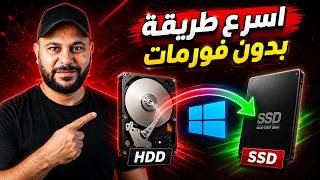

Why Your PC is Slow (It's Not What You Think)
45sRelatable pain point of slow PCs, with a clear culprit (HDD) that viewers will want to fix.
▶ Play Clip"Delivers a clear tutorial on HDD to SSD migration, though it includes a lengthy sponsor segment and some repetition."
This video demonstrates how to migrate a full Windows installation from an old HDD to a new SSD using the ISOS Disk Copy program. The presenter explains the benefits of SSDs over HDDs and provides a step-by-step tutorial, including connecting the new drive, selecting the target, and waiting for the clone to complete. The video also covers pricing and a money-back guarantee.
Windows becomes slow due to full hard drives and outdated HDD technology, which is prone to failure and data loss.
SSDs are faster and more reliable than HDDs, but users fear reinstalling Windows and programs.
This program clones the old hard drive to the new one, including Windows, programs, and files, eliminating the need to reinstall.
It can recover data from non-booting drives and migrate Windows 10/11 without reinstallation. Compatible with Windows 7, 8, 10, 11.
Disk Mode for full clone, System Mode for Windows migration, Partition Mode for specific partitions, and options to burn to USB/CD/DVD or create ISO.
Connect new SSD via USB, select it as target, and choose capacity option (first option for different capacities).
Warning that target data will be erased; proceed and wait until 100%. Took about half an hour in the demo.
After cloning, the new drive contains all folders and Windows files, ready to boot with same settings.
Lifetime license $59, annual $39, monthly $19.90. 30-day money-back guarantee.
Migrating to an SSD using ISOS Disk Copy is a straightforward process that saves time and preserves all data, making it an excellent solution for upgrading storage without reinstalling Windows.
What is the main reason Windows becomes slow according to the video?
Using an HDD (Hard Disk Drive) with outdated technology and a full hard drive.
00:01
What program is used to clone the hard drive?
ISOS Disk Copy.
00:55
What are the three modes in ISOS Disk Copy?
Disk Mode, System Mode, and Partition Mode.
02:23
Which Windows versions are compatible with ISOS Disk Copy?
Windows 7, 8, 10, and 11.
02:07
What is the first option when capacities differ between old and new drives?
Choose the first option to clone as is without modifying capacity.
03:41
How long did the cloning process take in the demo?
About half an hour.
04:19
What is the price for a lifetime license?
$59.
05:12
SSD vs HDD
Clearly explains why SSDs are superior, addressing a common pain point.
00:41Data Recovery Feature
Highlights the program's ability to recover data from non-booting drives, adding value.
01:34Successful Clone Verification
Shows tangible proof that the clone worked, building trust.
04:32[00:01] Many of us suffer from slow Windows operating systems. There will come a time when you feel like you're literally dealing with a tortoise; Windows doesn't respond easily. This has many causes, including having doesn't respond easily. This has many causes, including having downloaded games and programs, and
[00:17] your hard drive is now full. The second, and more important, reason is using an HDD (Hard Disk Drive). This type of drive has outdated technology. You know the kind with discs inside? It's
[00:29] discs inside? It's very slow and more prone to damage. It can fail at any time, and you'll lose your data. The solution is to get an SD card. The solution is to get an SD card. This type of drive has newer technology and is
[00:41] This type of drive has newer technology and is much faster than an HDD. However, we're often worried about installing a fresh copy of Windows, installing new programs, and downloading fresh copy of Windows, installing new programs, and downloading new games, so we find the process daunting. This is where the
[00:55] ISOS Disk Copy program comes in. This program's job is to Disk Copy program comes in. This program's job is to copy your old hard drive and put it on your new hard drive, and it also copies Windows. This means it gives you Windows with all its programs, games, and everything
[01:10] you've done on Windows, and puts it all on the new hard drive. So, you can remove the old one and install the new one without needing to download anything else. All your data will be
[01:22] there. I have the hard drive here, and I'll connect it via USB. After that, I'll make it the primary hard drive and remove the old one. I'll leave the
[01:34] program link in the description and in the pinned comment. As soon as you enter this page, here's the main page, as you can see. By the way, the program handles many scenarios. For example, if you have an old hard drive with a problem and it won't boot, it can recover all the data
[01:51] on that hard drive. And, as I mentioned, it can migrate your Windows operating system, mentioned, it can migrate your Windows operating system, whether it's Windows 10 or Windows 11, without reinstalling it. This helps you upgrade Windows or your hard drive without losing
[02:07] data. It's compatible with Windows 7, 8, 10, and 11. Click on " Windows 7, 8, 10, and 11. Click on " Free Download" So it starts downloading, and you install it. It looks like this; this is the program's interface. As you can see, it's very simple and easy.
[02:23] On the left, you'll find something called Disk Mode. Through this, you can perform a full clone of the hard drive, regardless of whether it's Windows or another operating system. As for System Mode, this is
[02:35] specifically for Windows. Here, it detects that this device has Windows 11 64-bit installed. Here's Partition Mode if you want to clone a specific partition within Windows. This is if you want to clone the disk and burn it to a USB drive, CD,
[02:50] DVD, or create an ISO file. Okay, I'll use System Mode. Then, I'll click on use System Mode. Then, I'll click on Select Target Disk. But first, I'll connect the new hard drive via USB. Then, I'll click on Select Target Disk. Here, it starts searching for the
[03:09] new hard drive because I just connected it. Here, it detects the new hard drive and confirms that it's connected. Using a USB drive, this hard drive has a capacity of 1. I'll start by selecting it, then I'll select it, and then
[03:24] I'll press Next. Here at the top, the old hard drive had a capacity of 238, and old hard drive had a capacity of 238, and here the new hard drive has a capacity of 931, which is about 1. Here's the first option if the capacities are different. If your old hard drive has a
[03:41] different capacity than the new one, then choose the first option. want to modify the capacity, then choose the third option. I'll choose the first option, and then I'll
[03:55] press Here. It will start showing you a warning message saying that the data on the new hard drive or the target hard drive will be erased because it will be overwritten by the new hard drive. So,
[04:07] tell it to continue, and it will start here. You'll have to wait until it reaches 100%. This process might take some time, so we'll wait and see the result together. It's
[04:19] wait and see the result together. It's almost 100% complete. It took about half an almost 100% complete. It took about half an hour. Then we'll press Okay, so
[04:32] go to the computer itself and see the new hard drive. Here it is. All the folders and Windows files have been cloned. As
[04:45] folders and Windows files have been cloned. As you can see, this is the new one, and this is the you can see, this is the new one, and this is the old hard drive. Of course, it took everything. So now, when I remove the old hard drive and insert the new one, it will open with the same Windows, the same
[04:58] new one, it will open with the same Windows, the same programs, and everything else. It's really time-saving. And of course, they have a 30-day money-back guarantee. If you want to see 30-day money-back guarantee. If you want to see the prices, click here. You can buy the
[05:12] the prices, click here. You can buy the software for life for $59, or software for life for $59, or annually for $39, or monthly for $19.90. annually for $39, or monthly for $19.90. Okay, this is for one computer for two computers.
[05:26] Okay, this is for one computer for two computers. These are the prices for education. I'll leave the link in the description in the pinned comment. Peace be upon you.




⚡ Saved you 0h 05m reading this? Transcribe any YouTube video for free — no signup needed.