
Stop Wasting Hours on Faceless Videos
45sDirectly addresses a common pain point for creators, promising a solution that saves time and improves results.
▶ Play Clip"The title promises a complete workflow and the video delivers exactly that—a step-by-step guide with actionable steps, no fluff."
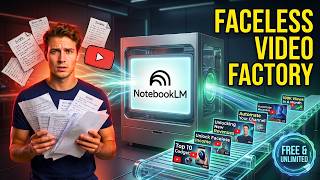
This video presents a complete workflow for faceless content creators to turn Notebook LM into a video factory. It covers validating topic demand using YouTube filters, feeding insights into Notebook LM for scriptwriting, generating a full video, and creating a title and thumbnail—all while emphasizing that human judgment drives uniqueness.
Search for your niche topic plus the word 'explainer' on YouTube, filter by popularity, and set the upload date to 'this month' to see what's currently winning the algorithm.
Only study faceless videos—no talking heads—and pick five recent, top-performing ones. Copy their URLs and paste them into Notebook LM as sources.
Use a custom prompt in Notebook LM to act as a faceless video scriptwriter, asking for a five-tip script based on the sources.
In the Studio panel, select 'Video Overview,' choose the 'Explainer' format and 'Whiteboard' visual style, then hit generate to create a full video with voiceover and visuals.
Add a source with proven title and thumbnail tips, then ask the chat to create three high-CTR title and thumbnail ideas. Refine the prompt to include text on the thumbnail and generate the image with an AI tool.
Every strong result came from human decisions—choosing the niche, format, structure, and final thumbnail. AI speeds up the process but doesn't replace judgment.
Validate demand with YouTube filters
Shows how to use real market data to eliminate guesswork in topic selection.
00:25Study only faceless, recent, top performers
Emphasizes the importance of analyzing videos that are currently winning the algorithm.
01:52Generate the full video inside Notebook LM
Demonstrates how to create a complete video without switching between platforms.
05:47Human judgment drives uniqueness
Highlights that AI provides options, but the creator's choices make the final result unique.
09:58[00:00] Most faceless creators spend hours on every video. Research, script, edit. Every single time. Then it flops. Wrong topic, weak video, or poor packaging.
[00:12] What if you could fix all of it with one simple workflow? Today I'm going to show you how to turn Notebook LM into a faceless video factory. You'll pull proven demand directly from YouTube in under two minutes.
[00:25] Feed those insights into a Notebook LM setup that works as your personal script writer. create the full video without jumping between platforms and finish with a title and thumbnail built to earn clicks and don't worry this isn't just AI your
[00:41] decisions drive the workflow and that's what makes the final results truly unique let's build it open notebook LM create a new project but leave it in the background for now before we touch it we need to figure out what's actually worth
[00:57] making open YouTube in a new tab in the search bar type healthy diet explainer hit search notice what I added the word explainer not just healthy diet hold
[01:11] that thought you'll understand exactly why in a few minutes now go to filters sort by popularity first then set the upload date filter to this month only what you're looking at is real market data these are the videos on this topic
[01:27] actively winning the algorithm right now, not six months ago, this month. This is how you eliminate guesswork entirely. Instead of betting on what you think might perform, you're reading what's
[01:39] already performing. Your starting point is validated before you build a single thing. And this method works for any niche, health, finance, productivity, parenting, tech. Run the
[01:52] any two filters on any topic and you'll always see what has genuine demand right now. Now scroll through the results. Here's something critical. I'm only looking at faceless videos. No talking
[02:04] heads. No on-camera hosts. Faceless content only. The production style of your sources will influence the output you get. Pulling face-forward creator videos will pull your content in the wrong
[02:16] direction. The first video is faceless. It qualifies. Right-click, copy the link, and paste it into Notebook LM. Go back to YouTube, grab the second video, and repeat the same process.
[02:30] Do this for all of them. Quick reminder, at this stage, only pick faceless videos. Once you have five URLs click Next in Notebook LM and let it load That becomes your source library built from what actually working right now Here something important to understand about Notebook LM in its default state
[02:54] Out of the box, it's a research tool. Give it sources, ask questions, get summaries back. That's useful, but it's not what we need here. We need to change what it is before we ask it to produce anything.
[03:08] Click the settings icon inside your notebook. You'll see an option labeled custom. Click it. Then copy in the scriptwriter configuration prompt you can see on screen right now and paste it to
[03:20] notebook LM. I'll also put the prompt in the description. When you save this something important happens. Notebook LM is no longer just reading your sources as research material. It's now operating on two levels at once. First, it's using
[03:36] the actual content from your sources. The health data, the claims, the frameworks from those five videos. That's your factual backbone. Second, and this is what most people never think about,
[03:49] it's absorbing the scripting patterns from those sources. The hook structure, the pacing, how information gets sequenced to hold attention on YouTube. It's learning how these videos are built, not just what they say. That's what transforms this notebook into a script writer.
[04:05] It has a writer's persona now. It knows what a YouTube script needs to do and how it should feel. Now go to the chat tab. You don't need a long prompt here. The configuration already did the
[04:17] heavy lifting. Type this. Write a 1000 word YouTube script about 5 healthy diet tips. That is the entire prompt. One thing worth knowing. List format videos consistently
[04:29] perform well on YouTube. They never really go out of trend. Hit enter. Watch what comes back. The opening part doesn't start with a definition. It doesn't open with,
[04:41] In this video, we're going to cover. It opens with a tension point. Let me read it. You are eating healthy, exercising, and doing everything right. But that stubborn belly fat is still sitting there.
[04:54] You blame your willpower. You cut your calories even more. But your body responds by quietly lowering your resting metabolism to match the lower fuel supply, making you hit a frustrating, exhausting plateau.
[05:08] Here is the undeniable truth. Your body is not a simple bank account based on elementary math. It is a complex chemistry lab. This is a very good hook designed to make someone lean in.
[05:20] Scroll through the body. There's real structure here with five healthy tips. This is YouTube native scripting, built from patterns of content already performing on the platform. And because every claim traces back to those five sourced videos you not working with fabricated information You working with content grounded in what already proven The whole thing took under a minute And now instead of copying this and jumping to a completely
[05:47] separate tool, everything that comes next stays right here inside Notebook LM. Look at the right side of your screen. There's a panel called Studio. Click on it. Underneath that panel, you'll see an option called Video Overview. Click that.
[06:03] Three format options appear on your screen. Cinematic, Explainer, and Brief. Select Explainer. And now you understand why we searched for Healthy Diet Explainer back at the very start.
[06:16] We sourced explainer format content. The script we generated is paced like an explainer. And now we're producing an explainer. The whole pipeline was aligned to one format from step one.
[06:30] Not by accident, but by design. That single word in your YouTube search shaped the entire workflow. Scroll down and choose a visual style. Select whiteboard. It's clean, easy to follow, and naturally fits the educational tone of health content.
[06:47] Hit generate and let it run. Let me walk you through the different parts of the generated video. After that, I'll show you how to create a title and thumbnail that actually get clicks. You know the feeling.
[06:59] That stuff feels like you're doing everything you're supposed to do. And yet, that belly fat, the really dangerous visceral fat around your organs, just doesn't seem to get the memo. It feels like you're fighting a battle you just can't.
[07:11] It's always locked. Your body is programmed to always burn through the easy stuff in the fridge before it even thinks about making the trip down to the freezer. So that's the big question, isn't it? If the freezer door is locked, research shows that visceral fat, that deep, dangerous abdominal fat, has roughly four times more insulin receptors.
[07:29] Biggest myths about fasting. We're always told that not eating will make us tired. This is a strong explainer video with a clear, engaging voiceover and simple yet eye-catching visuals. You'll notice the Notebook LM logo in the bottom right corner sits on a clean background, so you can easily cover it with a white box in your editor.
[07:49] This is what most people miss. You can have a great script and a well-produced video, but if nobody clicks on it, none of that matters. The title and thumbnail are the first thing a viewer sees. They decide whether anyone watches at all.
[08:03] Some would argue they matter more than the video itself. I wouldn't disagree. Go back to the same Notebook LM project. Open chat settings again. This time, we're swapping the configuration.
[08:16] I'm showing a new prompt on screen now. This is the title and thumbnail creator role. Same process Copy it and paste it to Notebook LM Save it Before we generate anything we adding one more source to this setup Open Google and search thumbnail
[08:32] and title tips. Find a credible, reliable result. For example, I will use a source from Google itself. Copy that URL and add it to Notebook LM as a new source. With
[08:45] that in place, Notebook LM is no longer just working from your script. It's now informed by proven best practices for what makes a title clickable and a thumbnail stop a scroll. In the chat type create three high CTR tile and thumbnails
[09:02] for this script. Look through the results. Each option comes with a title, a thumbnail idea, a text-to-image prompt, and a short explanation of why it works. I think the third option is the strongest, but there's one issue. The
[09:17] The prompt doesn't include text on the thumbnail. So I type, For idea 3, recreate the text to image prompt and include text on the thumbnail. Now the prompt is complete.
[09:30] Copy the updated prompt. Open an AI image generator. I'm using Google Gemini with Nano Banana. Paste the prompt and generate the image. Take a look at the result. It's eye catching.
[09:43] A glowing lock against the icy background clearly signals unlocking stored fat. The contrast and bold text make it instantly clear. Now everything is set. Your video, title, and thumbnail are ready to go.
[09:58] I want to step back and point to something easy to miss in a workflow like this. Every strong result here came from a human, you. You chose the niche. You added explainer to your search,
[10:10] aligning research with your format before building anything. You picked which videos to study, faceless, recent, top performers. Those were all judgment calls.
[10:22] You chose the five-tip structure. You reviewed titles and thumbnails and selected the one you believed would perform. At every step, AI gave options, but you made the decisions. That's where uniqueness comes from.
[10:35] Two people using the same process will still create different videos because their choices differ. AI doesn't replace your judgment. It speeds it up. You're the creative director. That's your edge. If you want more workflows like this, drop one word in the comments,
[10:52] continue. That tells me exactly what to create next. And if you're curious about a completely different way to use Notebook LM for faceless content creation, the video on your screen breaks it down. New method, new angle, new workflow. Take a second to check it out as well, compare
[11:10] both approaches, and pick the one that fits you best. Happy creating.
⚡ Saved you 0h 11m reading this? Transcribe any YouTube video for free — no signup needed.