
AI Summary
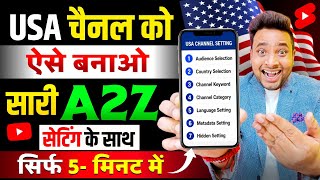
This video is a step-by-step tutorial on how to create a YouTube channel targeting the US audience, with the goal of earning higher RPM (revenue per mille) compared to Indian audiences. The creator demonstrates the entire process, from creating a fresh email and channel to configuring essential settings in YouTube Studio, including channel keywords, video language, and advanced settings. The video emphasizes the importance of using English throughout the channel to attract US viewers and maximize earnings.
Chapters
US channels can earn 10-12 times more RPM than Indian channels (e.g., ₹10 vs ₹120). This motivates creators to target the US audience.
The creator mentions having previously shared easy channel ideas for the US, and promises to reveal the easiest one at the end of the video.
If a US channel's videos are shown in India, the settings are incorrect, leading to lower RPM. Proper settings ensure the audience is from the US.
Start by creating a fresh email (e.g., Gmail) to use for the new US channel, ensuring it has no existing channel associated.
Log in with the fresh email, click 'Create a channel', and choose a name and handle. Ensure the handle is available and avoid using Hindi words.
Edit the channel description, which is crucial for monetization. YouTube requires a description of the content type. Use ChatGPT to generate an English description.
To access the correct channel in YouTube Studio, first go to m.youtube.com, select the channel, then open studio.youtube.com in a new tab. Use the desktop site option if needed.
In Settings, ensure currency is USD. For 'Country of Residence', select your actual country (e.g., India), not the US, as this is for tax purposes.
Enter channel keywords in English, related to your content (e.g., 'comedy shorts'). Use ChatGPT to generate a list of keywords that US users search for. Up to 500 characters allowed.
In Advanced Settings, enable intermediate features by verifying your phone number (Indian number is fine). The third feature (advanced) will unlock after uploading videos.
In Upload Defaults, set Video Language to 'English (United States)' and Title/Description Language to 'English'. This is crucial for targeting the US audience.
Choose the appropriate category (e.g., Comedy, Education) based on your content type.
All titles, descriptions, and tags must be in English. Use ChatGPT or Google Translate if needed. Avoid Hindi words in content and metadata.
The content itself (e.g., green screen comedy) should be in English, with no Hindi spoken. This ensures the video appeals to US viewers.
The creator promotes his personal guidance for creating US channels, claiming to provide a strong system and easy content ideas.
To successfully create a US-targeted YouTube channel, you must set up the channel with English language settings, use English keywords and descriptions, and ensure your content is in English. Following these steps will help you reach a US audience and earn higher RPM.
Mentioned in this Video
Tutorial Checklist
Study Flashcards (10)
How much more RPM can a US channel earn compared to an Indian channel?
easy
Click to reveal answer
How much more RPM can a US channel earn compared to an Indian channel?
10 to 12 times more (e.g., ₹10 vs ₹120).
00:02
What is the first step to create a US YouTube channel?
easy
Click to reveal answer
What is the first step to create a US YouTube channel?
Create a fresh email (e.g., Gmail) to use for the new channel.
01:52
Why should you avoid Hindi words in the channel name?
medium
Click to reveal answer
Why should you avoid Hindi words in the channel name?
To ensure the channel is appealing and relevant to a US audience.
03:11
What is the purpose of channel keywords?
medium
Click to reveal answer
What is the purpose of channel keywords?
To help YouTube understand the channel's content and target the right audience.
09:24
What should you set as the 'Country of Residence' in YouTube settings?
medium
Click to reveal answer
What should you set as the 'Country of Residence' in YouTube settings?
Your actual country (e.g., India), not the US.
09:09
How do you access the correct channel in YouTube Studio?
hard
Click to reveal answer
How do you access the correct channel in YouTube Studio?
First go to m.youtube.com, select your channel, then open studio.youtube.com in a new tab.
07:16
What video language should you select for a US channel?
easy
Click to reveal answer
What video language should you select for a US channel?
English (United States).
12:38
What is the maximum number of characters for channel keywords?
medium
Click to reveal answer
What is the maximum number of characters for channel keywords?
500 characters.
14:15
Why is the channel description important for monetization?
medium
Click to reveal answer
Why is the channel description important for monetization?
YouTube requires a description of the content type to monetize the channel.
05:40
What tool is recommended for generating English descriptions and keywords?
easy
Click to reveal answer
What tool is recommended for generating English descriptions and keywords?
ChatGPT.
06:07
💡 Key Takeaways
RPM Difference
Highlights the financial incentive for targeting the US audience.
00:02Settings Impact on Audience
Explains that incorrect settings lead to Indian audience and lower RPM.
01:11Description for Monetization
Reveals a new YouTube requirement for monetization.
05:40Channel Keywords Importance
Emphasizes the role of keywords in targeting the right audience.
09:24Video Language Selection
Critical setting to ensure content is targeted to US viewers.
12:38Content Language
Stresses that content must be in English to succeed in the US market.
15:21Full Transcript
[00:02] all the new ubers who are coming want to make their own USA channel because they know that a channel in Hindi language, in which whatever system will be there, whatever RPM will be there, it will be 10 to 12 times more on the USA channel, that
[00:15] you are making a channel in India, you are getting a system of ₹10, whereas for USA you will get a system of ₹120, there is so much difference, so people want to work by taking any easy channel not like that in USA, there is a very hard channel, just like you are
[00:32] AI that you are using to make videos in India is the same AI that is used for the USA. I have also given many channel ideas. It is very easy for USA channel, if you have seen it then you will know, if you have not seen it then go to my channel and watch it.
[00:44] I have given all the easiest channel ideas of USA. And in the last of this video, I will for USA on which everyone can work. But the main thing that gets stuck is that all the people say that Sir,
[00:57] we have to make a USA channel. I understood that I had to create this content. But How to create a USA channel? Because brother, whatever settings you make for the Indian channel, the settings for the USA channel are different from that. Because brother, unless you do the right setting,
[01:11] Sir, I have created a USA channel. All the settings have been done. My video is not being shown outside. Because analytics shows where your audience is from? It shows whether it is from India, So when it
[01:26] I have done the right setting. If it is being shown in India then it means the setting is not correct. So if it is being shown in India then brother, it will have no meaning. There will be a you will get RPM as per India. So how to reach out to the viewers so that
[01:39] people can watch it, I will tell you all those settings in today's video. So let's start the video and I will show you everything from A to Z which will be the settings for the USA channel, I will create the channel and do all the settings. So here first of all I have turned on
[01:52] to YouTube. Come on YouTube. The U section appears. Come to this U section. As soon as you reach the U section, you will see the Accounts option. It will be visible above. Come to this accounts option. And here you have to first create a fresh mail.
[02:05] Anyone can create fresh mail. You must know that. I don't know how to make a brother. Watch a 2 minute video on YouTube. You have to create a fresh new mail through which you have to create a channel. So after creating a fresh mail, when you come to the accounts option here, you will see
[02:18] that mail where it will be written 'No Channel'. Like here I have created a similar mail by giving my personal guidance like this. So you will see that it is written below it, no class sorry no channel. So no channel is written, which means no channel
[02:31] is created here. So I will login to the same mail which is written. So I will click on that mail and my login will be done here. Now that I am logged in, I will see the option of Create a Channel. That means no channel has been created.
[02:44] Create a channel on this. So I will click on this. As soon as you go here, you will see the option of pictures. So by going here and After this it is coming that enter the name and the handle has appeared. So brother, I will
[02:59] first select handle under handle and name. Because brother, if the handle of the channel name you want is available then only name it as the channel name. Many people say, ? You can keep any name for USA. Just like you can keep any one for India, similarly you can keep the same for
[03:11] USA. Just keep in mind that none of your words should be such that you have written them in Hindi. Many people write that Ramesh's video and Suresh's video are
[03:24] written like this in Hindi. So Hindi should not remain a thing. Whatever you want to write, Any name is there. Even if it is the name of India, there is no problem. Nothing to do with the name. but India ka is popular in India too, his video is not important for that
[03:39] but yes, don't put Hindi words like I have to put Maan Chalo here [nasal sound] Maan Chalo, there is a boy named Aryan, so I have to make a channel in Aryan's name, so I am making Aryan's Maan Chalo green screen comedy video
[03:51] ? Our video is made on comedy video only. So I'm making Aryan's here. So I will write Aryan Comedy Shorts. I put this. Now I will see if it is available or not. Look, he is searching here.
[04:04] No, it is not available. Aryan Comedy Shs Hub I write. Here I wrote or Aryan Comedy watch it is available but it is becoming a big name. So I am writing Aryan Comedy Hub. See if it is available or not. Look Aryan
[04:17] Comedy Hub is not available. So Aryan Comedy Shorts Sab Now Watch This Will Check Aryan Comedy Shorts Sab It
[04:29] gap in the middle of the handle. Let's write it all together. So Aryan Comedy Short all I wrote together. Look, the tick mark has appeared. That means I can now name it a channel. mark has appeared. That means I can now name it a channel.
[04:43] tick mark appears then I will save it. I found this handle. Now I will go and after every word. Like I wrote Aryan Comedy, then Gap Shorts in between, then Gap Hub in between, I put this. Now I
[05:00] will click on save. Look Aryan Comedy Shorts Hub, the name and handle of this channel has come. There Your channel will be created. As soon as I clicked, you can see this channel is means my channel has been created. Now I will go to the U section. As soon as you go
[05:14] here, you will see the option of view channel. The option of create channel which was So I will click on this view channel. Now as soon as you click here, the option of edit channel will appear. So you have to click on edit. As soon as you click on the Edit Channel option,
[05:27] URL, everything remains as it is. There is nothing to be done about it. The description that is written is important. So you have to go to the pen icon and enter the description and the YouTube has now added a new thing in its monetization that if you are
[05:40] added a new thing in its monetization that if you are working on any channel, then brother, whatever content you are uploading on that channel, it is necessary for you to write it in the description. If you do not write that thing then YouTube will not monetize your channel. Like if you are
[05:52] that yes I make green screen videos on my channel. or AI video I make on my channel, but if you are making a channel for USA then the entire video has to be write English to English. What do we do? There is no problem. I am telling you.
[06:07] Back up. The best thing is right in front of you. Chat GPT. Go to Chat GPT. Ok? Now here I am talking about making a green screen comedy channel. You have to make it to the USA. If you want to create any channel of AI, just say it like that.
[06:21] Like I'm talking. Here I will go to the speaking option. I am making my USA channel on a green screen comedy video. So for that, please So for that, please
[06:35] Now see, the description will come after writing this. If you go and make it for AI, then give it to me for AI. You will make it for the facts. If you ask for a fact, I'll copy it here. There is a copy icon. Copied it. Now after this I
[06:49] will go to YouTube. Here I am on YouTube. I will what will I do, I will paste it from here, see I have pasted it, it is completely written, see, for business inquiry, whatever is written is written, your mail, I will
[07:04] I have to do business inquiry because brother, the channel has not grown yet, when it grows, I will add it, I have put this much. After entering this much, I will click on save. I have already Look, the description has been added.
[07:16] My basic thing is clear. Now comes the matter of setting up. do the setting you have to come inside Chrome. You'll be inside Chrome. This is where Sir comes inside Chrome. When you open studio.com, some other channel
[07:32] opens. What mistake do you make? First you have to go to this option. What I have done here is go to the search icon and click on m.YouTube.com m.ube.com, see I have written it. Have to write same to same. No gap. As soon as you search by writing this, your
[07:46] So look here, you have to come to the U section. As soon as you reach the U section, you will see the and select the channel that you have just created. So I will select this. Now this channel of mine has opened inside myoutube.com.
[08:01] What will I do now? I will open a new tab and as soon as I open a new tab, I will go here and search studio.com, search for here? Look, whatever I write, I have to write it exactly the same. Look, in front of you,
[08:17] I wrote studio.com, you have to write the same thing. There should not be any gap between same to same. Click this. Now look here, it is coming by doing Get This App, so go to the three dots and click on the desktop site option here. If you click here, your YT
[08:30] Studio channel which you have created will open here in Chrome. Now I cannot say that yes sir, mine is not opening. It opened. Look, the continue option is That channel of mine has opened. So first go to mu.com and select your channel.
[08:44] Then when you open study you.com, that channel opens. So there is no thing is open here, you have to do the settings. For settings, you have to scroll down to the corner that you see. For settings, you have to scroll down to the corner that you see.
[08:56] is a setting icon. I will click on this. As soon as you scroll here, you will see that all the setting options have appeared. Now look the currency is USA, US Dollar. There is nothing to get into the channels. As soon as the channels come on, there is Country of Residence. So
[09:09] Sir, should I select USA? No brother, that is not to be selected. Now would Mr. Beast have country? You must have selected wherever you were asked. So that doesn't make any select wherever it says. So which country are you from? Like we are from our beloved country India. So let me
[09:24] comes the keywords. This is very important. Fill in the keywords very carefully. What do you need to put inside keywords? Here first of all the name of my channel is Kartik Here first of all the name of my channel is Kartik S Comedy Shorts Hub, right Kautik Comedy
[09:38] Shorts Hub, first of all I entered the name of the channel, after this here I will make comedy videos, so I will put comedy shorts in English, pay attention to this thing, attention to this thing in the channel keywords, otherwise if you know sir what channel keywords to
[09:52] put for your channel, go to chat GPT Zindabad and write there that I have created my own channel, I have given its channel keywords English to English which people search for USA, I have created a USA channel in English in
[10:04] For that give me the channel keywords English to English. He will give you the complete list in writing. Put that in. All the pomp and show is over. I have put here comedy shh over. I have put here comedy shh comedy shh video, by doing this, whatever you want to
[10:18] write, you have to write it in English. Pay attention to this thing. Comedy Shs Video Shorts YT Shorts will be all in small here. Pay attention to one thing. There will be nothing left in the Capitol. All in use YT Shorts YouTube Shorts
[10:36] YT Shorts YouTube Shorts YouTube Shorts Videos I have put this. In this way, you can enter your channel keyword. That means you have to enter all the channel keywords related to the channel on which you will create content. That's all you have to pay attention to. Have to
[10:48] chat, long live GPT. Go and tell him that brother, I am making a comedy video for you. For that, please write down the USA channel keywords for me. He will Put it in. After entering the channel keywords, come here to advanced settings. As soon as you
[11:04] setting every video. Let it remain here. do in this. After this you will see the feature eligibility coming. Click on this. As soon as you come here, you will see that the intermediate feature is off. There is only one on. So look
[11:18] what is written in the second one. Let me show you the third one first. In the third one, see what is written that if you want to verify then you whatever video is there, if you keep uploading then your verification will be done from the channel history itself,
[11:32] this third one will get can see it is written as eligible, what will you have to do for enabling it, click on it, verify phone number is written as soon as you click on it,
[11:44] your number will appear in front of you, enter the number, as soon as you enter the number, you have to will say sir, for that the number of any other country is not right, enter the number of India only, one sends his code, enter the same code, it will get verified, then the second one will also come with enabled written
[11:57] and if you keep uploading the third video, it will get enabled automatically or go to video verification like this and do this facewar with this, it will get verified with that, okay so you have understood all these settings Click on save, you have clicked on save, again
[12:11] click on this settings icon, come here, now as soon as you come here, see that the channels have been uploaded, go to the upload defaults option, you will go to the upload defaults option, you will see that the title is written, the description what do you need to pay attention to? Visibility: You do n't have to put any tags etc. here.
[12:25] ? Come to advanced settings. Video language is a very important thing, what should I select here? Do not select the video language as Hindi because whatever you make will be for USA and the main thing that comes to mind from here is that brother, what are you making? What about the
[12:38] language? You will keep Hindi selected. Even if you make it in English, it won't work. That's why select the video language. If it is written English India, English Ireland, English United States then I will select English United States. You have to select English United States and not English India.
[12:52] After this, title and description language is written here. ? Here you have to go and select English. Because brother, your title and description will be in English. So I went to English. I will
[13:06] Ok? English Language, United States, Title and Description, United States has arrived. Now look, as soon as you come here, there is a category option. Like I make green screen , I make comedy, so
[13:20] both entertainment and comedy come into it. So I will select comedy. If you are making it based on facts then select education. Whatever category you select for India, Ok? Select it here and as soon as you select it, click on save here.
[13:33] Clicked on save. See, the setting is saved. After doing so many settings, there is no setting left that you have to do. All the settings are done. And let me
[13:45] Otherwise many people will remain confused. Like I went here. Now look I want to make an AI story I went here. Now look I want to make an AI story video. Look, I want to make an AI story video for the USA channel, so please write down the channel keywords related to it and
[14:00] give it to me. All those who search in English to English. Look, I wrote and clicked the arrow. You can see everything, it will come in writing. Look what you say, hey sir look it has come. Look, pick up these and enter the channel keywords. You
[14:15] can enter up to 500 letters. Start by picking up the number and enter it from here, just tell Chat GPT, it will give you everything, enter it and whatever five-six settings were made for you, these are the only settings you have to do, apart from this there is no other setting
[14:30] that you have to do for the USA channel, whatever you were told to do, do this, do that, take it all, it is misleading you, this is the only important setting which is for the USA channel, apart from this there is no other, now keep one thing in mind that whatever USA
[14:42] channel you are working on, the title and disc description which is entered on the USA channel, that title and description is entered in English. That means whatever video you upload, whatever title you will put in English to English, like you will not put it like this,
[14:55] English, like you will not put it like this, look at Saurabh's fun, you will not put it like this, like you will put Saurabh's fun comedy like this, if you do not know English to English, you do not know English, then put it on chat.gpt or go and put it in Hindi on Google Translate, it will
[15:08] paste it, put the hashtag ss and put your title, hashtag you use, you have to use the same hashtag for your USA channel also, you have to write English to English in the tag, that too is yours, you just have to pay attention to this thing.
[15:21] that too is yours, you just have to pay attention to this thing. Just by doing this you will make your content work for USA. Yes, keep one thing in mind that whatever content you create, you should not make it by speaking in Hindi. In that, the
[15:34] , I tell everyone that like Indians here say, hey brother, what is he doing? You speak in between, right? Hey, where is he going? Well, if you are making a green screen for USA in English, then the first channel you select should be from
[15:47] USA. If the comedy is from USA and not from India, then whatever you have to say there should be in English, like 'O where he is going, what they do', you have to say it in English in a simple way, nothing else should be said in English, your channel
[16:01] Hindi language you generate here, attention to all that in the content, but whatever settings you have to do here, I have told you, you have to put the title description tag in English, just keep this thing in mind, now many
[16:16] people might be thinking, Sir, I do not know which channel to make. So brother, let me tell you that I tell each channel to those who are working with me. Let me tell you each setting and each thing. And such a strong system they are making, I can't even tell you. By creating a green screen USA channel,
[16:30] brother has created a very amazing system. You are wondering how to connect with me, so I am But first of all, they do not even have any idea what content to create in the USA channel. If you want something easy, the video will be visible at the top. The
[16:44] easiest channel to access is the USA channel. Now that you have learnt to create a channel, go and watch this video. What is the easy content to create, see it and start creating it and how can you join me below and growing in 20 days, after
[16:56] then start changing your life by joining me and picking up each and every thing, then see how life changes, if you liked the video then like it and subscribe to the channel quickly to let's meet in the next video with new content, till then Jai Hind
[17:11] with new content, till then Jai Hind Vande Mataram